How to Configure Retraction Settings in PrusaSlicer Slicer to Fix Stringing
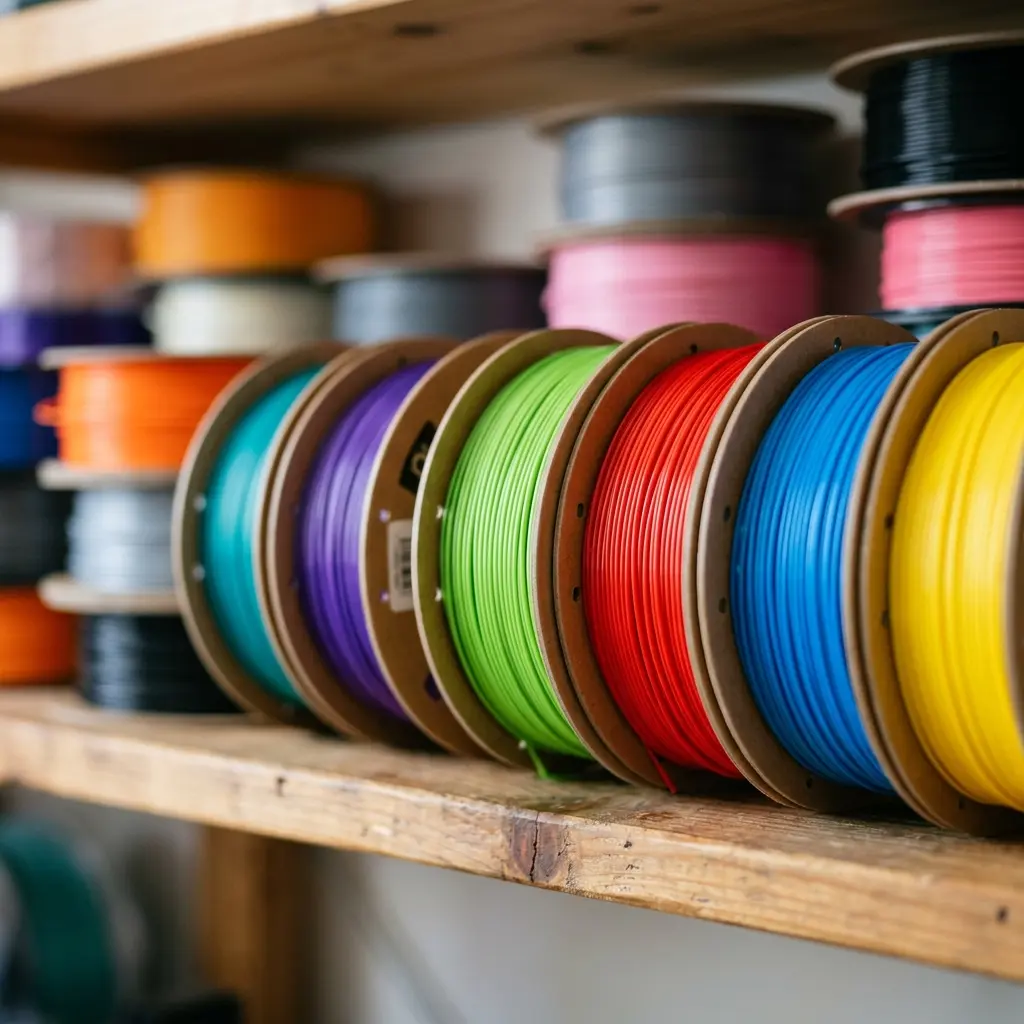
Configuring retraction settings in PrusaSlicer can significantly reduce stringing issues in your 3D prints.
Fix Stringing" loading="lazy"/>Understanding Stringing in 3D Printing
Stringing occurs when filament oozes from the nozzle while the print head moves between different areas of a print. This results in thin strands of plastic that connect separate parts of the model, compromising visual quality.
Factors contributing to stringing include temperature, speed, and retraction settings. Identifying and adjusting these elements can drastically improve print quality.
The Role of Retraction in 3D Printing
Retraction is the process where the filament is pulled back into the nozzle during non-printing moves. By retracting the filament, pressure in the nozzle is reduced, minimizing the chances of oozing.
Setting the correct retraction parameters is essential for achieving clean, string-free prints. These parameters include retraction distance and speed, both of which must be optimized based on the type of filament used.
Steps to Configure Retraction Settings in PrusaSlicer
Configuring retraction settings in PrusaSlicer involves several straightforward steps. The following guide provides a detailed walkthrough:
- Open PrusaSlicer and navigate to the printer settings.
- Select the specific printer profile you are using.
- Go to the “Filament Settings” tab.
- Scroll down to the “Retraction” section.
- Adjust the “Retraction Distance” according to the filament type.
- Set the “Retraction Speed” to a suitable value.
- Ensure the “Lift Z” option is configured if necessary.
- Save the settings and start a new print to test the outcome.
Key Retraction Settings Explained
Understanding the specific settings in PrusaSlicer can help optimize print quality. The following table outlines the essential retraction settings and their recommended values:
| Setting | Description | Recommended Value |
|---|---|---|
| Retraction Distance | Distance filament is pulled back into the nozzle. | 0.5 - 2.0 mm |
| Retraction Speed | Speed at which the filament is retracted. | 30 - 60 mm/s |
| Lift Z | Vertical movement of the nozzle during retraction. | 0.5 - 2.0 mm |
Testing and Fine-Tuning Retraction Settings
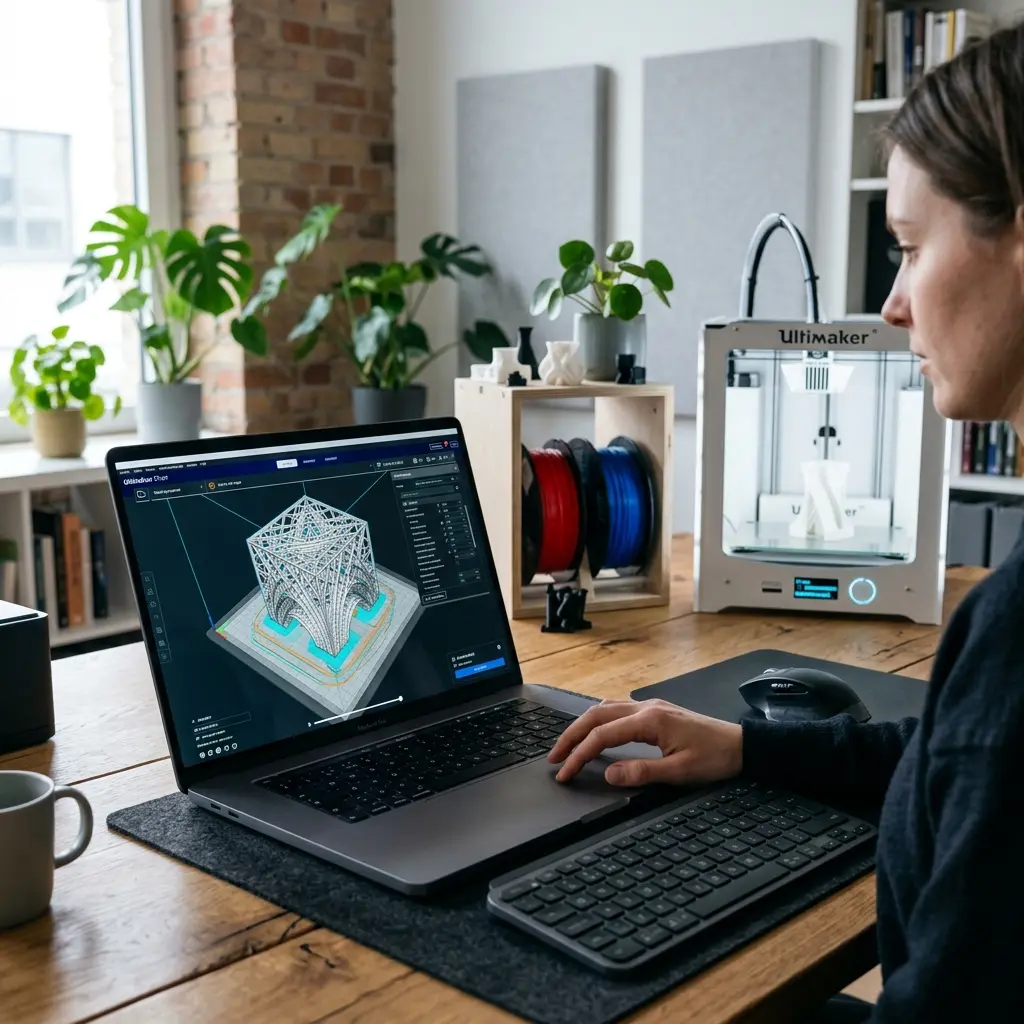
Once retraction settings are configured, testing is crucial to achieving optimal results. It is advisable to print a small test model specifically designed to evaluate stringing.
After printing, assess the model for any visible stringing. If stringing persists, consider adjusting the retraction distance and speed incrementally until the desired quality is achieved.
Additional Factors Influencing Stringing
While retraction settings play a significant role, other factors also affect stringing. These include print temperature, cooling settings, and travel speed.
Lowering the print temperature can reduce filament oozing, while increasing cooling can solidify the filament faster, preventing it from stringing. Additionally, adjusting travel speeds can minimize the time spent moving between print areas.
Common Filament Types and Their Retraction Settings
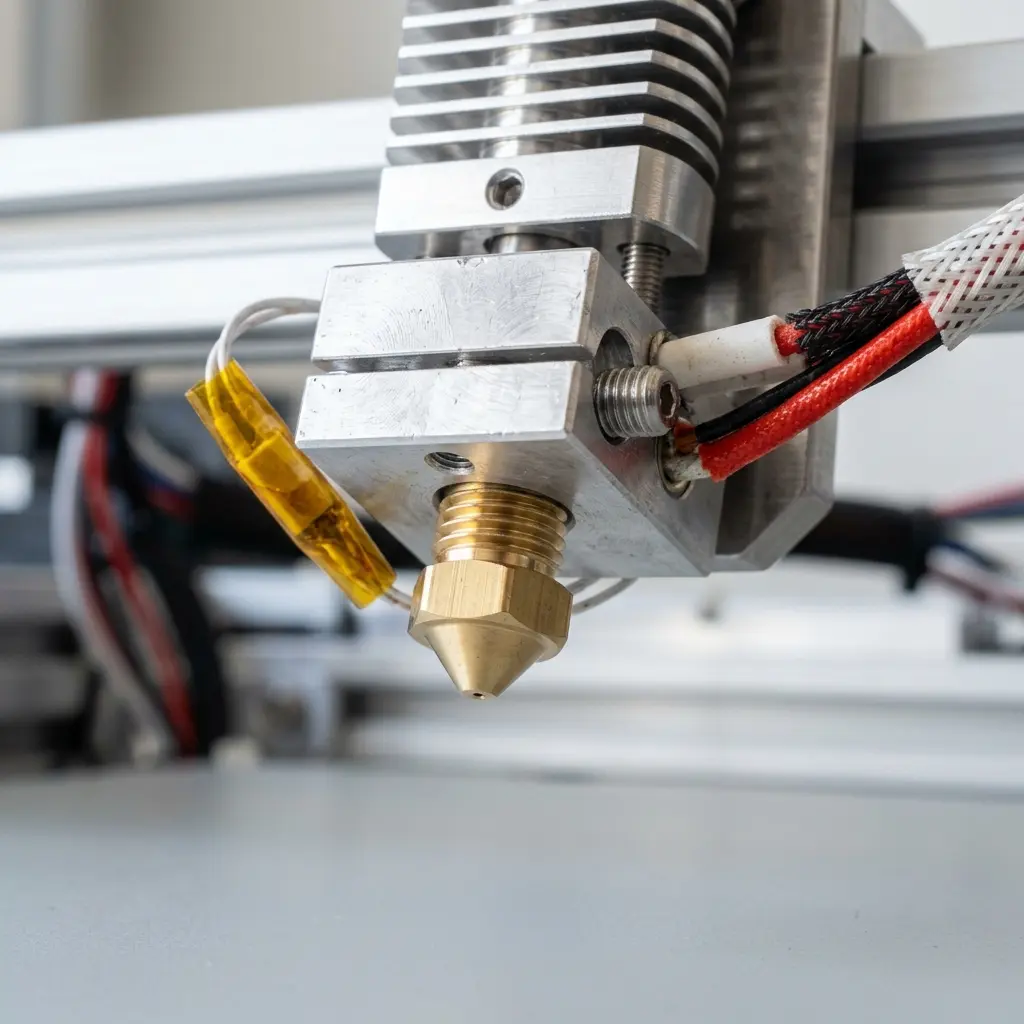
Different filament materials may require varying retraction settings. Here is a brief overview of how common filament types respond to retraction:
- PLA: Typically requires shorter retraction distances and moderate speeds.
- ABS: May need larger retraction distances due to its propensity for stringing.
- TPU: Often requires slower retraction speeds to avoid jamming.
Understanding the unique properties of each filament type helps in fine-tuning retraction settings for optimal results.
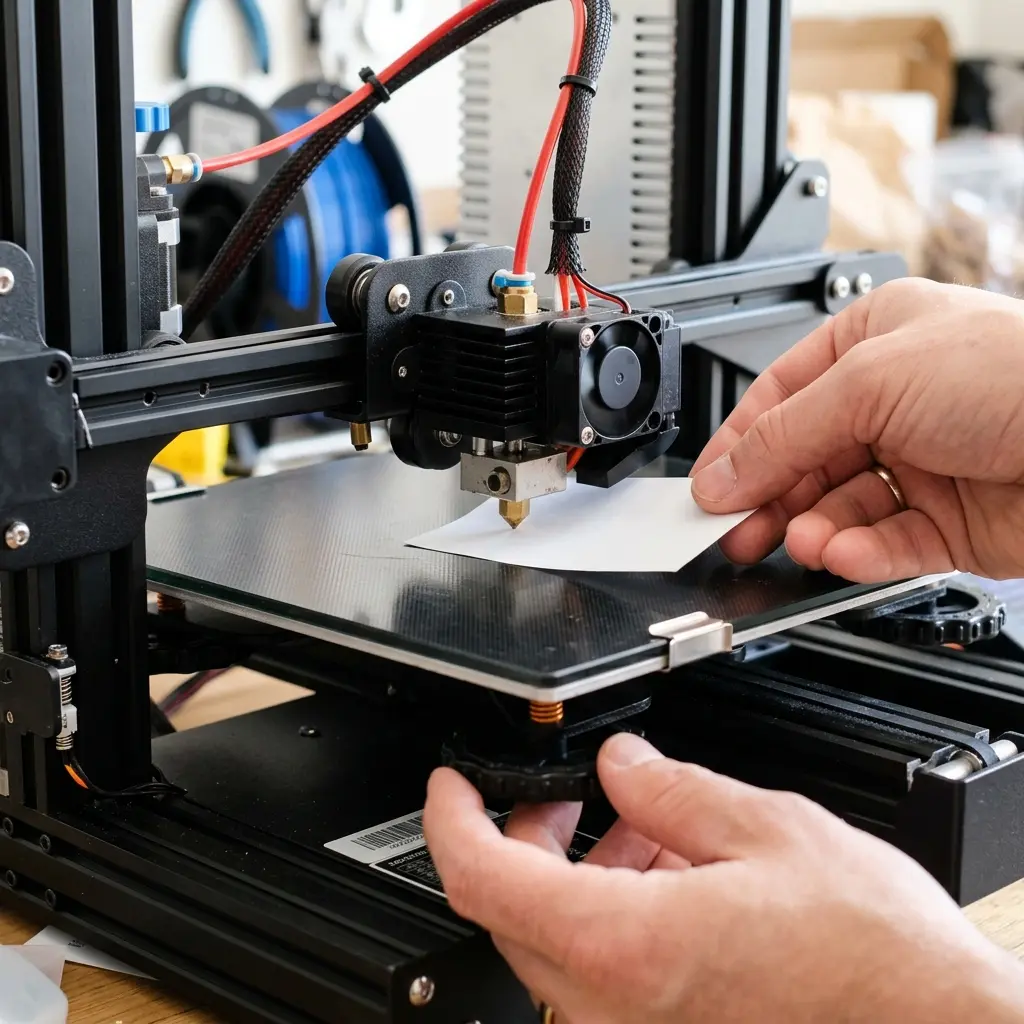
DomineTec Tip: Always calibrate the 3D printer before making adjustments to retraction settings. Proper calibration ensures better overall print quality.
Advanced Retraction Techniques
Experienced users may explore advanced techniques to further refine their prints. One such technique is adjusting the “Combing” settings, which controls how the print head moves during non-print moves.
Setting the combing to “Within Infill” can reduce stringing by keeping the nozzle within the infill areas while traveling. This minimizes the distance the nozzle travels over open spaces, which reduces the chances of filament oozing.
Checklist for Reducing Stringing in 3D Printing
To systematically address stringing issues, use the following checklist:
- Check and adjust retraction distance: 0.5 - 2.0 mm.
- Set retraction speed: 30 - 60 mm/s.
- Evaluate and adjust print temperature based on filament type.
- Enhance cooling settings to solidify filament faster.
- Modify travel speed to decrease movement time.
- Test print small models to visually assess stringing.
- Review nozzle cleanliness and condition.
- Calibrate the printer prior to adjustments.
Common Mistakes to Avoid
When configuring retraction settings, several common mistakes can hinder print quality. Avoid the following pitfalls:
- Setting retraction distance too high, which can lead to clogs.
- Using excessively high retraction speeds that can cause jams.
- Neglecting the importance of cooling settings in relation to retraction.
- Ignoring filament specifications, which require different settings.
- Failing to conduct test prints to validate changes.
Conclusion
Configuring retraction settings in PrusaSlicer is a critical step toward minimizing stringing in your 3D prints. By understanding and adjusting these settings, along with considering other influencing factors, one can achieve clean, high-quality prints.
For further information on filament types, explore the difference between PLA and ABS. Additionally, for those new to 3D printing, the best 3D printer for beginners can guide your purchasing decision.
Finally, a thorough calibration guide is essential for maximizing your printer's performance.
Frequently Asked Questions
What is the best retraction distance for PLA?
A retraction distance of 0.5 to 1.0 mm is generally effective for PLA. However, testing may be required for specific printers.
Can temperature affect stringing?
Yes, higher temperatures can increase stringing due to filament oozing. Lowering the temperature may help reduce this issue.
How do I know if my retraction settings are correct?
Testing with small models can help assess stringing. Adjust settings based on observed results until optimal performance is achieved.
Is retraction speed important?
Yes, retraction speed affects how quickly the filament is pulled back. Slower speeds can help prevent jamming, especially with flexible filaments.
What materials are prone to stringing?
Materials like PETG and TPU are often more prone to stringing compared to PLA and ABS. Adjusting retraction settings is crucial for these materials.




