Xbox Cloud Gaming: How to Play and Setup Without a Console

Xbox Cloud Gaming: How to Play and Setup Without a Console
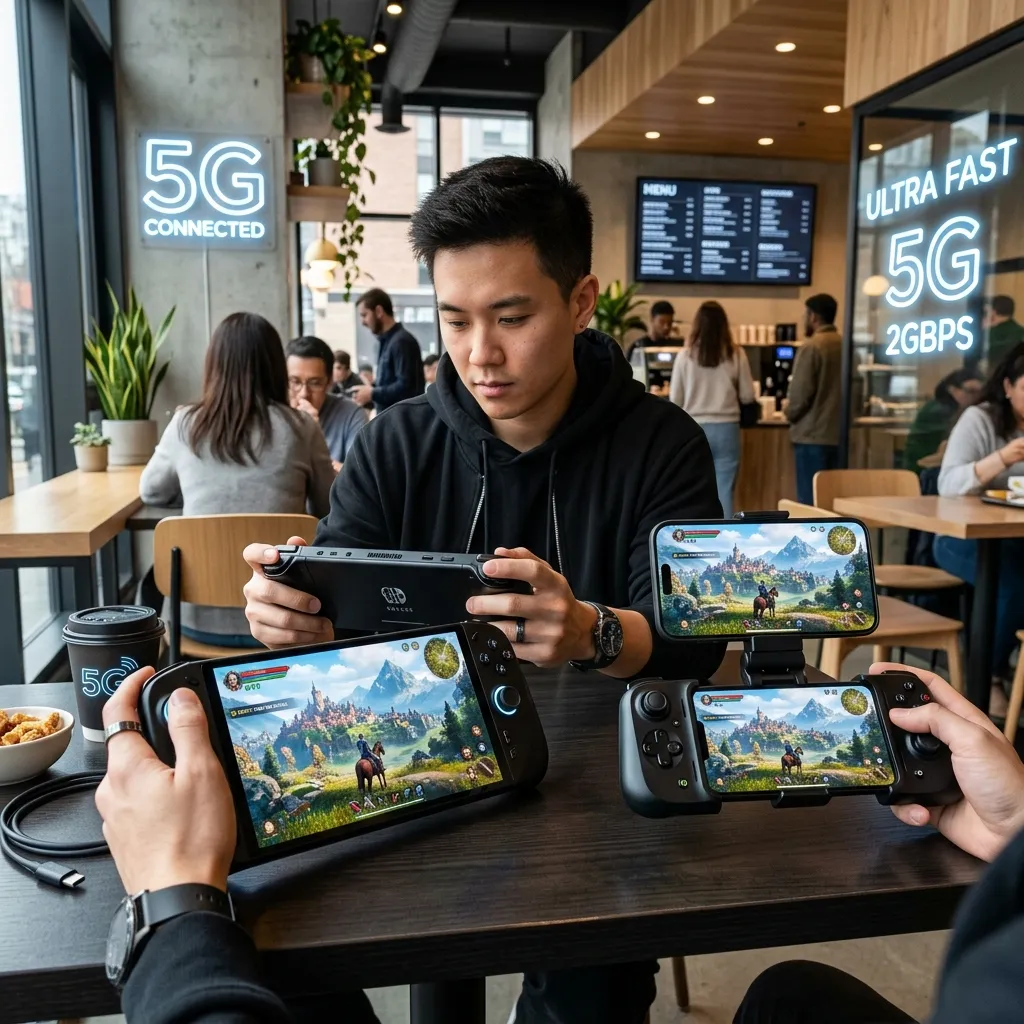
The dream of playing high-fidelity, AAA console games without owning expensive gaming hardware is now a reality. Through Xbox Cloud Gaming (formerly known as Project xCloud), Microsoft leverages its vast Azure cloud infrastructure to stream games directly to screens you already own. Whether you want to play on a smartphone, tablet, smart TV, or budget laptop, a subscription to Xbox Game Pass Ultimate is all you need to turn almost any device into a virtual Xbox Series X. For a deeper understanding of subscription tiers and compatibility across the entire Xbox ecosystem, make sure to visit our foundational Xbox Game Pass Guide. In this article, we will dissect the setup process, technical specifications, and network optimizations required for a seamless cloud gaming experience.
How Xbox Cloud Gaming Works Under the Hood
To appreciate how cloud gaming operates, it is helpful to understand the technology powering it. Unlike traditional gaming, where your local console or PC processes the game's code, renders graphics, and handles inputs, cloud gaming shifts all these demanding tasks to a remote data center. Microsoft has outfitted its global network of Azure data centers with custom server racks built using actual Xbox Series X hardware. When you launch a cloud game, it runs on one of these server blades, and a video stream of the gameplay is sent to your device, while your controller inputs are sent back to the server in real-time.
This process happens in milliseconds. The speed of light, internet routing efficiency, and server response times dictate the latency (or "input lag") of your session. Because the games run on Series X hardware, you benefit from fast loading times, advanced graphic features like ray tracing, and stable frame rates, even if your local device is a low-powered smartphone or an entry-level streaming stick.
Comprehensive Device Setup Guide
Xbox Cloud Gaming is highly versatile, supporting a wide range of platforms. Below are detailed setup instructions for each compatible device type.
1. Smart TVs and Streaming Devices
You no longer need a dedicated console attached to your television to play Xbox games. Microsoft has partnered with TV manufacturers to integrate the Xbox app directly into smart TV operating systems.
- Samsung Smart TVs (Gaming Hub): On Samsung TVs from 2021 or newer, navigate to the Samsung Gaming Hub or the App Store. Search for and download the "Xbox" app. Launch the app, sign in with your Microsoft account, pair a compatible Bluetooth controller, and start playing.
- Amazon Fire TV Devices: Select Amazon Fire TV sticks and smart TVs (such as the Fire TV Stick 4K Max 2nd Gen) support the official Xbox app. Download it from the Amazon Appstore, log in, pair your controller, and launch your games directly.
- Android TV / Google TV: For supported TVs running Android TV 11 or higher, you can download the Xbox app from the Google Play Store. While performance can vary depending on your TV's internal processor, the setup remains identical.
2. Mobile Devices (Android and iOS)
Playing console-quality games on the go is one of the most popular ways to use the service. However, due to app store policies, the setup method differs between Android and Apple devices.
| Feature / Step | Android Setup | iOS (iPhone & iPad) Setup |
|---|---|---|
| Application Type | Native App | Progressive Web App (PWA) |
| Download Method | Google Play Store (Xbox Game Pass app) | Safari Web Browser |
| Installation Link | Standard app install | Navigate to xbox.com/play |
| Home Screen Access | Automatic shortcut | Tap "Share" -> "Add to Home Screen" |
| Controller Sync | Bluetooth / USB-C direct connection | Bluetooth via iOS Settings |
3. PC and Web Browsers
If you have an older laptop or desktop computer that cannot run modern games natively, Xbox Cloud Gaming is an excellent alternative. You can play via two main methods on PC:
- The Native Xbox App (Windows 10/11): Open the pre-installed Xbox app on Windows, click on the "Cloud Gaming" tab, select a game, and play. The app utilizes native streaming protocols that generally offer slightly lower latency and better stability compared to web browsers.
- Web Browsers: Open Google Chrome, Microsoft Edge, or Apple Safari, and go to
xbox.com/play. Log in, connect your controller, and play. This method is compatible with macOS, Linux, and ChromeOS, making the service accessible on MacBooks and Chromebooks.
Network Requirements: The Foundation of Smooth Cloud Play
Because you are streaming high-definition video and sending input commands simultaneously, your internet connection is the single most critical factor determining your experience. A fast connection is good, but a stable, low-latency connection is even more important.
Bandwidth and Connection Types
Microsoft lists the following official minimum requirements for internet speed:
- Mobile Devices: At least 7 Mbps download speed.
- Tablets & Smart TVs: At least 15 Mbps download speed.
- PCs & Consoles: At least 20 Mbps download speed.
However, these are bare minimums. For a stable 1080p stream at 60 frames per second, we recommend having a connection of at least 50 Mbps. This leaves enough headroom for other devices on your home network.
The 5GHz Wi-Fi Rule vs. 2.4GHz Wi-Fi
If you are playing wirelessly, you must connect your device to a 5GHz Wi-Fi band. Standard 2.4GHz Wi-Fi is highly susceptible to interference from household appliances (like microwaves and baby monitors) and neighboring networks. It also has a lower bandwidth capacity and higher latency. If you attempt to play cloud games on 2.4GHz Wi-Fi, you will likely experience constant video stuttering, audio crackling, and extreme input delay.
For the absolute best experience, especially on TVs and laptops, use a wired Ethernet cable. A physical connection eliminates wireless interference entirely, lowering your ping and providing a perfectly stable stream.
Controller Compatibility and Input Devices
While some games on Xbox Cloud Gaming support custom touch controls on mobile screens, the vast majority of titles require a physical controller. You have several options depending on your device:
- Official Xbox Wireless Controller: The standard Series X|S controller features Bluetooth compatibility, making it easy to pair with phones, tablets, PCs, and smart TVs.
- PlayStation DualSense & DualShock 4: Yes, you can use Sony controllers to play Xbox games via the cloud. Most browsers and devices recognize them natively, though the on-screen button prompts will still display Xbox layout icons (A, B, X, Y).
- Mobile Controllers: Devices like the Razer Kishi, Backbone One, and GameSir plug directly into your phone’s USB-C or Lightning port. Because they bypass Bluetooth, they offer zero input latency and transform your phone into a console resembling a Nintendo Switch.
Troubleshooting Latency and Fixing Input Lag
If you experience lag, visual artifacts, or disconnecting sessions, follow these optimization steps to improve your connection:
1. Optimize Router Settings
Log into your router's administration panel and configure these settings:
- Enable Quality of Service (QoS): If your router supports QoS, set your gaming device (TV, PC, or phone) as a high-priority device. This ensures that household members downloading files or streaming 4K movies won't interrupt your gaming session.
- Select the Correct Channel: Use a Wi-Fi analyzer app to identify the least congested 5GHz channels in your living area and manually set your router to use them.
2. Browser Optimizations (For Web Players)
If you are playing via a browser on a laptop or desktop, make these adjustments:
- Use Microsoft Edge: Edge features a unique cloud gaming enhancement called Clarity Boost. It uses client-side upscaling algorithms to sharpen the video stream, making details look significantly crisper.
- Disable Hardware Acceleration: If you experience stuttering, try toggling hardware acceleration on or off in your browser settings to see which performs better on your GPU.
- Close Background Tabs: Close resource-heavy tabs and extensions (especially ad-blockers and VPNs) that may be consuming CPU cycles or redirecting network traffic.
3. Reduce Controller Bluetooth Lag
Bluetooth can introduce noticeable latency, especially on older TVs or budget laptops. To resolve this:
- Update Controller Firmware: Connect your Xbox controller to a PC or console via USB and use the Xbox Accessories app to update it to the latest firmware.
- Use a Wired Connection: Whenever possible, plug your controller directly into your device using a USB cable. This eliminates Bluetooth latency entirely.
Frequently Asked Questions (FAQ)
Do I need to own an Xbox console to use Xbox Cloud Gaming?
No, you do not need a console. You only need a compatible device (smart TV, PC, mobile phone, tablet), a stable internet connection, a Bluetooth controller, and an active Xbox Game Pass Ultimate subscription.
Can I play games that I purchased outside of Game Pass?
Microsoft is actively rolling out the ability to stream select purchased games that are not currently in the Game Pass catalog. However, this feature is restricted to specific titles and still requires an active Game Pass Ultimate subscription to utilize the streaming servers.
What is the maximum resolution for Xbox Cloud Gaming?
Currently, the stream is capped at a resolution of 1080p at 60 frames per second. This cap is designed to prioritize low latency and stability across diverse internet connections. Visual quality is continually improved through advanced video codecs and server-side optimizations.
Can I play multiplayer games on the cloud with friends?
Yes. Xbox Cloud Gaming supports full multiplayer access. You can join online lobbies, play cooperative campaigns, and chat with friends using the party system just as you would on a physical console.
Does cloud gaming consume a lot of internet data?
Yes, cloud gaming is highly data-intensive, similar to streaming high-definition video. It can consume between 2 GB and 3 GB of data per hour. If your home internet or mobile plan has a strict data cap, monitor your usage closely to avoid overage charges.
Can I use a keyboard and mouse for cloud gaming?
Support for keyboard and mouse is currently rolling out for selected titles through the native Xbox app and browsers like Edge and Chrome. However, the vast majority of games still require a controller, so it is highly recommended to have one paired.




