
Automating WordPress backups from a VPS to the cloud ensures data safety and minimizes downtime. With the growing reliance on digital platforms, it has become increasingly important for website owners to implement robust backup solutions. WordPress, being one of the most popular content management systems (CMS), is frequently targeted by cyber threats, making it vital to have a reliable backup strategy.
This post will delve into the technical configurations necessary to set up automatic WordPress backups from a Virtual Private Server (VPS) to cloud storage services like Google Drive.
Understanding Web Servers and Hosting in the Context of WordPress
Web hosting is a service that allows individuals and organizations to post a website or web application on the Internet. A web server is a computer that stores, processes, and delivers web pages to users.
When a user types a URL into their browser, a request is sent to the server which then retrieves the requested web page and sends it back to the user's browser. In the case of WordPress, the web server must be equipped with specific software, including PHP, MySQL, and Apache or Nginx, to effectively run the CMS.
This configuration is critical as it determines how well the website functions, its loading speed, and its ability to handle traffic.
When it comes to hosting WordPress sites, there are several options available, including shared hosting, VPS hosting, and dedicated hosting. Shared hosting is more economical but comes with limitations in performance and control.
VPS hosting, on the other hand, provides a middle ground where users have dedicated resources on a shared server. This setup is particularly advantageous for WordPress websites that experience fluctuating traffic but still require a level of performance and reliability that shared hosting cannot offer.
Thus, understanding the intricacies of web servers and hosting is essential for anyone looking to efficiently manage a WordPress site, particularly when it comes to implementing a backup strategy.
The importance of backups cannot be overstated. Websites are susceptible to a myriad of risks, including malware attacks, server failures, and human error.
Regular backups are the lifeline that can restore your site to its previous state in the event of an unforeseen catastrophe. A VPS setup allows for greater flexibility in how backups are managed, as users can create custom scripts to automate the backup process.
This customization is important for WordPress sites, as they often involve a complex mix of files, plugins, and databases that need to be preserved cohesively.
Step-by-Step Guide to Setting Up Automatic WordPress Backups from VPS to Cloud

Setting up automatic backups for your WordPress site from a VPS to a cloud service such as Google Drive may seem daunting, but by following a systematic approach, it can be achieved without much hassle. Here's a detailed step-by-step guide to help you execute this task effectively.
First, you need to ensure that your VPS is properly configured, and you have SSH access to your server. SSH (Secure Shell) is a protocol that allows you to connect to your VPS securely. Open your terminal application and connect to your VPS by typing `ssh username@your-vps-ip-address`.
Replace `username` with your actual username and `your-vps-ip-address` with the actual IP address of your server. Once logged in, the next step is to install the necessary utilities that will facilitate the backup process. You will need to install `zip` and `curl` if they are not already installed.
You can do this by running the following commands:
```bash
sudo apt-get update
sudo apt-get install zip curl
```
Next, you will create a backup script that will automate the backup process. Open your favorite text editor and create a new script file, for example, `wp_backup.sh`. Within this script, you will include commands to back up the WordPress files and the MySQL database. Here’s a sample of what your script might look like:
```bash
#!/bin/bash
# Variables
BACKUP_DIR="/path/to/your/backup/directory"
DATE=$(date +"%Y-%m-%d")
DB_NAME="your_database_name"
DB_USER="your_database_user"
DB_PASS="your_database_password"
GDRIVE_DIR="path/to/google/drive"
# Create backup directory if it doesn't exist
mkdir -p $BACKUP_DIR
# Backup WordPress files
zip -r $BACKUP_DIR/wp-files-$DATE.zip /path/to/your/wordpress/directory
# Backup MySQL database
mysqldump -u $DB_USER -p$DB_PASS $DB_NAME > $BACKUP_DIR/wp-database-$DATE.sql
# Upload to Google Drive using curl
curl -X POST -L -H "Authorization: Bearer ACCESS_TOKEN" -F "metadata={name : 'wp-backup-$DATE.zip'};type=application/json;charset=UTF-8" -F "file=@$BACKUP_DIR/wp-files-$DATE.zip;type=application/zip" "https://www.googleapis.com/upload/drive/v3/files?uploadType=multipart"
```
Be sure to replace placeholders with your actual directory paths, database credentials, and Google Drive access token. Once your script is written, you need to make it executable with the command `chmod +x wp_backup.sh`.
After creating your backup script, you will want to set up a cron job to automate its execution. Cron is a time-based job scheduler in Unix-like operating systems that allows you to run scripts at specified intervals.
To edit your crontab file, type `crontab -e` in your terminal. Add a new line to schedule your backup script to run at your desired frequency.
For example, if you want to back up your site every day at 2 AM, you would add the following line:
```bash
0 2 * * * /path/to/your/script/wp_backup.sh
```
Make sure to save and exit the crontab editor. Your automatic WordPress backup setup is now complete, and the system will execute the backup script according to the schedule you defined.
Comparative Analysis of Backup Solutions
When considering the best options for automatic WordPress backups, it's essential to evaluate various solutions based on factors like ease of use, cost, features, and integration capabilities. Below is a comparative table that outlines different backup solutions available for WordPress, including their key attributes and potential drawbacks. This analysis will help you make an informed decision tailored to your specific needs.
| Backup Solution | Ease of Use | Cost | Features | Integration |
|---|---|---|---|---|
| UpdraftPlus | Very Easy | Free/Premium ($70/year) | Scheduled backups, cloud storage options, and restoration | Google Drive, Dropbox, Amazon S3 |
| BackupBuddy | Easy | $80/year | Backup and restore, migration tools | Amazon S3, FTP, and Google Drive |
| VaultPress | Moderate | $39/year | Real-time backups, security scanning | Jetpack integration |
| WP Time Capsule | Moderate | Free/Premium ($49/year) | Incremental backups, easy restoration | Google Drive and Dropbox |
This table serves as a quick reference to assess the various backup solutions available for WordPress users. Each option has distinct advantages and potential drawbacks, making it vital to consider your specific requirements, such as budget, backup frequency, and ease of use.
Whether you prefer a plugin that integrates seamlessly with your existing setup or a script-based solution like the one discussed earlier, understanding the features and limitations of each option will empower you to make the best choice for safeguarding your WordPress site.

Additional Resources and Recommended Links
For those looking to deepen their understanding of VPS management, WordPress optimization, and backup strategies, there are numerous resources available. Consider exploring the following links for further reading: How to Setup Linux Ubuntu VPS as a Secure Web Server provides insights into configuring your server securely, ensuring that your backups are not only automated but also safe from external threats.
Additionally, How to Configure Redis Object Cache for WordPress on VPS offers valuable information on optimizing your WordPress installation, which is important for improving performance and reliability during the backup process.
Advanced Server Performance Tuning, Cache Policies, and Core Networking Metrics
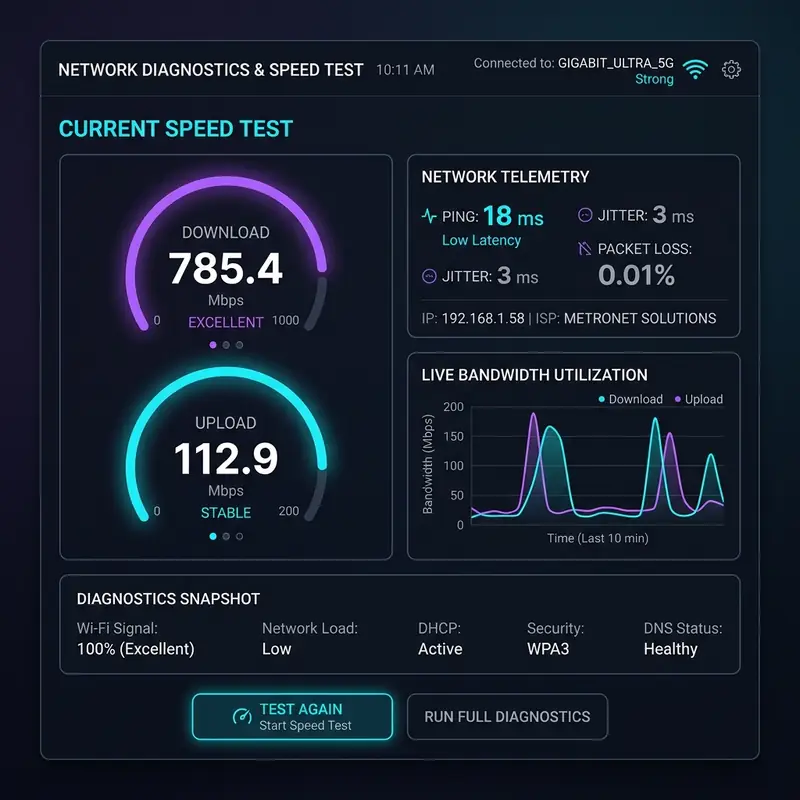
Moreover, integrating object caching solutions like Redis or Memcached can substantially enhance your server's ability to handle dynamic content. Both technologies provide a memory-based caching layer that offloads database queries, leading to quicker responses.
The choice between Redis and Memcached often depends on specific project requirements; for instance, Redis supports more complex data types and offers persistence, while Memcached excels in simple key-value caching scenarios. Properly configuring these caching systems can lead to significant improvements in server load management and user experience.
In addition to caching, understanding core networking metrics is vital for diagnosing performance issues. Time to First Byte (TTFB) latency is a critical metric that reflects the time taken for the server to respond to a request. A high TTFB can indicate server overload, misconfigured caching, or slow database queries.
Monitoring tools like Pingdom or GTmetrix can help assess TTFB and identify bottlenecks. Another metric to consider is server load; ideally, the load should be kept below 1.0 for a single-core server to ensure optimal performance. If the load consistently exceeds this value, it may be necessary to analyze running processes and optimize resource allocation accordingly.
Bandwidth allocation is another important component of server performance tuning. Understanding how much bandwidth your server can handle is essential, especially if your site experiences high traffic.
Implementing Content Delivery Networks (CDNs) can alleviate bandwidth strain by distributing content closer to users, thus improving load times and reducing latency. Furthermore, adjusting server configurations to limit the number of concurrent connections can help manage bandwidth more effectively, preventing server overload during peak traffic periods.
In conclusion, advanced server performance tuning involves a careful balance of caching strategies, network metrics monitoring, and resource allocation. By implementing OPcache, leveraging object caching solutions, and closely monitoring TTFB, server load, and bandwidth, WordPress site owners can ensure their websites operate at peak efficiency. This holistic approach not only enhances user experience but also contributes to the overall stability and reliability of the server environment.
Implementing Robust Server-Side Cybersecurity Protocols for WordPress

Another vital security measure is the utilization of IP tables, which serve as a firewall for Linux servers. By configuring IP tables, you can specify which IP addresses are allowed or denied access to your server. This level of control can significantly reduce the risk of unauthorized access and mitigate brute force attacks.
Regularly reviewing and updating these rules is essential, especially as your server environment changes or as new threats emerge. In conjunction with IP tables, deploying a DDoS (Distributed Denial of Service) firewall can help protect your site from malicious traffic aimed at overwhelming your server. Solutions like Cloudflare or Sucuri offer DDoS protection that can absorb high traffic loads and filter out harmful requests before they reach your server.
Directory permissions are another critical aspect of server security. Ensuring that your server's file permissions are correctly set can prevent unauthorized access to sensitive files and directories.
For instance, the general recommendation is to set directories to 755 and files to 644, allowing the necessary read and execute permissions while restricting write access. Additionally, sensitive files such as `wp-config.php` should have more restrictive permissions to further secure your WordPress installation.
Regular audits of these permissions can help maintain a secure environment and identify any potential vulnerabilities.
Moreover, employing intrusion detection systems (IDS) can enhance your server's security posture. An IDS monitors network traffic and system activities for signs of malicious behavior or policy violations. Tools like Fail2Ban can automatically block IP addresses that show suspicious activity, providing an extra layer of defense against brute force attacks. By integrating these tools into your security strategy, you can proactively address potential threats before they lead to significant issues.
In summary, implementing robust server-side cybersecurity protocols is essential for protecting your WordPress site against a myriad of threats. Properly configuring SSL certificates, utilizing IP tables and DDoS firewalls, managing directory permissions, and employing intrusion detection systems all contribute to a layered security approach. By prioritizing these measures, site owners can create a more secure environment that not only protects their data but also instills confidence in their users.
Understanding Hosting Limitations and Their Impact on WordPress Performance
In the realm of web hosting, understanding the limitations of different server types is important for ensuring optimal performance for your WordPress site. Shared hosting, while often more affordable, comes with inherent constraints that can significantly affect the speed and reliability of your site. On shared servers, multiple websites share the same resources, which can lead to performance degradation, particularly during peak traffic periods. This resource contention can result in slower load times and increased downtime, which can negatively impact user experience and SEO rankings.On the other hand, dedicated or cloud machines offer a more robust hosting solution. With dedicated servers, you have complete control over the resources, allowing for higher performance and reliability.
This is particularly beneficial for resource-intensive applications or sites with high traffic volumes. Cloud hosting takes this a step further by providing scalability; resources can be adjusted on-the-fly based on current demand.
However, it’s important to choose a reputable cloud service provider to avoid potential pitfalls, such as unexpected costs or service outages.
Another area where hosting limitations become apparent is in DNS propagation. When changes are made to DNS settings, such as updating records or switching hosting providers, it can take time for these changes to propagate across the internet.
This delay can lead to accessibility issues, with some users seeing the old site while others see the updated version. Understanding this delay and planning for it is vital, especially during significant changes to your hosting environment.
Tools like WhatsMyDNS can help monitor DNS propagation status, allowing you to ensure that your changes are being recognized globally.
Database optimization is another critical factor in hosting limitations that can trap unsuspecting site owners. Many WordPress users overlook the importance of optimizing their databases, which can lead to sluggish performance over time.
Regular maintenance tasks, such as cleaning up old post revisions, removing spam comments, and optimizing database tables, can significantly improve site performance. It's advisable to use plugins specifically designed for database optimization, but caution should be exercised to ensure that backups are made prior to executing any major changes.
Finally, Service Level Agreements (SLAs) are a fundamental consideration when selecting a hosting provider. An SLA outlines the level of service you can expect, including uptime guarantees, support response times, and compensation for service failures.
Understanding the terms of the SLA can help you make informed decisions regarding your hosting provider and avoid potential pitfalls associated with inadequate service. A solid SLA can provide peace of mind, especially for businesses that rely heavily on their online presence.
In conclusion, understanding hosting limitations is vital for optimizing WordPress performance. Whether choosing shared, dedicated, or cloud hosting, each option presents unique challenges and benefits.
Additionally, being aware of DNS propagation issues, the importance of database optimization, and the implications of SLAs can help site owners make informed decisions that enhance their website's performance and reliability. By addressing these considerations, you can build a more robust hosting environment that supports your site's growth and success.