![How to Fix 500 Internal Server Error in WordPress [Common Causes]](https://umoaupsqhrhivceztycp.supabase.co/storage/v1/object/public/media/posts/wifi-office.webp)
The 500 Internal Server Error in WordPress can be fixed by checking server configurations, plugins, and themes. This error is one of the most frustrating issues a WordPress user can encounter. It signifies that something has gone wrong on the server side, but it does not specify the exact problem.
This leaves many users bewildered and searching for solutions. Understanding the underlying components of web hosting and server management can significantly ease the troubleshooting process and help you pinpoint the root cause of the error.
In this blog post, we will delve into the technical aspects of web servers and hosting, providing a comprehensive overview of how they function in relation to WordPress. We will also offer a detailed step-by-step guide on how to troubleshoot and fix the 500 Internal Server Error in WordPress.
Finally, we will present a comparative table of different hosting options to help you make informed decisions if you find the need to switch hosting providers. Whether you are a seasoned developer or a novice site owner, this guide aims to equip you with the knowledge necessary to effectively resolve this issue.
Introduction to Web Servers and Hosting
To comprehend the 500 Internal Server Error, it is essential first to understand the technical concepts of web servers and hosting. When users request a webpage, their browser sends a request to a web server, which processes the request and returns the appropriate response, usually in the form of HTML content.
A web server is a software or hardware that serves content to clients over the internet. It works by processing requests and delivering web pages, images, scripts, and other resources.
In the context of WordPress, the server often runs on Apache or Nginx and is configured to handle dynamic content generated by PHP scripts.
Hosting, on the other hand, refers to the service of providing storage space and access for websites on the internet. There are various types of hosting environments available, including shared, VPS, dedicated, and managed WordPress hosting.
Each of these options has its own unique set of configurations and capabilities. For example, shared hosting is the most economical option, where multiple websites share the same server resources, but it may lead to performance issues if one site consumes excessive resources.
VPS hosting offers a more isolated environment, providing better performance and stability, while dedicated hosting gives complete control over the server but comes at a higher cost.
The 500 Internal Server Error can arise from various factors related to web servers and hosting. Issues with server configurations, such as misconfigured .htaccess files, PHP memory limits, or permission errors on files and folders, can cause the server to fail in executing the requested action.
Additionally, poorly developed plugins or themes that utilize excessive resources can lead to conflicts and errors. Understanding these components allows users to better navigate the troubleshooting process when faced with a 500 error, ultimately leading to a more stable and efficient WordPress site.
Step-by-Step Troubleshooting Guide
Troubleshooting the 500 Internal Server Error in WordPress can seem daunting, but following a systematic approach can significantly simplify the process. Here is a comprehensive step-by-step guide to help you diagnose and fix the issue effectively.

1. **Check the .htaccess File**: The .htaccess file is a configuration file used by Apache servers to manage various server settings. A corrupted .htaccess file can easily trigger a 500 Internal Server Error. To check this, log in to your WordPress root directory via FTP or your hosting file manager.
Locate the .htaccess file and rename it to .htaccess_old. Next, try to access your website. If the error disappears, regenerate the .htaccess file by going to the WordPress dashboard, navigating to Settings, then Permalinks, and clicking Save Changes.
This will create a fresh .htaccess file.
2. **Increase PHP Memory Limit**: Insufficient memory can also cause the 500 error. To increase the PHP memory limit, access your wp-config.php file located in the root directory of your WordPress installation. Add the following line of code before the line that says *"That's all, stop editing! Happy blogging!"*:
```php
define('WP_MEMORY_LIMIT', '256M');
```
This line increases the memory limit to 256MB, which is generally sufficient for most WordPress sites. After making this change, save the file and check if the error persists.
3. **Deactivating Plugins**: A faulty plugin can contribute to server errors. To identify the culprit, deactivate all plugins.
You can do this manually by renaming the plugins folder to something like plugins_old through FTP or the file manager. If your site loads without the error, rename the folder back to plugins, then reactivate each plugin one at a time through the WordPress dashboard to identify which one is causing the issue.
4. **Switch to a Default Theme**: If the problem continues, your active theme might be the issue. Switch to a default WordPress theme (like Twenty Twenty-Three) to see if the error resolves. You can do this by navigating to the Themes directory in your WordPress admin area or by renaming your current theme folder via FTP, which will force WordPress to revert to a default theme.
5. **Check File Permissions**: Incorrect file permissions can also trigger a 500 Internal Server Error. Ensure that your directories are set to 755 and files are set to 644. You can check and modify these permissions through your FTP client. Right-click on the relevant files or folders, select File Permissions, and adjust the values accordingly.
By following these troubleshooting steps, you can systematically isolate and address the factors contributing to the 500 Internal Server Error in WordPress. If the issue persists after trying these methods, it might be necessary to consult with your hosting provider for further assistance or to check server logs for more detailed error messages.
Comparative Table of Hosting Options
When managing a WordPress site, the choice of hosting can significantly impact performance, security, and support. Below is a comparative table highlighting different hosting types, their features, and recommendations to help you decide the best option for your needs.
| Hosting Type | Best For | Performance | Cost | Support |
|---|---|---|---|---|
| Shared Hosting | Beginners, small websites | Moderate | Low ($3 - $10/month) | Basic support |
| VPS Hosting | Growing websites, developers | High | Moderate ($20 - $100/month) | Good support |
| Dedicated Hosting | Large websites, e-commerce | Very High | High ($80 - $300/month) | Excellent support |
| Managed WordPress Hosting | WordPress-focused sites | High | Moderate to High ($20 - $150/month) | Specialized support |
Choosing the right hosting option is important for the long-term success and performance of your WordPress site. The comparison above offers a quick overview of various hosting types, along with their respective benefits.
It is important to assess your specific needs, such as site traffic, budget, and technical requirements, before making a decision. Each hosting type serves different purposes and understanding these distinctions can help you avoid future issues like the 500 Internal Server Error.

Additional Resources and Recommended Links
For further reading and assistance, consider exploring the following resources that can enhance your understanding of WordPress management and troubleshooting. You may find valuable insights and solutions that can improve your website's performance and security.
For instance, check out our guide on the Best WooCommerce Hosting for Online Store for recommendations tailored to e-commerce sites. Additionally, if you are experiencing issues with file uploads, our article on How to Increase Max Upload Size in PHP will provide step-by-step instructions to resolve that concern.
Advanced Server Performance Tuning, Cache Policies, and Core Networking Metrics
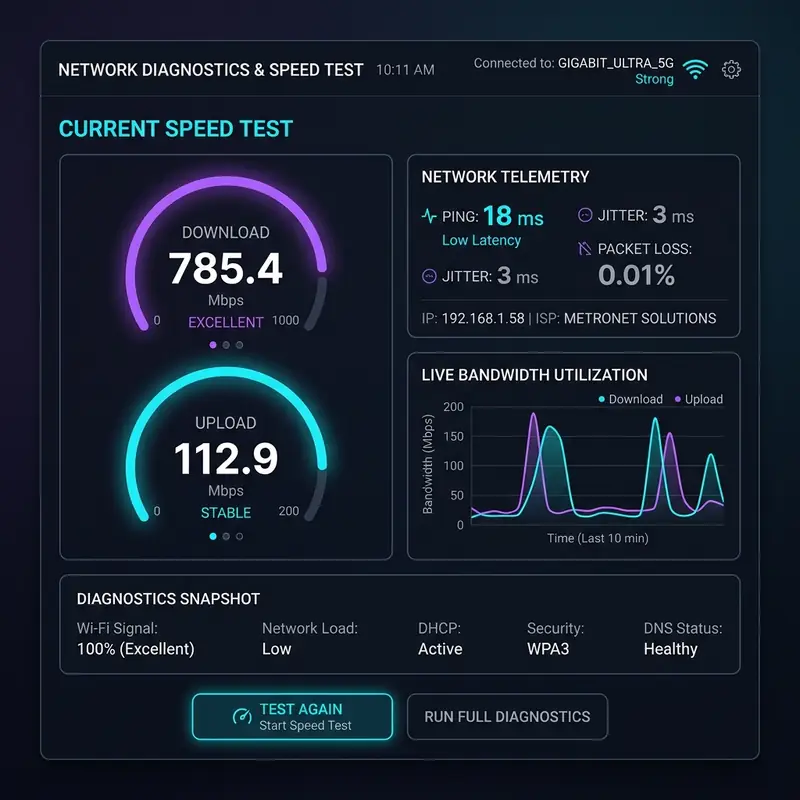
Optimizing server performance is a multifaceted endeavor that goes beyond merely upgrading hardware or increasing bandwidth. One of the most effective ways to enhance server performance is through proper configuration of caching mechanisms such as OPcache, Redis, and Memcached. OPcache acts as a PHP opcode cache, significantly reducing the time it takes to execute scripts by storing precompiled script bytecode in shared memory. This means that frequently accessed scripts do not need to be recompiled with each request, leading to faster response times and reduced server load.
Redis and Memcached serve a similar purpose but are designed for different types of data storage needs. Redis is a versatile in-memory data structure store, allowing for more complex data types and functionalities, whereas Memcached is simpler and excels in caching database queries. Implementing these caching systems can drastically reduce the number of database queries required, thereby improving overall site performance and response times. It is important to evaluate the specific needs of your application to determine which caching solution, or combination thereof, will yield the best results.
In addition to caching, monitoring core networking metrics is vital for maintaining optimal server performance. Time to First Byte (TTFB) is a key metric that indicates how long it takes for a user's browser to receive the first byte of data from the server. High TTFB can be indicative of server-side performance issues, whether due to overloaded resources or suboptimal configurations. Monitoring server load is also essential, as it provides insights into how many processes are currently being handled by your server. A high server load could lead to slow response times and may necessitate scaling resources or optimizing existing configurations.
Bandwidth allocation plays a critical role in server performance, particularly during peak traffic periods. Properly managing bandwidth ensures that resources are efficiently distributed among users, preventing bottlenecks that could lead to 500 Internal Server Errors. Techniques such as Quality of Service (QoS) can help prioritize traffic types, ensuring that essential services maintain performance even under heavy load. Understanding and implementing these advanced performance tuning strategies can significantly enhance the stability and responsiveness of your WordPress site.
Lastly, regular performance audits are recommended as part of your server management routine. Utilizing tools to benchmark server performance can help identify areas that need improvement. By setting up systematic checks to evaluate the effectiveness of your caching strategies, monitoring core metrics, and analyzing server load, you can ensure that your server operates at peak efficiency, providing a seamless experience for your users.
Server-Side Cybersecurity Protocols: SSL Configurations and Firewall Management

In the realm of server management, cybersecurity should be a top priority, particularly for WordPress sites that handle sensitive user information. One of the foundational elements of securing your server is the implementation of SSL certificates. Properly configured SSL ensures that data transmitted between the server and client is encrypted, safeguarding against eavesdropping and man-in-the-middle attacks. It is essential to keep SSL certificates updated and correctly installed; misconfigurations can lead to security vulnerabilities, which may trigger 500 Internal Server Errors if not addressed promptly.
Furthermore, managing IP tables is another critical component of server-side security. IP tables act as a firewall within the Linux operating system, allowing for the specification of rules that determine which traffic is permitted to enter or exit the server. By carefully configuring these rules, administrators can block unwanted traffic, thereby minimizing the risk of DDoS attacks and unauthorized access attempts. Regularly reviewing and updating these rules based on emerging threats is vital for maintaining a robust defense against cyber attacks.
Implementing a DDoS firewall can also significantly enhance your server's resilience against distributed denial-of-service attacks. These attacks aim to overwhelm the server with traffic, causing it to become unresponsive. A dedicated DDoS protection service can filter out malicious traffic before it reaches your server, ensuring that legitimate users can still access your site. This layer of security is essential, especially for high-traffic WordPress sites that may be targeted by attackers looking to disrupt service.
Additionally, setting correct directory permissions is important in maintaining server security. Misconfigured permissions can expose sensitive files and directories to unauthorized access, leading to potential exploits. It is advisable to follow the principle of least privilege, ensuring that directories are only writable by those who absolutely need access. This practice not only secures your data but also minimizes the chance of internal errors that could lead to a 500 Internal Server Error.
Lastly, a comprehensive security audit should be part of your regular server maintenance routine. Using tools to assess vulnerabilities and test your server's defenses can help identify areas that require immediate attention. By remaining proactive in your cybersecurity measures, you can significantly reduce the likelihood of security breaches and ensure that your WordPress site remains operational and secure.
Understanding Hosting Limitations: Shared vs Dedicated Servers and DNS Challenges
The choice of hosting environment plays a significant role in the performance and reliability of your WordPress site. Shared hosting, while cost-effective, comes with inherent limitations that can lead to issues such as slow load times and increased risk of 500 Internal Server Errors. On a shared server, multiple websites vie for the same resources, which can result in resource contention during high-traffic periods. This can be particularly problematic for WordPress sites that experience spikes in traffic and require immediate access to server resources.
In contrast, dedicated servers or cloud hosting solutions offer more control and scalability. With dedicated hosting, your server resources are exclusively yours, allowing for optimized performance tailored to your site's specific needs. Cloud hosting offers the added benefit of elasticity; resources can be scaled dynamically based on demand. This flexibility is advantageous for WordPress sites that experience fluctuating traffic patterns, as it allows for smooth performance without the downtime associated with resource limitations common in shared environments.
Another factor to consider is DNS propagation, which can lead to temporary access issues. When changes are made to DNS records, such as switching hosting providers or updating IP addresses, it can take up to 48 hours for these changes to propagate across the internet. During this time, users may encounter 500 Internal Server Errors due to the server being unreachable. It is advisable to plan DNS changes during off-peak hours and to communicate potential downtime to users to mitigate frustration.
Database optimization is another area where many WordPress site administrators can fall into traps. While it is vital to keep your database lean and efficient, over-optimization can lead to unintended consequences, including increased server load. Regularly scheduled maintenance tasks like cleaning up post revisions, spam comments, and unused plugins can significantly improve database performance. However, it is important to approach this with care, ensuring that any optimization strategies do not compromise the integrity of your site.
Lastly, understanding your Service Level Agreement (SLA) with your hosting provider is important. An SLA outlines the level of service you can expect, including uptime guarantees and support response times. If your site experiences frequent downtime or performance issues, reviewing your SLA can help determine whether your hosting provider is meeting their obligations. It may also provide leverage for negotiating better terms or considering a switch to a more reliable hosting solution.