How to Increase Maximum File Upload Size in PHP/cPanel Settings

To increase the maximum file upload size in PHP through cPanel, you need to adjust specific settings in your server configuration. Many users encounter limitations when attempting to upload files larger than the pre-defined sizes set in PHP configurations. This can be particularly frustrating for website administrators and developers who rely on user-uploaded content, such as images, videos, or documents.
Fortunately, cPanel provides an accessible interface to modify these settings, enabling you to accommodate larger file uploads seamlessly.
The process involves understanding how PHP interacts with web servers and the settings that dictate file size limits. PHP, a widely-used server-side scripting language, is often configured with certain constraints to ensure proper resource management and security. These constraints include the maximum file upload size, execution time, and memory limits. By adjusting these parameters through cPanel, you can effectively enhance your server’s capabilities to handle larger files.
In this comprehensive guide, we will explore the technical concepts associated with web servers and hosting environments, followed by a step-by-step process to increase the PHP upload limit in cPanel. This will equip you with the knowledge and tools necessary to manage file uploads effectively, ensuring a smoother experience for both administrators and users alike.
Understanding Web Servers and Hosting: The Technical Backbone
At its core, a web server is a computer system that processes requests via HTTP, the protocol used for transferring data over the internet. When a user uploads a file through a web application, the request is sent to the server, where PHP interprets the script and manages the file upload process.
The web server, usually running software like Apache or Nginx, handles these requests and serves the necessary files back to the client. Understanding how these components interact is important when configuring settings like maximum file upload size.
Hosting services, which provide the infrastructure for web servers, come in various forms, including shared, VPS, dedicated, and cloud hosting. Each type offers different levels of control and performance, which can significantly impact the process of file uploads.
For instance, shared hosting environments might impose stricter limits on file sizes and resource usage to ensure fair performance across multiple users. Conversely, VPS and dedicated hosting solutions often provide more flexibility, allowing administrators to configure settings according to their specific needs.
PHP settings that govern file uploads are primarily defined in the `php.ini` file, where parameters such as `upload_max_filesize` and `post_max_size` dictate the maximum allowable sizes for file uploads. If these limits are not configured properly, users may encounter errors indicating that their uploads exceed the permissible size, leading to frustration and potential loss of data.
Therefore, understanding how to navigate cPanel to modify these settings is essential for anyone managing a web application that relies on user-generated content.
Step-by-Step Guide to Increasing PHP Upload Limit in cPanel
To increase the maximum file upload size in PHP using cPanel, follow these detailed steps to ensure a successful configuration.
1. **Log Into Your cPanel Account**: Start by accessing your cPanel account through your web hosting provider. You will need your username and password to log in successfully. Once logged in, you will be presented with the cPanel dashboard, which is the central hub for managing your web hosting environment.
2. **Locate the ‘Select PHP Version’ Option**: In the cPanel dashboard, scroll down to the “Software” section. Here, you will find an option labeled “Select PHP Version.” Click on it to proceed. This feature allows you to choose the version of PHP that your website is using and modify related settings.
3. **Access PHP Options**: After selecting your desired PHP version, look for a button or link that says “Options” or “PHP Options.” This will take you to a page where you can adjust various PHP settings. Here, you will find the `upload_max_filesize` and `post_max_size` options listed among other configuration values.
4. **Modify PHP Settings**: Click on the values next to `upload_max_filesize` and `post_max_size` to edit them. Set these values to your desired limits, ensuring that `post_max_size` is larger than `upload_max_filesize` since it represents the total size of all POST data, including file uploads. For instance, if you want to allow file uploads up to 20MB, you might set `upload_max_filesize` to `20M` and `post_max_size` to `25M`.
5. **Save Your Changes**: After entering the new values, make sure to save your changes. This step is important, as failing to save will mean that your modifications will not take effect. You may see a confirmation message indicating that your settings have been successfully updated.
6. **Test the Configuration**: To verify that the changes have taken effect, create a simple PHP script that uses `phpinfo();`. This function outputs the current PHP configuration, allowing you to check the new upload limits. Upload this script to your server and access it via your web browser. Look for the values of `upload_max_filesize` and `post_max_size` to confirm that they reflect the changes you made.

7. **Adjust Additional Settings If Necessary**: Depending on your specific needs, you may also want to adjust other settings related to file uploads. For instance, consider modifying `max_execution_time` and `max_input_time` to accommodate larger files and longer upload times. These parameters dictate how long a script is allowed to run before it is terminated, which can be particularly important during large uploads.
8. **Consult with Your Hosting Provider**: If you encounter any issues or if your changes do not seem to take effect, it is advisable to consult with your hosting provider’s support. They can provide additional insights and may have specific configurations or restrictions in place that could affect your settings.
By following these steps, you can effectively increase the maximum file upload size in PHP through cPanel, allowing your users to upload files without encountering frustrating limitations.
Comparative Overview of Upload Size Options in cPanel
When it comes to increasing the maximum file upload size, different hosting plans and configurations can significantly impact your ability to modify these settings. Below is a comparative table that outlines various hosting options, their typical upload limits, and relevant features to help you make an informed decision.
| Hosting Plan Type | Typical Max Upload Size | Flexibility in Configuration | Recommended For |
|---|---|---|---|
| Shared Hosting | 2MB - 10MB | Limited | Small websites, personal blogs |
| VPS Hosting | 10MB - 100MB | Moderate | Medium-sized businesses, growing websites |
| Dedicated Hosting | 100MB+ | Full | Large businesses, high-traffic websites |
| Cloud Hosting | 10MB - Unlimited | High | Scalable solutions, variable traffic |
This table provides a structured overview of various hosting types and their corresponding upload size limits. Understanding these options can help you select the right hosting plan based on your specific needs. For instance, if you anticipate a high volume of large file uploads, opting for a VPS or dedicated hosting plan may be the best choice, as they typically offer higher limits and greater flexibility in configuration.

Additional Resources and Recommended Links
For further reading and additional information, you can explore various resources that provide insights into managing your web hosting environment effectively. Articles such as How to Create a MySQL Database in cPanel offer guidance on database management, while How to Fix 500 Internal Server Error in WordPress can help you troubleshoot common issues that arise in web development.
These resources complement your understanding of cPanel and PHP configurations, assisting you in creating a robust online presence.
Advanced Server Performance Tuning: Cache Policies and Core Networking Metrics
Redis and Memcached serve as additional layers of caching that can be leveraged for data storage and retrieval. Redis is an advanced key-value store that supports various data structures, making it ideal for storing session data, user profiles, and cache queries.
In contrast, Memcached is simpler and primarily focuses on caching database query results to expedite future requests. Both caching systems can greatly alleviate server load, especially when configured correctly, allowing for a more scalable application infrastructure that can handle higher upload limits effectively.
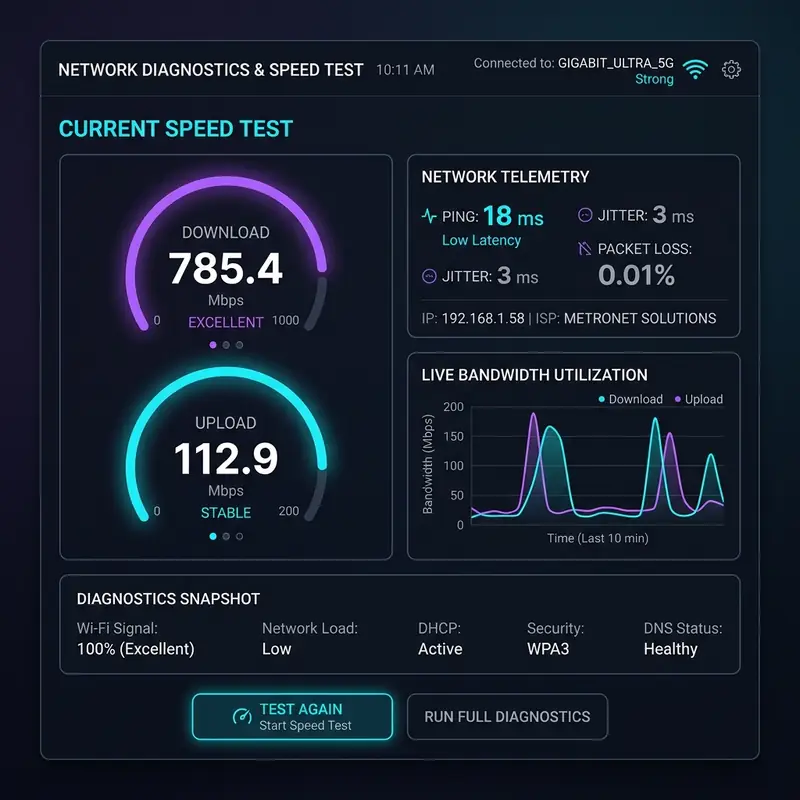
When discussing server performance, it is equally important to monitor core networking metrics such as Time to First Byte (TTFB), server load, and bandwidth allocation. TTFB is a critical indicator of server responsiveness, reflecting the time it takes for a client to receive the first byte of data from the server after making an HTTP request.
A high TTFB can signal server configuration issues or network bottlenecks, warranting a thorough investigation. Server load, measured in terms of CPU and memory usage, is another vital metric; a consistently high load can lead to degraded performance and increased latency.
Bandwidth allocation is another key consideration, especially for applications with large file uploads. Understanding how much bandwidth is available, and how it is allocated among different users and processes, can prevent throttling issues during peak times. By ensuring that sufficient bandwidth is allocated for file uploads, server administrators can minimize delays and enhance user experience, thereby supporting higher upload limits effectively.
Finally, while performance tuning can significantly improve upload capabilities, it is important to have a comprehensive monitoring system in place. Utilizing tools to track caching efficiency, TTFB, and server load will allow administrators to make informed adjustments to their configurations, ensuring that server performance remains optimal as usage patterns evolve. This proactive approach not only enhances upload capabilities but also contributes to a more stable and efficient hosting environment.
Implementing Server-Side Cybersecurity Protocols for Enhanced Protection

In addition to SSL, utilizing IP tables is a powerful method for managing access to your server. IP tables allow administrators to set rules that define which IP addresses can access specific services on the server.
This level of control can help to mitigate risks associated with unauthorized access and potential DDoS attacks. By establishing strict rules that only allow known and trusted IP addresses, you can significantly reduce the attack surface of your web environment.
Furthermore, implementing a DDoS firewall can provide an additional layer of security against denial-of-service attacks, which can overwhelm your server by flooding it with traffic. These firewalls use various detection techniques to identify and block malicious traffic before it reaches your server. Pairing a DDoS firewall with IP tables creates a robust defense against common attack vectors, allowing legitimate users to access the server without interruption.
Directory permissions are another critical aspect of server security. It is essential to set appropriate permissions for directories where file uploads occur, ensuring that only authorized users can access or modify files.
Misconfigured directory permissions can lead to vulnerabilities, allowing attackers to execute malicious scripts or access sensitive data. Regularly auditing directory permissions and adhering to the principle of least privilege can help maintain a secure environment, particularly when handling file uploads.
Lastly, continuous monitoring and auditing of security measures will ensure that your server remains resilient against evolving threats. Regular updates to security protocols, coupled with the implementation of intrusion detection systems, can help identify and mitigate vulnerabilities before they can be exploited. By prioritizing server-side cybersecurity protocols, you can foster a secure environment that not only supports increased file upload sizes but also protects against potential security breaches.
Understanding Hosting Limitations: Shared vs. Dedicated/Cloud Servers and Their Impact on Performance
In contrast, dedicated servers and cloud hosting solutions offer more robust performance and flexibility. With dedicated servers, you gain exclusive access to all server resources, allowing for higher upload limits and better overall performance.
This dedicated environment can handle heavy traffic loads more efficiently, ensuring that users experience minimal delays when uploading files. Cloud hosting further enhances this by distributing resources across multiple servers, offering scalability that can adapt to changing demands.
This elasticity can be particularly beneficial for applications that require variable upload capacities, as it allows for seamless adjustments without downtime.
DNS propagation errors can also impact the performance of your hosted applications, particularly when changing domain settings or migrating to a new server. During DNS propagation, users may experience inconsistencies in accessing your site, leading to potential upload failures or errors. Understanding the implications of DNS propagation, and planning migrations or changes carefully, can help mitigate these issues, ensuring a smoother transition and improved reliability for file uploads.
Database optimization is another critical factor that can trap administrators in a cycle of poor performance if not managed correctly. Many hosting environments, particularly shared hosting, may impose limitations on database resources, which can lead to slow query response times and hinder the ability to handle large file uploads effectively.
Regularly optimizing database queries, indexing frequently accessed data, and purging unnecessary records can enhance performance and alleviate these bottlenecks, allowing for higher upload limits and faster processing times.
Finally, it is important to consider Service Level Agreements (SLAs) when selecting a hosting provider. SLAs outline the performance expectations and guarantees provided by the host, including uptime, support response times, and resource availability.
A well-defined SLA can protect your interests and ensure that you are equipped to handle varying upload demands without compromising performance. By carefully evaluating hosting limitations and aligning them with your application’s requirements, you can establish a more effective hosting strategy that supports high file upload capabilities.






