
Setting up a Linux Ubuntu VPS as a secure web server involves a series of strategic processes focused on security and performance. The modern digital landscape has shifted dramatically towards cloud computing, where Virtual Private Servers (VPS) have become an essential component for businesses and individuals alike. By utilizing a Linux Ubuntu VPS, you gain the ability to host websites, applications, and services with a level of customization and control that traditional shared hosting cannot offer.
Furthermore, when configured correctly, a VPS can provide enhanced security measures, enabling you to safeguard your data and improve your users' experience.
A web server is a critical element in the hosting environment, acting as the bridge between web applications and their users. It responds to requests from clients and serves web pages, files, and applications over the internet.
With the growing importance of secure data transmission, setting up a Linux Ubuntu VPS as a secure web server not only ensures that your applications run smoothly but also protects sensitive information from potential threats. In this blog post, we will guide you through the detailed steps required to set up your own secure Ubuntu cloud server with Nginx, MySQL, and PHP using the VPS terminal.
Understanding Web Servers and Hosting Fundamentals
To embark on the journey of setting up a secure web server, it is important to comprehend the underlying technical concepts of web servers and hosting. A web server, fundamentally, is a software application that handles requests from clients—typically web browsers—and serves them the requested content.
The most popular web server software includes Apache, Nginx, and Microsoft's Internet Information Services (IIS). Among these, Nginx has gained significant traction due to its performance and ability to handle multiple connections simultaneously with minimal resource consumption.
In the context of hosting, a VPS serves as a cost-effective solution that mimics dedicated server functionality while sharing the physical server with other users. This is made possible through virtualization technology, which allows multiple virtual servers to operate independently on a single physical machine.
Each VPS has its own operating system, resources, and configuration settings, providing a level of isolation and control that is not available in shared hosting environments. With a VPS, you can install any software, adjust configurations to suit your needs, and have root access to the server.
Security is an integral aspect of web hosting, especially when dealing with sensitive data. A secure Ubuntu cloud server setup entails implementing various security measures to protect against common threats such as Distributed Denial of Service (DDoS) attacks, SQL injection, and unauthorized access.
Utilizing tools like firewalls, SSL certificates, and regular updates can significantly enhance the security posture of your server. Additionally, employing strong passwords and user permissions can further mitigate risks, ensuring that your VPS remains a safe environment for hosting web applications and websites.
Step-by-Step Guide to Setting Up Your Linux Ubuntu VPS
Setting up a Linux Ubuntu VPS as a secure web server can seem daunting, but by following a systematic approach, you can successfully configure your server in no time. The first step involves choosing a reliable VPS provider that offers Ubuntu as an operating system option.
Once you have selected your provider, you will typically go through a process where you can select the server specifications based on your needs, including CPU, RAM, and storage options. After provisioning your server, you will receive an IP address and access credentials, which are essential for the next steps.

The next phase involves accessing your VPS via SSH (Secure Shell). This can be achieved through terminal applications like PuTTY (for Windows) or the built-in terminal on Linux and MacOS. The command to connect is as follows:
```bash
ssh username@your-server-ip
```
Replace `username` with your server's username (often "root") and `your-server-ip` with the provided IP address. Upon successful login, it is essential to update your package lists to ensure you have access to the latest software versions. This can be done using the command:
```bash
sudo apt update && sudo apt upgrade -y
```
Following the update, the next step is to install Nginx, a high-performance web server that is particularly well-suited for serving static content and handling concurrent connections. The installation command is simple:
```bash
sudo apt install nginx -y
```
Once Nginx is installed, you can check its status and ensure it's running correctly by executing:
```bash
sudo systemctl status nginx
```
If Nginx is active, you can proceed to install MySQL, a popular relational database management system. This can be accomplished with the command:
```bash
sudo apt install mysql-server -y
```
After installing MySQL, it is important to run the security script to improve its security settings. You can start the script by executing:
```bash
sudo mysql_secure_installation
```
This script will guide you through configuring root access, removing anonymous users, and setting up a secure password policy. Following this, you will also need to install PHP, which is essential for processing dynamic content. The installation command for PHP and its common extensions is as follows:
```bash
sudo apt install php-fpm php-mysql -y
```
After completing these installations, it is necessary to configure Nginx to work with PHP. This will involve editing the Nginx configuration file to ensure it can process PHP files correctly. Open the default configuration file using a text editor:
```bash
sudo nano /etc/nginx/sites-available/default
```
Within this file, locate the section that handles PHP files, which usually looks like this:
```nginx
location ~ \.php$ {
include snippets/fastcgi-php.conf;
fastcgi_pass unix:/var/run/php/php7.x-fpm.sock; # Ensure the PHP version is correct
}
```
Make the necessary adjustments and save the file. Finally, restart Nginx to apply the changes using the command:
```bash
sudo systemctl restart nginx
```
At this stage, your secure Ubuntu cloud server setup is nearly complete. It is essential to conduct further security hardening measures, such as configuring your firewall using UFW (Uncomplicated Firewall) and ensuring that only necessary ports are open. You can install UFW using:
```bash
sudo apt install ufw -y
```
Next, allow SSH connections and enable UFW:
```bash
sudo ufw allow OpenSSH
sudo ufw enable
```
It is prudent to allow HTTP and HTTPS traffic as well:
```bash
sudo ufw allow 'Nginx Full'
```
Finally, verify the status of UFW to ensure your firewall rules are correctly applied:
```bash
sudo ufw status
```
Comparing VPS Hosting Options
When considering the best approach for setting up your Linux Ubuntu VPS, it's essential to evaluate various hosting options available in the market. The following table provides a structured comparison of popular VPS hosting providers based on key benchmarks like performance, pricing, customer support, and additional features.
| Provider | Performance | Pricing (Monthly) | Customer Support | Additional Features |
|---|---|---|---|---|
| DigitalOcean | High | $5 - $80 | 24/7 Support | One-click apps, Backups |
| Vultr | Very High | $5 - $640 | 24/7 Support | Custom ISO, DDoS protection |
| Linode | High | $5 - $120 | 24/7 Support | Long-term pricing, Backups |
| Amazon Lightsail | High | $3.50 - $80 | 24/7 Support | Integrated with AWS services |
This comparative analysis serves as a valuable resource to help you make an informed decision based on your requirements. Each provider has its unique strengths, and your choice should align with your specific needs, goals, and budget.

Additional Resources and Recommended Links
For those looking to delve deeper into the world of VPS hosting and server management, there are several resources available that can enhance your understanding. Websites such as DigitalOcean provide comprehensive tutorials on various topics related to server management and web hosting.
Additionally, the Ubuntu documentation is an invaluable resource for learning about the nuances of the operating system. For more hands-on guidance, you can explore our other posts, such as Best Free Web Hosting Control Panels for Linux VPS and How to Install aaPanel on VPS, which offer detailed instructions to simplify your server management tasks.
Advanced Server Performance Tuning: Cache Policies and Core Networking Metrics
Redis and Memcached, on the other hand, are in-memory data structure stores that excel at caching database queries and session data. Redis supports more complex data types and offers persistence options, while Memcached is lightweight and easy to deploy.
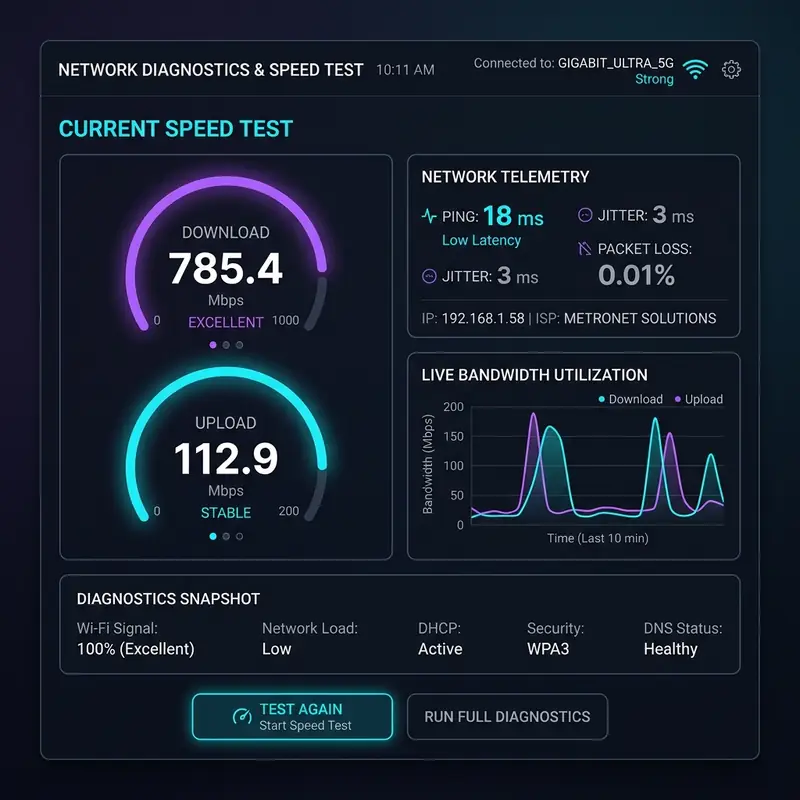
Implementing these caching solutions will not only enhance your server's performance but also reduce network latency, which is important for maintaining a responsive user experience. A well-tuned cache can decrease the Time to First Byte (TTFB), which is the duration taken by the server to respond to a client's request.
Monitoring TTFB along with server load and bandwidth allocation will provide insights into your server’s performance health and help identify potential bottlenecks.
Another vital aspect of performance tuning is understanding core networking metrics. Server load refers to the amount of computational work that a server is currently handling, often represented as a metric divided by the number of CPU cores.
This information is important for assessing whether your server can handle incoming requests efficiently or if it needs to be scaled up or optimized further. Bandwidth allocation also plays a significant role; it’s important to ensure that your server is not exceeding its bandwidth limits, as this can lead to throttling or degraded performance.
Tools like `iftop` and `nload` can help monitor real-time bandwidth usage and detect any unusual spikes that may indicate an issue.
To achieve optimal performance, it is also advisable to regularly audit your server settings and configurations. This includes optimizing your web server software (like Apache or Nginx) for better handling of concurrent connections, tuning TCP stack parameters, and ensuring that your database connections are efficiently managed.
Performance monitoring tools such as New Relic or Datadog can provide valuable analytics about your server’s performance, allowing you to make informed decisions about when to implement changes or upgrades. By carefully tuning these aspects, you can ensure that your Linux Ubuntu VPS operates at peak efficiency, providing a seamless experience for your users.
In summary, mastering advanced performance tuning through strategic caching policies and understanding core networking metrics can dramatically enhance the capabilities of your Linux Ubuntu VPS. By effectively leveraging OPcache, Redis, and Memcached alongside diligent monitoring of TTFB, server load, and bandwidth allocation, you can create a robust web server setup that meets the demands of your audience while maintaining high performance levels.
Implementing Robust Server-Side Cybersecurity Protocols for Your Web Server

Another essential element in fortifying your server's defenses is the implementation of IP tables. This powerful Linux utility enables you to configure the packet filtering rules for your server, allowing or denying traffic based on specific criteria.
By setting up a firewall with IP tables, you can create rules to block unwanted traffic and limit access to only those IP addresses that require it. Additionally, you can configure rate limiting to prevent brute force attacks, which are common threats to web servers.
This proactive measure can significantly diminish the chances of unauthorized access to your server and enhance its overall security posture.
DDoS (Distributed Denial of Service) attacks pose a significant threat to web servers, making it vital to implement a DDoS firewall. Such a firewall can help mitigate the effects of these attacks by filtering out malicious traffic before it reaches your web server.
Services like Cloudflare and AWS Shield offer comprehensive DDoS protection, helping to ensure that your web server remains operational even during an attack. Configuring these services involves integrating them with your DNS settings and ensuring that all traffic is routed through their networks for effective filtering.
In addition to these measures, attention to directory permissions is important in maintaining the security of your web server. Misconfigured permissions can lead to unauthorized access to sensitive files and directories.
It is recommended to follow the principle of least privilege, granting users and applications only the permissions necessary for their function. Regularly auditing directory permissions and using tools like `chmod` and `chown` can help maintain security standards.
Additionally, employing tools such as Fail2Ban can monitor log files for suspicious activity and automatically block IP addresses that exhibit malicious behavior.
To summarize, implementing robust server-side cybersecurity protocols is integral to securing your Linux Ubuntu VPS. By configuring SSL certificates properly, utilizing IP tables for traffic management, deploying DDoS firewalls, and maintaining strict directory permissions, you can create a fortified environment that safeguards your web applications and protects user data from potential threats. Staying vigilant and regularly updating your security measures will ensure that you keep pace with evolving cybersecurity challenges.
Understanding Hosting Limitations: A Comparative Analysis of Shared, Dedicated, and Cloud Servers
When considering hosting options for your Linux Ubuntu VPS, it’s essential to understand the inherent limitations of different hosting environments. Shared servers are often the most economical choice, as multiple websites are hosted on the same physical machine. However, this setup introduces significant limitations in terms of performance and resource allocation. In a shared environment, the resources—such as CPU, RAM, and bandwidth—are distributed among all users, which can lead to performance degradation during peak usage times. If another site on the same server experiences a spike in traffic, your website could suffer from slow load times or even downtime, making shared hosting less suitable for high-traffic sites or mission-critical applications.On the other hand, dedicated servers offer a more robust solution. With dedicated hosting, you have an entire physical server at your disposal, which means exclusive access to all resources. This setup provides enhanced performance, greater security, and improved customization options.
However, dedicated hosting comes with higher costs and requires more technical expertise to manage effectively. Users must also consider hardware limitations and the potential need for regular upgrades to meet increasing demands. Additionally, dedicated servers may require manual scaling, which can lead to downtime during the transition, thus impacting availability.
Cloud servers represent a modern solution that addresses many of the limitations of both shared and dedicated hosting. They provide flexibility and scalability, allowing users to adjust resources according to their needs dynamically. Cloud hosting distributes resources across a network of servers, which means that if one server experiences high traffic, other servers can pick up the slack, ensuring consistent performance.
However, this model is not without its challenges. Cloud services often involve complex pricing structures that can lead to unpredictable costs, particularly if resource usage spikes unexpectedly. Furthermore, users must be vigilant about data redundancy and backup strategies to prevent data loss in the event of a failure.
DNS propagation errors can also impact the effectiveness of your chosen hosting solution. These errors occur when changes made to DNS records take time to propagate across the internet, which can lead to users encountering outdated information about your web server.
This is particularly relevant during migrations or when changing hosting providers. Understanding the TTL (Time to Live) settings in your DNS records can help mitigate these issues.
Lowering the TTL before making changes can accelerate the propagation process, ensuring that users reach the correct server as quickly as possible.
Lastly, considering Service Level Agreements (SLAs) is important when evaluating hosting options. SLAs define the expected level of service provided by the hosting provider, including uptime guarantees, support response times, and performance metrics.
A robust SLA can provide peace of mind, especially for businesses that rely heavily on their online presence. However, it is essential to read the fine print, as some SLAs may have exclusions or limitations that could affect your operations.
Understanding these factors helps in making an informed decision about which hosting solution aligns best with your needs while taking into account the limitations inherent to each option.
In conclusion, understanding the limitations inherent in shared, dedicated, and cloud servers is vital for selecting the right hosting environment for your Linux Ubuntu VPS. By carefully weighing factors such as resource allocation, cost, performance, and scalability, you can make a choice that best fits your operational needs and growth aspirations.
Additionally, being aware of potential pitfalls like DNS propagation issues and scrutinizing SLAs will contribute to a more seamless and reliable hosting experience.






