How to Resize Designs in Canva Without a Premium Pro Account

Resizing designs efficiently in Canva without a Premium Pro account may seem challenging at first, but it is entirely achievable with the right approach and tec... To resize designs in Canva without a Premium Pro account, you need to employ strategic methods such as custom scaling, grouping elements for resizing, and transferring layers to a new design with the target dimensions. This guide will walk you through the steps, tips, and tricks to make this process seamless and effective.
Understanding Canva's Free Account Limitations
Canva, a popular online design tool, offers a range of features through its free and premium subscriptions. The free version is robust for basic design needs, but it lacks some advanced features that are available in the Pro account, such as the Magic Resize tool. The Magic Resize tool allows one-click resizing of designs to various dimensions, which is exclusive to Pro users. However, with a bit of creativity and manual effort, free account users can achieve similar results.
Free account users can still adjust their designs by creating new canvas sizes and manually transferring design elements. Understanding the limitations and exploring alternative solutions will help you effectively resize your designs without needing to upgrade your account.
Custom Scaling in Canva
Custom scaling is a technique where you manually adjust the size of your design elements to fit a new canvas dimension. While this method requires more effort than using an automated tool, it grants you precise control over the appearance and proportion of each element.
To begin, decide on the new dimensions for your design. You can specify custom dimensions when creating a new canvas in Canva. Once you have your new canvas ready, follow these steps:
- Open your existing design and take note of its current dimensions.
- In a new tab, create a new design with the target dimensions.
- Return to your original design, select the elements or entire page you want to resize.
- Copy the selected elements (Ctrl+C on Windows or Cmd+C on Mac).
- Navigate to the new canvas and paste the elements (Ctrl+V on Windows or Cmd+V on Mac).
- Manually adjust the size of each element to fit the new dimensions.
This method allows you to maintain the visual integrity of your design while fitting it to a new size. It's especially useful for designs that require precise alignment and scaling.
Grouping Elements for Resizing
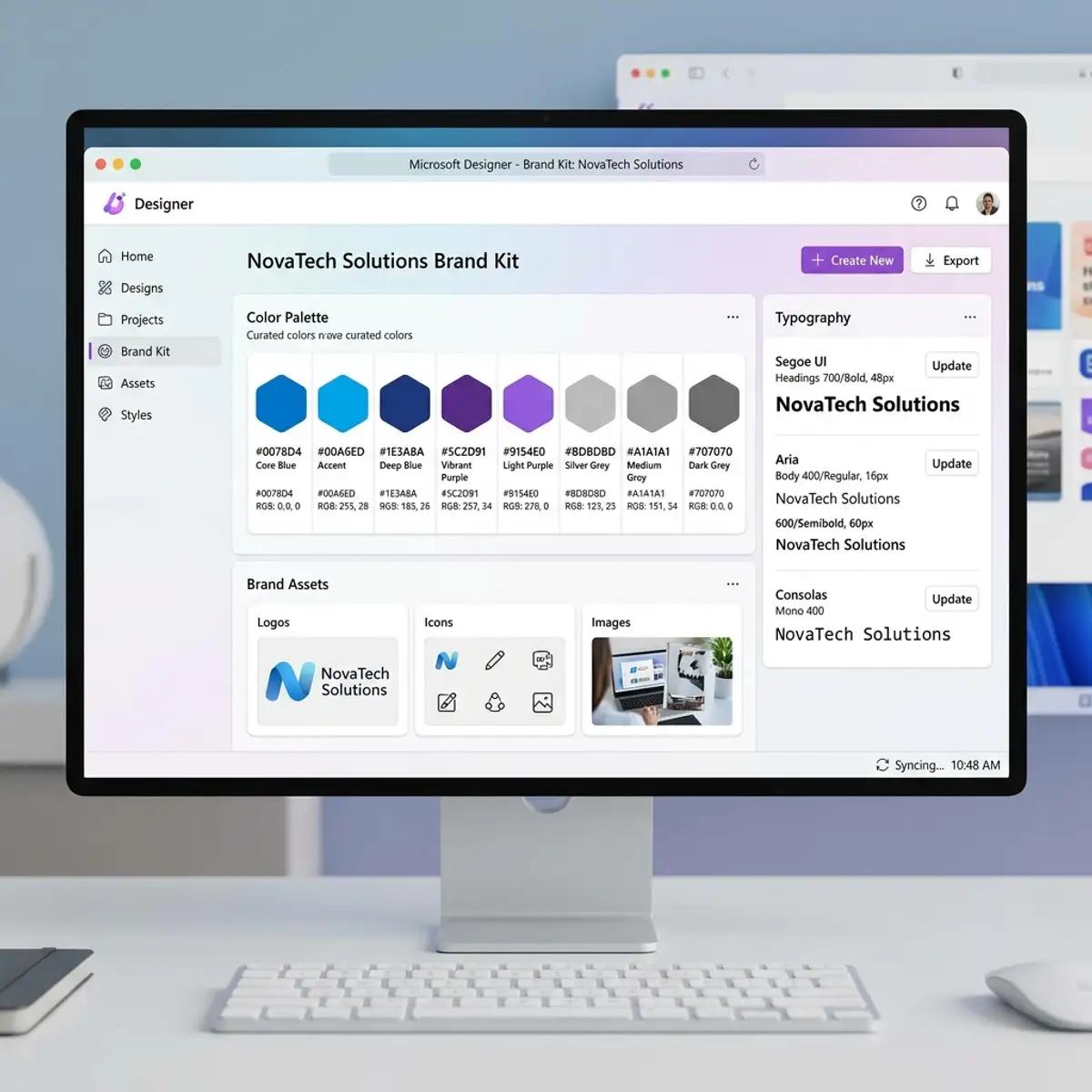
Grouping elements is a powerful technique that allows you to resize multiple design components simultaneously. By grouping, you ensure that the relative size and position of each element remain consistent, thus preserving the overall layout of your design.
Here's how to group elements for resizing:
- Select all the elements you want to resize by holding the Shift key and clicking on each element.
- Once selected, click on the "Group" button in the toolbar or use the shortcut (Ctrl+G or Cmd+G).
- With the elements grouped, drag the corners of the group to resize all elements proportionally.
- To ungroup the elements, simply click on the "Ungroup" button or use the shortcut (Ctrl+Shift+G or Cmd+Shift+G).
Grouping is particularly beneficial when dealing with complex designs with multiple elements. It reduces the risk of misalignment and ensures a cohesive appearance across different sizes.
Transferring Layers to a New Design
Another effective method for resizing designs in Canva without a Premium Pro account is transferring layers to a new design. This involves creating a new design with the desired dimensions and manually moving each design layer from the original to the new canvas.
Follow these steps to transfer layers:
- Create a new design with the required dimensions.
- Go to your original design and select an element or layer.
- Copy the element (Ctrl+C on Windows or Cmd+C on Mac).
- Switch to the new canvas and paste the element (Ctrl+V on Windows or Cmd+V on Mac).
- Repeat the process for each element or layer, arranging them to match the original layout.
This method is more time-consuming but offers the flexibility to refine and adjust each element individually. It is particularly useful for intricate designs requiring precise layer placement and scaling.
Tips and Tricks for Efficient Resizing
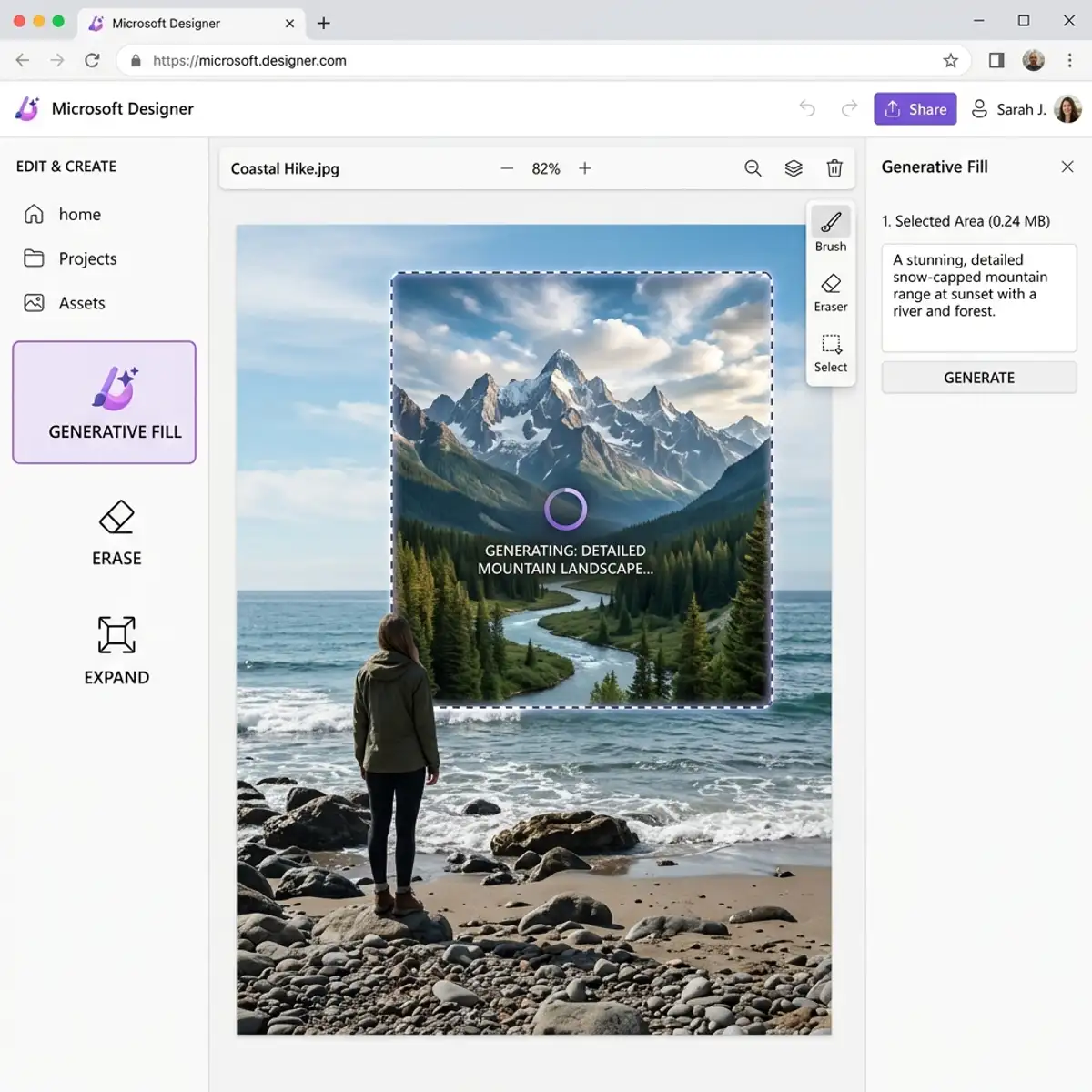
Aside from the methods mentioned above, consider these additional tips and tricks to streamline your design resizing process in Canva:
- Use Canva's guidelines and rulers to maintain alignment and consistency when resizing elements.
- Employ keyboard shortcuts to speed up the copying and pasting process.
- Utilize Canva's grid and snap-to-grid features to ensure elements are evenly distributed.
- Regularly preview your design to check for any discrepancies or alignment issues.
By integrating these tips into your workflow, you can enhance your efficiency and achieve better results when resizing designs in Canva without a Premium Pro account.
Tip: For more professional design tips, check out our guide on how to create a professional logo in Canva for free.
Comparing Canva Free and Pro for Design Resizing
To better understand the differences in design resizing capabilities between Canva's free and Pro accounts, let's examine their features side by side:
| Feature | Canva Free | Canva Pro |
|---|---|---|
| Design Resizing | Manual resizing through custom dimensions and grouping | Magic Resize Tool for one-click resizing |
| Element Grouping | Available | Available |
| Layer Transfer | Manual transfer required | Not necessary with Magic Resize |
| Additional Features | Basic design tools and elements | Advanced tools, elements, and additional templates |
While Canva Pro offers powerful tools for quick and efficient design resizing, the free account remains a viable option for those willing to invest a bit of extra time and effort. Understanding the capabilities and limitations of each version can help you make informed decisions about your design needs.
Advanced Techniques for Optimizing Canva Designs for Multiple Platforms
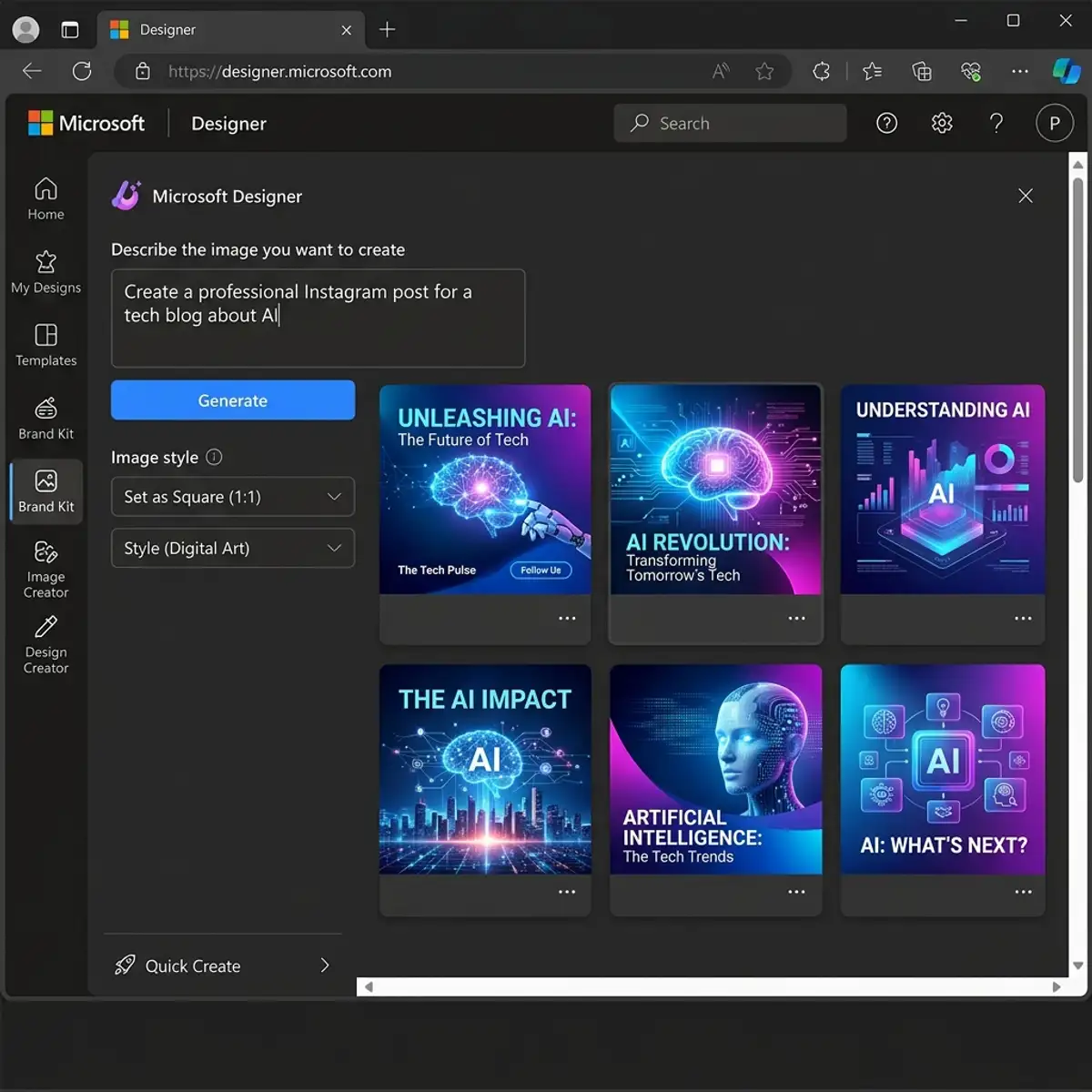
One of the key challenges faced by designers using Canva without access to the premium resizing feature is the need to manually adjust designs for various platforms while maintaining visual consistency. Understanding the specific dimensions and aspect ratios required by different platforms is important.
For instance, Facebook posts typically require a 1200x630 pixel size, while Instagram posts are optimally displayed at 1080x1080 pixels for square images. Advanced users can create a matrix of these standard sizes and set up a workflow in Canva that allows for swift manual adjustment by leveraging Canva’s grid and ruler features.
By setting up custom grids for each platform, designers can quickly realign elements to fit within the specific confines of each platform’s requirements, ensuring that the design retains its integrity across all mediums.
Another advanced technique to consider is the use of Canva’s “Magic Resize” button, which, though primarily a premium feature, can inspire an understanding of layout dynamics. While free users cannot directly use this feature, they can simulate its effect by duplicating a design and manually adjusting the size. This involves creating a copy of the original design and then altering the dimensions within a new project.
Users can take advantage of Canva's drag-and-drop interface to reposition elements as needed. By focusing on the main focal points of a design, users can ensure that key messages and visuals remain prominent regardless of the size alterations. Understanding how elements flow and interact within a space can lead to more efficient and effective resizing strategies, even without automated tools.
To further enhance workflow efficiency, designers can utilize Canva's ability to save custom templates. By creating a master template that includes all commonly used elements, such as logos, fonts, and color schemes, users can quickly adjust these templates to fit multiple sizes.
This approach not only saves time but also ensures brand consistency. When a new design is needed, designers can simply load the appropriate template and make minor adjustments to size and layout, significantly reducing the time spent on recreating designs from scratch.
Moreover, utilizing Canva's collaboration features can streamline the process by allowing team members to contribute to resizing efforts, thus distributing the workload and providing additional creative input.
For real-world applications, consider the example of a marketing campaign that spans multiple social media platforms. A designer must ensure that each design variant is tailored to the specific platform while maintaining a cohesive brand image. By setting up a dedicated project folder in Canva, designers can organize all necessary design elements and sizes in one place, facilitating easy access and updates.
This is particularly useful when dealing with dynamic campaigns that require frequent updates and adaptations. Additionally, designers can use external tools such as Google Sheets to track platform requirements and design variations, integrating these insights back into Canva projects to further optimize the design process. By combining these advanced techniques, users can maximize the potential of Canva’s free version, ensuring their designs are both impactful and versatile across various digital landscapes.
Advanced Techniques for Optimizing Design Resizing in Canva
When it comes to resizing designs in Canva without a premium Pro account, employing advanced techniques can significantly enhance the efficacy and quality of your work. One of the first strategies involves the meticulous adjustment of design elements. When resizing a design, it is important to ensure that all components, such as text, images, and icons, maintain their proportional alignment and visual harmony.
To achieve this, make use of Canva's alignment tools and rulers to align elements accurately. For instance, if resizing a flyer from A4 to A5, you'll need to manually adjust the size of text boxes and images to fit the new dimensions while keeping the design aesthetically pleasing. Additionally, utilizing the 'Group' function allows you to proportionally resize multiple elements simultaneously, preserving the layout integrity.
Another essential aspect is the configuration of Canva’s settings for optimal performance during the resizing process. Although free accounts do not have access to all premium features, users can still manage several settings to improve workflow efficiency. One such setting is ensuring that the 'Snap' feature is activated, which aids in precisely positioning elements when scaling them up or down.
This feature helps maintain a consistent margin and padding, ensuring that resized designs do not appear cluttered or misaligned. Moreover, adjusting the resolution settings for downloaded files can significantly enhance the quality of your resized design. While Canva automatically handles resolution for most standard downloads, manually selecting higher resolution options can ensure that your resized design maintains clarity and sharpness.
Workflow integration is another key consideration when resizing designs in Canva. Streamlining your design process involves creating a systematic approach to resizing tasks. Start by categorizing your design projects based on their intended platforms or formats, such as social media posts, flyers, or presentations.
By organizing designs into folders and utilizing Canva’s template features, you can quickly replicate and resize designs without starting from scratch each time. For instance, if you frequently resize Instagram posts to Facebook dimensions, create a template that includes both sizes. This approach not only saves time but also ensures consistency across various platforms.
Additionally, leveraging third-party tools and extensions that integrate with Canva, such as browser extensions for automated resizing, can further optimize your workflow.
In real-world scenarios, resizing designs effectively can play a important role in marketing campaigns, brand consistency, and cross-platform promotion. For example, consider a brand launching a new product that requires a cohesive visual identity across multiple marketing channels. Using advanced resizing techniques in Canva, you can create a master design and adapt it to various formats like social media banners, email headers, and print advertisements.
This ensures that the brand message remains consistent, enhancing brand recognition and engagement. Moreover, employing these techniques allows for quick adaptation to emerging platforms or sudden campaign changes, providing flexibility and responsiveness in dynamic marketing environments. Thus, mastering these advanced resizing techniques in Canva not only optimizes your design process but also significantly contributes to successful brand communication and strategy execution.
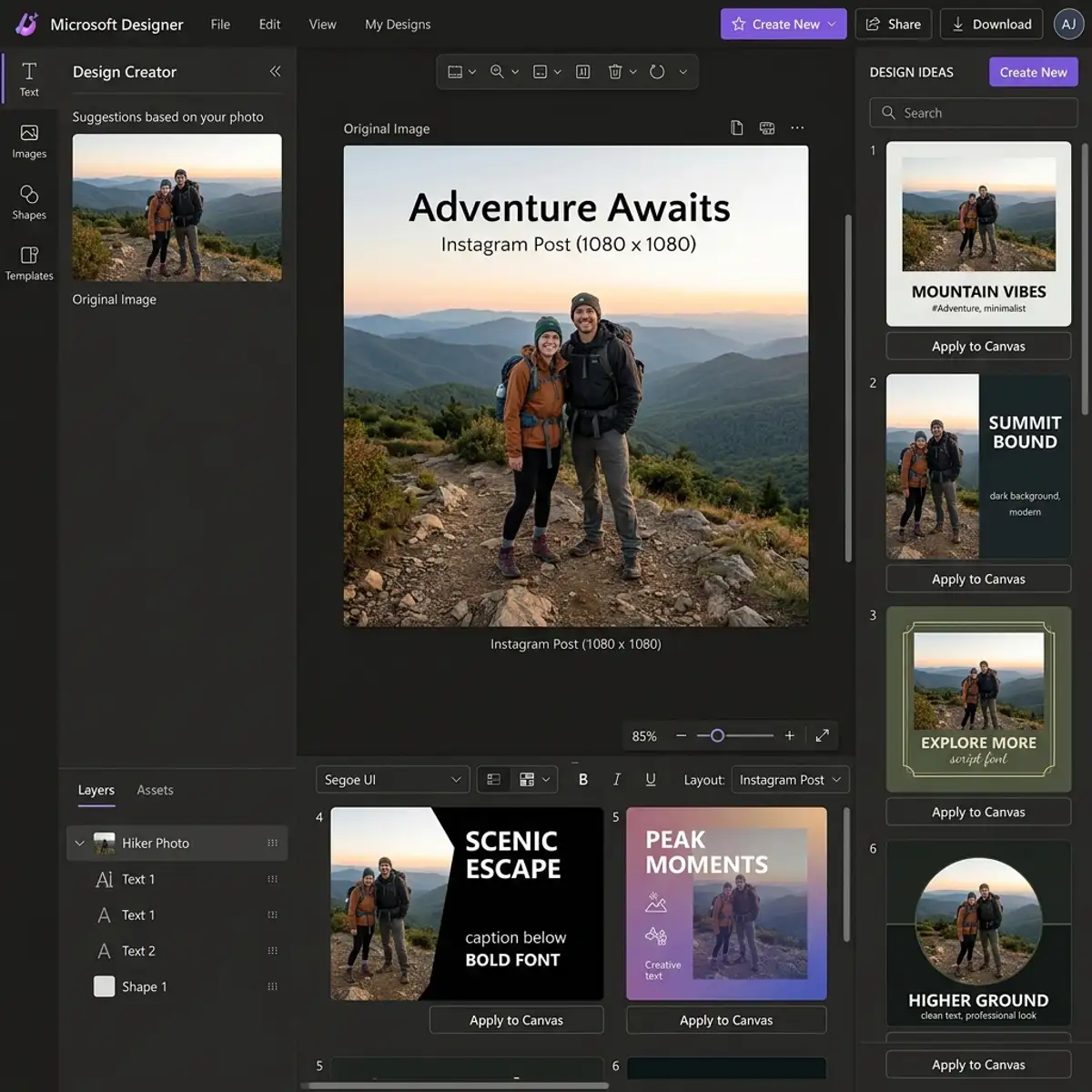
To expand your knowledge, check out our guide on design a professional YouTube banner in Canva.
Frequently Asked Questions (FAQ)
1. Can I resize my Canva design to any dimension without a Pro account?
Yes, you can resize your Canva design to any dimension without a Pro account by creating a new canvas with the desired dimensions and manually transferring and resizing elements from your original design.
2. Is grouping elements necessary for resizing in Canva?
While not strictly necessary, grouping elements is highly recommended when resizing in Canva. It helps maintain the relative positioning and proportion of design elements, ensuring a consistent and professional appearance.
3. What are some alternatives to resizing designs without Canva Pro?
Alternatives to resizing designs without Canva Pro include using other free design tools that offer resizing capabilities or manually adjusting your designs using Canva's free features, as detailed in this guide.






