Creating a professional logo doesn't necessarily require expensive software or design expertise. How to Design a Free Professional Logo on Canva is a straightforward process that combines creativity with user-friendly tools. Canva offers a powerful platform where even beginners can craft visually appealing logos that resonate with their brand's identity.
Understanding the Basics of Logo Design
Before diving into how to create a professional logo on Canva for free, it is important to understand some fundamental principles of logo design. A logo is more than just an image; it's a representation of your brand's ethos and values. Therefore, it should be simple, memorable, and versatile.
1. **Simplicity**: A simple logo is easily recognizable and can make a strong impression. Avoid clutter and aim for designs that communicate your brand message succinctly.
2. **Memorability**: An effective logo should be easily recalled after just a glance. This involves using unique elements that make your brand stand out from the competition.
3. **Versatility**: Consider how your logo will appear across various mediums and sizes. A versatile logo maintains its clarity and impact whether it's on a business card or a billboard.
4. **Relevance**: Your logo should be reflective of your business or industry. Consider colors, icons, and fonts that are appropriate to your brand’s market.
Step-by-Step Guide on How to Design a Free Professional Logo on Canva
To begin your journey on how to design a free professional logo on Canva, follow these detailed steps:
Step 1: Sign Up or Log In to Canva
If you haven’t already, sign up for a free Canva account. You can either use your email or log in through Facebook or Google. Once logged in, you’ll have access to Canva’s extensive library of design tools and templates.
Step 2: Choose a Logo Template
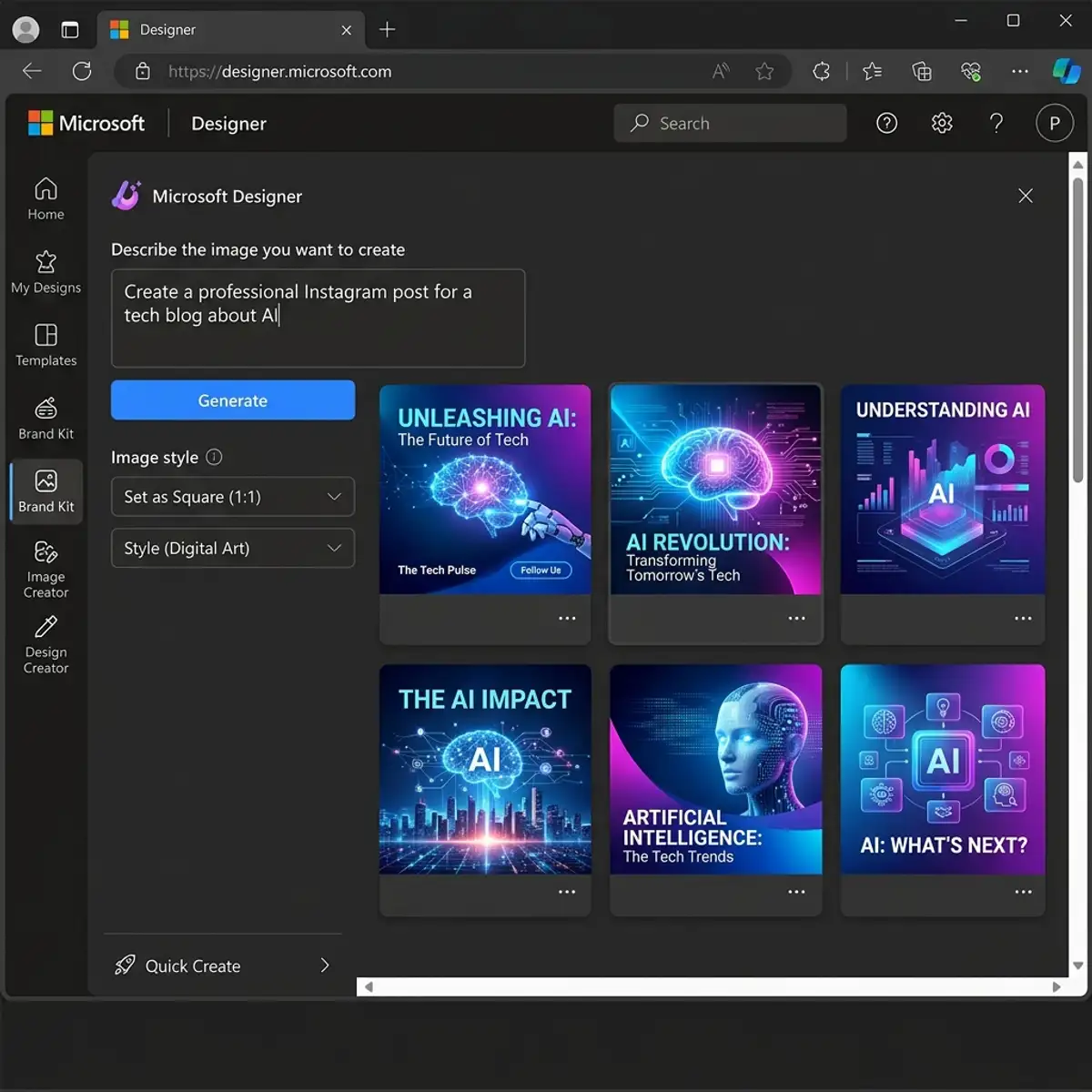
Canva offers a plethora of logo templates tailored for different industries. To find a template, use the search bar and type “Logo” or browse through the categories. Select a template that aligns with your brand’s style. Remember, templates are fully customizable, so you can modify them to suit your needs.
Step 3: Customize Your Logo Design
This is where creativity meets functionality. You can customize every aspect of the template:
- Colors: Select colors that reflect your brand identity. Canva allows you to use a color picker or enter hex codes for precision.
- Fonts: Choose from Canva’s vast collection of typography. Consider readability and style. Mix and match fonts to find a combination that complements your brand message.
- Icons and Graphics: Add or replace icons using Canva’s library. Ensure they are relevant to your brand and enhance the overall design.
Step 4: Utilize Grid Layouts and Alignments
Canva’s grid tool helps maintain balance and harmony in your design. Grids ensure that elements are well-aligned and proportionate, which is essential for a professional look. Use the 'Position' tool to align elements centrally or symmetrically.
Step 5: Add and Customize Text
Your logo may include your company’s name or slogan. Utilize Canva’s text tool to add text, and experiment with different font sizes, weights, and spacing. Consider hierarchy in typography to guide the viewer’s eye naturally.
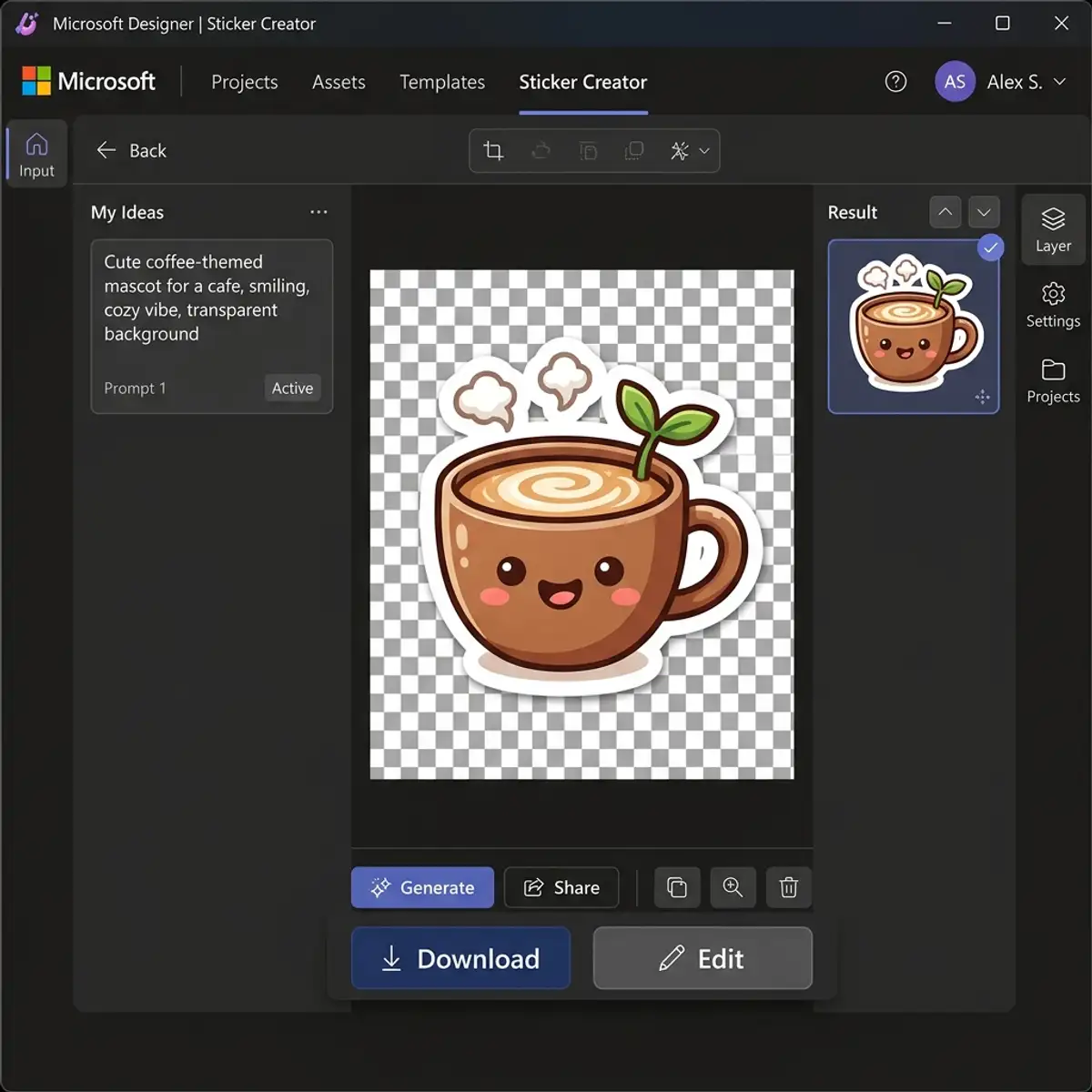
Step 6: Ensure a Transparent Background
A transparent background is important for logos as it ensures versatility across different backgrounds. To download your logo with a transparent background in Canva, click on the ‘Download’ button, select ‘PNG’ as the file type, and check the ‘Transparent background’ box.
Step 7: Download and Use
After finalizing your design, download it in high-quality resolution. Canva allows you to choose file types such as PNG, JPEG, or PDF, depending on how you intend to use the logo. Ensure you save a copy in a format suitable for both print and digital use.
Typography Combinations for Logo Design
Typography plays a significant role in logo design. It subtly influences perceptions and communicates brand values. Here are some tips on choosing typography:
- Pairing Fonts: Combine serif and sans-serif fonts for contrast. Serif fonts convey tradition and reliability, while sans-serif fonts offer a modern and clean look.
- Consistency: Maintain consistent typography across your branding materials to reinforce brand identity.
- Readability: Ensure that your text is legible at all sizes. Avoid overly decorative fonts that may hinder clarity.
Tips for Creating a Professional Logo on Canva
Beyond the basic steps, here are some advanced tips to elevate your logo design:
- Experiment with Shapes: Use geometric shapes to add structure and depth to your design. Shapes can highlight text or create visual interest.
- Use Negative Space: Clever use of negative space can create dynamic and memorable logos. It can add hidden meanings or dual imagery.
- Seek Feedback: Share your design with peers or potential customers to gather feedback. It can provide insights into the logo’s effectiveness and appeal.
Comparing Canva with Other Logo Design Tools
While Canva is a popular choice due to its accessibility and ease of use, it's insightful to compare it with other design tools:
| Design Tool | Strengths | Limitations |
|---|---|---|
| Canva | User-friendly, vast template library, free version available | Limited customization compared to advanced design software |
| Adobe Illustrator | Industry-standard, extensive customization options, vector graphics | Steep learning curve, expensive |
| Figma | Collaborative features, vector-based, free tier available | Primarily for UI/UX design, less focus on branding |
Canva stands out for its simplicity and cost-effectiveness, making it ideal for small businesses and startups. However, for more intricate designs, tools like Adobe Illustrator may be more suitable.
FAQs
Here are some frequently asked questions about designing logos on Canva:
1. Can I use Canva logos for commercial purposes?
Yes, Canva allows you to use your designs for commercial purposes. However, ensure you follow their licensing agreements, especially when using paid elements.
2. How can I ensure my logo is unique?
To ensure uniqueness, customize templates significantly by altering colors, fonts, and elements. Avoid using generic icons and aim for originality in design.
3. Is it possible to trademark a logo made on Canva?
Yes, you can trademark a Canva-designed logo. However, it's advisable to consult with a trademark attorney to ensure compliance with intellectual property laws.
Advanced Techniques for Customizing Logo Designs in Canva
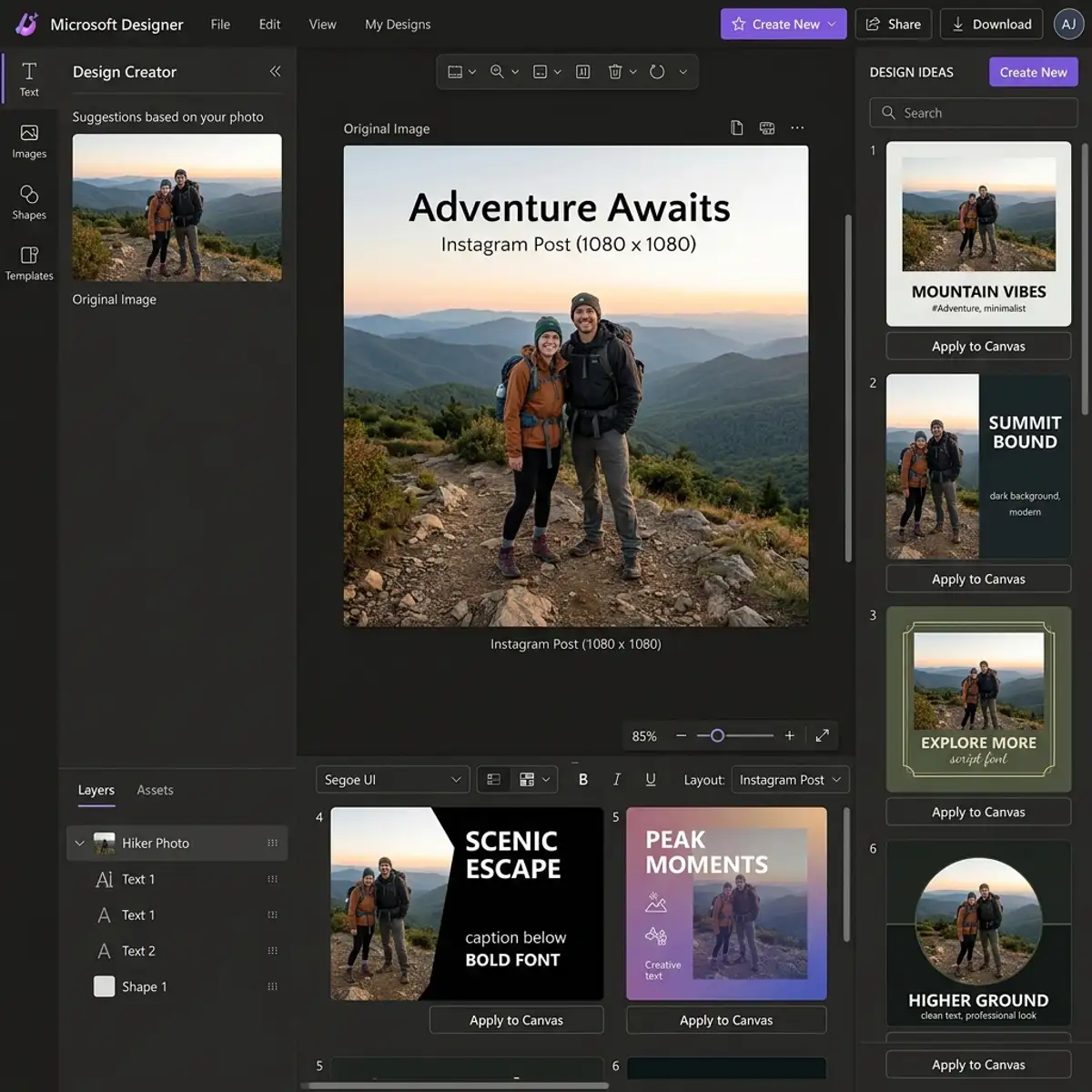
Delving into the advanced features of Canva can significantly enhance the customization of your logo designs, offering a professional edge that sets your brand apart. One of the most powerful tools at your disposal is the use of Canva's layering system. Layers allow you to stack different design elements on top of each other, similar to Photoshop, enabling more complex and visually appealing results.
By using layers, you can easily control the position and depth of each element in your design, making it easier to create a multidimensional effect. To effectively manage layers, utilize the position tool to move elements forward or backward, and group related elements to maintain consistency in your design. This technique is particularly useful when incorporating intricate patterns or overlapping text and graphics, thus enhancing the overall composition of your logo.
Another advanced feature that can elevate your logo design is the use of transparency settings. Adjusting the transparency of elements within your logo can create a subtle yet sophisticated look. This technique is especially useful when you want to integrate a watermark effect or blend background images with text.
By selecting an element and adjusting the transparency slider in the toolbar, you can achieve the desired level of translucence. Pairing transparency with gradient backgrounds can add depth and complexity, making your logo more memorable. Additionally, experimenting with different opacity levels can help you focus attention on specific parts of your logo, thus guiding viewer perception and enhancing brand messaging.
Incorporating Canva's extensive collection of vector elements can further refine your logo design. Vectors are scalable, meaning they maintain quality regardless of size, making them ideal for logos that need to be displayed across various mediums. Utilize Canva's search feature to find vector graphics that align with your brand's aesthetic.
Once selected, these elements can be customized by changing colors, resizing, and combining them with other design components. This flexibility allows for the creation of unique, bespoke designs that are tailored to your brand's identity. Moreover, integrating vector elements can streamline the process of creating consistent branding across different platforms, as they ensure that your logo is crisp and clear in any format.
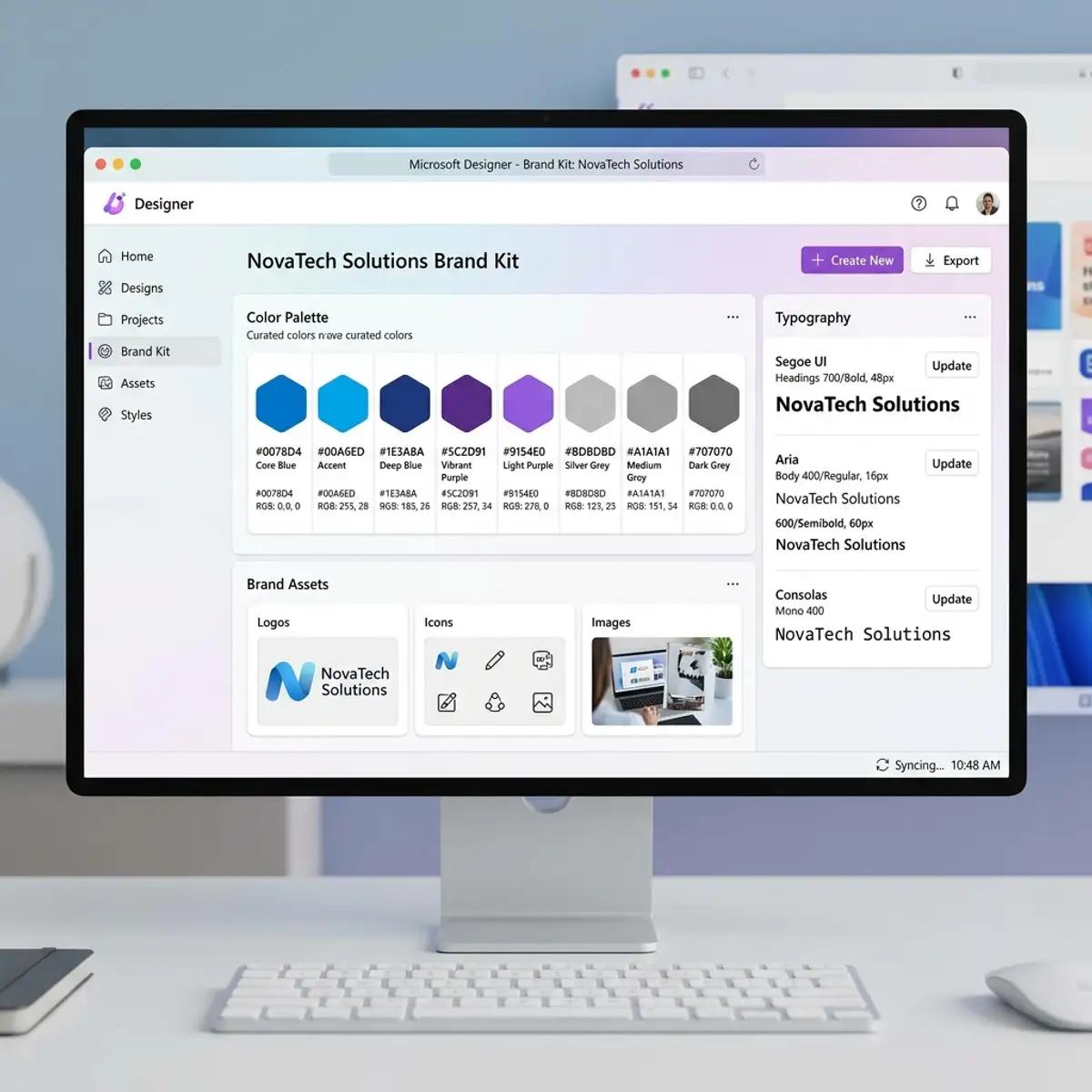
To optimize your logo design workflow, take advantage of Canva's brand kit feature. This tool allows you to save brand colors, fonts, and logos in one accessible location, ensuring that every design element is consistent with your brand identity. The brand kit simplifies the process of applying your brand standards across multiple designs and campaigns, which is important for maintaining a cohesive brand image.
Additionally, using Canva's collaboration features can further enhance your workflow. Share your designs with team members to gather feedback or collaborate in real-time, making it easier to refine and perfect your logo. By leveraging these advanced Canva features, you can efficiently create and manage professional-quality logo designs that resonate with your target audience and effectively communicate your brand's message.
Advanced Techniques for Optimizing Logo Design with Canva
When creating a professional logo on Canva, it's important to not only focus on the aesthetic appeal but also on optimizing the design for various use cases. One advanced technique that can significantly enhance your logo's versatility is ensuring scalability. Canva offers vector-based elements that allow you to create logos that can be resized without losing quality.
By utilizing these vector elements, you can ensure that your logo maintains its crispness whether it's displayed on a business card or a large billboard. To achieve this, use the "Elements" section in Canva to choose shapes and lines that are vector-based. Combine these with high-resolution images and text to ensure that your logo meets professional standards across all digital and print media.
Another important aspect of logo optimization is color management. Canva provides a comprehensive color palette and allows you to create custom colors using hex codes. It's critical to choose colors that are not only visually appealing but also consistent with your brand identity.
For a professional touch, consider using the "Brand Kit" feature in Canva, which enables you to save and manage color palettes, fonts, and logos. This ensures that every logo variant remains consistent with your brand's visual language. Furthermore, take advantage of Canva's color contrast checker tool to ensure your logo is accessible to all users, including those with visual impairments.
This tool helps you test different color combinations to achieve sufficient contrast, improving readability and alignment with web accessibility standards.
Integrating your logo design workflow with other tools can streamline the design process and enhance collaboration. Canva's integration with platforms like Dropbox, Google Drive, and Slack allows you to seamlessly import and export assets.
This is particularly useful for teams working remotely or across different locations. By syncing your Canva account with these platforms, you can easily share logo drafts for feedback and approval, ensuring that all stakeholders are involved in the design process.
Additionally, Canva's collaboration features allow multiple users to work on the same project simultaneously, making it easier to incorporate real-time feedback and make adjustments on the fly.
Finally, consider real-world use cases when designing your logo in Canva to ensure it meets all practical requirements. For instance, if your logo will be used on websites, social media platforms, and printed materials, each format may have different requirements. Canva's "Download" options allow you to export your logo in various formats such as PNG, JPEG, and PDF, each serving different needs.
For online use, PNG files are ideal due to their transparency support, whereas PDF files are preferred for print due to their scalability and high quality. Furthermore, testing your logo in different contexts, such as on mockups of business cards, letterheads, and merchandise, can provide insights into its effectiveness and aesthetic appeal in real-world applications. This comprehensive approach ensures that your final design is not only visually striking but also functionally robust across all intended use scenarios.
To expand your knowledge, check out our guide on design a professional YouTube banner in Canva.
To expand your knowledge, check out our guide on resize designs in Canva without a premium Pro account.