How to Design a Professional YouTube Banner in Canva for Free
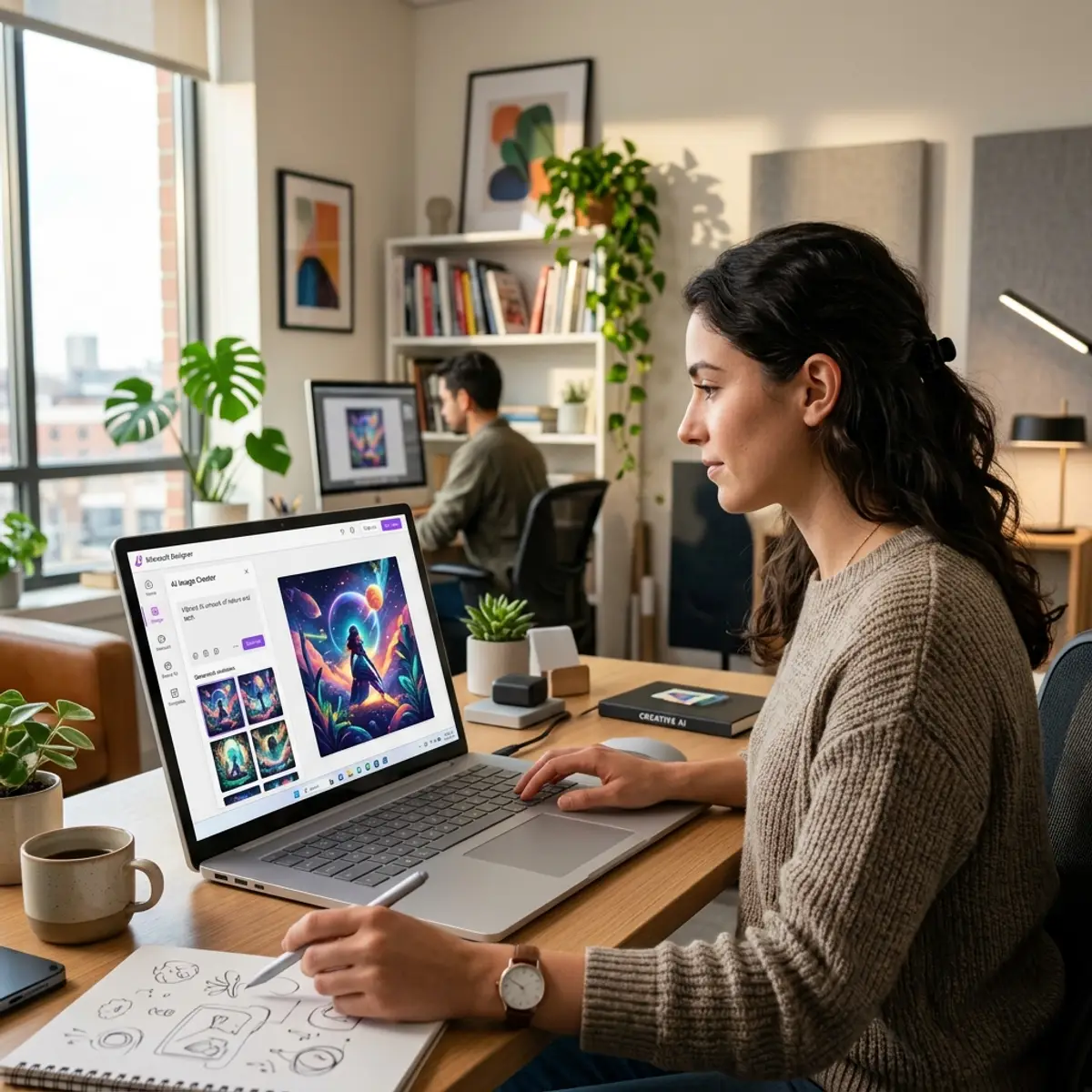
Creating a captivating YouTube banner is essential for drawing in viewers and establishing a professional online presence. This guide will delve deeply into how to make a YouTube banner in Canva, a user-friendly design tool that simplifies the process. Whether you're a novice or a seasoned designer, understanding the nuances of YouTube banner design can significantly enhance your channel's appeal.
The Importance of a Professional YouTube Banner
Your YouTube banner is the first impression viewers have of your channel. It sets the tone and conveys your brand's identity. A well-designed banner can attract subscribers, while a poorly crafted one might turn them away. Here, we'll explore the critical elements required to design a professional YouTube banner using Canva for free.
Understanding YouTube Banner Dimensions
Before you start designing, it's vital to comprehend the standard dimensions for a YouTube banner. YouTube recommends a banner size of 2560x1440 pixels. This ensures that your banner displays correctly across various devices, from desktops to TVs. However, the safe zone where critical information should be placed is 1546x423 pixels. This is the area that will be visible on all devices, including mobile phones.
Understanding these dimensions is critical because any text or important graphics placed outside this zone may get cut off, especially on smaller screens. Here's a comparison table to illustrate the different viewing experiences across devices:
| Device | Visible Area |
|---|---|
| Desktop | 2560x423 pixels |
| Tablet | 1855x423 pixels |
| Mobile | 1546x423 pixels |
| TV | 2560x1440 pixels |
Step-by-Step Guide on How to Design a Professional YouTube Banner in Canva for Free
Step 1: Setting Up Your Canva Account
If you haven’t done so already, head over to Canva's website and sign up for a free account. Canva offers a plethora of templates and tools that are perfect for creating a stunning YouTube banner without any cost.
Step 2: Choosing the Right Template
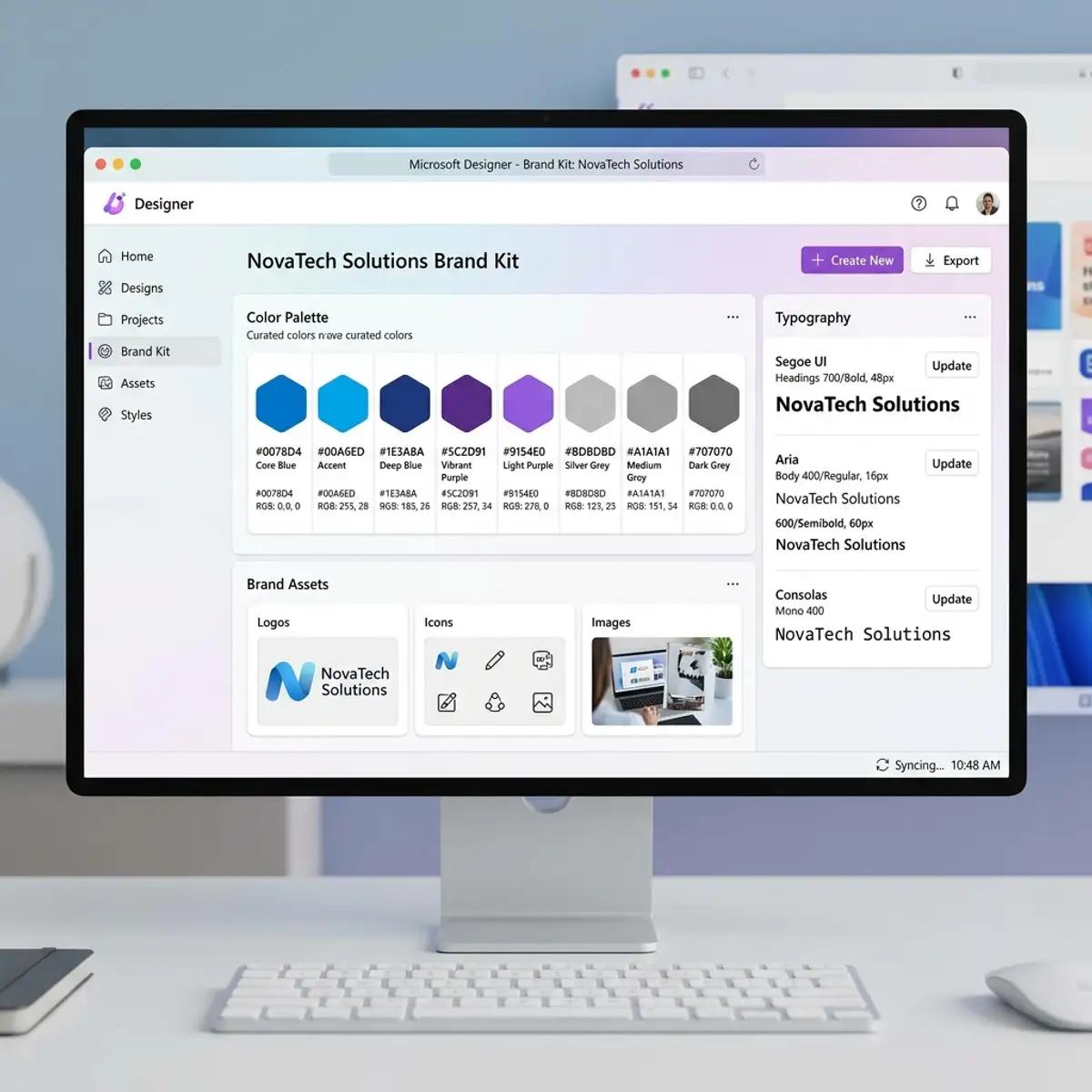
Once logged in, navigate to the search bar and type "YouTube Banner." Canva will present you with a variety of templates. Select one that aligns with your channel’s theme. Remember, templates are just starting points; they can be customized to fit your unique style.
Step 3: Customizing the Template
After selecting a template, it’s time to personalize it. Click on the text fields to input your channel name and any other pertinent information. Ensure all text is placed within the 1546x423 safe zone for optimal visibility across devices.
Step 4: Enhancing Your Design with Images
Images add depth and interest to your banner. Canva allows you to upload your own images or choose from its extensive library of free and premium photos. Make sure any images used are high resolution to maintain quality across different screen sizes.
Step 5: Utilizing Canva’s Design Elements
Canva provides a variety of design elements such as icons, shapes, and lines that you can use to enhance your banner. These elements can help create a cohesive look and emphasize certain aspects of your design. Experiment with layering and transparency to add dimension.
Step 6: Adding Text and Typography
Text is vital in conveying your channel's message. Choose fonts that are legible and reflect your brand’s voice. Canva offers a vast array of fonts, allowing you to play with different styles. Ensure that the text color contrasts well with the background for readability.
Tips and Tricks for a Professional Look
Achieving a professional look involves more than just following steps. Here are some additional tips:
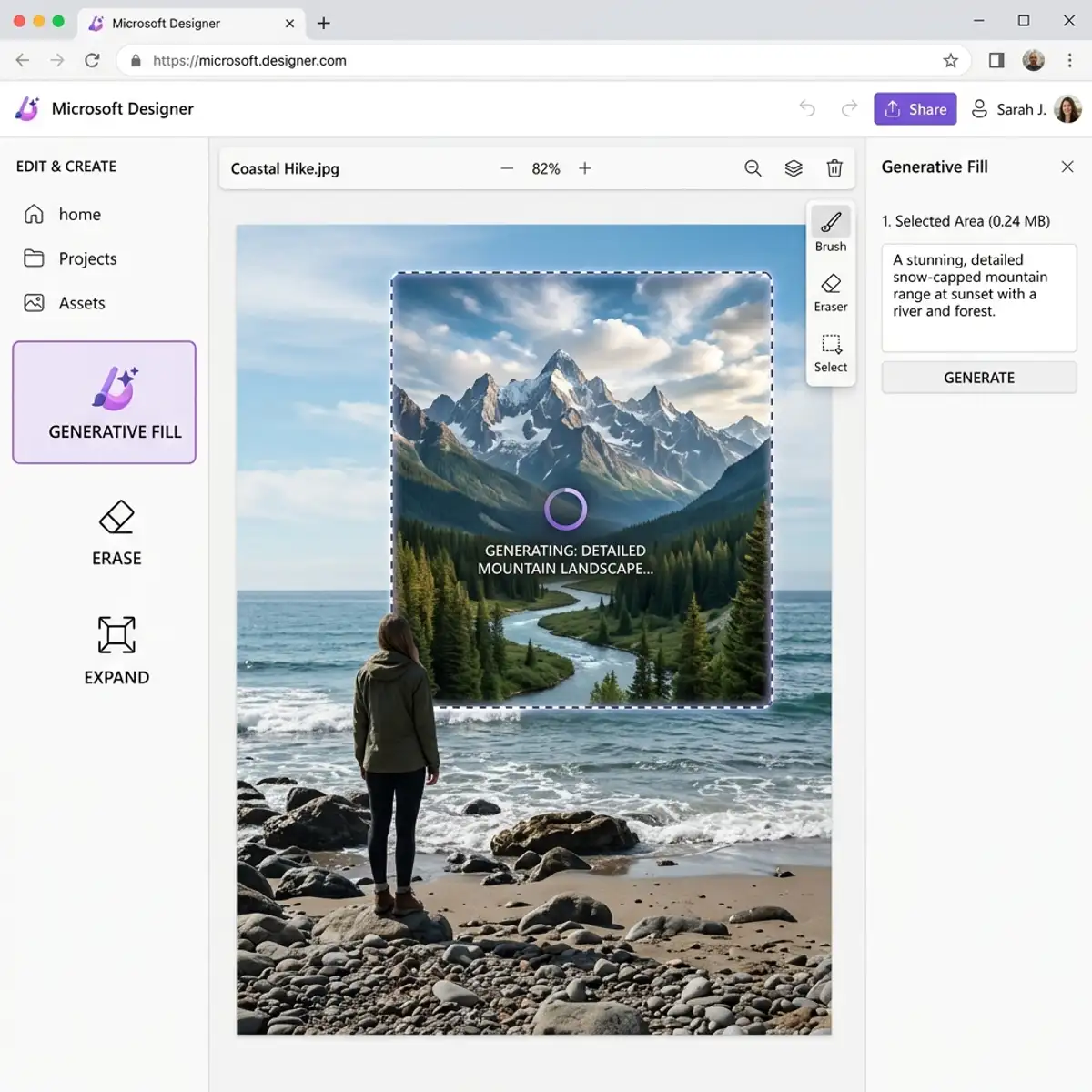
- Maintain simplicity: Avoid cluttering your banner with too much information.
- Consistency is key: Use consistent colors and fonts throughout your channel for brand recognition.
- Leverage the power of grids: Use Canva’s grid tool to align elements perfectly, ensuring a balanced composition.
- Test on different devices: Preview your banner on various devices to ensure it appears as intended.
Tip: For more design insights and to create a professional logo for your brand, check out our guide on how to create a professional logo in Canva for free.
Exporting Your YouTube Banner
Once your design is complete, it’s time to export it. Click on the "Download" button in the top right corner of Canva. Select PNG or JPEG format for the best quality. Ensure that you save the file with the full 2560x1440 dimensions to meet YouTube’s requirements.
Common Mistakes to Avoid
When designing your banner, steer clear of these common pitfalls:
- Using low-resolution images: These can appear pixelated and unprofessional.
- Ignoring the safe zone: Important text or images may be cut off on mobile devices if placed outside the 1546x423 area.
- Overcomplicating the design: A busy banner can be overwhelming. Aim for clarity and simplicity.
Conclusion
Designing a YouTube banner in Canva is a straightforward process that can yield professional results if approached thoughtfully. By understanding dimensions, using Canva's extensive tools, and adhering to design principles, you can create a banner that effectively represents your channel and engages your audience. Remember, your banner is a reflection of your brand—make it count!
Advanced Optimization Techniques for YouTube Banners in Canva
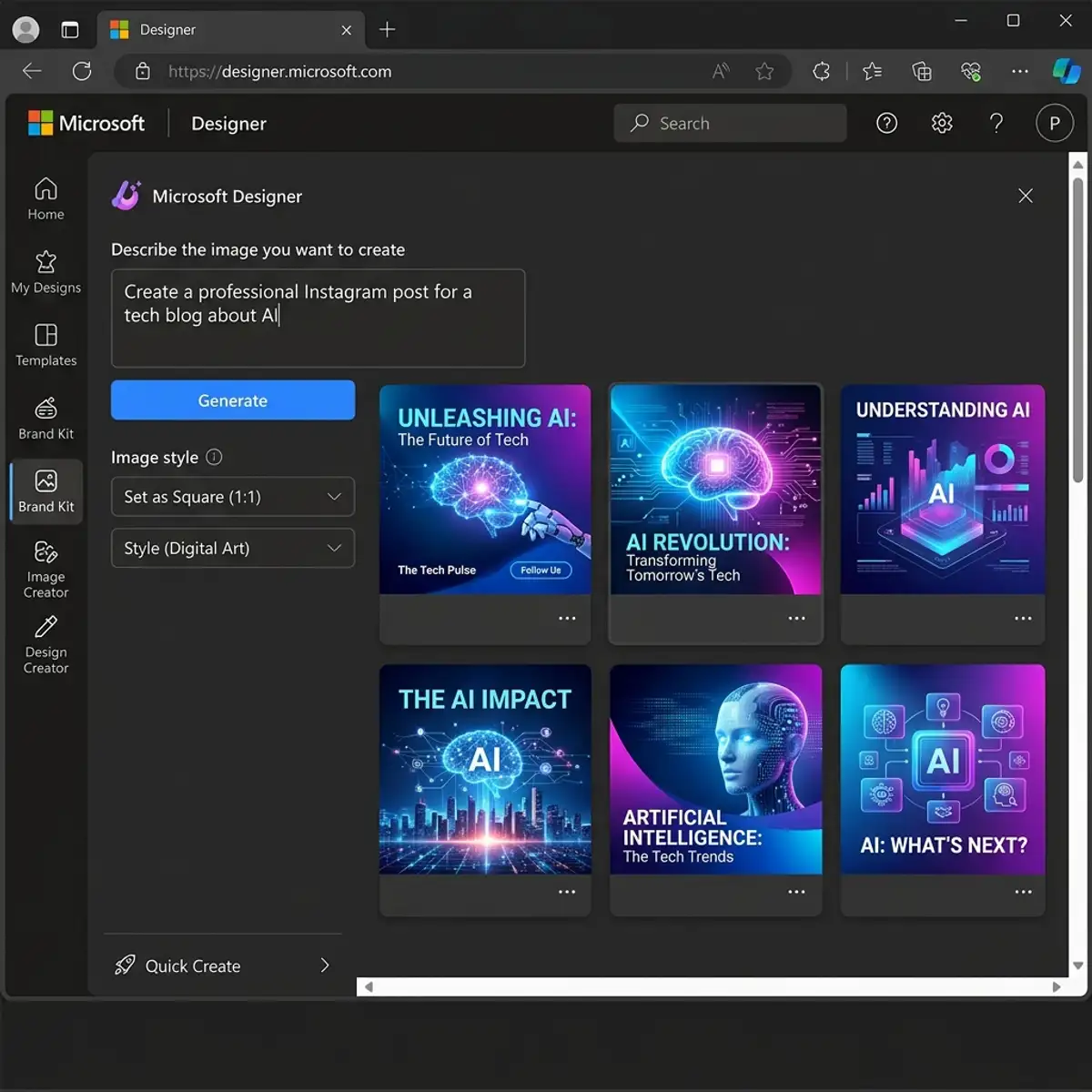
Creating a visually appealing YouTube banner is essential, but optimizing it for maximum impact involves a deeper understanding of design principles and platform requirements. One of the most critical aspects is understanding the ideal dimensions and file size of a YouTube banner.
The recommended size for a YouTube banner is 2560 x 1440 pixels, with a safe area of 1546 x 423 pixels for text and logos to ensure they are not cut off on different devices. Canva provides templates that adhere to these dimensions, but customizing these templates to ensure all critical elements fit within the safe area is important for versatility across devices.
Moreover, keeping the file size under 6MB ensures fast loading times and maintains the quality of the image without pixelation or blurring.
Beyond dimensions, color optimization plays a significant role in designing a professional YouTube banner. Canva offers a color wheel tool that allows creators to experiment with different color schemes to find the most visually appealing combination. Utilizing complementary or analogous colors can create a harmonious look that makes the channel stand out.
Additionally, considering color psychology can influence viewer perception and engagement; for instance, blue can evoke trust, while red signals excitement. Testing different color schemes and analyzing viewer engagement can provide insights into the most effective color choices for a particular audience. It is also advisable to test the design under different lighting conditions and on various devices to ensure color consistency.
Text placement and font choice are also critical in optimizing a YouTube banner. Canva offers a plethora of fonts, but choosing the right one involves balancing aesthetics with readability. Sans-serif fonts often work best for digital platforms due to their clarity.
However, pairing a decorative font for headings with a simple sans-serif font for subheadings can add an element of sophistication to the banner. Utilizing Canva's text spacing and alignment tools ensures that the text is evenly distributed and legible. Furthermore, adjusting line spacing and kerning can significantly impact the overall readability, especially when viewed on smaller screens.
Consistent font size and style across the banner establish a professional look that enhances brand identity.
Workflow integration and the use of advanced Canva features can streamline the banner design process. Canva's integration with other platforms, such as Google Drive and Dropbox, allows seamless importing of brand assets, ensuring consistency with existing marketing materials. Utilizing Canva's magic resize feature enables creators to quickly adapt a YouTube banner design into other social media formats, maintaining brand cohesion across various platforms.
Additionally, leveraging Canva's version history feature allows designers to experiment with different design elements and revert to previous versions if needed. This flexibility is particularly beneficial for A/B testing various banner designs to determine which resonates best with the audience. By incorporating these advanced techniques into the design process, creators can produce a professional YouTube banner that not only attracts attention but also reinforces their channel's brand identity.
Advanced Techniques for Optimizing Your YouTube Banner Design in Canva
Designing a YouTube banner in Canva offers a plethora of customization options that can elevate your channel's visual appeal, but optimizing these designs for both aesthetics and functionality requires a deeper understanding of advanced techniques. One such technique is the strategic use of Canva’s grid and frame features to ensure that your banner elements are perfectly aligned and proportioned.
By utilizing grids, you can maintain consistency in spacing and layout, which is important for creating a professional look. Frames, on the other hand, allow you to incorporate images seamlessly into your design by cropping them to fit specific shapes without losing resolution or quality.
This ensures that your visuals are not only aligned but also crisp and clear, enhancing the overall impact of your banner.
In addition to alignment, color theory and typography play critical roles in optimizing your YouTube banner. Canva provides a color wheel tool that helps in selecting a cohesive color palette that resonates with your brand identity. By understanding complementary, analogous, and triadic color schemes, you can create a visually appealing banner that captures viewers' attention and encourages them to explore your channel further.
Similarly, choosing the right fonts is essential for readability and brand consistency. Canva offers a wide array of font options, and by pairing fonts that complement each other, you can enhance the visual hierarchy of your banner. This ensures that important information, such as your channel name or tagline, stands out effectively.
Workflow integration is another advanced aspect to consider when designing your YouTube banner in Canva. By leveraging Canva’s team collaboration features, you can streamline the design process, allowing multiple team members to contribute and provide feedback in real-time.
This is particularly useful for channels managed by a team, as it ensures that everyone is on the same page and that the banner aligns with the overall channel strategy. Furthermore, Canva’s integration with other tools like Dropbox or Google Drive allows you to easily import and export assets, making the design process more efficient.
These integrations save time and reduce the potential for errors, ensuring a smoother workflow from concept to completion.
Finally, real-world use cases of successful YouTube banners can serve as inspiration and benchmarks for your design efforts. Analyze banners of popular channels within your niche to understand what elements contribute to their success.
Look for patterns in layout, color schemes, and the use of imagery or text. Applying these insights to your design process can help you create a banner that not only looks professional but also effectively communicates your channel’s value proposition.
Additionally, testing different designs and gathering feedback from your audience can provide valuable insights into what works best, allowing you to refine and optimize your banner for maximum impact.
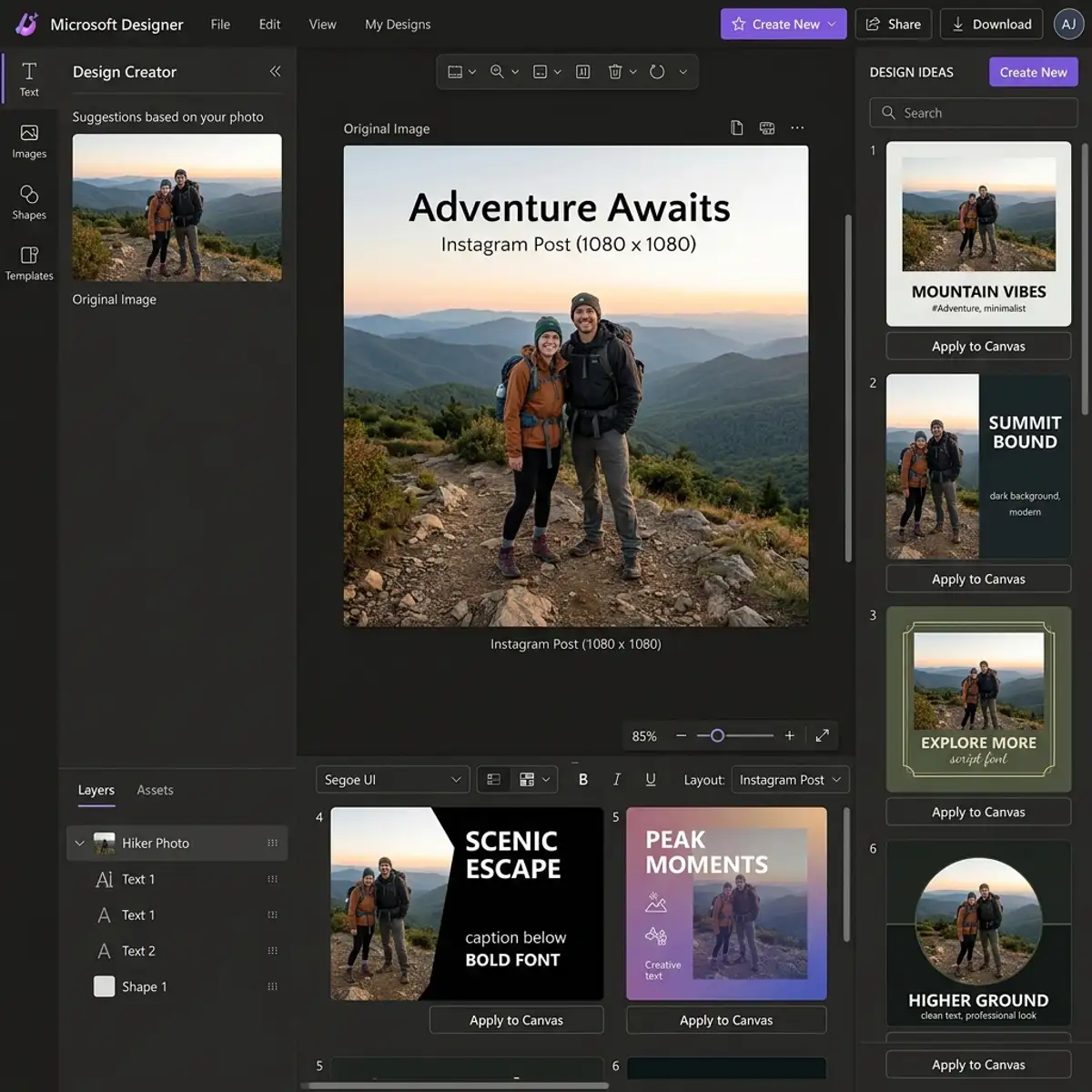
Advanced Techniques for Optimizing Your YouTube Banner Design in Canva
Creating a visually appealing YouTube banner is important to establishing a professional online presence, but optimizing the design for various devices and branding consistency takes it to the next level. Advanced optimization techniques in Canva can significantly enhance the effectiveness of your banner.
Start by utilizing Canva's grid and alignment tools to ensure that your design elements are perfectly aligned. This not only creates a clean look but also ensures that your banner's key elements, such as text and logos, remain visible across different screen sizes.
Utilize Canva’s transparency settings to layer elements creatively, adding depth and dimension to your design without overwhelming the viewer.
Another advanced technique involves leveraging Canva’s brand kit, a feature that allows for consistent branding across all your design projects. By uploading your brand’s colors, fonts, and logos into Canva, you can easily apply these elements to your YouTube banner.
This ensures that your banner is not only visually appealing but also aligned with your overall brand identity. Consistency in branding helps in reinforcing brand recognition and loyalty among your audience.
Additionally, using the Canva Pro version unlocks more features, such as the ability to upload custom fonts and access a wider range of design elements and templates, further enhancing the customization of your banner.
Workflow integration is another critical aspect of optimizing your YouTube banner design. Canva offers seamless integration with various platforms, allowing you to easily import and export design elements.
For instance, integrating Canva with cloud storage services like Google Drive or Dropbox enables you to access your assets from anywhere, facilitating a more efficient design process. Furthermore, by linking Canva with your YouTube account, you can directly update your banner once it’s finalized, saving time and ensuring that your channel always showcases the latest version of your design.
Finally, consider the real-world application of your banner design by testing it on multiple devices before finalizing. This ensures that your banner maintains its integrity and visibility whether viewed on a smartphone, tablet, or desktop. Canva provides a preview mode that allows you to see how your design will appear on different devices.
This feature is important for making necessary adjustments to text size, image placement, and other elements to ensure optimal viewing. Additionally, analyzing your YouTube analytics to understand which devices your audience predominantly uses can inform your design decisions, ensuring that your banner is optimized for the majority of your viewers. By incorporating these advanced techniques, you can create a YouTube banner in Canva that is not only visually stunning but also strategically optimized for maximum impact.
To expand your knowledge, check out our guide on resize designs in Canva without a premium Pro account.
Frequently Asked Questions
1. Can I use Canva for free to create a YouTube banner?
Yes, Canva offers a free version with ample features to design a professional YouTube banner. While there are premium elements available for purchase, you can access a vast array of free templates, images, and fonts.
2. What should I include in my YouTube banner?
Your YouTube banner should include your channel name, and tagline if applicable, and any other essential information you want viewers to know. Make sure all important details are within the mobile-safe zone for consistency across devices.
3. How can I ensure my YouTube banner looks good on all devices?
To ensure your banner looks good on all devices, keep critical information within the 1546x423 pixel safe zone and test your design on different devices before finalizing it. This will help you see how it appears on desktops, tablets, and phones.






