How to Set Up Quad9 DNS Servers on PfSense DHCP Server Configuration
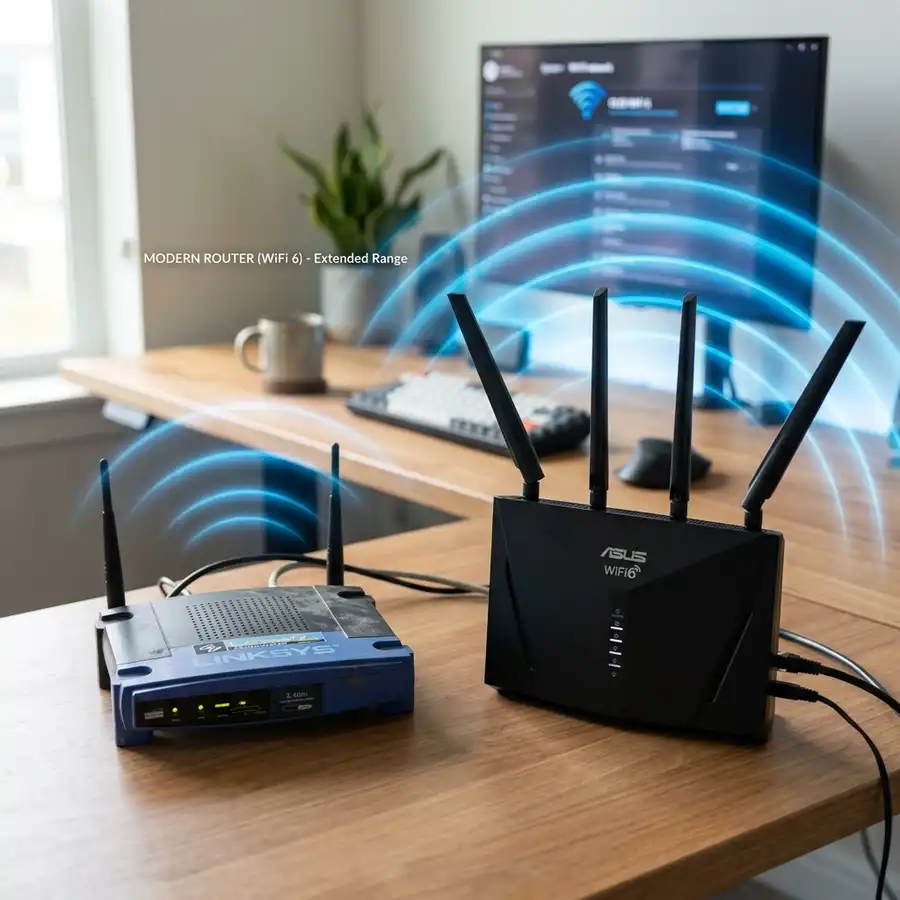
To set up Quad9 DNS servers on a PfSense DHCP server configuration, access the PfSense web interface and modify the DHCP settings to use Quad9 DNS addresses.
Introduction
Quad9 is a public DNS resolver that offers a secure and private browsing experience. Integrating Quad9 with PfSense enhances security by blocking known malicious domains, contributing significantly to a safer digital environment that is essential for users today.
Prerequisites
Before proceeding, ensure that PfSense is installed and configured in your network environment. Familiarity with the PfSense web interface is recommended for efficient navigation, as this knowledge is crucial for successful deployment, ongoing maintenance, and debugging procedures.

Accessing the PfSense Dashboard
Log in to the PfSense web interface by entering the router's IP address into a web browser. Use your credentials to access the main dashboard, where all configuration tasks will be performed efficiently, allowing for changes to be implemented effectively.
Setting Up DNS Servers
Navigate to the 'System' tab on the dashboard and select 'General Setup'. This area is crucial for DNS configurations, as users can input DNS server addresses that dictate how domain resolutions are handled in the network comprehensively and securely.
Enter Quad9 DNS addresses: 9.9.9.9 and 149.112.112.112. These IPs serve as the primary and secondary DNS servers, ensuring redundancy and continuity of service in case one server fails completely, thereby providing a safeguard against downtime.
Configuring DHCP Settings
Next, go to the 'Services' menu and select 'DHCP Server'. Choose the appropriate interface for DHCP configuration, which impacts all devices operating within that specific network segment significantly, ensuring proper address distribution and service accessibility.
In the DHCP settings, scroll down to the 'DNS servers' section to input Quad9 addresses again. This ensures that devices receiving DHCP will use the Quad9 DNS servers, thereby enabling all connected clients to benefit from the enhanced security immediately upon connecting to the network.
Comparison of DNS Resolvers
| Feature | Quad9 | Google DNS | Cloudflare DNS |
|---|---|---|---|
| IP Address | 9.9.9.9, 149.112.112.112 | 8.8.8.8, 8.8.4.4 | 1.1.1.1, 1.0.0.1 |
| Security Features | Malware blocking | No | No |
| Privacy Policy | No logging | Some logging | Minimal logging |
| Speed | Fast | Very Fast | Fastest |
Finalizing the Configuration
After entering the DNS settings, scroll to the bottom and save the configuration. It is advisable to reboot the DHCP service for changes to take effect, ensuring that all modifications are correctly applied to the running service efficiently and effectively.
Visit the 'Status' menu and select 'System Logs' to verify if the configuration is functioning correctly. Any errors or warnings will be logged here, providing crucial insights for troubleshooting and performance monitoring effectively and continuously.
Testing the Configuration
To test Quad9 DNS functionality, use a device connected to the network and access a DNS testing site. These sites allow verification of the DNS server in use, confirming successful integration and connectivity through various network paths universally to ensure reliable performance.
Additionally, ping the Quad9 DNS addresses from the command line to ensure connectivity. A successful ping indicates that there are no network-related issues preventing access to the DNS service directly, affirming the setup’s effectiveness.
Troubleshooting Common Issues
If devices do not appear to be using Quad9 DNS, check DHCP settings for accuracy. Ensure that the DNS entries have been correctly input without typographical errors, as slight mistakes can lead to significant connectivity problems otherwise.
Confirm that clients are receiving IP addresses from the PfSense DHCP server and that there are no overlapping DHCP servers in the network. Overlapping servers can lead to conflicts, resulting in inconsistent configurations across devices severely affecting their performance.
Advanced Troubleshooting Techniques
Analyzing DNS Traffic
Using tools like Wireshark can help analyze DNS traffic on the network comprehensively and in detail. This data can reveal insights into requests and responses flowing through the network, effectively assisting in identifying misconfigurations efficiently and accurately.
Checking Firewall Rules
Firewall rules within PfSense can also impact DNS configuration significantly, as they dictate what traffic is permitted. Properly configured rules are essential to ensure that DNS requests are not blocked, particularly outbound queries to the Quad9 servers explicitly, preserving necessary access.
Examining Network Latency
Network latency can adversely affect DNS performance and should be monitored closely during operation. Tools like traceroute and ping can provide additional context on how quickly DNS queries are resolved in real-time, offering valuable metrics for analysis.
Reviewing Network Devices
Ensure that other devices within the network do not inadvertently interfere with DNS queries or distributions. Any misconfigured devices can lead to performance metrics that do not align with expectations, creating further challenges that need to be addressed strategically.
Industry Standards for DNS Configuration
RFC Compliance
DNS configuration should adhere to the principles outlined in various RFC documents, such as RFC 1035 and RFC 4033. These documents provide a comprehensive framework governing DNS operations and configurations, promoting consistency across different implementations.
Best Practices
Implementing best practices, such as redundancy and regular auditing, can enhance DNS resilience significantly across diverse environments. Regular audits help to maintain compliance with evolving security protocols and benchmarks within the industry, safeguarding the infrastructure.
Security Protocols
Adhering to security protocols like DNSSEC can provide additional protection against cache poisoning attacks and other security vulnerabilities. Implementing such measures is vital for ensuring that responses are authoritative and have not been tampered with throughout the resolution process.
Documentation Standards
Establishing documentation standards can significantly improve the maintenance and configuration processes across teams. Well-documented configurations facilitate easier troubleshooting and provide a historical perspective on network changes, enhancing collaboration and efficiency.
Professional Tips for Optimal DNS Performance
Optimize Network Configuration
Regularly review network configurations to ensure optimal performance levels exist and are maintained consistently. Optimizing routes and minimizing latency can greatly improve DNS response times for all users connected to the network effectively.
Monitor DNS Performance Regularly
Utilizing monitoring tools helps track DNS performance effectively across the network infrastructure. Continuous monitoring allows for the quick detection of anomalies and performance degradations that could impact user experience and connectivity negatively.
Implement Caching Strategies
Caching DNS responses locally can reduce latency and improve speed for frequently accessed domains and services. A well-optimized caching strategy can minimize the load on upstream DNS servers and enhance overall performance metrics significantly.
Use Load Balancing Techniques
Deploying load balancing across multiple DNS servers can improve resilience and performance across the network. Load balancing effectively distributes traffic, preventing any single server from becoming a bottleneck during peak usage periods, thus maintaining service reliability.
Step-by-Step Configuration Summary
Step 1: Access the Dashboard
Log into the PfSense web interface through a web browser, ensuring secure access. This access serves as the gateway to all configurations required for DNS setup and overall network management efficiently.
Step 2: Configure General DNS Settings
Go to the 'System' tab and under 'General Setup,' input the Quad9 DNS addresses clearly and correctly. This step is foundational for securing DNS queries across the entire network significantly, ensuring users route traffic through trusted addresses.
Step 3: Set Up DHCP with Quad9 DNS
Within the 'Services' section, select 'DHCP Server' and configure the DNS settings accordingly for optimal results. These settings assure devices receive the correct DNS information upon connection seamlessly, streamlining the process for all endpoints.
Step 4: Save and Verify Settings
After saving, reboot the DHCP service to apply changes effectively and promptly. Once rebooted, navigate to 'System Logs' to verify accuracy in the service setup performed previously, checking for irregularities or failures in the processes.
Step 5: Perform DNS Testing
Finally, test the new DNS configuration using external DNS query tools or command-line utilities as best practices dictate throughout the industry. This testing validates the success of the setup and confirms that all settings work as intended under realistic conditions.
Advanced Signal and Frequency Considerations
Understanding Signal Integrity
Signal integrity plays a critical role in the performance of network equipment, affecting data transmission quality throughout the infrastructure. Electromagnetic interference can degrade signals, causing packet loss and delays in communication across the network, which severely impacts reliability.
Frequency Management
Network media operates over specific frequencies, which are crucial for ensuring reliable communication between devices in varying contexts. Managing these frequencies appropriately can enhance overall network performance and minimize interference from other nearby electronic devices actively.
The Role of Cabling Standards
Industry cabling standards, such as TIA/EIA 568, dictate specific performance characteristics for different types of cables used in networking environments. Adhering to these standards is essential for achieving optimal transmission quality and performance under varying conditions that networks may encounter.
Physics of Network Media
Understanding the physics behind network media is vital for troubleshooting and optimizing performance effectively across diverse situations. Factors like attenuation and signal distortion can significantly affect data communication efficiency and require careful management during setup for avoidance of issues.
Advanced Troubleshooting
Identifying Configuration Mistakes
Misconfigurations can often lead to network disruptions that adversely affect DNS resolution processes for users. Conducting periodic reviews of the configuration files can help identify these errors before they escalate into major problems, improving overall stability.
Using Logs for Insight
Accessing and interpreting system logs is vital for diagnosing issues effectively and efficiently. Logs frequently contain error messages or alerts that provide insights into what might be going wrong during the DNS resolution process, guiding corrective actions.
Exploring Client-Side Caching Issues
Client-side DNS caching may prevent updated DNS information from being retrieved by users, causing inconsistencies in access. Clearing the DNS cache on client devices can help troubleshoot discrepancies in domain resolution effectively and restore accurate functionality.
Testing Network Paths
Using network testing tools to analyze routing paths can identify potential bottlenecks that hinder performance. A clear and fast path ensures that DNS queries are routed optimally, thereby significantly reducing response times and enhancing user satisfaction.
Examining DNS Query Logs
Query logs can provide invaluable insights into the specific requests being sent out to DNS servers for analysis. Analyzing these logs can illuminate trends and patterns that highlight misconfigurations or potential issues in real time, allowing for swift intervention.

To expand on this subject, it is highly useful to also explore how to best budget mesh wifi in detail.
To expand on this subject, it is highly useful to also explore how to best 2.4ghz wifi channel in detail.
Frequently Asked Questions
What is Quad9 DNS?
Quad9 DNS is a free, secure DNS service that routes users away from malicious websites automatically to enhance safety. It leverages threat intelligence from various security sources to augment user safety online, contributing positively to a healthier internet ecosystem upon deployment.
How does Quad9 improve security?
Quad9 prevents access to known malicious domains and offers robust protection against phishing attacks effectively. Its security measures help mitigate threats without compromising browsing speed, thus maintaining a functional balance between security and usability effectively during internet usage.
Can Quad9 be used in conjunction with other DNS services?
Yes, Quad9 can be integrated alongside other DNS services, offering flexibility in configuration choices for users and administrators alike. However, it is typically used as the primary DNS resolver for optimal security benefits in most setups, improving overall effectiveness.
Is the privacy protected with Quad9?
Quad9 maintains a strict no-logging policy to protect user privacy comprehensively and rigorously. Users can browse the internet with a significantly reduced risk of monitoring or data profiling, reinforcing confidence in their online activities consistently throughout their sessions.
Why is DNSSEC important?
DNSSEC is important as it adds an additional layer of security to the DNS protocol, preventing specific types of attacks such as spoofing and cache poisoning. It helps verify the authenticity of responses and ensures that users connect to legitimate websites rather than malicious imposters, enhancing trust in communications.
What troubleshooting steps should be taken if Quad9 is unresponsive?
If Quad9 appears unresponsive, verify network connectivity to the DNS server's IP addresses thoroughly. Additionally, analyze firewall rules and verify that there are no restrictions on outbound DNS traffic towards the Quad9 servers to enable optimal functionality.
Consider the Environment Impact on Performance
Environmental factors, such as electromagnetic interference from nearby devices, can significantly affect DNS resolution performance. Conducting site surveys can assist in identifying potential sources of interference that may disrupt signal quality, ultimately leading to latency issues and failed queries.
Implement Regular Firmware Updates
Keeping firmware updated on PfSense and all network devices is essential for maintaining security and performance. Firmware updates often address bugs and introduce enhancements that improve DNS functionality and overall network stability.
Utilizing VLANs for Traffic Management
Implementing VLANs can help segregate DNS traffic efficiently within the network, thus managing bandwidth more effectively. This segregation ensures that high-priority traffic receives the required resources, preventing congestion during peak usage times.




