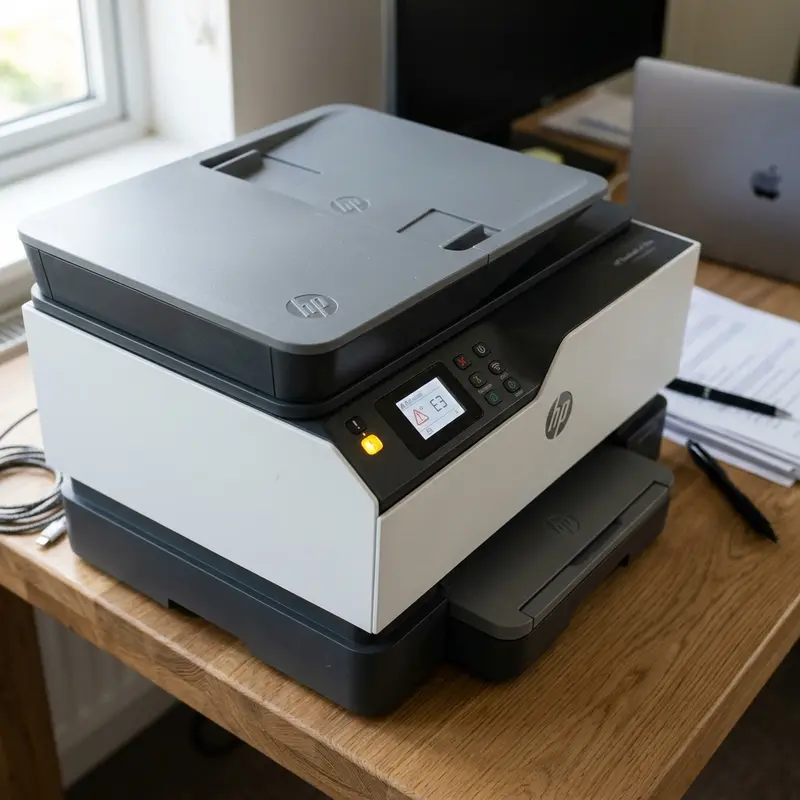
Understanding the 'Offline' State on HP Printers in Windows
An HP printer offline status on Windows 10 or Windows 11 is one of the most common issues encountered by IT support technicians. Contrary to popular belief, this status rarely points to a physical hardware defect. Instead, it is almost always caused by a software or communication breakdown in the network transport layer or a failure within the Windows print subsystem. The Windows operating system flags a printer as "Offline" when the local Print Spooler service (spoolsv.exe) fails to receive an ICMP echo request (ping) or a Simple Network Management Protocol (SNMP) response from the printer within a predefined timeout window.
One of the primary root causes of this failure is the use of WSD (Web Services for Devices) connection ports. WSD ports are designed to allow Windows to discover and install network devices automatically. However, they are highly unstable on home routers that perform dynamic channel routing or periodic DHCP lease renewals. When an HP printer enters sleep mode (Deep Sleep) to conserve energy, it lowers its network chip activity. A WSD port on Windows interprets this drop in power state as a complete physical disconnection, flipping the status to offline. However, the WSD driver often fails to wake the printer up and polling fails, leaving the printer permanently offline. Switching to a Standard TCP/IP port resolves this issue permanently.
If you need to perform a complete hardware reset to clear a locked-up printer state before modifying network settings, check our guide on how to factory reset the HP DeskJet 2776 printer.
Inside the Windows Print Subsystem (Print Spooler)
To diagnose this issue effectively, one must understand how Windows processes print jobs under the hood:
- Windows Print Spooler Service (spoolsv.exe): This background service manages the flow of document rendering and output. It receives print calls from apps, translates page graphics into a Page Description Language (such as PCL3, PCL6, or PostScript), and writes them to disk (in
C:\Windows\System32\spool\PRINTERS) as paired.SHD(Shadow) and.SPL(Spool) files. - Logical Port Assignment: The port acts as the interface routing data from the spooler. Whether it is a physical USB virtual port (USB001) or a network port (WSD-xxx, Standard TCP/IP), if the spooler fails to perform a TCP handshake over the assigned port, the print queue stalls, causing documents to stack up.
- Driver Isolation: Modern Windows versions run printer drivers in isolation to protect the OS from crashes. However, corrupt driver binaries or misconfigured port mappings can prevent the driver from polling the printer status, marking the queue as offline.
Step 1: Restarting the Windows Print Spooler Service
If the print subsystem is locked up due to corrupt spool files or buffer overflows, restarting the Spooler service will clear out stuck temp files and force Windows to query device connections again.
Step-by-Step Spooler Clean:
- Press the Windows Key + R on your keyboard to open the Run dialog box.
- Type
services.mscand press Enter to launch the Services console. - Scroll down or press P on your keyboard to find the Print Spooler service.
- Right-click the Print Spooler service and select Stop. The operating system will terminate the execution of
spoolsv.exe. - Keep the Services window open. Press Windows Key + R again, type
C:\Windows\System32\spool\PRINTERSand click OK. Grant administrator permissions if prompted. - Delete all files inside this folder (usually files ending with
.SPLand.SHD). Note: This clears all pending print jobs currently stuck in the queue. - Return to the Services console, right-click the Print Spooler service, and click Start.
- Check the printer status in the Windows Control Panel to see if the device has returned online.
Step 2: Migrating from a WSD Port to a Standard TCP/IP Port (Permanent Fix)
By mapping your HP printer to a Standard TCP/IP port, you bypass the unstable WSD detection layer, ensuring Windows directly targets the printer's IP address on the local area network.
Discovering the Printer's IPv4 Address:
- Press the Information (i) button on the HP printer panel, or hold Wireless + Information. The printer will print an network configuration page listing its current active IPv4 address (e.g.,
192.168.1.150). - Alternatively, log into your home router's admin portal and search the DHCP Client table for the MAC address corresponding to your HP printer's Wi-Fi module.
Configuring the TCP/IP Port on Windows:
- Open the Windows Start menu, search for Control Panel, and press Enter.
- Click on Devices and Printers.
- Right-click the offline HP printer icon and choose Printer Properties (ensure you select 'Printer Properties' and not standard 'Properties').
- Navigate to the Ports tab. You will likely see that the checked port has a description starting with "WSD Port".
- Click the Add Port... button.
- In the printer ports window, select Standard TCP/IP Port and click New Port....
- The Add Standard TCP/IP Printer Port Wizard will pop up. Click Next.
- In the "Printer Name or IP Address" field, input the IPv4 address you retrieved from the printed network page (e.g.,
192.168.1.150). The Port Name field will auto-populate. Click Next. - Windows will attempt to handshake with the printer over TCP. If successful, the wizard completes. If it fails to identify the hardware type, choose "Generic Network Card" and proceed.
- Click Finish to close the wizard.
- In the main Ports tab, check the box next to your newly created TCP/IP port to select it.
- Switch to the General tab, click Print Test Page, then click Apply and OK. Your print jobs will now bypass WSD and route directly via TCP.
For additional network configuration advice involving home routers and signal drops, checking our technical walkthrough on solving a Yoosee Wi-Fi camera offline error can provide useful router-side optimizations like DHCP IP reservation.
Troubleshooting Table: Printer Offline Diagnostic Indicators
Refer to this table to match specific printer offline behaviors to their logical root causes and solutions:
| Observed Windows behavior | Probable Underlying Cause | Recommended Action | Skill Level |
|---|---|---|---|
| Printer shows 'Offline' but replies to ping requests in Command Prompt (CMD). | 'Use Printer Offline' is enabled in the print queue, or SNMP status is blocked. | Uncheck 'Use Printer Offline' or disable the SNMP Status setting in Ports. | Low |
| Printer shows 'Offline', Wi-Fi LED is off, and ping requests timeout. | The printer disconnected from the Wi-Fi network or power is cut. | Power cycle the printer, run a network reset, and connect to Wi-Fi. | Medium |
| Printer randomly drops offline after entering standby / sleep mode. | Unstable WSD port connection fails to wake the network controller. | Change printer port to Standard TCP/IP with a static IP. | Medium |
| Jobs enter the queue and instantly disappear, but no physical printing occurs. | Driver conflict or wrong port assigning data to a non-existent port. | Reinstall the official PCL driver and match the correct active port. | High |
| Amber exclamation light flashing on printer with offline status on PC. | Physical error (paper jam, empty paper tray, cartridge mismatch). | Clear the paper path and check mechanical sensors. | Medium |
Step 3: Disabling SNMP Status Check in Port Settings
Windows relies on SNMP (Simple Network Management Protocol) over UDP ports 161 and 162 to query printer supplies and status. However, many domestic routers or software firewalls block UDP broadcasting. If Windows does not receive an SNMP reply, it marks the printer offline regardless of whether TCP communication is functional. Follow these steps to bypass this check:
- Open Devices and Printers via the Control Panel.
- Right-click your HP printer, select Printer Properties, and navigate to the Ports tab.
- Select your active Standard TCP/IP port and click Configure Port....
- At the bottom of the port settings dialog, uncheck the box labeled SNMP Status Enabled.
- Click OK to apply the changes, then close the remaining windows.
- Restart your computer to reload the Print Spooler stack with SNMP deactivated.
If you need further technical guides for troubleshooting connected office or home appliances, check out our articles on connect Epson L3250 to Wi-Fi from phone or learn what to do when Epson L3250 paper ink lights flashing together.
Technical Guide for Physical and Logical Troubleshooting on HP DeskJet Printers
HP DeskJet series multifunction printers rely on thermal inkjet technology, integrated directly into replaceable printhead cartridges (such as HP 67, 305, or 667 series). Unlike business-class printers with static ink lines, the HP DeskJet mainboard continuously monitors cartridge circuit health via electrical impedance checks on the data bus. If the copper contact pads on either the cartridge or the internal print carriage become oxidized or dirty, communication failures occur. This results in flashing lights, exclamation error codes, and a persistent offline status in Windows.
| Physical Error Code | Control Panel LED State | Underlying Electrical Cause | Step-by-Step Corrective Action |
|---|---|---|---|
| E0 or E1 | Paper status icon flashing on LCD. | Reflective paper passage sensor blocked or paper size mismatch registered by logic board. | Remove paper from tray, blow compressed air into the intake slot, and align the plastic guide slide. |
| E3 | Carriage stuck or amber error LED lit. | Carriage path block (paper scraps, foreign objects, or carriage motor driver overload). | Unplug the power chord, manually slide the carriage from left to right, clean the metallic bar, and apply low-viscosity machine oil. |
| E4 | Paper jam icon flashing. | Mechanical paper jam detected inside the pickup or duplex rubber rollers. | Access the bottom clean-out door, remove any torn paper fragments following the path of the rollers, and close it securely. |
| E5 or E6 | Ink cartridge status indicators flashing. | Cartridge authentication chip failure, electrical short, or printhead microcircuit failure. | Take out the cartridge, clean the gold contacts using a soft pencil eraser or isopropyl alcohol, and reinstall. Replace if the code remains. |
For network-related logical errors in Windows 10 and 11, it is highly recommended to assign standard TCP/IP ports to the printer instead of using WSD (Web Services on Devices) ports. WSD ports rely heavily on network discovery services and multicast requests (SSDP/UPnP). If your home router changes the printer's dynamically allocated IP or resets the ARP table, the WSD port driver on your PC will lose contact with the printer, keeping it in offline status even though it is active and pingable on the local network. For additional detailed instructions regarding wireless smart home configurations, check our article on connecting your HP DeskJet 2776 to Wi-Fi.
Frequently Asked Questions (FAQ)
1. Why does my Windows PC suddenly show my HP printer as offline?
This occurs when your router dynamically reassigns a new IP address to the printer via DHCP. If the printer's IP shifts from 192.168.1.50 to 192.168.1.99, Windows will continue sending files to the old IP, causing the offline status. Mapping a static IP or creating a DHCP reservation on the router prevents this.
2. How do I turn off 'Use Printer Offline' mode in Windows?
Go to Control Panel > Devices and Printers. Double-click your printer icon to open the queue. In the window that opens, click Printer in the top menu bar. Check to see if there is a checkmark next to Use Printer Offline. If it is checked, click on it to disable it.
3. Can third-party antivirus software or firewalls cause the offline issue?
Yes. Firewalls (like Avast, Norton, McAfee, or custom Windows Defender rules) can block incoming network communications from the printer. Ensure your network profile on Windows is set to 'Private Network' and add exception rules for port TCP 9100 and UDP port 161.
4. My HP printer is connected via USB. Why is it offline?
For USB configurations, an offline status indicates a bad physical connection (damaged cable, cable length exceeding 6 feet without signal amplifiers), or a glitched USB host controller on the motherboard. Try connecting the USB cable to a rear motherboard port (USB 2.0 is preferred for printers over USB 3.0) or replace the USB A-to-B cable.
5. Why does the HP Smart app show the printer online but Windows shows offline?
HP Smart communicates via a cloud API and WebServices, whereas Windows utilizes local print spooler ports. If local network ports are blocked by a firewall or router settings, Windows can lose track of the device even if HP Smart is still connected to the HP Cloud servers.
6. Will reinstalling printer drivers permanently fix this?
Only if the setup wizard correctly establishes a TCP/IP port. If the software defaults back to a WSD port, the offline issue will likely reoccur after a few router reboots. Modifying the port manually as described in Step 2 is the most robust solution.
Frequently Asked Questions (FAQ)
Why is my HP printer showing as offline on Windows?
This issue occurs when Windows fails to communicate with the printer. Common reasons include IP address changes due to DHCP lease renewals, print spooler crashes, Wi-Fi isolation settings on the router, or unstable WSD (Web Services on Devices) ports.
How do I change my HP printer from offline to online?
Open Control Panel > Devices and Printers, right-click your HP printer, and select "See what's printing". In the window that opens, click the Printer menu at the top and ensure that "Use Printer Offline" is unchecked.
How do I restart the Windows Print Spooler service?
Press Win + R, type "services.msc" and hit Enter. Scroll down to find the "Print Spooler" service, right-click it, and select "Restart". This will clear the print queue buffer and restart the spooler engine.
Can configuring a TCP/IP port prevent the printer from going offline?
Yes. Setting up a standard TCP/IP port instead of a WSD port ensures the printer always directs data to a specific, permanent local IP address, eliminating communication dropouts caused by WSD port resolution failures.




