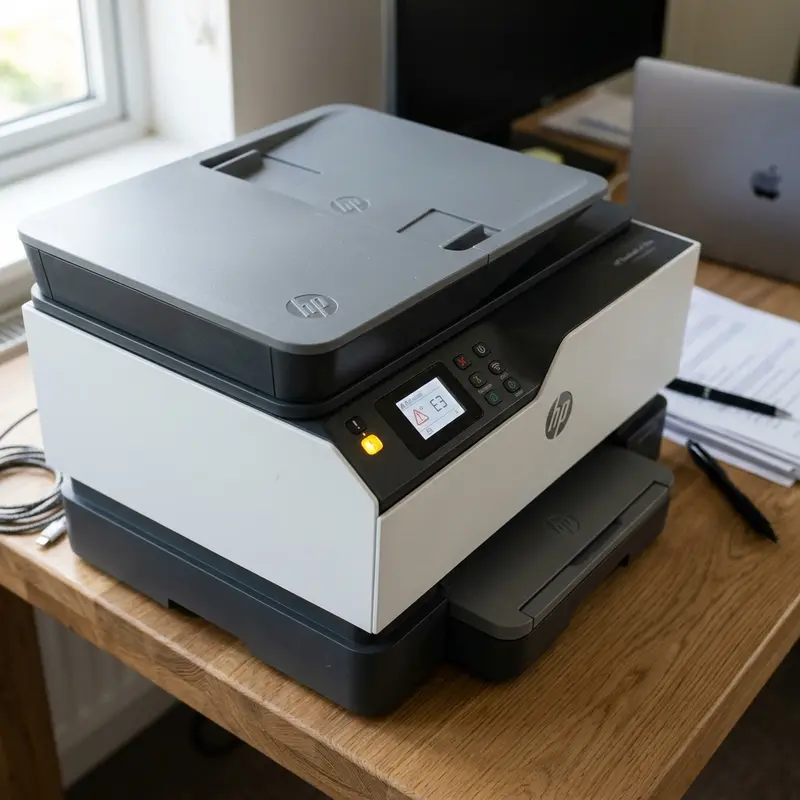
Technical Overview of the HP DeskJet 2776 Wi-Fi Connectivity
The HP DeskJet Ink Advantage 2776 all-in-one printer features integrated wireless connectivity powered by a 2.4 GHz radio transceiver chip compliant with the IEEE 802.11b/g/n wireless standard. The printer's main board embeds an RF transceiver circuit that converts electromagnetic waves captured by the internal ceramic antenna into digital data packets readable by the main CPU. During initial configuration, the printer utilizes a secondary Bluetooth Low Energy (BLE) transmitter to broadcast a discovery beacon, allowing nearby smartphones or computers to locate the hardware physically before transferring Wi-Fi credentials.
Although this automated pairing process simplifies setup, connecting wireless printers to local networks often creates technical friction. Modern dual-band routers that merge both 2.4 GHz and 5 GHz bands under a single network name (SSID) frequently trigger hardware handshaking failures. Because the HP DeskJet 2776 lacks 5 GHz hardware support, it cannot decode network beacons if the router attempts to force the connection over the higher band. Understanding these RF limitations is the first step toward a successful installation.
To ensure your printer's NVRAM registers are cleared before starting the pairing process, we recommend reading our dedicated guide on how to factory reset the HP DeskJet 2776 printer.
Understanding Wireless Pairing Protocols and DHCP Handshakes
Connecting a wireless client to your local network requires a specific sequence of security checks and IP assignments:
- Wi-Fi Setup Mode (SoftAP): When entered into setup mode, the printer disables its client network interface and spins up a local, unencrypted software access point (SoftAP). It broadcasts an open SSID like "HP-Setup-2700-DeskJet". The user's smartphone connects directly to this temporary network. Using local encrypted HTTP calls, the HP Smart app writes the home SSID and WPA2/WPA3 password directly into the printer's flash memory.
- WPA Handshake and DHCP Request: With the credentials stored, the printer shuts down the SoftAP interface and initiates a 4-way WPA security handshake with the home router. Upon successful authentication, it starts the DHCP (Dynamic Host Configuration Protocol) negotiation, broadcasting DHCPDISCOVER packets to obtain an IPv4 address, subnet mask, default gateway, and DNS servers.
- mDNS Multicast Broadcasts: To allow network clients to find the printer without typing its IP address manually, the HP DeskJet broadcasts multicast DNS (mDNS) packets over UDP port 5353. If your home router has AP Isolation enabled, or blocks local multicast traffic, the printer will connect to the Wi-Fi but will appear offline on your network devices.
Method 1: Connection via the HP Smart App (Smartphone or PC)
This is the default setup method. It uses the phone's Bluetooth Low Energy (BLE) radio to discover the printer and share network settings securely.
Pre-Setup Checklist:
- Verify that your smartphone or laptop is connected to your router's 2.4 GHz wireless band. If your router broadcasts separate SSIDs (e.g., "HomeNet" and "HomeNet_5G"), connect your device to the 2.4 GHz network.
- Enable Bluetooth and Location Services (GPS) on your mobile device. Android and iOS require GPS permissions to search for local low-power Bluetooth beacon signals.
Step-by-Step Installation:
- Power on the HP DeskJet 2776 printer.
- Put the printer into Wi-Fi Setup Mode: Press and hold the Wireless and Cancel (X) buttons simultaneously for 3 seconds. The Power button light will flash, and after a brief network reboot, the blue Wi-Fi LED will start blinking slowly.
- Launch the HP Smart app on your device. Download it from the Google Play Store, iOS App Store, or Microsoft Store if needed.
- On the app home screen, tap Add Printer (or the '+' icon).
- The app will scan for the printer's BLE beacon. Select the HP DeskJet 2700 series when it appears on the screen.
- Confirm the prompt allowing the app to share your active Wi-Fi password with the printer.
- Wait for the app to transfer the credentials. Once connected, the printer's Wi-Fi LED will stop flashing and glow solid blue.
- Complete the setup by logging into your HP account to enable cloud print features.
Method 2: Connecting via WPS Push Button (No App Required)
The WPS (Wi-Fi Protected Setup) method allows you to establish a secure connection between the printer and your router without typing passwords or downloading applications. It uses physical button actions to sync security keys.
Step-by-Step WPS Connection:
- Verify that the printer is powered on and no warning lights are active on the panel.
- Press and hold the Wireless button on the printer panel for approximately 3 to 5 seconds until the blue Wi-Fi light begins to flash rapidly.
- Within 2 minutes, locate the physical WPS button on your wireless router (typically found on the back or side). Press and hold it for 3 seconds. The router's WPS status LED will start flashing.
- The printer and router will automatically scan for each other and complete a secure WPA2 cryptographic handshake.
- Wait up to 2 minutes. Once the printer's Wi-Fi LED turns solid blue, the network connection is established.
If you connect the printer to your router but find that computers on your network cannot print due to logical driver errors or port hangs, consult our technical guide on resolving the HP printer offline error on Windows.
Optimizing Router Settings for a Stable Printer Connection
If your HP DeskJet 2776 drops its wireless connection frequently, the root cause is usually a dynamic configuration mismatch on your internet service provider's router. Access your router's admin portal (by entering the default gateway, such as 192.168.1.1, in a web browser) and apply these adjustments:
- Fix the 2.4 GHz Wireless Channel: Routers set to "Auto" channel switching periodically shift frequencies to avoid congestion. These sudden shifts can cause the printer's wireless card to disconnect. Set your router's 2.4 GHz band to a static channel (choose 1, 6, or 11, as they do not overlap).
- Adjust Channel Width: Change the channel width from 40 MHz or Auto to 20 MHz. The 20 MHz width provides longer range and is far more stable for low-power IoT transceivers.
- Disable AP Isolation: Ensure "Access Point Isolation" or "Device Isolation" is turned off in your router's wireless settings, as this feature blocks local communication between devices.
- Configure DHCP IP Reservation: Map your printer's MAC address to a fixed local IP address in the router's settings. This prevents the IP address from changing, resolving offline errors on Windows.
For more detailed information on network diagnostics and router optimization steps, check out our guide on troubleshooting a Yoosee Wi-Fi camera offline issue.
Troubleshooting Table: HP DeskJet 2776 Network States
Refer to the following table to diagnose and resolve wireless errors during installation:
| Wi-Fi LED Status | Network Diagnosis | Potential Root Cause | Recommended Action |
|---|---|---|---|
| LED is off. | Wireless interface is disabled. | The Wi-Fi card is powered down. | Press the Wireless button on the control panel to turn it on. |
| LED is flashing blue slowly. | Setup Mode is active (SoftAP). | The printer is waiting for network credentials from the app. | Open HP Smart on your device and begin setup via Bluetooth. |
| LED flashes quickly, then turns off. | WPA authentication failed. | Incorrect password entered, or router is set to exclusive WPA3. | Reset printer network settings, re-enter password, and set router to WPA2/WPA3 mixed mode. |
| LED is solid blue, but printer cannot be found in HP Smart. | Multicast blocked or band mismatch. | Phone is on a 5 GHz band, or router is blocking mDNS packets. | Ensure your phone is on 2.4 GHz and disable AP Isolation on the router. |
| LED flashes intermittently during printing. | Weak RF signal / high packet loss. | Printer is too far from the router or obstructed by dense walls. | Move the printer closer to the router or install a network repeater. |
If you need further technical guides for troubleshooting connected office or home appliances, check out our articles on connect Epson L3250 to Wi-Fi from phone or learn what to do when Epson L3250 paper ink lights flashing together.
Technical Guide for Physical and Logical Troubleshooting on HP DeskJet Printers
HP DeskJet series multifunction printers rely on thermal inkjet technology, integrated directly into replaceable printhead cartridges (such as HP 67, 305, or 667 series). Unlike business-class printers with static ink lines, the HP DeskJet mainboard continuously monitors cartridge circuit health via electrical impedance checks on the data bus. If the copper contact pads on either the cartridge or the internal print carriage become oxidized or dirty, communication failures occur. This results in flashing lights, exclamation error codes, and a persistent offline status in Windows.
| Physical Error Code | Control Panel LED State | Underlying Electrical Cause | Step-by-Step Corrective Action |
|---|---|---|---|
| E0 or E1 | Paper status icon flashing on LCD. | Reflective paper passage sensor blocked or paper size mismatch registered by logic board. | Remove paper from tray, blow compressed air into the intake slot, and align the plastic guide slide. |
| E3 | Carriage stuck or amber error LED lit. | Carriage path block (paper scraps, foreign objects, or carriage motor driver overload). | Unplug the power chord, manually slide the carriage from left to right, clean the metallic bar, and apply low-viscosity machine oil. |
| E4 | Paper jam icon flashing. | Mechanical paper jam detected inside the pickup or duplex rubber rollers. | Access the bottom clean-out door, remove any torn paper fragments following the path of the rollers, and close it securely. |
| E5 or E6 | Ink cartridge status indicators flashing. | Cartridge authentication chip failure, electrical short, or printhead microcircuit failure. | Take out the cartridge, clean the gold contacts using a soft pencil eraser or isopropyl alcohol, and reinstall. Replace if the code remains. |
For network-related logical errors in Windows 10 and 11, it is highly recommended to assign standard TCP/IP ports to the printer instead of using WSD (Web Services on Devices) ports. WSD ports rely heavily on network discovery services and multicast requests (SSDP/UPnP). If your home router changes the printer's dynamically allocated IP or resets the ARP table, the WSD port driver on your PC will lose contact with the printer, keeping it in offline status even though it is active and pingable on the local network. For additional detailed instructions regarding wireless smart home configurations, check our article on connecting your HP DeskJet 2776 to Wi-Fi.
Frequently Asked Questions (FAQ)
1. Does the HP DeskJet 2776 support 5 GHz Wi-Fi networks?
No. The wireless card on the HP DeskJet 2776 logic board only contains hardware filters and oscillators for the 2.4 GHz radio spectrum (802.11b/g/n). The printer cannot detect or connect to a 5 GHz wireless network. Ensure your router has a dedicated 2.4 GHz band enabled.
2. How do I find my printer's default Wi-Fi Direct password?
Wi-Fi Direct allows you to connect your device directly to the printer without a router. To find the security password, ensure the Wi-Fi Direct icon on the printer's screen is on, then press the Information (i) button. The printer will print a sheet showing the Wi-Fi Direct SSID and its 8-digit password.
3. Why does my printer disconnect when my smartphone goes to sleep?
This is caused by power saving algorithms (such as Doze mode on Android) on your mobile device. When the screen turns off, the OS restricts background multicast packets to save battery. Go to your phone's battery settings and disable battery optimization for the HP Smart app.
4. Can I use the printer over USB and Wi-Fi at the same time?
Yes. The HP DeskJet 2776 controller board can process separate printing queues for both the USB Type-B port and the Wi-Fi interface simultaneously. The printer's queue controller will buffer and process jobs sequentially as they are received.
5. Why does Windows ask for a WPS PIN when I try to connect?
The WPS PIN is a security code used to authorize network connections. This 8-digit PIN is printed on a white sticker located on the back of the printer, or inside the cartridge access door. Enter this number into the Windows prompt to authorize the connection.
6. How do I change the saved Wi-Fi password on my printer after getting a new router?
When you replace your router or update your network credentials, the printer will fail to connect. You must clear the old network profiles by holding the Wireless and Cancel buttons down for 3 seconds. Once the blue light flashes slowly, run the setup process in the HP Smart app to configure the new credentials.
Frequently Asked Questions (FAQ)
How do I put my HP DeskJet 2776 in Wi-Fi setup mode?
While the printer is powered on, press and hold the Wireless button and the Cancel (X) button simultaneously for 5 seconds. The Power button will flash, and the wireless network icon on the LCD will begin blinking, indicating the printer is in setup mode.
Which app is required to connect the HP 2776 to Wi-Fi?
You need to download and install the official HP Smart app on your smartphone, which is available in the Google Play Store for Android devices and the Apple App Store for iPhones/iPads.
Why won't my HP 2776 detect my home Wi-Fi network?
The HP DeskJet 2776 integrates a 2.4 GHz single-band wireless antenna. It cannot scan or establish connection handshakes with 5 GHz frequency bands. Ensure your router has a dedicated 2.4 GHz SSID enabled.
Can I print from my phone to the HP 2776 without a Wi-Fi router?
Yes, you can use HP Wi-Fi Direct. Press the Wireless and Information (i) buttons together to print a network status report. This document contains the Wi-Fi Direct network name (SSID) and the 8-digit password needed to connect directly.




