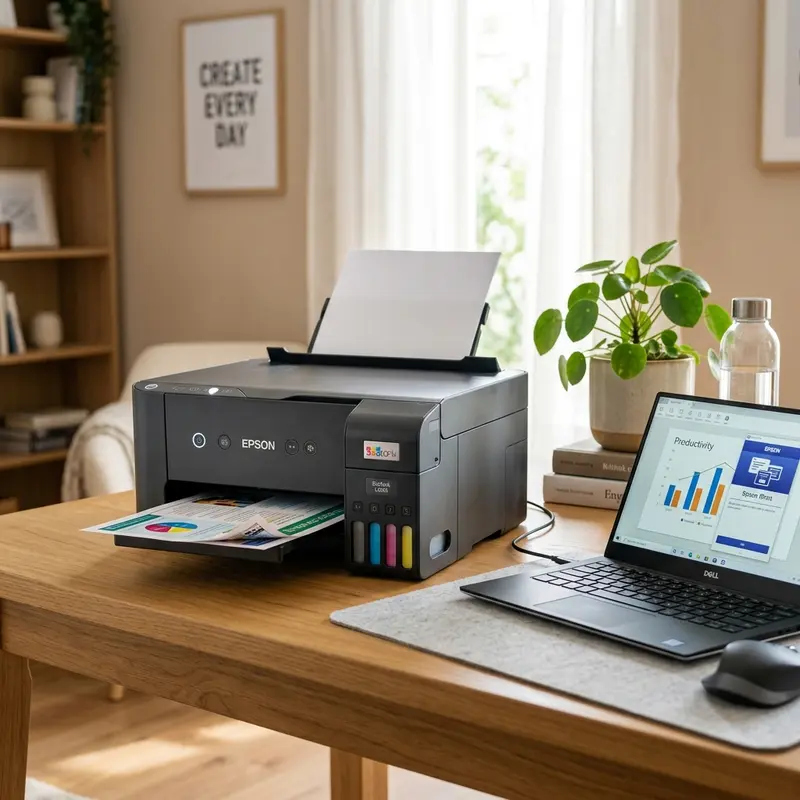
To scan documents from an Epson L3250 printer to your computer, the most reliable method is to install the official Epson Scan 2 driver, connect the printer via USB or Wi-Fi, and run the program to select your file format (such as Searchable PDF or JPEG) and scan resolution (DPI). You can also use built-in system software like Windows Fax and Scan, or initiate scans directly from the physical control panel on the front of the printer, provided the Epson Event Manager utility is running in the background on your PC.
The Epson EcoTank L3250 is a popular all-in-one printer. However, many users run into issues when trying to use its flatbed scanner, especially after setting the printer up to run wirelessly. Knowing how the internal scanner hardware works and configuring the network settings on your PC can help prevent scanning freezes and ensure you get high-fidelity digital files. In this guide, we will look at the physics behind the L3250\'s CIS scanner module and provide step-by-step instructions for scanning documents and photos.
Inside the Flatbed Scanner: CIS Sensor Technology
Older office scanners used Charge-Coupled Device (CCD) sensors that relied on complex mirrors and reducing lenses. The Epson L3250 uses Contact Image Sensor (CIS) technology. This setup allows for a slim design, low power consumption, and high mechanical reliability. The physical process of converting a paper document into a digital file involves several steps:
- Illumination: The scanner carriage, situated directly beneath the flatbed glass, contains a line of light-emitting diodes (LEDs) that flash red, green, and blue (RGB) in rapid succession. This light illuminates the face-down document on the glass.
- Light Reflection and Lenses: Light reflecting off the page passes through a row of microscopic rod lenses built into the CIS module itself. These lenses focus the reflected light onto a line of silicon photodetectors.
- Charge Generation: As photons hit the silicon junction on each photodiode, they excite electrons, creating a small analog voltage signal. Bright areas on the page reflect more light and generate a higher voltage, while dark text areas reflect less light and generate a lower voltage.
- Analog-to-Digital Conversion: The analog voltage signal from each photodiode is sent to an Analog-to-Digital Converter (ADC) chip on the printer\'s main logic board. The ADC converts these electrical voltages into digital data (bits) representing gray levels or color values.
- Mechanical Motion: As lines of data are read, a high-precision stepper motor turns a drive belt connected to the scanner carriage. This belt moves the CIS assembly smoothly along metal guide rails from one end of the glass to the other. An optical end-stop sensor calibrates the carriage\'s starting position (home position) every time the scanner powers up.
While this mechanism requires very little maintenance, it is sensitive to smudges and dust on the glass. Dust blocks the reflected light, resulting in vertical lines appearing on your scans.
Setting Up the Drivers on Your PC
A common mistake is connecting the printer\'s USB cable and letting Windows install generic class drivers. While this usually enables printing, it often limits scanning functionality and prevents you from choosing advanced settings like color correction and dust removal.
To set up your Epson L3250 scanner correctly:
- Visit the official Epson support website.
- Search for "L3250" and select your operating system (such as Windows 10, Windows 11, or macOS).
- Download the "Drivers and Utilities Combo Package" or get the standalone Epson Scan 2 Utility.
- Run the installer. If you plan to scan over Wi-Fi, make sure your computer is connected to the same 2.4 GHz wireless network as the printer. If you prefer using a USB connection, do not plug in the USB 2.0 cable until the installer prompts you to do so, to avoid port detection errors. For wireless network troubleshooting, check our guide on connecting the Epson L3250 to Wi-Fi from your phone.

How to Scan Using Epson Scan 2
The Epson Scan 2 software communicates directly with the scanner\'s firmware. It features two modes: Simple Mode (for quick everyday scans) and Advanced Mode (for precise control over resolution, color balance, and file formats).
Steps for Advanced Mode Scanning:
- Position the Document: Lift the scanner lid. Place your document face down on the glass, aligning the top-left corner of the page with the arrow mark on the plastic frame. Lower the scanner lid.
- Open the Software: Launch the Epson Scan 2 application on your computer.
- Select the Scanner: At the top of the interface, ensure that "EPSON L3250 Series" is selected in the scanner list.
- Choose Input Settings: Set the document type to "Reflective," the source to "Scanner Glass," and the image type (such as 24-bit Color, Grayscale, or Black & White).
- Set the Resolution (DPI): The physical optical resolution of the L3250 is 1200 x 2400 DPI. For standard text documents, select 200 DPI or 300 DPI (this keeps file sizes small while maintaining readability). For high-detail photos or images you plan to crop or enlarge, choose 600 DPI or 1200 DPI.
- Click Preview: Click the "Preview" button. The scanner will perform a quick pass and show a low-resolution version of the document on screen. You can use your mouse to drag a box around the active document area, cropping out any empty glass margins.
- Select File Format: Choose your destination folder, name the file, and select a file format (PDF, JPEG, TIFF, or PNG). If you select PDF, you can choose "Searchable PDF," which uses the driver\'s built-in OCR (Optical Character Recognition) to convert scanned text into selectable, searchable text.
- Start Scan: Click "Scan." The scanner will make its final pass at the selected resolution, saving the file to your computer.
Scanning Using the Printer\'s Physical Buttons
You can also start a scan using the buttons on the printer. Note that this feature requires a USB connection and requires the Epson Event Manager utility to be running in the background on your PC.
To scan using the printer panel:
- Press both the Black and White Copy and Color Copy buttons on the printer panel simultaneously.
- This sends a command to the PC. The Epson Event Manager software on your computer will intercept this signal and automatically run a scan, saving the image to your Documents folder as a PDF or JPEG.
If your printer displays flashing lights or copy errors during this process, refer to our diagnostic guide on the Epson L3250 paper and ink lights flashing together error.
Advanced Resolution settings and Color Depths in Epson Scan 2
To achieve the highest fidelity when scanning with the Epson L3250, you must configure the DPI (Dots Per Inch) resolution settings correctly. For standard document archiving, a resolution between 200 DPI and 300 DPI is optimal, keeping file sizes small while maintaining crisp text legibility. However, when archiving high-detail photographs or historic manuscripts that require digital restoration, increase the scan parameters to 600 DPI or 1200 DPI. Be aware that scanning at higher DPI scales exponentially increases transmission times and physical file sizes on your computer storage.
DPI Settings and Formats Comparison Table
| Recommended Resolution (DPI) | Ideal File Format | Color Mode | Practical Application & Use Case |
|---|---|---|---|
| 150 DPI | Searchable PDF | Grayscale | Standard text-only contracts and documents for lightweight archiving |
| 300 DPI | PDF / JPEG | 24-bit Color | Official forms containing signatures, badges, or colored diagrams |
| 600 DPI | PNG / TIFF | 24-bit Color | Legacy photo archiving, high-detail diagrams, and color sketches |
| 1200 DPI | TIFF | 48-bit Color | Professional photo editing, restoration, and digital magnification |
Resolving Scanner connection errors over local subnets
When the computer fails to communicate with the Epson L3250 scanning component over Wi-Fi, the issue is often related to network profile boundaries. In Windows, ensure your network profile is set to 'Private' rather than 'Public', as public network settings block local network device discovery. If the Epson Scan 2 software still displays a 'Scanner not found' error, open the Epson Scan 2 Utility, switch the connection mode from local search to network registration, and type the printer's static IP address manually to establish a direct TCP socket channel.
Frequently Asked Questions (FAQ)
Why is my PC unable to find the Epson L3250 scanner over Wi-Fi?
This is usually caused by firewall settings on your PC blocking the scanner port, or because your router\'s DHCP server has assigned a new IP address to the printer. To fix this, open the Epson Scan 2 Utility on your PC. Go to the "Network Settings" tab, click "Add," and type in the printer\'s current IP address. You can find the IP address by printing a network status page; do this by holding the "i" button on the printer\'s panel for 5 seconds.
How do I scan multiple pages into a single PDF?
In Epson Scan 2, set your file format to PDF. After the first page is scanned, a dialog box will appear asking if you want to "Add Page" or "Save File." Place the next page on the glass, click "Add Page," and repeat for as many pages as you have. When you are done, click "Save File" to combine all pages into one PDF.
What is the difference between scanning at 300 DPI and 1200 DPI?
DPI stands for Dots Per Inch. It measures the density of pixels the CIS sensor captures per linear inch of the document. A scan at 300 DPI is standard for office documents, offering clear text and fast processing times. A 1200 DPI scan captures 16 times as much detail as a 300 DPI scan, creating a much larger file that takes longer to transmit from the scanner to your computer over Wi-Fi or USB.
What should I do if my scans have vertical black lines?
Vertical lines running down your scanned document are caused by dust, smudges, or dry liquid paper on the scanner glass. Because the CIS sensor moves beneath the glass, any mark on the glass blocks the light and registers as a solid line. Clean the scanner glass with a soft microfiber cloth lightly dampened with glass cleaner or isopropyl alcohol. Never spray liquid directly onto the glass, as it can seep under the plastic frame and damage the electronic CIS module below.
Optimizing Scan Settings: DPI, File Formats, and Compression
Troubleshooting Scanner Connection and Sensor Errors
Optimizing Scan Settings: DPI, File Formats, and Compression
To get the best results from your Epson L3250 scanner, you need to understand the relationship between scan resolution (measured in DPI - Dots Per Inch) and file formats. Choosing the wrong settings can result in blurry documents or massive file sizes that are difficult to email or upload. For standard text documents, receipts, or contracts, a resolution of 150 DPI to 200 DPI is the industry standard. This provides clear, legible text while keeping the file size small (usually under 1 MB). Saving these scans in PDF format is recommended, as it supports multi-page files and is universally compatible across devices.
For high-resolution scanning of photos, artwork, or documents that require text extraction via Optical Character Recognition (OCR), you should scan at 300 DPI or 600 DPI. Scanning at higher resolutions allows the sensor to capture fine details, but it increases the processing time significantly. When scanning images, use lossless file formats like TIFF or PNG to preserve the original quality. Avoid using high JPG compression settings for text documents, as the compression algorithm can introduce artifacts around letters, making the text harder to read or index by search engines.
Troubleshooting Scanner Connection and Sensor Errors
Scanner failures are usually caused by software driver conflicts or physical connection issues. If the Epson Scan 2 utility reports that the scanner cannot be found or is communication offline, start by checking the interface connection. If connected via USB, verify that the cable is plugged directly into the PC and not through an unpowered USB hub, which can cause voltage drops. For wireless setups, ensure both the printer and the PC are on the same local network subnet and that your router is not blocking communication via AP (Access Point) isolation.
Physical hardware issues with the scanner bed are typically indicated by vertical lines on the scanned image. This is caused by dust or scratches on the narrow strip of scanner glass where the sensor rests. To fix this, wipe the glass surface with a microfiber cloth slightly dampened with glass cleaner. If the scanner makes a loud grinding noise and does not move when activated, the internal drive belt or stepping motor has suffered mechanical failure, or the carriage lock switch located at the bottom of the scanner bed is engaged. Always ensure this lock is in the unlocked position before powering on the printer.
Physical Maintenance and Cleaning of the Scanner Glass Bed
Dust, fingerprints, and adhesive residue on the scanner glass are the primary causes of scan line artifacts. The CIS (Contact Image Sensor) moves beneath the glass and reads any surface debris as a continuous vertical line in the output file, ruining important documents. Regular physical maintenance prevents these defects. To clean the scanner bed safely, power down the Epson L3250 and disconnect it from the wall outlet. Use a clean microfiber cloth moistened with a small amount of isopropyl alcohol or mild glass cleaner. Never spray liquid directly onto the glass, as it can seep through the silicone seals and damage the scanning LED bar or the internal step motor driver. Wipe the glass gently, then dry it with a clean section of the cloth to ensure a clear optical path.
Configuring Windows Image Acquisition (WIA) Services
On Windows PCs, scanner communication is managed by the Windows Image Acquisition (WIA) background service. If this service is disabled or encounters a driver conflict, scanning applications will fail to load or report connection timed-out errors. To verify that the service is running, open the Windows Run dialog, type services.msc, and hit Enter. Scroll down to find the WIA service. Right-click on it, select Properties, set the Startup Type to Automatic, and click Start if it is not currently running. Ensuring this system service is active solves many persistent software driver connection issues without needing to reinstall the scanner drivers.




