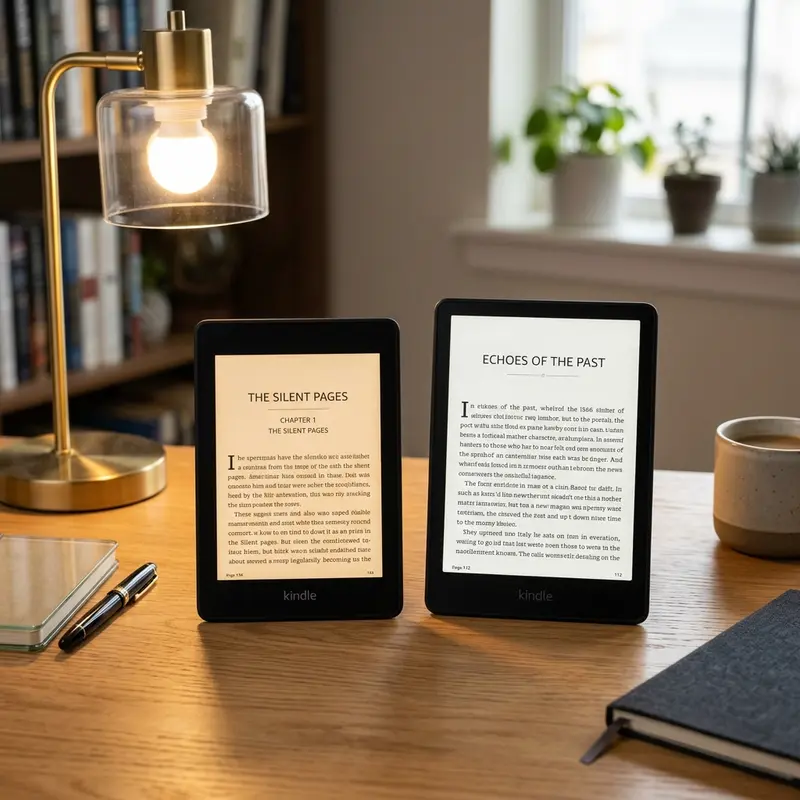
Reading PDF documents on an Amazon Kindle can be an incredibly convenient way to review work reports, academic papers, and digital textbooks on the go. However, because PDFs use fixed layouts, getting them onto your device and making them readable can sometimes feel like a daunting task.
Direct Answer: You can put a PDF on your Kindle by using the Send to Kindle web tool, emailing it to your Send-to-Kindle address, or transferring it via USB.
Dica DomineTec: If your PDF has a complex multi-column layout or lots of scanned text, you might want to convert PDF to Word first, clean up the formatting, or use a tool to merge PDF online if you have multiple chapters spread across separate documents before sending them to your e-reader.
1. Understanding How Kindle Handles PDF Files
Unlike native e-book formats like EPUB or AZW3, which are "reflowable" (meaning the text automatically resizes and wraps to fit the screen), PDF is a fixed-layout format. A PDF page is designed to look exactly the same regardless of what screen or device is rendering it. While this is fantastic for printing and preserving complex document structures, it presents a unique challenge for e-ink screens, which are typically much smaller than standard Letter or A4 paper size.
Publicidade
When you open a standard PDF on a Kindle, the entire page is scaled down to fit the screen. This often results in tiny, hard-to-read text, forcing you to zoom in and pan around. Panning on an e-ink screen can feel laggy due to the refresh rate of the display. However, Amazon has made significant improvements to PDF rendering over the years. Modern Kindles offer features such as margin cropping, page rotation (landscape mode), and even text conversion during the transfer process.
Before you begin the transfer, it is helpful to assess the nature of the PDF file you wish to read:
Text-heavy PDFs (Novels, simple documents): These are excellent candidates for Amazon's automatic conversion service, which transforms them into reflowable text.
Graphic-heavy PDFs (Textbooks, manuals, comics): These should be kept in their native PDF format to preserve diagrams, tables, and sidebars, but you may need to read them in landscape orientation or crop the margins.
Scanned PDFs (Image-only files): These cannot be converted easily unless processed with Optical Character Recognition (OCR) beforehand.
Publicidade
Understanding the difference between reflowable and fixed-layout files is key. When text is reflowable, you can change the font size, type, line spacing, and margins on your Kindle. When a PDF is read natively, you are essentially viewing a high-resolution image of the page. This means that zooming in enlarges everything, including the margins, forcing horizontal scrolling. Understanding these constraints will help you choose the best method below.
2. Method 1: Using the Send to Kindle Web Portal (Recommended)
The easiest, fastest, and most reliable method to send PDFs to your Kindle is the official Send to Kindle web portal. This browser-based tool allows you to upload documents directly from your computer, tablet, or smartphone without dealing with cables or email attachment limits.
Step-by-Step Web Upload:
Open your preferred web browser and navigate to the official Amazon Send to Kindle page (amazon.com/sendtokindle).
Log in using the exact same Amazon account credentials associated with your Kindle e-reader.
Drag and drop your PDF file into the upload box, or click to browse your local storage. Note that the maximum file size per document is 200 MB.
(Optional) Toggle the "Add to your library" option. Keeping this enabled ensures the document is stored in your secure Kindle Cloud Library, allowing you to access it across multiple devices, including the Kindle app on iOS and Android.
Click the Upload button. The file status will show as "Processing." Once completed, make sure your Kindle is connected to a Wi-Fi network. Tap the "Sync" button on your device, and the PDF will appear on your Home Screen or Library within a couple of minutes.
Publicidade
One of the greatest advantages of the web portal is its support for multiple file formats. In addition to PDF, you can upload EPUB, DOCX, TXT, RTF, and various image formats. It acts as a centralized dashboard for all your personal documents. If you have multiple devices registered under your Amazon account, the web portal also lets you choose which specific devices should receive the downloaded file immediately, preventing clutter on your family members' Kindles.
3. Method 2: Emailing the PDF Directly to Your Kindle
Every Amazon Kindle device and Kindle app has a unique, dedicated email address. By sending an email with the PDF attached to this special address, Amazon will automatically route the document to your e-reader over the cloud. This is a classic method that remains incredibly popular because it requires no software installations.
How to Find and Use Your Send-to-Kindle Email Address:
Publicidade
On your Kindle e-reader, go to Settings > Your Account. Look at the bottom of the screen to find your unique email address, which typically ends in @kindle.com.
Alternatively, log in to your Amazon account on a computer, go to Manage Your Content and Devices, click the Preferences tab, and scroll down to Personal Document Settings. Here you will see a list of your registered devices and their respective Kindle email addresses.
While in the Personal Document Settings, scroll down to the Approved Personal Document E-mail List. For security reasons (to prevent spam), Amazon will only accept documents sent from email addresses listed here. Click "Add a new approved e-mail address" and enter your personal email address (e.g., Gmail, Outlook).
Open your personal email client, draft a new message to your @kindle.com address, attach the PDF file, and send it. You can leave the subject line and body blank.
Publicidade
Converting PDF to Kindle Format via Email:
If you want Amazon's servers to automatically convert the PDF into a reflowable Kindle format (which allows you to adjust font sizes, margins, and use the built-in dictionary just like a regular Kindle book), simply type the word "Convert" in the subject line of the email before sending it. This is a powerful trick that works best for text-only documents. Be aware that if your document contains formulas, tables, or complex layout designs, this conversion might result in broken formatting.
4. Method 3: Transferring PDFs via USB Cable (Offline Method)
If you find yourself without a Wi-Fi connection, or if you have very large PDF files that exceed the size limits of the web portal and email, the traditional USB transfer method is the best approach. This method treats your Kindle as an external flash drive.
How to Perform a USB Transfer:
Connect your Kindle to your computer using a compatible USB cable (Micro-USB or USB-C, depending on your Kindle model).
Your Kindle screen will display a message indicating it is in "USB Drive Mode."
On your computer, open your file explorer (File Explorer on Windows or Finder on Mac). Your Kindle will appear as a removable drive named "Kindle".
Open the Kindle drive and navigate to the folder named documents or Internal Documents.
Copy the PDF files from your computer and paste them directly into this folder. Do not place them in any other subdirectory.
Once the copy process is complete, safely eject/unmount the Kindle drive from your operating system before unplugging the cable. The PDF files will immediately appear in your device's library.
Publicidade
Note that PDFs transferred via USB will not be backed up to your Amazon Kindle Cloud Library. This means they will not sync your reading progress, notes, or highlights with the Kindle app on your phone or tablet. However, this method remains the only way to load DRM-free documents and PDFs when you are entirely offline, such as on a flight or in remote areas without internet coverage.
5. Advanced Offline Conversion: Using Calibre to Convert PDF to EPUB
While direct PDF reading is supported, converting a PDF to a true e-book format like EPUB or AZW3 before transferring it yields a much better reading experience. The best tool for this job is Calibre, a free, open-source e-book management software available for Windows, Mac, and Linux.
Calibre provides advanced conversion settings that can help clean up the messy line breaks and headers common in converted PDFs. Here is how to perform an advanced conversion:
Publicidade
Download, install, and open Calibre on your computer.
Click the Add books button in the top-left corner and select your PDF file.
Highlight the book in the main list and click the Convert books button.
In the top-right corner of the conversion window, set the Output format to EPUB (or AZW3).
Go to the Page Setup tab on the left and ensure the input profile is set to "Default Input" and the output profile corresponds to your specific Kindle model (e.g., Kindle Paperwhite).
Navigate to the Heuristic Processing tab on the left and check the box that says "Enable heuristic processing". This option helps detect and fix split words, accidental line wraps, and dangling headers during conversion.
Click OK to start the conversion. Once complete, you can find the new EPUB file on your computer and upload it to your device using the Send to Kindle web portal.
6. Troubleshooting Common PDF Issues on Kindle
Publicidade
Sometimes, putting a PDF on your Kindle doesn't go smoothly. Here are the most frequent issues readers face and how to resolve them:
File is too large: Amazon's email transfer limit is 50MB, and the web portal is capped at 200MB. If your PDF exceeds this, you must transfer it via a USB cable or use an online PDF compression tool to reduce its file size before uploading.
"Failed delivery" email notification: If you receive a bounce-back email from Amazon, double-check that your personal email address is registered on the "Approved Personal Document E-mail List" in your Amazon account preferences. Also, check that the file is not password-protected.
Formatting is completely broken after email conversion: If using the "Convert" subject line resulted in unreadable text blocks, it is because the PDF's layout was too complex. Try sending the PDF again without the "Convert" keyword in the subject line. This forces the Kindle to render it as a raw PDF.
DRM Errors: Some PDFs purchased from academic libraries or textbook portals contain Digital Rights Management (DRM) restrictions. The Kindle cannot open these files unless they are authorized with compatible accounts (such as Adobe Digital Editions), which is not supported natively on e-ink devices.
Publicidade
7. Comparing Kindle Transfer Methods
To help you choose the best way to move your documents, here is a detailed breakdown of the pros, cons, and limitations of each transfer method:
Transfer Method
Max File Size
Requires Wi-Fi?
Cloud Syncing?
Best For
Send to Kindle Web
200 MB
Yes
Yes
Most documents, EPUBs, and moderate PDFs
Email to Kindle
50 MB
Yes
Yes
Quick mobile transfers and text conversions
USB Cable
Limited by device storage
No
No
Large textbooks, graphics-heavy files, offline transfers
Calibre (USB/EPUB)
Unlimited
No
No (Unless EPUB sent via web)
Power users looking for perfect text reflow formatting
8. How to Optimize PDFs for a Better Reading Experience on Kindle
Publicidade
If you choose to keep your document as a native PDF rather than converting it, you may run into readability issues. Fortunately, you can optimize the viewing settings directly on your Kindle device:
Landscape Mode: Tap near the top of the screen to open the reading menu, tap the "Aa" icon, go to the Layout tab, and select Landscape. This rotates the screen orientation, making text wider and significantly larger.
Adjusting Margins: Some PDF viewers on Kindle allow you to crop white margins. Look for the zoom options in the menu to eliminate wasted space around the edges.
Contrast Adjustments: If the text appears too light, check if your Kindle model supports contrast adjustments for PDFs. Increasing contrast can make scanned text pop out much clearer against the screen.
For files that are completely unreadable due to complex layouts, you can use specialized desktop software like K2pdfopt. This free utility reconstructs PDF pages specifically for small e-ink displays, reflowing text and re-wrapping sentences without destroying images or mathematical formulas.
Publicidade
FAQ
1. Why can't I see the PDF file I just transferred to my Kindle?
If you transferred the file via email or the web portal, make sure your Kindle is connected to Wi-Fi, the airplane mode is off, and you have synced your device by going to Settings > Sync. If you transferred via USB, ensure you placed the file inside the "documents" folder. Also, check that the file format is a standard PDF and is not DRM-protected.
2. Can I highlight and take notes on a PDF on my Kindle?
Yes, you can highlight text and add notes to PDF files on Kindle, provided the PDF contains selectable text (is not a flat image scan). Simply press and hold a word, then drag the selection handles to highlight. If you are using a Kindle Scribe, you can also write handwritten notes directly on the PDF margin or using sticky notes.
3. How do I delete a PDF from my Kindle?
To delete a PDF, navigate to your library, find the document cover, tap the three vertical dots in the bottom-right corner of the thumbnail, and select "Remove Download" (which removes it from the physical device but keeps it in your cloud) or "Permanently Delete" (which deletes it from both the device and your Amazon Cloud Library).
Publicidade
4. Does converting a PDF to Kindle format ruin the images?
Often, yes. The automatic conversion process is designed primarily for text. If your PDF contains complex diagrams, tables, charts, or images, converting it to a reflowable layout will likely scramble the visual elements. In such cases, it is much better to read the document as a native PDF in landscape mode.