Understanding the Need for Importing Web Data
Many of us spend tedious hours manually entering data into Excel, especially when that data is readily available online. Whether it's financial reports, sales data, or even the latest weather updates, importing web data into Excel can streamline your workflow and save you time. In my experience, the ability to pull live data can make all the difference when you're trying to make informed decisions quickly.
When you think about it, how often have you been knee-deep in a financial report, desperately wishing you could pull the latest stock prices without opening a web browser? Or perhaps you're managing an inventory list for your small business and want real-time updates on product availability? Well, importing web data into Excel is your ticket to making those scenarios a breeze!
How to Access Web Data in Excel
Excel offers a feature that allows you to import data directly from the web, and it's easier than you might think. Here's how to do it in different versions of Excel:
- Excel 365 and 2021: Navigate to the Data tab, then click on Get Data > From Other Sources > From Web.
- Excel 2019: In this version, you would also go to the Data tab and follow the same options.
- Excel for Mac: The steps are similar. Go to Data > Get Data > From Web.
Not only does this feature save time, but it's also an excellent way to ensure your data is up to date. Instead of refreshing your browser, you can refresh your Excel sheet!
Practical Steps to Import Data
Here’s a step-by-step guide to importing web data into your Excel spreadsheet:
- Open Excel and select the Data tab.
- Click on Get Data > From Other Sources > From Web.
- Paste the URL of the webpage you want to pull data from. For example, if you're tracking stock prices, you might use something like
https://www.example.com/stock-data. - Click OK, and Excel will connect to that site.
- You'll see a Navigator pane showing you the tables or data structures available on that page. Select the table you want, and click Load.
I've found that sometimes the data doesn't come through as expected, especially when the webpage structure changes. So, always double-check your imported data!
How to Link Data for Automatic Updates
Linking web data to your Excel spreadsheet allows you to automatically refresh your data without having to re-import it each time. This is a game-changer for anyone who needs to work with live data. Here’s how you can set it up:
- After you’ve completed the import as mentioned before, click on the Table where the data is located.
- Next, go to the Table Design tab, and look for the option called Properties.
- In the properties window, you can set the data to refresh every x minutes. I usually set it to every 15 minutes for my sales forecasts.
This feature is particularly useful for financial reports. Imagine needing to update your sales numbers every quarter—having it refresh automatically means you can focus on analysis rather than data entry!
Handling Common Pitfalls
Now, let’s talk about a few common mistakes users make when importing web data into Excel. It’s easy to trip up, but with a bit of awareness, you can avoid these headaches:
- Invalid URLs: Make sure the URL you’re using is direct and points to a data table. For instance, if you try to pull data from a page that's not structured well, good luck!
- Incorrect Data Types: Sometimes, Excel may misinterpret the data type. If you're importing stock prices, ensure they're formatted as numbers and not text.
- Overlooking the Navigator: Always take a moment to check what tables are available in the Navigator pane. You might be missing out on a cleaner dataset!
Dica DomineTec: Always validate the imported data against the original web source, just to ensure accuracy!
Using Queries for Advanced Imports
If you're feeling adventurous and want even more control over your data imports, consider using Power Query. This is available in Excel 365 and Excel 2021 and allows for complex data manipulations. It’s remarkably powerful for financial analysts and anyone working with large datasets.
Here’s a brief overview of how you can start using Power Query:
- Go to the Data tab, and select Get Data.
- Choose From Other Sources > Blank Query.
- In the Power Query editor, you can write a query to refine what data you want to pull and how to transform it. This is particularly useful if you're scraping data from reports or multiple sources.
Power Query can seem daunting at first, especially if you're not familiar with its interface, but trust me, it's worth the effort! Just don't forget to save your query for future use.

Practical Example: Building a Sales Dashboard
Let’s put everything into perspective with a real-world example. Suppose you’re a sales manager and want to build a dynamic sales dashboard that pulls data from your e-commerce site. You could follow these steps:
- Import your sales data from the website using the method described earlier.
- Create a few pivot tables to summarize your data—sales by product, profit margins, and so on.
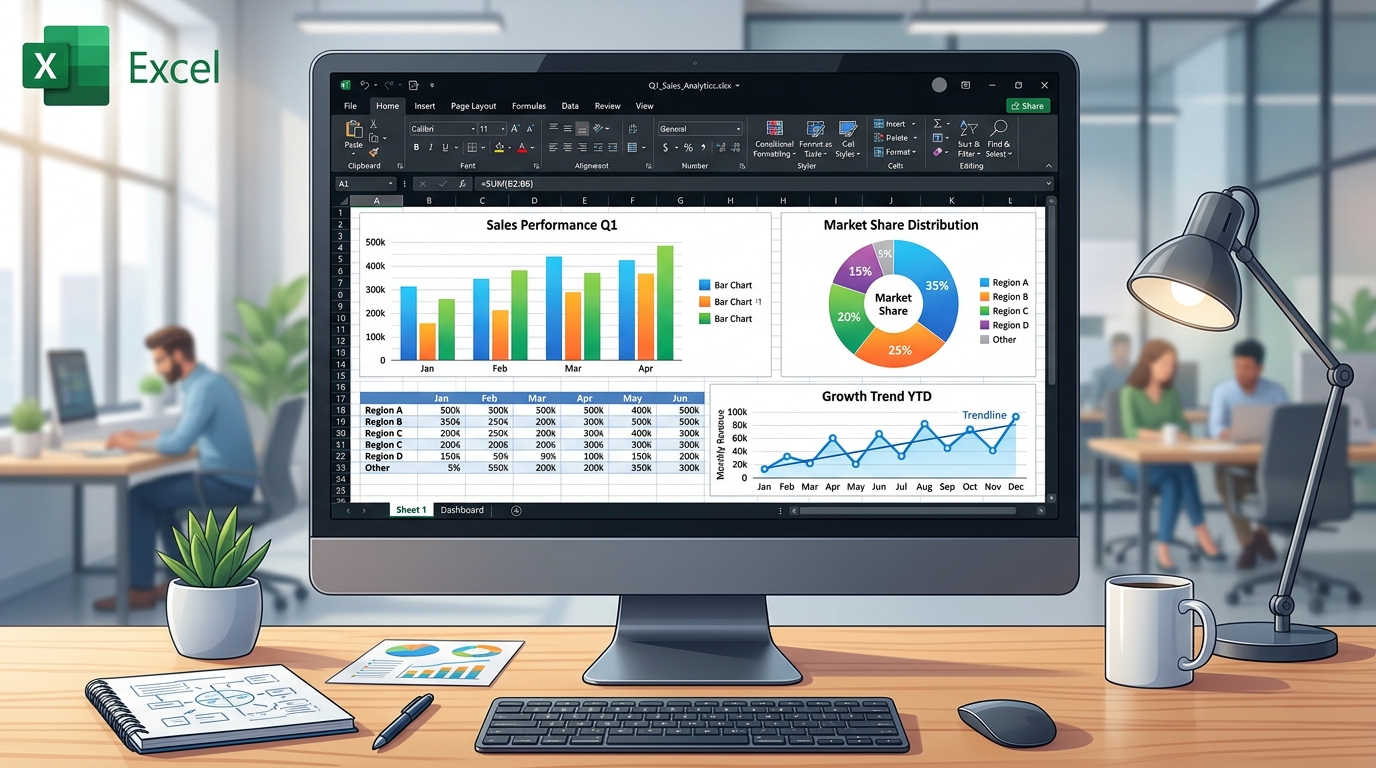
- Use charts to visualize the sales trends over different periods. For instance, you could create a line graph that shows sales growth over the last year.
This is where Excel shines. You can easily see which products are performing well and which need a bit of a push. Na minha experiência, I’ve seen sales teams double their effectiveness just by having access to real-time data through a dashboard.
Wrap-Up and Resources
Importing and linking web data into Excel can elevate your spreadsheet game significantly. It not only saves time but also enhances accuracy and decision-making capabilities. Although it might take a bit of practice to get the hang of it, you'll be wondering how you ever managed without it!
If you want to dive deeper, check out our posts on Excel Formulas and Functions for more insights, and don’t miss our guide on Creating Excel Macros for Automation to save even more time!
FAQ
Can I import data from any website?
Not necessarily. The website needs to have structured data such as tables. If the data is embedded within images or has limitations, you may encounter challenges.
Will my imported data update automatically?
Yes, if you set your data to refresh at specified intervals, Excel can auto-update the data as long as the source link remains valid.
Are there any alternatives to importing data from the web?
Absolutely! You can also use APIs to pull data directly into Excel, but this requires more advanced knowledge of programming and Excel's Power Query.
What if my data isn't displaying correctly after importing?
This often happens when the structure of the web page changes. Always double-check your source, and you might need to re-import the data or adjust your queries.
Can I automate the data import process?
Definitely! You can create a macro to automate the import process, allowing you to refresh your data with the push of a button.
The Copy-Paste Nightmare: Why We've All Been There
Let's be honest for a second. We all started our Excel journey doing the exact same thing: opening a webpage, highlighting a massive data table with our mouse, hitting Ctrl+C, tabbing over to Excel, and pressing Ctrl+V. Then, the nightmare begins. Your spreadsheet is suddenly flooded with invisible hyperlink formatting, weird background colors, hidden HTML tags, and merged cells that completely ruin your ability to sort or filter. This is the dark age of data entry.
When I was working on an inventory management project a few years back, the junior analyst spent roughly three hours every Friday manually copying parts lists from a supplier's website. Not only was it soul-crushing work, but human error was inevitable. Using Excel's built-in web import tools (especially the modern Power Query engine found in Excel 365, Excel 2021, and Excel 2019) completely eliminates this manual grind. By establishing a direct, clean connection to the source, you ensure data integrity and save yourself hours of tedious reformatting.

Power Query to the Rescue: Dealing with Messy Tables
So, you've decided to stop copying and pasting. Excellent choice. But what happens when the webpage isn't perfectly structured? Many modern websites use dynamic div tags instead of standard HTML table elements, which can confuse Excel's basic web scraper. This is where Power Query shines. When you navigate to Data > Get Data > From Web, Excel opens up the Power Query Editor, which is arguably the most powerful data transformation tool Microsoft has ever created.
Inside the editor, you aren't just importing data; you are creating a recipe of steps. You can remove top rows, filter out junk data, split columns by delimiter, and change data types. I once had to scrape financial reports where the currency symbols and text notes were mixed in the same column as the numbers. With Power Query, I added a quick step to extract only the numeric values, and every time I hit Refresh (or Ctrl+Alt+F5), the data cleaned itself automatically. No VBA required!
Handling Authentication and Login Walls
This is the most common roadblock my clients hit. They successfully pull data from Wikipedia or Yahoo Finance, but when they try to pull the weekly sales report from their company's internal CRM portal, Excel blocks them with an authentication error. "But I'm already logged in on Chrome!" they say. Unfortunately, Excel doesn't share your browser's session cookies by default.
When you set up a new web query, Excel will prompt you for credentials if it detects a login wall. You can select "Basic" authentication and enter your username and password. This works great for simple, older websites. However, for modern applications using Two-Factor Authentication (2FA) or complex tokens (like Office 365 logins or Google Auth), the standard web connector will struggle. In these enterprise scenarios, my advice is to bypass the HTML page entirely. Ask your IT department for API access or an automated daily CSV export. Fighting against advanced login security with Excel's basic web scraper is a losing battle.
Scheduling Automatic Refreshes in Excel 365
Want to look like a true Excel wizard in front of your boss? Set your web data to update itself while you're getting coffee. If you are using Excel 365, you have robust options for background refreshes. Once your web query is set up, go to the Data tab, click on Queries & Connections, right-click your specific query, and select Properties.
Here, you can check the box that says "Refresh data when opening the file" or even set it to refresh every X minutes. I set this up for a real-estate client who needed live mortgage rates displayed on a dashboard on a giant TV in their office. The file simply refreshed every 15 minutes, pulling the latest rates from a financial website without anyone ever touching the keyboard. Just remember: if the source website goes down, your query will timeout, so ensure you have error handling or data validation in your final dashboard!
Troubleshooting the "Table Not Found" Error
Nothing ruins your afternoon quite like the infamous "Table Not Found" error in Power Query. You connect to a URL that worked perfectly yesterday, but today Excel just hands you a blank preview. This usually means the web developers updated their page structure. The HTML tags that Excel relied upon to identify the table (like the <table id="finance-data"> element) have been renamed or replaced with modern, script-rendered containers. When this happens, don't panic. Go into the Advanced Editor of your query and inspect the source step. You might need to change the Web.Page function to point to the new Div class, or, better yet, use the Web.BrowserContents function available in newer builds to render the JavaScript before scraping. It requires a bit more technical digging, but understanding this debugging process is what separates standard users from data masters.