
Hosting a website on AWS Free Tier is an excellent way to start your online journey without incurring costs. The AWS Free Tier provides an opportunity for beginners and experienced developers alike to experiment with Amazon's powerful cloud infrastructure at no charge for a limited time. By utilizing the Amazon Elastic Compute Cloud (EC2), users can set up a virtual server to host their websites, allowing for flexibility and scalability as their needs grow.
This guide will walk you through the essentials of setting up a web server on AWS, ensuring you understand both the technical concepts and the step-by-step processes involved.
Web hosting is a fundamental aspect of establishing a digital presence. It involves storing your website's files on a server, which is connected to the internet, making it accessible to users around the globe.
AWS EC2 is a prominent choice for hosting due to its robust infrastructure, scalability, and the extensive range of services offered by Amazon Web Services. With the Free Tier option, you can leverage EC2's capabilities without incurring costs for up to 12 months, allowing you to learn and test your web applications in a real-world environment.
Understanding the components of web hosting, including domains, servers, and databases, is important before diving into practical implementation.
In this tutorial, we will focus on how to set up your first web server on AWS EC2 using the Free Tier. We will cover everything from creating your AWS account to launching your instance, configuring security settings, and deploying a simple web application.
By the end of this guide, you will feel confident in your ability to host a website on the Amazon cloud, making you well-prepared for future projects.
Detailed Introduction to the Technical Concept of Web Servers and Hosting
A web server is a specialized computer that serves content to users over the internet. It stores, processes, and delivers web pages to users’ browsers via the Hypertext Transfer Protocol (HTTP).
The server hosts the files that comprise your website, including HTML documents, images, stylesheets, and scripts. When a user requests a specific webpage, their browser sends a request to the corresponding web server, which then retrieves the requested files and sends them back to the user's browser for rendering.
This entire process happens in a matter of seconds, allowing users to access information quickly and efficiently.
When discussing AWS EC2, it's important to note that it allows you to create and manage virtual servers, known as instances, on the cloud. Each instance is essentially a virtual machine (VM) running on physical hardware in one of AWS's data centers.
AWS provides several instance types, each optimized for different workloads, such as compute-intensive tasks or memory-intensive applications. This flexibility is one of the main advantages of using EC2 for hosting, as you can choose an instance type that best suits your requirements, from small personal projects to larger applications with high traffic demands.
Moreover, AWS EC2's Free Tier offers a unique opportunity for beginners to explore cloud computing without financial risk. This includes a limited number of hours per month for a t2.micro instance, which is suitable for hosting simple web applications or static websites.
However, it's essential to understand what is included in the Free Tier to avoid unexpected charges. The Free Tier provides 750 hours of t2.micro instances each month for the first year, alongside other services such as Amazon S3 for storage and Amazon RDS for managed databases.
These resources enable you to build a fully functional web application while learning about cloud architecture and services.
Step-by-Step Practical Guide

To begin hosting your website on AWS Free Tier using EC2, follow these detailed steps to set up your virtual server and deploy a simple web application.
1. **Create an AWS Account**: The first step is to sign up for an AWS account. Visit the AWS homepage and click on the "Create an AWS Account" button.
Follow the prompts to enter your email address, set a password, and provide your account details. You will need to enter your credit card information, but don’t worry; as long as you stay within the Free Tier limits, you won’t incur any charges.
2. **Access the EC2 Dashboard**: Once your account is set up, log into the AWS Management Console. From the console, search for "EC2" in the services menu and select it to access the EC2 dashboard. This is where you will manage your virtual servers.
3. **Launch an Instance**: Click on "Launch Instance" to start creating a new EC2 instance. You will be guided through several steps:
- **Choose an Amazon Machine Image (AMI)**: Select an AMI that serves as a template for your instance. For beginners, the Amazon Linux 2 AMI is a great choice, as it is lightweight and comes with a package manager.
- **Select an Instance Type**: Choose the t2.micro instance type, which is eligible for the Free Tier. Click "Next: Configure Instance Details."
4. **Configure Instance Details**: Here, you can leave most settings as the default for a basic setup. However, ensure that you select the correct VPC and subnet. AWS typically provides default options that should work fine for most users. Click "Next: Add Storage."
5. **Add Storage**: The default storage option is usually sufficient, but you can adjust the size if you plan to host a more extensive website. Click "Next: Add Tags" to proceed.
6. **Add Tags**: Tags are optional, but adding a name tag helps you identify your instance later. Click "Next: Configure Security Group."
7. **Configure Security Group**: This step is important for your website's security. Create a new security group and allow SSH access (port 22) for your IP address. Additionally, open HTTP (port 80) and HTTPS (port 443) to allow web traffic. Click "Review and Launch."
8. **Review and Launch**: Review your settings and click "Launch." You will be prompted to create or select an existing key pair. If you are new, create a new key pair, download the .pem file, and keep it secure, as you will need it to access your server.
9. **Access Your Instance**: Once your instance is running, go back to the EC2 dashboard, find your instance, and note its public IP address. Use an SSH client to connect to your instance using the command: `ssh -i /path/to/your-key.pem ec2-user@your-public-ip`. Replace `/path/to/your-key.pem` with the path to your downloaded key and `your-public-ip` with the actual IP address.
10. **Install a Web Server**: After connecting to your instance, install a web server like Apache or Nginx. For Apache, run the command: `sudo yum install httpd -y`. Once installed, start the server with `sudo service httpd start`. You can check if it’s running by entering your instance's public IP address in a web browser; you should see the Apache test page.
This step-by-step process covers the essentials of launching a web server on AWS EC2. Should you encounter any issues during the setup, check the AWS documentation or community forums for troubleshooting advice.
Comparison of Hosting Options on AWS
To help you make an informed decision about hosting your website on AWS, here is a comparison table of various hosting options available through AWS, focusing on their features, pricing, and suitability for different use cases.
| Hosting Option | Instance Type | Free Tier Availability | Performance | Best For |
|---|---|---|---|---|
| AWS EC2 | t2.micro | Yes, up to 750 hours/month | Basic performance for small applications | Static websites and small applications |
| AWS Lightsail | Basic plans available | Yes, 3 months free | Consistent performance with bundled resources | Beginners needing a simple setup |
| AWS S3 | N/A | Yes, up to 5 GB storage | Excellent for static websites | Hosting static content, images, or videos |
| AWS Elastic Beanstalk | Varies by application | Yes, based on underlying resources | Auto-scaling for varied workloads | Web applications needing deployment automation |
This table summarizes the key differences and advantages of various hosting options within the AWS ecosystem. Each option has unique benefits, depending on your hosting needs, level of expertise, and budget constraints.
For instance, while EC2 provides flexible virtual server capabilities, AWS Lightsail offers a simplified approach for beginners, making it easier to manage hosting with fewer configurations required. S3 stands out for static website hosting, allowing for seamless content delivery without server management.
Elastic Beanstalk, on the other hand, is ideal for developers looking to deploy web applications with built-in scaling features.

Additional Resources and Recommended Links
To further enhance your knowledge and proficiency in hosting websites using AWS, consider exploring additional resources and recommended links. The official AWS documentation is an invaluable resource for detailed guidance on specific services, troubleshooting tips, and best practices for cloud computing. Additionally, you can find community forums, such as Stack Overflow, where you can ask questions and share insights with other developers. Here are some links to explore:
- How to Setup Linux Ubuntu VPS as a Secure Web Server
- Best Free Web Hosting Control Panels for Linux VPS
These resources will provide you with a broader understanding of web hosting, server management, and various tools that can assist you in your cloud journey. By leveraging these insights, you will be better equipped to maximize the benefits of AWS and build robust, scalable web applications.
Advanced Server Performance Tuning and Cache Policies for Optimized EC2 Hosting
In addition to OPcache, Redis and Memcached provide in-memory caching solutions that can help manage high-traffic scenarios efficiently. Redis excels in scenarios that require complex data structures and persistence, while Memcached is simpler and is geared primarily towards caching database query results.
Both can be integrated with your AWS architecture to serve frequently accessed data, thereby reducing the load on your EC2 instance and improving bandwidth allocation. By strategically implementing these caching solutions, you can ensure that your web application runs smoothly even under heavy user demand, enhancing user experience and satisfaction.
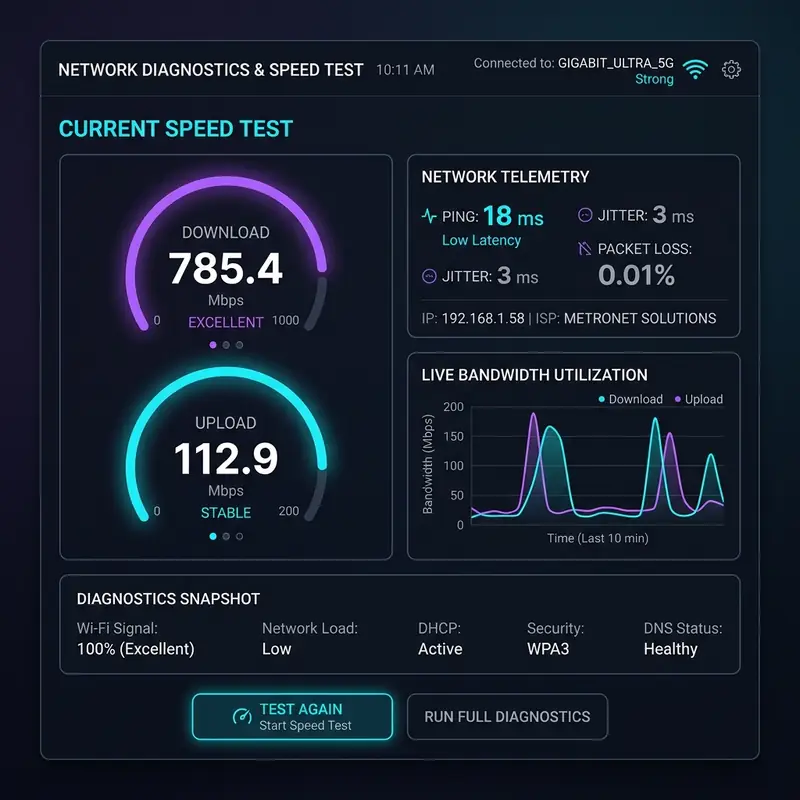
Another integral part of server performance tuning involves monitoring core networking metrics. TTFB latency, server load, and bandwidth allocation are metrics that can significantly influence your website’s responsiveness. TTFB latency refers to the time taken by the server to process a request and start sending data, and minimizing it is important for achieving a snappy user experience.
Regularly monitoring server load helps ensure that your EC2 instance is not overwhelmed, allowing you to scale resources when necessary. Additionally, efficient bandwidth allocation ensures that your application can handle varying traffic levels without degradation in performance. Tools such as Amazon CloudWatch can be invaluable for tracking these metrics and providing insights that inform your tuning strategies.
Furthermore, optimizing your web server configuration can lead to significant performance improvements. For example, tweaking the settings of your web server (such as Apache or Nginx) can yield enhancements in request handling and resource utilization.
By fine-tuning parameters such as worker processes and memory limits, you can enhance throughput and minimize bottlenecks. Additionally, employing techniques like HTTP/2 can further improve loading times and reduce latency, especially for websites that involve multiple assets.
The adoption of these advanced server performance tuning techniques can elevate your website’s capabilities, making it more resilient to traffic spikes and enhancing the overall user experience.
Lastly, it’s important to conduct regular performance audits and load testing. These practices can help identify potential weaknesses in your configuration and provide actionable insights into areas that require improvement.
Utilizing tools such as Apache JMeter or Loader.io can simulate real-world traffic scenarios, allowing you to gauge how well your EC2 instance performs under different load conditions. By continuously optimizing and refining your server performance, you can ensure a reliable and fast hosting environment on AWS, ultimately leading to greater retention and satisfaction for your users.
Implementing Robust Server-Side Cybersecurity Protocols for AWS EC2 Hosting

Another significant aspect of server-side security involves setting up and managing IP tables. IP tables act as a firewall that controls the incoming and outgoing traffic on your EC2 instance.
By defining rules that specify which traffic should be allowed or blocked, you can create a more secure environment. For example, limiting access to specific IP addresses or subnets can help protect sensitive areas of your application, such as admin panels or APIs.
Additionally, configuring rate limiting through IP tables can mitigate the risk of DDoS attacks, ensuring that your server remains operational even under malicious attempts to overwhelm it.
Moreover, implementing a DDoS firewall is a proactive approach to safeguarding your AWS EC2 instance from distributed denial-of-service attacks. AWS Shield provides advanced DDoS protection, which automatically detects and mitigates potential attacks in real-time.
By leveraging services like AWS WAF (Web Application Firewall), you can create specific rules to filter out malicious traffic and protect your application from common web exploits. Regularly updating your firewall rules in response to evolving threats is essential for maintaining a robust security posture, as cyber threats are constantly changing and becoming more sophisticated.
Directory permissions also play a critical role in securing your web server environment. Misconfigured permissions can lead to unauthorized access to sensitive files and directories, making it imperative to implement the principle of least privilege.
By ensuring that only necessary users have access to specific directories and files, you can reduce the risk of data breaches. Regular audits of your file permissions can help identify and rectify any vulnerabilities that may have been introduced over time.
Utilizing tools such as AWS Identity and Access Management (IAM) can assist in managing user permissions effectively, allowing you to maintain a secure environment while providing access to authorized personnel.
Lastly, continuous monitoring and auditing of your security protocols are important for identifying vulnerabilities and ensuring compliance with industry standards. Tools such as AWS CloudTrail can provide a comprehensive overview of API calls and user activities, enabling you to detect suspicious behavior.
Integrating automated security scanning tools into your deployment process can also help catch vulnerabilities early, allowing you to address them before they become a significant issue. By committing to a proactive approach to cybersecurity, you can safeguard your AWS EC2 hosting environment, ensuring that both your data and your users’ data remain secure.
Understanding Hosting Limitations: Shared Servers vs Dedicated/Cloud Machines and Their Implications
When considering cloud hosting options on AWS, it is essential to understand the inherent limitations of different hosting models, particularly when comparing shared servers to dedicated or cloud machines. Shared hosting environments, while cost-effective, often come with significant constraints that can hinder performance and scalability. In shared hosting, multiple websites share the same server resources, leading to potential slowdowns, especially during peak traffic periods. This resource contention can result in unpredictable website performance, making it less suitable for businesses that require high reliability and speed.On the other hand, dedicated and cloud machines offer a more robust solution for hosting needs. With dedicated servers, you have complete control over the server resources, which allows for optimal performance and customization based on your specific requirements.
This model is ideal for resource-intensive applications or websites with high traffic volumes, as dedicated machines can handle extended loads without compromising speed. Cloud machines, such as those offered through AWS EC2, take this a step further by providing scalability on demand.
You can easily adjust your resources based on traffic fluctuations, ensuring that your website remains responsive regardless of the number of visitors.
Another important consideration when evaluating hosting options is DNS propagation errors, which can occur during domain changes. DNS propagation refers to the time it takes for changes made to your DNS records to be updated across the internet.
This process can take anywhere from a few minutes to 48 hours, during which time users may experience issues accessing your website. When migrating from shared hosting to a dedicated or cloud machine, understanding how to manage DNS changes effectively is important.
Utilizing services like AWS Route 53 can help streamline this process, providing reliable DNS management that minimizes downtime and ensures seamless transitions.
Database optimization traps are another area where hosting limitations can become apparent. On shared hosting, limited access to database management tools and configurations can result in poorly optimized databases, ultimately affecting application performance.
In contrast, dedicated and cloud environments allow for more extensive database management capabilities, such as the use of indexes, partitioning, and caching strategies. Optimizing your database is essential for maintaining fast query response times and ensuring that your application can handle growing amounts of data without degradation in performance.
Finally, it is critical to consider Service Level Agreements (SLAs) when choosing your hosting environment. SLAs outline the expected level of service, uptime guarantees, and support response times provided by the hosting provider.
With shared hosting, SLAs may be less stringent, often resulting in longer downtimes and limited support options. Dedicated and cloud hosting solutions, particularly those from reputable providers like AWS, typically offer more comprehensive SLAs, ensuring that you receive prompt support and high availability.
Understanding these agreements can help you make informed decisions about your hosting needs, ensuring that your website remains operational and performs optimally at all times.






