How to Connect to GCP Linux Virtual Machine Using In-Browser SSH

Connecting to a GCP Linux Virtual Machine via in-browser SSH is a straightforward process that enhances accessibility and efficiency. Google Cloud Platform (GCP) offers a robust environment for deploying and managing virtual machines (VMs), and one of its standout features is the ability to connect to these instances directly through your browser. This capability allows users to perform administrative tasks without the need for additional software, making it a convenient option for developers and system administrators alike.
By leveraging an in-browser SSH client, you can manage your Linux VM effortlessly from any device with an internet connection, ensuring you have access to your server environment wherever you are.
The significance of using GCP for hosting web applications cannot be overstated. With its powerful infrastructure, you can scale your applications seamlessly, ensuring high availability and performance.
The in-browser SSH functionality adds a layer of convenience, allowing users to bypass traditional SSH clients. This is particularly beneficial for those who may not have the technical expertise to configure SSH keys or manage local connections.
With just a few clicks, you can access your VM and begin executing commands right from your browser, streamlining the workflow and improving productivity.
In this blog post, we will explore the technical concepts behind web servers and hosting, provide a detailed step-by-step guide on how to connect to your GCP Linux VM using the in-browser SSH feature, and present a comparative table to help you understand the different options available for your hosting needs. Whether you're a seasoned developer or a newcomer to cloud computing, this guide will equip you with the knowledge and tools necessary to efficiently manage your GCP resources.
Detailed Introduction to the Technical Concept of Web Servers and Hosting
Understanding web servers and hosting is essential for anyone venturing into the world of cloud computing and web development. A web server is a system that stores, processes, and delivers web pages to clients over the internet.
It operates on a client-server model, where the client (typically a web browser) sends a request to the server, and the server responds by serving the requested content. This interaction is facilitated through the Hypertext Transfer Protocol (HTTP), which dictates how messages are formatted and transmitted.
The role of the web server extends beyond merely serving static content; it also manages dynamic content, database interactions, and application logic, making it a significant component of modern web architecture.
Hosting, on the other hand, refers to the service of providing storage space and access to websites or applications on the internet. There are various hosting models available, ranging from shared hosting, where multiple websites reside on a single server, to virtual private servers (VPS) and dedicated hosting, which provide more control and resources to users.
GCP's infrastructure allows for flexible hosting solutions that can adapt to the changing needs of businesses, whether they require a single instance for a small application or a cluster of servers for a large-scale deployment.
When it comes to managing a Linux virtual machine on GCP, the in-browser SSH feature plays a important role. Traditionally, accessing a Linux server required the use of a terminal application and SSH keys for authentication.
However, GCP simplifies this process by integrating a web-based SSH client directly into the Google Cloud Console. This means you can initiate an SSH session with just a few clicks, eliminating the need for additional tools or complex configurations.
The integration of in-browser SSH not only improves user experience but also enhances security by leveraging Google's identity and access management (IAM) system to control who can access your virtual machines.
Step-by-Step Practical Guide to Connect to GCP Linux Virtual Machine Using In-Browser SSH

Connecting to your GCP Linux virtual machine using in-browser SSH is a simple yet effective process. To begin, you will need to have a Google Cloud account and a project set up with a Linux VM instance. Once you have these prerequisites in place, follow these detailed steps to establish a connection:
1. **Access the Google Cloud Console**: Start by navigating to the Google Cloud Console at https://console.cloud.google.com/. Log in with your Google account credentials. If you don’t have a Google Cloud account, you will need to create one and set up a project before proceeding.
2. **Select Your Project**: After logging in, you will be presented with the Google Cloud Dashboard. Use the project selector at the top of the page to choose the project that contains your VM instance. If you have multiple projects, ensure you select the correct one to avoid any confusion.
3. **Navigate to the Compute Engine**: On the left sidebar, find the “Compute Engine” section and click on it. This will take you to a page that lists all your VM instances. If you don’t see any instances listed, you may need to create one by clicking on the “Create Instance” button and following the prompts to select the appropriate configurations.
4. **Locate Your VM Instance**: Once you are on the VM instances page, locate the instance you wish to connect to. You should see a table with information about each instance, including its name, zone, and status. Ensure that the instance you want to connect to is running; if it’s stopped, you’ll need to start it by clicking on the corresponding button.
5. **Initiate the SSH Connection**: In the row corresponding to your VM instance, you will find an “SSH” button on the right side of the table. Click on this button, and a new window will open in your browser, establishing a secure connection to your Linux VM. If this is your first time connecting, you may be prompted to grant permission for the browser to open the SSH client.
6. **Authenticate and Use the Terminal**: After a few moments, you should see a terminal window that provides you access to your Linux VM. Depending on how the VM was configured, you might be logged in as the default user or prompted to enter a username and password. Once authenticated, you can start executing commands directly in the terminal.
7. **Troubleshooting Common Issues**: If you encounter any issues while connecting, check that your VM instance is running and that you have the necessary permissions. Ensure that your Google Cloud IAM settings allow you to access the project and the Compute Engine. Additionally, verify that the firewall rules for your VM permit SSH connections. You can manage firewall settings through the VPC network section of the Google Cloud Console.
By following these steps, you can effortlessly connect to your GCP Linux virtual machine using the in-browser SSH feature. This approach not only simplifies the process but also enhances your ability to manage and maintain your server environment effectively.
Comparative Table of GCP Instance Options
To help you make informed decisions regarding your GCP instance, we present a comparative table showcasing various instance types, their specifications, and use cases. This table serves as a quick reference guide to understand the differences between standard options available on GCP.
| Instance Type | CPU Cores | Memory (GB) | Storage Options | Ideal Use Case |
|---|---|---|---|---|
| e2-micro | 2 | 1 | Standard persistent disk | Small web applications, testing environments |
| e2-small | 2 | 2 | Standard persistent disk | Low-traffic websites, lightweight apps |
| n1-standard-1 | 1 | 3.75 | Standard persistent disk, SSD | General-purpose workloads, development environments |
| n1-highcpu-4 | 4 | 3.6 | Standard persistent disk, SSD | Batch processing, high-performance computing |
| n1-highmem-8 | 8 | 52 | Standard persistent disk, SSD | Memory-intensive applications, data analysis |
The table above provides a clear perspective on the varying capabilities of different GCP instance types, helping you choose the right one for your specific requirements. Whether you are looking to host a simple website or run complex applications, understanding these differences is important for optimizing performance and cost-effectiveness.

Additional Resources and Recommended Links
For further exploration of GCP and its features, consider checking out these valuable resources. The official Google Cloud documentation provides extensive guides and best practices for managing your cloud environment effectively.
Additionally, you can find tutorials on platforms like Google Cloud Training and Coursera that cover various aspects of cloud computing. Explore our related blog posts for more insights: Shared Hosting vs VPS vs Cloud and How to Allow Remote MySQL Connections.
These resources will enhance your understanding and help you leverage GCP to its fullest potential.
Advanced Server Performance Tuning, Cache Policies, and Core Networking Metrics
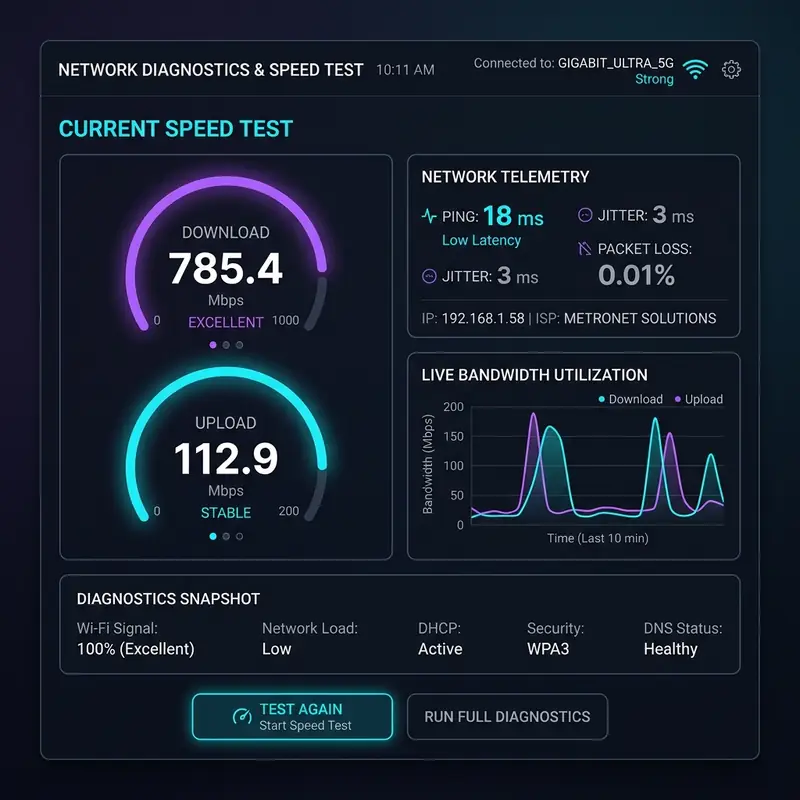
Tuning the performance of a server is a multifaceted process that involves careful adjustments across various parameters to ensure optimal operation. When dealing with GCP Linux Virtual Machines, it is vital to understand how to leverage both hardware and software features for enhanced performance.
One of the foundational aspects of server performance is the configuration of cache policies, which can dramatically reduce load times and improve user experience. Utilizing caching mechanisms like OPcache, Redis, and Memcached can reduce database load, cut down on server response times, and ultimately lead to a more efficient application.
OPcache, for instance, stores precompiled script bytecode in shared memory, which eliminates the need for PHP to load and parse scripts on every request, thereby significantly speeding up PHP applications.
Redis and Memcached serve as in-memory data structure stores that can be utilized for caching data and enhancing response times. While Redis provides advanced data structures and persistence options, Memcached is optimized for speed and simplicity.
Choosing the right caching system can depend on the specific use case; for example, Redis might be more suitable for applications that require complex data types and relationships, while Memcached is often sufficient for straightforward key-value storage. The implementation of these caching strategies should be accompanied by performance monitoring to assess their impact on both resource usage and application speed.
In addition to cache policies, core networking metrics like Time to First Byte (TTFB) latency, server load, and bandwidth allocation are critical for understanding and enhancing server performance. TTFB is the duration that elapses between the client's request and the first byte of data sent from the server.
A high TTFB can indicate network issues or server overload, which can be mitigated by optimizing server configurations, upgrading network infrastructure, or implementing Content Delivery Networks (CDNs). Monitoring tools can help in gathering these metrics, allowing administrators to pinpoint performance bottlenecks and take corrective measures.
Server load, on the other hand, refers to the amount of computational work that the server is handling at any given moment. High server load can lead to sluggish response times and even server crashes if not managed properly.
Load balancing is a technique that can be employed to distribute workloads across multiple servers, thus improving reliability and performance. Understanding how to configure load balancers in a GCP environment is essential for maintaining high availability and performance, especially during peak traffic periods.
Finally, bandwidth allocation plays a significant role in server performance, particularly in environments where multiple applications or services are running concurrently. Proper management of bandwidth ensures that critical applications receive the necessary resources to function effectively.
By analyzing traffic patterns and user behavior, administrators can allocate bandwidth dynamically, ensuring optimal performance across all services hosted on the server. These combined strategies not only lead to improved performance but also contribute to a more resilient and responsive web infrastructure.
Server-Side Cybersecurity Protocols: Configurations and Best Practices

In the realm of server management, cybersecurity protocols are paramount in safeguarding sensitive data and maintaining regulatory compliance. One of the first lines of defense for any web application is the implementation of SSL certificates.
These certificates encrypt data transmitted between the server and clients, ensuring that information remains confidential and secure from potential eavesdroppers. Properly configuring SSL certificates not only protects user data but also enhances the website's credibility, as modern browsers flag non-HTTPS websites, potentially deterring users.
Another critical component of server-side security is the configuration of IP tables, which serve as a firewall mechanism within Linux environments. By setting up IP tables, administrators can define rules that control inbound and outbound traffic, thus mitigating unauthorized access attempts.
This involves specifying which IP addresses are allowed or denied access to the server, as well as establishing protocols for certain ports. Regularly updating these rules in response to emerging threats is an essential practice for maintaining a secure server environment.
Furthermore, implementing DDoS (Distributed Denial of Service) firewalls is important for protecting servers against volumetric attacks that aim to overwhelm network resources. DDoS firewalls can detect abnormal traffic patterns and filter out malicious requests, ensuring that legitimate users can access the services without interruption. Integrating DDoS protection at the network layer, as well as at the application layer, provides a comprehensive approach to defending against these increasingly sophisticated attacks.
Directory permissions are another area that deserves attention when it comes to server security. Properly configuring permissions on directories and files ensures that only authorized users can access sensitive data or execute critical scripts.
A common best practice involves applying the principle of least privilege, where users are granted only the permissions necessary for their roles. Regular audits of directory permissions can help identify and rectify any potential vulnerabilities, thereby enhancing the overall security posture of the server.
In summary, establishing robust cybersecurity protocols is not a one-time effort but an ongoing process that requires continuous assessment and adaptation. As new vulnerabilities emerge and cyber threats evolve, server administrators must remain vigilant and proactive in implementing security measures.
By investing in SSL certificates, configuring IP tables, deploying DDoS firewalls, and maintaining strict directory permissions, organizations can significantly reduce their risk of data breaches and ensure a secure environment for their web applications.
Understanding Hosting Limitations: Comparing Shared Servers to Dedicated and Cloud Machines
When selecting a hosting solution, understanding the limitations of various types of servers is important for ensuring that your application runs smoothly and efficiently. Shared hosting is the most economical option, where multiple websites share the same server resources.
While this can be cost-effective, it often comes with performance constraints. Resources such as CPU and memory are divided among all hosted sites, leading to potential slowdowns, especially if one site experiences a traffic spike.
This lack of isolation means that a poorly configured site can negatively impact the performance of others on the same server, making shared hosting a less suitable choice for high-traffic or resource-intensive applications.
In contrast, dedicated servers offer a significant upgrade, providing exclusive access to all server resources. This translates to better performance, increased reliability, and greater control over server configurations.
However, dedicated servers come with higher costs and require more technical expertise for management and maintenance. For businesses that demand consistent performance and have the budget for it, dedicated servers are often the preferred choice.
They allow for tailored configurations, enabling administrators to optimize the server according to specific application needs.
Cloud hosting combines the advantages of both shared and dedicated hosting while mitigating some of their drawbacks. With cloud machines, resources are distributed across virtual servers in a cloud environment. This flexibility allows for scalable resource allocation based on current demand.
If an application experiences a surge in traffic, the cloud infrastructure can automatically allocate additional resources to handle the load, ensuring that performance remains stable. However, reliance on cloud services also introduces concerns about data security and control, as your data is stored off-site and managed by a third-party provider. It is vital to choose a reputable cloud service provider with strong security measures in place.
Additionally, organizations must be aware of potential DNS propagation errors when switching hosting solutions or making changes to their DNS records. DNS propagation refers to the time it takes for the changes made to DNS records to be updated across all DNS servers globally.
During this period, users may experience inconsistencies, such as being directed to the old server while others access the new setup. To minimize disruptions, it is advisable to plan DNS changes during off-peak hours and to utilize TTL (Time to Live) settings effectively, which dictate how long DNS records are cached.
Database optimization traps are another consideration when evaluating hosting options. Shared hosting environments often restrict database performance, leading to slow query responses and inefficient data retrieval.
Dedicated and cloud environments provide more robust database management capabilities, allowing for advanced optimizations such as indexing and query caching. However, it is important to monitor database performance continually, as poorly optimized queries can still lead to bottlenecks, regardless of the hosting environment.
Understanding the nuances of your chosen hosting solution is essential for maintaining efficient database operations.
Lastly, Service Level Agreement (SLA) considerations cannot be overlooked. An SLA outlines the expected uptime and performance commitments made by the hosting provider.
Understanding the terms of the SLA can help prevent unpleasant surprises during critical operations. Organizations should look for SLAs that guarantee minimal downtime and prompt customer support, as these factors can significantly impact business continuity.
By thoroughly evaluating the limitations and advantages of shared, dedicated, and cloud hosting solutions, businesses can make informed decisions that align with their operational needs and growth objectives.






