How to Change Router DNS Settings for Faster Browsing Speed

The Domain Name System (DNS) operates as the fundamental directory service of the internet, translating human-readable fully qualified domain names (FQDNs) into machine-readable Internet Protocol (IP) addresses. Every time a web browser requests a resource, it initiates a recursive DNS lookup process over User Datagram Protocol (UDP) or Transmission Control Protocol (TCP) on port 53. By default, client devices utilize the recursive DNS servers provided automatically by their Internet Service Provider (ISP) via the Dynamic Host Configuration Protocol (DHCP). However, these ISP-provided servers are frequently plagued by high latency, congestion, poor caching performance, and a lack of modern security features like DNSSEC validation or encryption.
To change your router DNS settings, log in to the admin panel, navigate to WAN/DNS settings, and enter custom primary and secondary IPs. By executing this quick infrastructure adjustment, you configure every device on the local area network to route its name resolution requests through high-speed public Anycast networks, reducing latency and boosting responsiveness.
1. Understanding the DNS Protocol and Latency Metrics
To optimize network performance, it is essential to analyze the mechanics of the DNS resolution cycle. When a client requests a domain resolution, the query proceeds through a multi-step hierarchy. The local stub resolver checks its internal cache; if unresolved, it forwards the query to the recursive resolver. The recursive resolver queries the Root Nameservers, the Top-Level Domain (TLD) Nameservers, and finally the Authoritative Nameservers to retrieve the corresponding A (IPv4) or AAAA (IPv6) resource records.
This process introduces latency, which is measured in milliseconds (ms) as Round Trip Time (RTT). RTT is composed of several factors:
- Propagation Delay: The time required for a packet to travel physically over fiber, copper, or wireless mediums between the client, the recursive resolver, and the authoritative servers.
- Transmission Delay: The time required to push the packet data bits onto the physical medium, determined by the link's bandwidth.
- Processing Delay: The time taken by the DNS server to parse the packet header, query its database or cache, and formulate a response.
- Queuing Delay: The time a packet spends waiting in routing queues, which escalates during periods of high network congestion.
Standard DNS queries utilize UDP port 53 due to its low overhead, as UDP does not require a three-way handshake. However, when a response payload exceeds 512 bytes—a frequent occurrence with DNS Security Extensions (DNSSEC)—the protocol falls back to TCP port 53, which introduces significant latency overhead due to connection establishment and congestion control mechanisms. Modern optimization relies on Extension Mechanisms for DNS (EDNS0, RFC 6891), which permits larger UDP packet sizes, and EDNS Client Subnet (ECS, RFC 7871), which passes a truncated version of the client's IP address to authoritative servers. This allows Content Delivery Networks (CDNs) to route traffic to the geographically nearest edge server, reducing subsequent HTTP/TCP latency.
2. Why Default ISP DNS Servers Underperform
Internet Service Providers typically deploy recursive DNS resolvers designed to handle the baseline traffic of their subscriber base. However, these systems rarely receive the infrastructure investment required to maintain low-latency response times during peak usage hours. ISP resolvers often experience high processing and queuing delays, leading to packet drops and retransmissions that severely degrade the browsing experience.
Beyond latency, default ISP DNS servers exhibit several structural disadvantages:
- DNS Hijacking and NXDOMAIN Redirection: Many ISPs engage in DNS hijacking. When a user queries a non-existent domain (resulting in an NXDOMAIN response), the ISP's resolver intercepts this response and redirects the browser to an ad-laden search page hosted by the ISP, violating standard RFC protocols.
- Lack of Anycast Routing: ISP DNS servers are typically bound to specific regional data centers using Unicast routing. If a regional node experiences an outage or congestion, traffic is not dynamically rerouted to an alternative node, causing resolution timeouts.
- Weak Caching Policies: To conserve memory and storage, ISP resolvers may employ aggressive Time-To-Live (TTL) overrides, forcing frequent upstream queries rather than serving records directly from local cache.
- Data Logging and Privacy Concerns: ISPs often log DNS query histories, creating a comprehensive digital footprint of user behavior. This data can be monetized, analyzed, or exposed in security breaches.
Configuring DNS at the router level ensures that every device connected to the local network—including IoT appliances, smart TVs, and mobile devices—automatically inherits high-performance DNS routing without requiring individual device configuration. Securing and optimizing your router's DNS settings is as fundamental to network health as learning how to change Wi-Fi password from phone interfaces, establishing a solid baseline for both performance and local network security.
3. Comparative Analysis of High-Performance DNS Providers
To achieve optimal browsing speeds, network administrators must select a public recursive resolver with a global Anycast network. Anycast allows multiple physical servers across the globe to share the same IP address. BGP (Border Gateway Protocol) routing automatically directs the client's DNS query to the topologically nearest server node, minimizing propagation delay.
The primary high-performance public DNS providers include Cloudflare, Google Public DNS, Quad9, and OpenDNS. Each provider optimizes for different operational parameters:
| DNS Provider | Primary IPv4 | Secondary IPv4 | Primary IPv6 | Key Features |
|---|---|---|---|---|
| Cloudflare | 1.1.1.1 | 1.0.0.1 | 2606:4700:4700::1111 | Ultra-low latency, ECS disabled for privacy, DNSSEC validation |
| Google Public DNS | 8.8.8.8 | 8.8.4.4 | 2001:4860:4860::8888 | Highly resilient Anycast network, ECS enabled, DNSSEC support |
| Quad9 | 9.9.9.9 | 149.112.112.112 | 2620:fe::fe | Threat intelligence blocking, DNSSEC, Swiss privacy laws |
| OpenDNS (Cisco) | 208.67.222.222 | 208.67.220.220 | 2620:0:ccc::2 | Customizable web filtering, bypasses ISP blocks, reliable uptime |
Cloudflare's 1.1.1.1 utilizes an extensive global edge network spanning over 300 cities, consistently ranking as the fastest public resolver globally according to independent monitoring tools like DNSPerf. Cloudflare achieves this by processing queries entirely in-memory and omitting EDNS Client Subnet (ECS) data, which prevents upstream authoritative servers from identifying the client’s subnet, though it may occasionally result in slightly less optimal CDN routing. Google Public DNS (8.8.8.8) balances performance with compatibility by supporting ECS, ensuring that large-scale CDNs deliver localized content efficiently.
4. Step-by-Step Guide to Changing DNS Settings on Major Router Firmwares
To implement alternative DNS providers, you must access the router's embedded web interface and modify either the WAN (Wide Area Network) or LAN (Local Area Network) DHCP configuration. Modifying the WAN DNS settings forces the router itself to use the specified resolvers when forwarding queries for local clients. Modifying the LAN DHCP settings instructs the router to distribute the public DNS server IPs directly to the client devices during the DHCP lease negotiation, allowing clients to query the public DNS servers directly.
Before proceeding, determine your router's gateway IP address. On Windows, execute ipconfig in the Command Prompt and locate the "Default Gateway" IP (typically 192.168.1.1, 192.168.0.1, or 10.0.0.1). On macOS and Linux, execute ip route | grep default or check your network interface status.
- TP-Link Firmware: Navigate to Advanced > Network > Internet. Locate the DNS settings, select "Use the Following DNS Addresses", enter the custom IPs, and click Save. If you need details on device setup, learn how to configure TP-Link router from phone interfaces.
- ASUS Firmware (AsusWRT): Go to WAN > Internet Connection. In the WAN DNS Settings section, set "Assign WAN DNS Automatically" to No, fill in Server1 and Server2, and click Apply.
- Netgear Firmware: Under the Basic tab, click Internet. In the DNS Address section, select "Use These DNS Servers", enter the addresses, and click Apply.
- Linksys Firmware: Navigate to Connectivity > Local Network. Locate the Static DNS fields under DHCP Server settings, input the new resolver IPs, and save changes.
5. Troubleshooting DNS Configuration Issues and Cache Flushes
After applying new DNS configurations at the router level, client devices may continue using legacy DNS records due to localized caching. Stub resolvers in operating systems and web browsers store DNS responses locally to avoid querying the network repeatedly. If a domain's IP changes or if the cache contains corrupted entries, users will encounter errors such as NXDOMAIN, SERVFAIL, or DNS_PROBE_FINISHED_NXDOMAIN.
To force client devices to immediately query the newly configured router DNS servers, you must flush the local DNS cache. On Windows systems, open Command Prompt as administrator and execute the command ipconfig /flushdns. On macOS, run sudo killall -HUP mDNSResponder in the Terminal to reset the mDNSResponder daemon. On Linux distributions utilizing systemd-resolved, flush the cache by executing sudo resolvectl flush-caches.
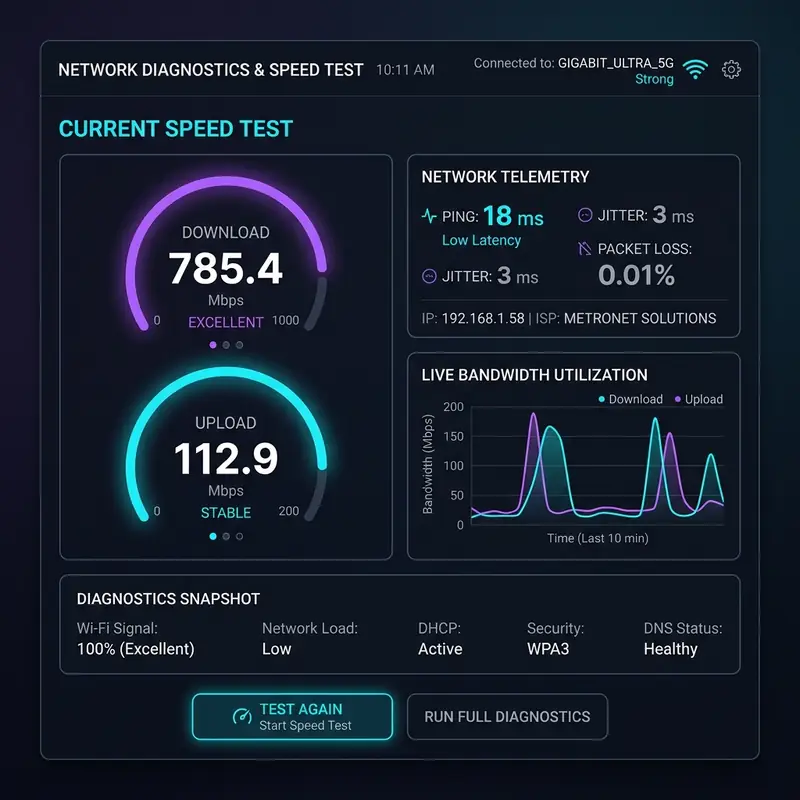
If you experience complete connectivity loss after changing DNS settings, verify that your router's WAN interface is receiving an IP address from your ISP's gateway. If the WAN connection is functional but DNS resolution fails, verify that you did not input typos in the DNS IP fields (e.g., entering 1.1.1.11 instead of 1.1.1.1). Additionally, ensure that your firewall rules are not blocking outbound UDP/TCP traffic on port 53. If you have customized other devices, such as when you turn an old router into a Wi-Fi repeater, confirm that DHCP settings are fully synchronized across your topology to prevent local IP address and gateway configuration mismatches.
6. Advanced DNS Security: Implementing DoH, DoT, and DNSSEC on Modern Routers
Standard DNS queries are transmitted in plaintext, making them vulnerable to eavesdropping, Man-in-the-Middle (MitM) packet injection, and DNS spoofing. To mitigate these vulnerabilities, modern networking protocols encrypt DNS traffic. The two primary standards for encrypted DNS are DNS over TLS (DoT) and DNS over HTTPS (DoH). DoT encrypts DNS queries using Transport Layer Security (TLS) and sends them over TCP port 853, which is highly efficient. DoH wraps queries in standard HTTPS packets on port 443, helping bypass firewalls.
DNSSEC (DNS Security Extensions) adds cryptographic signatures to existing DNS records. These signatures are validated by recursive resolvers to verify that the returned DNS record has not been altered or forged. While DNSSEC does not encrypt the query (meaning your ISP can still see what domain you are requesting), it guarantees data integrity, preventing DNS cache poisoning attacks. If your router supports these features, enabling them in the management panel adds a critical layer of defense to your local area network.
Ultimately, configuring a secure and fast DNS configuration ensures that all traffic exiting your network is optimized. This is particularly useful when you have multiple users playing online games, streaming media, or utilizing cloud services simultaneously. A low-latency DNS resolution minimizes the time-to-first-byte delay, making the entire internet connection feel faster and more responsive on all client machines.
To achieve maximum privacy, security, and control over local network name resolution, advanced users can set up a local DNS server and caching resolver, such as Pi-hole or AdGuard Home, running on a Raspberry Pi or a local virtualization host. Pi-hole acts as an upstream DNS forwarder that intercepts all local DNS queries. By implementing blocklists (gravity lists) at the DNS level, it prevents advertisements, tracking scripts, and malicious telemetry domains from ever loading on client devices. This local caching mechanism significantly reduces DNS resolution latency for frequently visited domains, as the query is answered directly over the high-speed local network (sub-millisecond response) instead of querying external recursive resolvers over the internet.
Additionally, configuring the local DNS resolver to perform strict DNSSEC validation adds a robust layer of verification to the lookup process. DNSSEC uses cryptographic signatures based on public-key cryptography to validate the authenticity and integrity of DNS records. When a client requests a domain resolution, the resolver verifies the digital signatures attached to the DNS records against the trust anchors of the root zone. If a signature is invalid or missing for a signed zone, indicating a potential cache poisoning or man-in-the-middle spoofing attempt, the resolver returns a SERVFAIL response and refuses to establish the connection to the compromised IP address. Integrating a local cache with upstream encrypted protocols like DoH or DoT secures the entire pathway, turning the home network into an encrypted, ad-filtered, and cryptographically verified environment.
Furthermore, understanding DNS propagation is key when migrating to new configurations. When name server records or A records are updated, it takes time for these changes to distribute globally. This propagation window, which can last from a few hours up to forty-eight hours, is governed by the Time-To-Live (TTL) values defined in the zone files of authoritative servers, as recursive caches worldwide gradually expire their old records and fetch the updated IPs.
Frequently Asked Questions
Does changing the DNS settings on the router increase my download speed?
No. Changing the DNS settings only speeds up the time it takes to resolve a domain name to an IP address (response time). Your actual file transfer speeds and download bandwidth will remain identical, limited by your ISP plan.
Is it safe to use free public DNS servers from Google and Cloudflare?
Yes, it is highly safe. Both Google and Cloudflare operate secure global infrastructures with transparent privacy policies. They delete transactional query logs quickly and are generally more reliable than standard ISP resolvers.
What happens if I type an incorrect DNS IP address in my router settings?
If you enter an incorrect or unreachable IP address in the primary and secondary fields, your devices will be unable to resolve domain names. You will lose access to the internet on the entire network until you input valid IP addresses.
Can I configure custom DNS settings on a single device instead of the router?
Yes, you can configure custom DNS settings directly on the network card configuration of individual operating systems or within specific web browser settings, which will override the DNS server addresses distributed by the router.




