How to Change a Wi-Fi Password from Your Phone Quickly: Complete Technical Guide
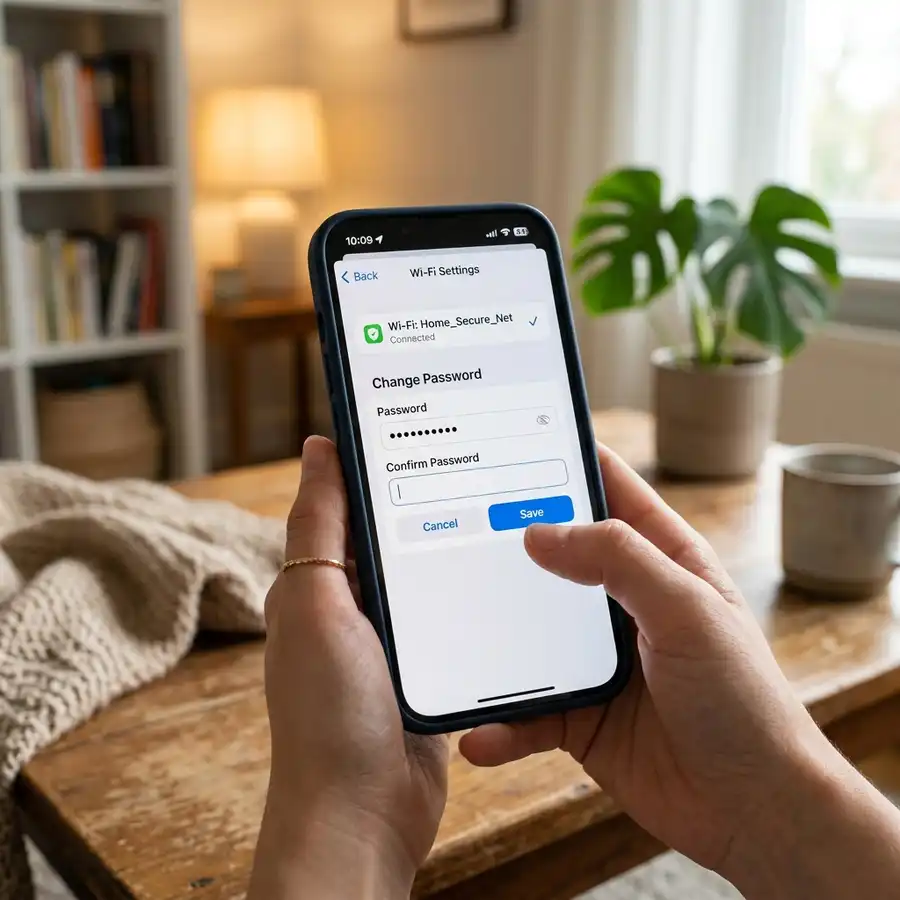
Changing your wireless network security key periodically is a core security practice recommended by information security experts to block unauthorized access and protect local data integrity. Performing this update from a smartphone is a straightforward process, provided you understand local IP routing and router login procedures. To quickly change your Wi-Fi password from your phone, connect to your local wireless network, open a web browser and enter your router's gateway IP address (such as 192.168.1.1 or 192.168.0.1), log in with your credentials, navigate to the "Wireless" or "Wi-Fi" -> "Security" settings page, enter a new password of at least 8 characters (ideally using WPA2-PSK AES or WPA3 encryption), and save the changes.
In this technical guide, we will cover how to find your default local gateway IP on Android and iOS platforms, default administrator logins for common consumer routers, differences between WPA2 and WPA3 security protocols, and device management strategies following a password change. If you are configuring your smart home setup, you may also want to read our instructions on how to reset an Alexa Echo Dot 3 or review our explanation of the Yoosee light bulb camera functions.
1. Locating the Router's Gateway IP Address on Android and iOS
The first step to changing your Wi-Fi password from your phone is identifying the local IP address of your router, known as the Default Gateway. While most routers default to 192.168.0.1 or 192.168.1.1, some ISPs and manufacturers use custom ranges to prevent subnet conflicts. To connect to the gateway, your smartphone must run through the DHCP handshake process. This involves exchanging four crucial packets: DHCP Discover, DHCP Offer, DHCP Request, and DHCP Acknowledge (commonly abbreviated as the DORA process). Through this handshake, the router assigns your phone an IP address, a subnet mask (typically 255.255.255.0), and the gateway IP address, which points directly back to the router's local routing interface. Here is how to find this address on mobile operating systems:
Finding the Router IP on Android
On Android, the layout varies depending on your manufacturer's interface (Samsung One UI, Xiaomi HyperOS, Google Pixel), but the standard steps are as follows:
- Open Settings and tap Network & Internet > Wi-Fi (or Connections > Wi-Fi);
- Tap the Gear (Settings) icon next to your currently connected Wi-Fi network;
- Select Advanced or Network Details;
- Look for the IP address labeled Gateway or Manage Router (e.g.,
192.168.0.1). Some phones offer a shortcut button that opens the management page directly in your default browser.
Finding the Router IP on iOS (iPhone)
On iOS, the process is consistent across all iPhone models:
- Open the Settings app;
- Tap Wi-Fi;
- Tap the blue "i" (Info) icon next to your connected network SSID;
- Scroll down to the IPv4 address section. The value next to Router is your default gateway IP.
If you find that the IP address displays an autoconfigured address starting with 169.254.X.X, this indicates that the DHCP exchange failed. This standard is called Automatic Private IP Addressing (APIPA), and it occurs when your phone connects physically to the Wi-Fi card but the router's internal DHCP server fails to allocate an IP address within the lease time. In this scenario, you will be unable to open the configuration dashboard until you manually assign a static IP address to your phone's network card within the expected subnet range (e.g., configuring your phone's IP to 192.168.1.50 with a gateway of 192.168.1.1).
2. Logging In: Default Administrative Credentials
Once you enter the correct gateway IP into your browser's address bar, the router's login page will load. To enter the settings dashboard, you must submit the administrator username and password. If you have never modified these settings, look up the default factory values.
Common default administrator combinations include:
- Username:
admin/ Password:admin(Standard for many TP-Link, D-Link, and Netgear models); - Username:
admin/ Password:password(Common on older Netgear devices); - Username:
root/ Password:admin(Common on Huawei fiber routers); - Blank Password: Enter
adminas the username and leave the password blank (Common on Linksys devices).
If these common credentials fail, check the sticker on the bottom or back panel of the router. Modern routers provided by major ISPs feature unique, randomly generated administrator passwords printed on the label. If you have changed the password previously and cannot recall it, you must perform a hardware reset to restore factory defaults.
| Brand / ISP Modem | Default IP LAN | Default Username | Default Password Pattern |
|---|---|---|---|
| TP-Link | 192.168.0.1 / tplinkwifi.net | admin | admin (or set during first login) |
| Intelbras | 192.168.1.1 / meuintelbras.local | admin | admin |
| Asus | 192.168.1.1 / router.asus.com | admin | admin |
| ISP Gateways (Vivo/Claro/etc.) | 192.168.15.1 or 192.168.0.1 | admin | Unique key printed on the device sticker |
3. Updating Your Wi-Fi Security Configuration via Mobile Browser
After logging into the router administration dashboard, use the following steps to update your Wi-Fi password:
- Locate Wireless Settings: Look for a menu item labeled Wireless, Wi-Fi, or Wireless Network Settings;
- Open the Security Menu: Inside the wireless menu, select Wireless Security or Basic Settings. On simpler router portals, the network name (SSID) and security password fields are on the main landing page;
- Select Frequency Bands (For Dual-Band Routers): If you run a dual-band network, determine if the bands are separated or combined:
- Separated SSIDs: You will need to change the password for the 2.4 GHz band and the 5 GHz band settings separately. Keep the passwords identical to make connecting easier;
- Combined SSIDs (Smart Connect): The router runs a single network name for both bands. Changing the password in the main configuration field updates both frequencies simultaneously;
When selecting your encryption protocol, it is vital to understand the underlying cryptographic differences. Standard WPA2-PSK utilizes a 4-way handshake process that is susceptible to offline dictionary attacks if a hacker intercepts the initial connection handshake (WPA handshake capture). WPA3-Personal mitigates this vulnerability by replacing the Pre-Shared Key exchange with Simultaneous Authentication of Equals (SAE), based on the Dragonfly Key Exchange algorithm. SAE prevents offline dictionary attacks and ensures forward secrecy, meaning that even if the main password is compromised in the future, past intercepted traffic remains encrypted. However, WPA3 requires hardware support, so setting it as the sole protocol might block older smart home sensors.

4. Managing Network Connections After a Password Change
Once you apply the changes, every connected device—including phones, tablets, smart TVs, game consoles, and smart home IoT sensors—will lose internet access. Your phone will show an "Incorrect Password" or "Authentication Error" notification. Follow these steps to reconnect:
- Forget the Saved Network (Crucial Step): Devices keep older network passwords saved in their cache. If you try to connect directly, the device will send the cached credentials and connection attempts will fail. Go to your phone's Wi-Fi menu, select your SSID, and tap Forget Network. This clears the old settings;
- Enter New Credentials: Select the Wi-Fi network name from the available list. When prompted, type your new password to connect;
- Update Connected Smart Home Devices: Smart home devices without screens (such as smart bulbs, robotic vacuums, and security cameras) must be reconfigured. Open their companion apps to run the setup process again and input the new Wi-Fi password.
For large networks with multiple clients, updating every device individually can be tedious. A practical engineering trick is to retain your old SSID name and security standard, changing only the actual key. While this forces all devices off the network initially, it allows you to update them simply by typing the new password when they prompt you, rather than rebuilding the Wi-Fi profiles from scratch. However, if you suspect your network has been compromised or targeted by unauthorized neighbors, changing both the SSID name and the password is the safest approach, as it forces a clean reset of all client tables on your router's access point interface.
5. Troubleshooting Common Mobile Settings Errors
Updating your network security key can sometimes trigger unexpected errors. Use these diagnostic steps to resolve them:
1. Router Admin Page Fails to Load: Check if your phone has switched to cellular data. Disable cellular data in your phone's shortcut panel and try loading the gateway IP again. If your browser displays a "Your connection is not private" warning, click "Advanced" and select "Proceed to [IP Address] (unsafe)" to load the login page;
2. Unknown Admin Dashboard Password: If the default credentials printed on the back panel sticker do not work, they have been changed previously. You cannot update the Wi-Fi settings without this password. Use a pin to press and hold the physical Reset button on the back of the router for 10 to 15 seconds to restore factory settings and default credentials;
3. Legacy Devices Cannot Connect to WPA3: Older smart home devices, printers, or legacy game consoles may not support WPA3 security protocols. Resolution: Log back into your router settings and change the security type to WPA2/WPA3-Personal (Mixed Mode) or choose standard WPA2-PSK (AES) for backward compatibility.
Furthermore, different mobile browsers handle local gateway scripts with varying degrees of success. For instance, Safari on iOS sometimes blocks the loading of unsigned admin scripts, resulting in a blank configuration page. If this occurs, clear your browser cache and cookies, or download a third-party browser like Google Chrome or Firefox to access the dashboard. If you encounter an SSL/TLS handshake error, verify that you are accessing the router via the standard unencrypted HTTP protocol (e.g., http://192.168.0.1) rather than forced HTTPS, as many older routers lack the processing power to negotiate SSL certificates locally.
Security Best Practice: While updating your wireless security key, change the default router administrator password as well. Leaving the factory admin password as "admin" allows anyone connected to your Wi-Fi network to enter your settings panel, view your Wi-Fi key in plain text, or block your devices from connecting.
6. Creating Secure and Memorable Wi-Fi Keys
Weak Wi-Fi passwords (such as simple numeric patterns or personal dates) leave your network vulnerable to automated security scanning tools. Follow these guidelines to create a strong key:
- Avoid Personal Identifiers: Do not include family names, pet names, birthdays, or street addresses in your security key;
- Ensure Minimum Length: Create passwords of at least 10 to 12 characters. Longer keys increase the computational time required for brute-force attacks;
- Combine Character Types: Interlace numbers, special characters (such as
!,@,#,$), and uppercase and lowercase letters. Avoid simple patterns like12345678or repeating characters.
Additionally, avoid using standard dictionary words even if they are capitalized or followed by a common digit, as modern password-cracking databases (rainbow tables) use advanced rulesets to guess these common permutations within minutes. Instead, try using a passphrase—a short, memorable sentence where you take the first letter of each word and substitute some with numbers and symbols. For example, the sentence "My two cats sleep on the blue couch!" can be transformed into a strong, high-entropy wireless key like M2csOtbc!. This approach gives you a highly secure passphrase that remains very easy to remember without having to look it up in a document every time a new device needs authorization.
Implementing these simple parameters ensures that your home network remains protected. Once your new password is saved, keep a secure physical record of it, or save it inside a trusted digital password manager to simplify future reconnections.
Frequently Asked Questions (FAQ)
Why does my mobile browser say my router connection is "not private"?
Mobile browsers show this warning because the router's local setup portal uses standard HTTP or self-signed HTTPS certificates that are not verified by a public Certificate Authority. This is safe for local connections. Tap "Advanced" and select "Proceed" to open the admin panel.
Does changing my Wi-Fi password impact my internet speeds?
No. Changing your password only updates your wireless encryption and authentication key. However, if unauthorized neighbors were using your bandwidth, changing the password will disconnect them, restoring your subscription's original speeds to your own devices.
Can I update my Wi-Fi password if I am away from home?
Only if you have enabled remote management in the router settings beforehand or if your router supports a cloud app linked to your user account (like TP-Link Tether or ASUS Router). Otherwise, you must be connected to the local Wi-Fi signal to access the settings panel.
What is the difference between WEP, WPA2, and WPA3 security?
WEP is an outdated, vulnerable standard from 1997 that should not be used. WPA2-AES is the current industry standard, offering robust security and wide compatibility. WPA3 is the latest standard, providing stronger protection against offline dictionary attacks and encrypting local data traffic.




