Finding the Right Excel Templates for Your Needs
If you're like me, navigating the labyrinth of Excel can sometimes feel like trying to assemble IKEA furniture without the instructions. But fear not! With the right templates, you can streamline your workflow and make data management a breeze. Whether you're creating financial reports, tracking sales, or managing inventory, having a solid template is key to saving time and avoiding the dreaded "Excel headache." Luckily, there are plenty of free Excel templates available for downloading that can help put you on the right track.
Why Use Templates?
Using templates isn't just about saving time; it's also about ensuring accuracy. In my experience, templates can prevent those pesky data entry errors that always seem to crop up when you're in a hurry. They provide a consistent format that makes it easier to analyze and interpret your data. Plus, they often come preloaded with formulas to help with calculations.
For example, when I was tasked with creating a budget tracking spreadsheet for our marketing department, I stumbled upon a budget template that not only had sections for expenses and income but also included built-in charts that automatically updated based on the data I entered. This saved me hours of formatting and calculation!
Best Free Excel Templates to Download
Let’s look at some of the best free Excel templates you can easily download:
- Monthly Budget Template: Perfect for individuals or households wanting to track their income and expenses. This template helps visualize where your money goes each month.
- Inventory Management Template: Ideal for small businesses. Track stock levels, suppliers, and costs all in one place.
- Sales Tracking Template: A lifesaver for sales teams. Keep an eye on leads, conversion rates, and revenue projections.
- Project Management Template: Manage timelines, tasks, and resources efficiently. This is especially useful for teams working on multiple projects.
- HR Employee Tracker: For HR departments, this template helps manage employee information, benefits, and performance reviews.
Where to Find These Templates
The good news is that you don't have to look far to find these templates. Websites like ExcelTemplate.net and Vertex42 offer a wide range of free downloadable templates. Just make sure to check the compatibility with your version of Excel—some templates may work best with Excel 365 or Excel 2021, while others might be tailored for older versions like Excel 2019.
Dica DomineTec: Before downloading any template, read the reviews if available. It can save you the hassle of dealing with poorly designed spreadsheets!

Customizing Templates to Fit Your Needs
One of the beauties of Excel templates is that they can be customized to meet your specific needs. Take a monthly budget template, for instance. You might want to add additional categories or change existing ones to better reflect your spending habits. In Excel 365, you can utilize the "Format as Table" option (Ctrl+T) to make your data visually appealing while simultaneously adding functionality.
In my experience, some users tend to shy away from customizing templates for fear of "breaking" them. However, with a little trial and error, you’ll find that adjusting formulas or adding new rows can enhance the template's capabilities. Just make sure to keep a backup of the original template so you can always revert back if something goes awry.
Common Pitfalls When Using Templates
Even with the best templates, mistakes can happen. Here are some common pitfalls to watch out for:
- Ignoring Instructions: Many templates come with instructions or notes. Don't skip these! They often contain crucial tips on how to best utilize the template.
- Overcomplicating Formulas: When customizing, it's tempting to change formulas to suit your needs. However, over-complicating formulas can lead to errors. Stick with simple calculations unless you're confident in your Excel skills.
- Neglecting to Save Regularly: Always remember to hit that save button (Ctrl+S) regularly, especially if you're making significant changes to a template. Trust me, losing hours of work because you forgot to save is a real bummer!
Real-World Application: A Case Study
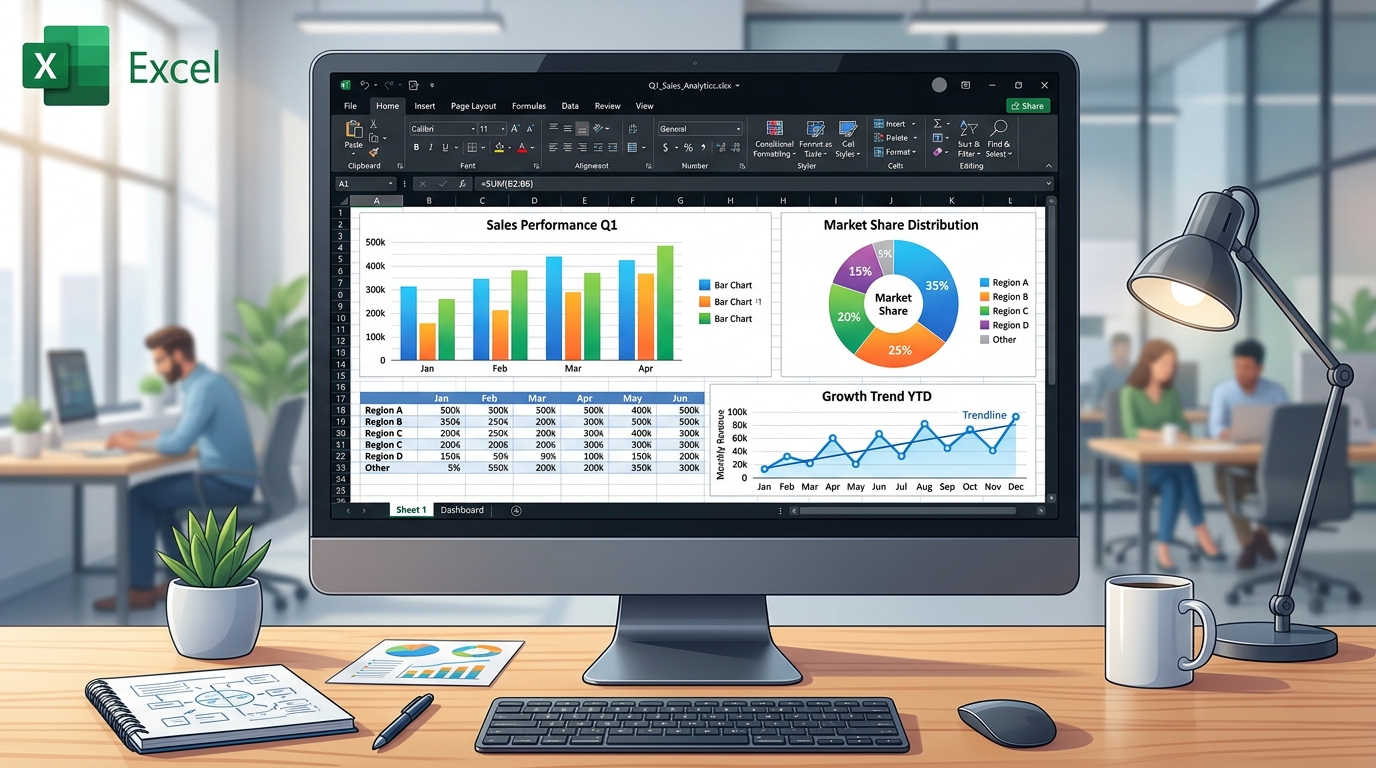
To illustrate how useful templates can be, let's consider a scenario where a sales manager is tasked with tracking quarterly sales across multiple regions. Using a sales tracking template, she inputs her monthly sales figures and automatically generates visual reports through built-in charts.
Let’s say she inputs the following data:
| Month | Region A Sales | Region B Sales | Region C Sales |
|---|---|---|---|
| January | $15,000 | $9,000 | $12,000 |
| February | $20,000 | $11,000 | $15,000 |
With this template, she can visualize the data through graphs that update automatically when she inputs new values. This not only saves her time but also allows her to present the data in a more digestible format during team meetings. Presenting quarterly numbers in a pie chart, for example, can highlight which region is performing best and where there’s room for improvement.
Mastering Dependent Drop-Down Lists (The Pro's Secret)
Remember that time you needed to pick a State and then only the Cities from that state should appear? Yeah, me too. I wasted hours trying to hack this in Excel 2019 until I discovered the true power of the =INDIRECT() function. If you want to impress your boss on a financial report or HR dashboard, creating dependent drop-down lists is the way. Basically, you name a range of cells (select it and hit Ctrl+F3 to open the Name Manager) and use data validation to call that name.
The trick here is to use the Data Validation feature (quick shortcut: Alt, A, V, V) and, in the Source field, type something like =INDIRECT(A2). When I built an inventory management tracker last week, this reduced typing errors to zero. Seriously, zero! In Excel 365, with dynamic arrays, it got even easier. You can use the =FILTER() function alongside =UNIQUE() to create self-updating lists. Something like =UNIQUE(FILTER(B:B, A:A=D2)). This is real life, folks, no fluff.
=SUBSTITUTE(A2," ","_") if you have to!Formatting Cells Based on Selection (Conditional Formatting)
Having a list isn't enough; it needs to pop. How many times have you stared at a dull, gray spreadsheet? I personally love using Conditional Formatting to highlight a user's choice. Say you select "Completed" from a drop-down. Boom, the whole row turns green. Awesome, right? In Excel Online and Excel for Mac, this works wonderfully too.
To do this, select your data (use Ctrl+Shift+L to toggle filters first if you like), go to Conditional Formatting > New Rule, and choose "Use a formula to determine which cells to format". The formula will look like =$C2="Completed". Remember the dollar sign ($) to lock the column, hitting F4 a couple of times. I've literally seen sales managers applaud when a sales pipeline magically changes color. It’s the little details that separate the rookies from the Excel ninjas.
Troubleshooting Common Issues: The Ghost of the Blank List
You know what's frustrating? You click the little arrow on your list and... nothing. Just blank space. I've been there too many times, especially working with shared workbooks in Excel 365. Usually, this happens because the source range has empty cells at the bottom, or you forgot to check the "Ignore blank" box in the validation window.
Another classic issue is when users copy and paste (the infamous Ctrl+C, Ctrl+V) data from elsewhere, completely wiping out your data validation rules. Trust me, I almost cried when a coworker destroyed months of data validation doing exactly that. The fix? Protect the sheet! Go to the Review tab and click Protect Sheet. Allow users to only select unlocked cells. To avoid massive headaches, I sometimes use a quick Alt+F11 macro to block paste-special actions (though that's a topic for an advanced post).
If you're using a =VLOOKUP(A2,Sheet2!$A:$D,3,FALSE) based on a list choice and it returns #N/A, check for trailing spaces. The =TRIM() function is your best friend here!
Dynamic Arrays and Lists: The Future is Here
If you're running Excel 365 or Excel 2021, listen up, because this changed my life. Dynamic arrays allowed us to ditch a lot of messy workarounds. Back in the day, to get a drop-down list without duplicates, we needed brain-melting array formulas. Today? Just type =UNIQUE(A2:A100) in a scratch cell, and in your Data Validation, reference that cell by adding a hashtag at the end, like =$G$2#.

The hashtag (or spill operator) tells Excel to grab the entire spilled range. I used this on a fleet tracking spreadsheet last month. Whenever a new driver was added to the table (always use tables, Ctrl+T is life!), the drop-down list on another tab updated instantly, no reference tweaking needed. It's the kind of efficiency that saves hours of grunt work and gives you more time for coffee. If you try this in Excel 2019, it'll error out, so mind your version.
Ninja Tips for Shortcuts and Productivity
I wouldn't be a true Excel nerd if I didn't talk about keyboard shortcuts. Productivity is everything. Want to open a drop-down list without touching the mouse? Navigate to the cell and press Alt + Down Arrow. Wham! The list opens. It might sound trivial, but when you're filling out 200 rows of an accounting report, it saves your wrists.
And if you mess up? Good old Ctrl+Z undoes the last action. Need to repeat the formatting you just applied to a list? Press F4. F4 repeats your last command (besides locking cells in formulas). Combining these small actions turns you into a maestro, conducting a symphony of cells. I've seen analysts who took all day to close a P&L cut their time in half just by abandoning the mouse. Try it!
Bonus: Automating Processes with Macros and VBA
If you think formulas solve everything, wait until you discover the power of VBA (Visual Basic for Applications). Once, I had a weekly sales report that took about 4 hours just to consolidate data from different branches. Hitting Alt+F11, I wrote a simple macro that looped through the tabs and copied everything to a master sheet. The time dropped from 4 hours to 15 seconds! And the best part? You don't even need to know how to code from scratch. The macro recorder does most of the heavy lifting for you; just tweak the code afterwards.
A quick tip: always save files with macros using the .xlsm extension (Macro-Enabled Workbook). If you save as .xlsx, all your code will vanish, and believe me, you do not want to feel that pain. Another amazing thing I did recently was creating a custom data entry form. Users on my team no longer need to navigate through a spreadsheet full of columns. They simply fill out fields in a nicely designed UserForm, click "Save", and the data is perfectly formatted into the last empty row. It's almost like having your own custom software running inside Excel!
Frequently Asked Questions
1. Where can I find free Excel templates?
You can find a variety of free Excel templates on websites such as Vertex42 and ExcelTemplate.net. Both offer templates for budgeting, project management, sales tracking, and more.
2. Can I use Excel templates in Excel for Mac?
Yes! Many templates are compatible with Excel for Mac. Just make sure to check the template's specifications before downloading to ensure compatibility.
3. How do I customize an Excel template?
To customize an Excel template, open the file and modify the cells, formulas, or charts according to your needs. Use “Format as Table” (Ctrl+T) for better organization and visual appeal.
4. Are there any risks to downloading free templates?
While many templates are safe to use, always be cautious and download from reputable sources. Some free templates may contain hidden macros that can harm your system.
5. What if I make a mistake while editing a template?
If you make a mistake, use the "Undo" feature (Ctrl+Z) to revert your last action. It's also wise to save a copy of the original template before making changes so you have a fallback option.