Performance, AI, and New Features Discovered
Windows 11 is no longer just a visual update of Microsoft's old operating system. In 2026, it has consolidated itself as a smarter platform, integrated with AI, reinforced security, and new tools aimed at personal and corporate productivity.
Many users still only use the basics: opening programs, browsing the internet, and saving files. However, the system offers dozens of underexplored features that can improve speed, organization, and even digital security.
The main difference between an average user and someone who is truly productive in Windows 11 lies exactly in mastering these functions.
In this Windows 11 manual, you will learn:
how to make your PC faster
how to reduce crashes
how to use artificial intelligence tools
how to protect your data
how to improve your work routine
how to discover hidden features
how to tune the system for maximum performance
Whether on personal laptops, corporate computers, or remote work machines, mastering these features generates time savings and fewer technical problems.
In fact, if you are also looking to improve digital productivity, it's worth checking out our guide on password management and account protection in the corporate environment.
What changed in Windows 11 in 2026
The latest versions brought important changes that go beyond appearance.
Among the main highlights are:
Stronger AI integration
Artificial intelligence has taken a central role in the system. Microsoft's AI assistant has evolved, and new features have emerged for task automation, text summarization, contextual assistance, and productivity.
AI features now help with:
file organization
automatic suggestions
document summarization
writing improvement
meeting productivity
assistance in repetitive tasks
This brings the system closer to a smarter workplace experience.
Better memory and performance management
Windows 11 received improvements in RAM usage, background process management, and power consumption.
This means:
less slowdowns
better battery life on laptops
faster boot times
fewer crashes
better multitasking response
Especially for those who work with heavy browsers, enterprise systems, or multiple open tabs.
More aggressive security
Protection against threats has become stronger.
Among the reinforcements:
ransomware protection
advanced defense in Microsoft Defender
more secure authentication
phishing protection
suspicious app verification
passwordless login reinforcement
Security is no longer optional and has become part of daily use.
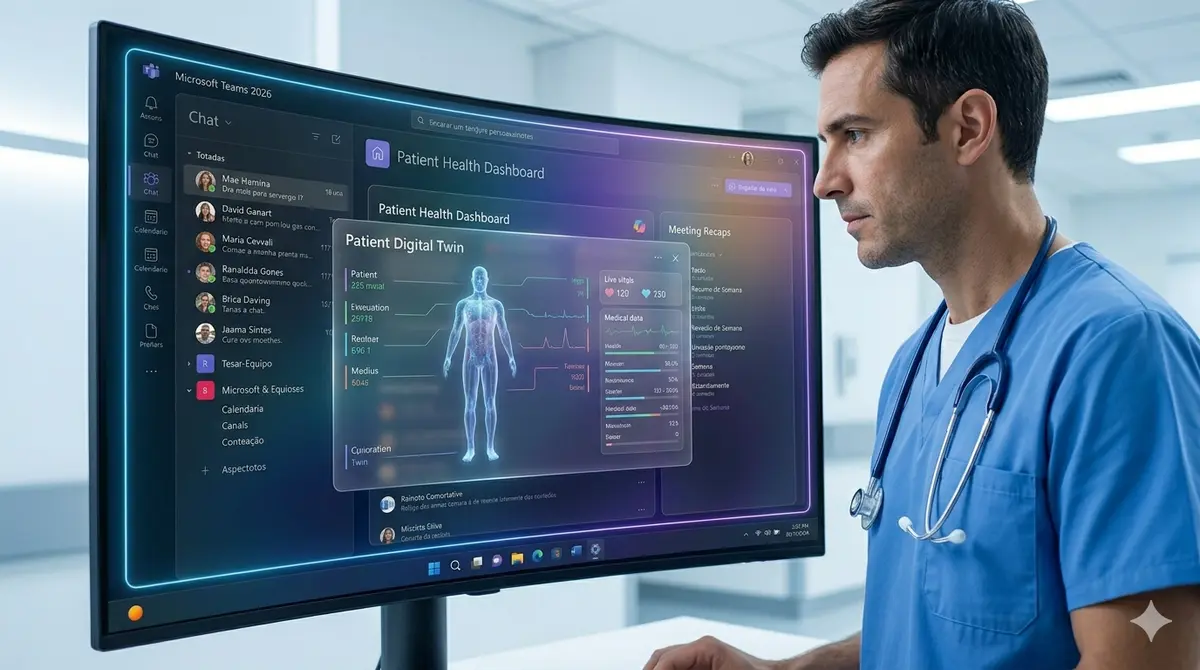
Better cloud integration
OneDrive usage has become smarter, especially for businesses and hybrid work.
Now there is:
improved automatic backup
faster synchronization
simplified restoration
important document protection
more fluid integration with Microsoft 365
This reduces file loss and improves collaboration.
How to make Windows 11 faster
This is one of the biggest searches among users.
The good news is that most slowdowns can be fixed without buying a new computer.
Disable startup programs
Many applications start alongside the system and slow everything down.
To check:
Path
Ctrl + Shift + Esc → Startup Apps
Disable:
unnecessary programs
automatic launchers
software you rarely use
This can drastically reduce boot times.
Clear temporary files
The system itself accumulates useless files.
Path
Settings → System → Storage → Temporary files
Remove:
old cache
temporary files
unnecessary logs
old installations
This frees up space and improves performance.
Enable Storage Sense
Windows can clean itself automatically.
Path
Settings → System → Storage → Storage Sense
Turning this on prevents the accumulation of digital junk.
Adjust visual effects
Many beautiful effects consume performance.
Path
System → Advanced system settings → Performance
Choose:
Adjust for best performance
Ideal for older PCs.
Update drivers correctly
Old drivers cause silent crashes.
Mainly:
video
network
chipset
SSD
audio
Avoid downloading from shady sources. Always prioritize the official manufacturer.
Use an SSD if you're still on an HDD
This remains the biggest real performance upgrade.
No optimization beats swapping an HDD for an SSD.
The gain is usually gigantic.
AI features that are actually worth it
Not every new feature is useful.
These actually help.
Integrated smart assistant
The new AI experience helps with quick tasks such as:
summarizing texts
answering quick questions
organizing tasks
reviewing content
automating small routines
For marketing, IT, and productivity professionals, this speeds up the day a lot.
Smart file search
Searching for files got better.
Now the system understands context and intent, not just the exact name.
Example:
Instead of searching for:
“final_report_v3”
You can search for:
“file from the March meeting”
This reduces wasted time.

Automation with contextual suggestions
The system learns simple patterns.
Example:
opening frequent apps
suggesting recent files
smart shortcuts
automatic replies in a corporate context
This improves workflow.
Live captions and accessibility
Windows has improved accessibility features with AI:
live captions
assisted reading
visual support
smart navigation
This helps both productivity and digital inclusion.
Windows 11 security you should enable today
Many people use the system with incomplete protection.
This is a serious mistake.
Enable multi-factor authentication
Whenever possible, use MFA.
Especially on:
Microsoft accounts
primary email
banking
corporate systems
password managers
This drastically reduces breaches.
Real Windows 11 updates in 2026 that few people know about
Most users still use Windows 11 as if it were 2022, but the 2026 edition brought changes that truly alter the user experience. Some are visible, others are hidden and almost nobody notices.
Here are the most interesting new features that actually make a difference.
Copilot got a lot more useful (and finally smarter)
The old assistant is no longer just a side chatbot and has started to function as an operational hub within the system.
Microsoft Copilot can now help with more practical tasks like:
summarizing long documents
explaining complex settings
suggesting performance tweaks
finding files by context
assisting in productivity with Microsoft 365
automating repetitive small actions
Practical example:
You can ask:
“show me files I used last week related to finance”
or
“how to improve the performance of this laptop”
and the answer is much more contextual than before.
For those working with productivity, this changed a lot.
Snap Layouts got better for heavy multitasking
The window organization system improved a lot.
Now Windows better understands:
ultrawide monitors
setups with 2 or 3 monitors
laptops connected to dock stations
hybrid work
corporate productivity
The Snap Layouts feature automatically organizes window groups and even remembers previous sessions.
Those who work with:
Excel
browsers with many tabs
dashboards
ERP systems
CRM
BI
notice an immediate gain.
In fact, this ties directly into Business Intelligence and operational management processes.
New file explorer got smarter
The Explorer finally received improvements that users had been asking for over years.
Now there are:
more stable tabs
improved search
stronger cloud integration
more useful favorites
smart history
quick access with context
Search no longer relies as heavily on the exact file name.
This reduces that classic problem:
“I know the file exists, but I can't find it”.
Automatic backup got much better
The OneDrive backup system evolved significantly.
Now Windows can restore with much more precision:
preferences
programs
documents
settings
appearance
critical files
When swapping machines or formatting, this saves hours.
For small businesses, this greatly reduces downtime.
Passkeys and passwordless login became the standard
The traditional password is becoming increasingly irrelevant.
Windows 11 started prioritizing:
biometrics
facial recognition
secure PIN
device authentication
modern passkeys
This improves security and reduces phishing.
Windows Hello became even more integrated into this process.
The trend is clear: fewer passwords, more strong authentication.
More efficient battery saving
Laptops had a major improvement in power management.
Now the system analyzes better:
background apps
unnecessary processes
hidden consumption
apps with high CPU usage
programs that drain the battery
This directly impacts remote work and mobility.
Especially on corporate laptops.
What to disable to gain performance immediately
Installing more programs doesn't always solve things.
In most cases, removing excess generates more results.
Unnecessary widgets
If you don't use widgets, disable them.
They consume memory and background processes.
Path
Settings → Personalization → Taskbar → Widgets
Disabling this helps a lot on average machines.
Background apps
Many programs stay active unnecessarily.
Examples:
launchers
old synchronizers
pre-installed apps
manufacturer software
Fewer processes = more performance.
Browsers consuming too much RAM
Today the browser is often the biggest villain.
Mainly with:
dozens of tabs
heavy extensions
old plugins
unnecessary syncs
It's worth reviewing this frequently.
Often the problem is not Windows — it's the browser.
Hidden features that improve productivity
Almost nobody uses these.
But they should.
Clipboard history
Few people know about it and it saves a lot of time.
Enable with:
Windows + V
You now have a complete history of copied texts.
Excellent for:
customer service
support
sales
IT
content production
repetitive processes
Once you activate it, it's hard to live without.
Clipboard across devices
With a connected Microsoft account, you can copy on your PC and paste on another device.
This helps a lot in the workflow between laptop and desktop.
Native screen recording
Many still install unnecessary programs.
The system already offers integrated recording via:
Snipping Tool
Now it also records the screen, in addition to screenshots.
Great for:
tutorials
remote support
training
internal documentation
Focus mode for deep productivity
The system has underexplored focus tools.
You can reduce:
notifications
distractions
interruptions
This helps a lot with long tasks.
Especially in intellectual work.
Integrated focus sessions
Windows allows sessions with a timer and assisted productivity.
It is excellent for:
studying
remote work
operational execution
strategic tasks
Small adjustments make a huge difference.
How to use AI in Windows to work better
The main point is not "having AI".
It's using AI with a real return.
Quick text review
For those who write a lot:
emails
proposals
reports
technical documents
AI reduces time and improves clarity.
This is highly valuable for corporate teams.
Meeting organization
AI helps with:
summaries
main points
next steps
post-meeting productivity
This reduces operational loss.
Contextual information search
Instead of manually searching for:
“what was that document from the meeting with the supplier?”
AI reduces this friction.
This seems small, but saves hours over the month.
Companies are already demanding real Windows 11 mastery
Today, knowing "how to use a computer" is not enough.
Companies demand:
digital productivity
operational security
IT best practices
efficient tool usage
data protection
hybrid collaboration
This is especially true for areas like:
IT
finance
administration
operations
customer service
management
Those who master this work better and cost less to the company.
And this directly impacts hiring.
Questions everyone asks about Windows 11 in 2026 (Also Asked)
Answering these doubts helps both the user and SEO, because these are exactly the most searched questions on Google about Windows 11.
Here are the complete and direct answers.
Is Windows 11 really faster than Windows 10?
It depends on the hardware and configuration.
On newer machines, especially with an SSD, recent processors, and a good amount of RAM, Windows 11 usually delivers better overall performance, especially in multitasking, power management, and security.
It works better with:
modern processors
laptops with better battery life
multiple monitors
background apps
cloud integration
virtualization and reinforced security
On the other hand, on old and poorly optimized machines, some users experience more slowdowns, especially when there is a traditional HDD instead of an SSD.
In practice:
If the PC already has an SSD and at least 8 GB of RAM, Windows 11 tends to be superior.
If it still uses a mechanical HDD and low memory, the problem is not exactly the system — it's the hardware.
Is it worth upgrading to Windows 11 in 2026?
In most cases, yes.
Especially if you are looking for:
more security
better future support
AI integration
better compatibility with current software
enhanced productivity
corporate support
Windows 10 remains functional, but Microsoft's focus is entirely on Windows 11.
This means:
new features arrive there first
higher priority in security
better integration with Microsoft 365
evolution of Microsoft Copilot
greater future compatibility
For companies, delaying this migration usually generates more costs later.
What makes Windows 11 slow?
The main villains are usually:
too many startup programs
browser with too many tabs and extensions
lack of SSD space
outdated drivers
heavy antivirus software
old mechanical HDD
low RAM memory
apps running in the background
unnecessary pre-installed software
poorly managed updates
Many people blame the system when the real problem is accumulated usage.
The best approach is to diagnose before formatting everything.
How to speed up Windows 11 without formatting?
You can improve a lot with simple actions:
Step 1: remove unnecessary startup programs
Ctrl + Shift + Esc → Startup Apps
Disable useless programs.
Step 2: clear temporary files
Settings → System → Storage
Remove accumulated files.
Step 3: review browser
Fewer tabs and fewer heavy extensions.
Step 4: update drivers
Mainly video, network, and SSD.
Step 5: check disk health
If the disk is slow, no optimization fully resolves it.
Step 6: use an SSD
If you still use a traditional HDD, this is the top priority.
Does Windows 11 really need an SSD?
Technically no.
In practice, yes.
Using Windows 11 with a mechanical HDD in 2026 means accepting constant sluggishness.
An SSD improves:
boot time
program opening
updates
response time
multitasking
overall stability
It's the upgrade with the highest real impact.
More important than the processor in many cases.
Does Windows 11 use more RAM?
Yes, it tends to consume more RAM than Windows 10.
This happens because:
there are more active features
cloud integration is higher
security runs more intensely
visual processes and AI demand more resources
That's why 4 GB no longer offers a good experience.
Today the ideal is:
minimum acceptable: 8 GB
recommended: 16 GB
heavy productivity: 32 GB+
Especially for those who work with a heavy browser, ERP, CRM, and multiple systems.
What is the best antivirus for Windows 11?
For most users, Microsoft Defender itself is enough when properly configured.
It has evolved significantly and offers:
real-time protection
ransomware defense
phishing protection
threat monitoring
native integration with the system
The mistake is more in user behavior than in the lack of an antivirus.
Downloading suspicious files remains the biggest risk.
For corporate environments, there may be a need for more robust solutions with EDR and advanced protection.
Is it worth using PC cleaners?
In most cases, no.
Many "miracle optimizers" cause more problems than they help.
Some:
remove the wrong files
change the registry unnecessarily
create instability
consume excessive resources
Windows itself already has sufficient tools for basic maintenance.
Fewer miracle promises, more proper management.
Does Copilot really help or is it just marketing?
Now it really helps.
In the early versions, it seemed just like a side chatbot.
In 2026 it became more useful for:
productivity
quick research
summaries
operational organization
simple tech support
light automation
It still does not replace specialized professionals, but it reduces repetitive tasks and speeds up decisions.
When well used, it saves real time.
Is Windows 11 better for businesses?
Yes, primarily due to:
reinforced security
better identity control
cloud integration
hybrid work
device management
AI-assisted productivity
more modern corporate support
Companies that still operate with disorganized environments end up paying more in support, incidents, and operational loss.
The system alone does not solve everything, but it helps a lot.
How to know if my PC supports Windows 11?
Microsoft demands some main requirements:
compatible processor
TPM 2.0
Secure Boot
minimum storage
minimum required memory
Many computers seem compatible but fail on TPM or Secure Boot.
The check can be done with the official Microsoft tool.
This avoids problematic updates.
Is Windows 11 worth it for gaming?
Yes.
Mainly because of:
DirectStorage
better GPU management
optimizations for modern hardware
stronger future support
integration with new drivers
Anyone using a modern gaming setup usually benefits.
But again: an SSD makes more difference than marketing.
Does Windows 11 improve remote work productivity?
A lot.
Especially with:
Snap Layouts
multiple monitors
focus sessions
cloud integration
Copilot
OneDrive synchronization
collaboration with Microsoft Teams
The system was clearly designed for hybrid and remote work.
This is no longer a trend.
It's the standard.
How long will Windows 11 remain a priority?
For several years.
Microsoft's entire ecosystem is already focused on it.
This includes:
security
AI
business support
future updates
cloud service integration
Ignoring this today means operational delay tomorrow.
That's why the time to adapt is now, not later.
Advanced settings that greatly improve Windows 11
Most people never enter these areas of the system, but they are exactly what make a real difference in daily use.
Here are tweaks that more advanced users and IT teams usually apply first.
How to reduce crashes and freezes in Windows 11
Crashes rarely happen “out of nowhere”.
Usually, there is a recurring cause.
Check system integrity
Windows itself has internal tools for this.
Open Command Prompt as administrator and run:
sfc /scannowThis command checks for corrupted system files.
Then run:
DISM /Online /Cleanup-Image /RestoreHealthThis fixes deeper issues in the system image.
Many people format their PC unnecessarily when this would have already solved it.
Proper power management makes a huge difference
Especially on laptops.
Path
Settings → System → Power & battery
Choose the right mode:
Best power efficiency → more battery
Balanced → typical use
Best performance → maximum performance
Those who work with editing, multiple tabs, and heavy software usually benefit from the best performance mode.
Managing updates the right way
Updating isn't just clicking “update”.
It requires strategy.
Avoid updates during critical moments
Companies do this all the time.
If you depend on the machine for work, avoid major updates during sensitive periods such as:
financial closings
important deliveries
high demand weeks
operational events
Updating without planning can cause more problems than security.
System Restore remains underrated
Many people forget about this feature.
It allows you to roll back the system to an earlier point when something breaks after:
driver installation
problematic update
poorly installed program
configuration error
Path
Control Panel → Recovery → Open System Restore
This can prevent hours of rework.
Professional storage management
It's not enough to "have free space".
You have to organize it.
Use logical separation
Best practice:
Primary drive → system and programs
Secondary drive → files and backups
This improves organization and reduces risks.
Companies do this by default.
Permission control improves security
Not every program needs full access.
Review permissions for:
camera
microphone
location
notifications
background apps
Path
Settings → Privacy & security
Fewer unnecessary permissions = smaller attack surface.
This is essential in digital security.
Hidden features professionals use every day
These are small shortcuts that change productivity.
Multiple virtual desktops
Few people use them.
But it's excellent.
Enable with:
Windows + Tab
You can separate environments like:
work
personal
specific projects
study
finance
This reduces mental and visual clutter.
More powerful Task Manager
The new Task Manager got much better.
Now it helps to identify:
RAM bottlenecks
excessive CPU usage
overloaded disk
suspicious processes
power consumption
It's not just for "closing a frozen program".
It's for real diagnostics.
Reliability history
Almost nobody knows about this.
But IT uses it a lot.
Search for:
Reliability History
It shows past failures, crashes, and important events.
Helps a lot to discover problem patterns.
Windows God Mode
Yes, it still exists.
You can create a folder with quick access to dozens of advanced settings.
Folder name:
GodMode.{ED7BA470-8E54-465E-825C-99712043E01C}This centralizes many hidden panels.
Excellent for advanced users.
Corporate security in Windows 11
Here lies a huge difference between home and professional use.
Companies cannot rely just on "hopefully nothing happens".
They need process.
Defender is no longer a "basic antivirus"
Microsoft Defender today offers much more.
It includes:
ransomware protection
real-time defense
suspicious behavior monitoring
phishing protection
threat isolation
integrated cloud intelligence
In many scenarios it already serves very well.
Backup is not optional
The biggest flaw remains human.
Many users still believe "it will never happen to me".
Until it does.
Best practice:
local backup
cloud backup
file versioning
tested restoration
Backup that has never been tested is not a backup.
It's hope.
Access policy matters more than technology
Many breaches happen not because of a technical flaw, but due to excessive access.
Example:
Employees with unnecessary permissions.
Less unnecessary access = less risk.
This applies to:
files
folders
internal systems
ERPs
administrative accounts
Security begins with management.
Windows 11 and corporate productivity
The system was clearly designed for hybrid work.
This shows up in several points.
Integration with Teams and collaboration
Integration with Microsoft Teams became much more natural.
It helps with:
quick meetings
remote collaboration
file sharing
cross-department communication
distributed work
This reduces operational friction.
Microsoft 365 more integrated
Usage with Microsoft 365 became more fluid.
Mainly with:
automatic synchronization
continuity across devices
version recovery
simultaneous collaboration
document management
Those who work with documents notice this quickly.
Companies already evaluate this in interviews
Really knowing how to use Windows 11 has become a differential.
Especially in areas like:
IT
support
finance
administration
operations
management
It's not enough to say "I know computers".
Today that means:
digital productivity
operational security
technological autonomy
problem solving
quick adaptation
This influences real hiring.
The most common user mistake
Thinking that technical problems are always solved by formatting.
Most of the time they aren't.
What solves it is:
correct diagnosis
organized process
preventative maintenance
good usage practices
Formatting without diagnosis is just hitting reset on the problem.
And it usually comes back.
Ultimate checklist to make Windows 11 fast, secure, and professional
If someone asked "what do I need to do today to use Windows 11 better?", this would be the most important summary.
No fluff.
No miracle promises.
Just what really works.
Performance checklist
1. Swap HDD for SSD
If a mechanical HDD is still there, this is priority number 1.
No setting beats this.
It impacts:
boot time
program opening
updates
multitasking
overall stability
It's the upgrade with the highest return.
2. Use at least 8 GB of RAM
Today 4 GB no longer deliver a good experience.
Real ideal:
basic use → 8 GB
productivity → 16 GB
heavy work → 32 GB+
Especially with a browser, CRM, ERP, and multitasking.
3. Review startup programs
Fewer programs opening at startup = more speed.
Ctrl + Shift + Esc → Startup Apps
Disable what you don't need.
This alone improves a lot.
4. Monitor free space
Full SSD = slow system.
The ideal is to keep a buffer.
Avoid working with an almost full drive.
This affects performance and updates.
5. Update drivers smartly
Mainly:
GPU
network
SSD
chipset
audio
But always from an official source.
Never with "magic driver programs".
Security checklist
6. Enable multi-factor authentication
This goes for:
Microsoft account
primary email
banking
corporate systems
password managers
MFA drastically reduces breaches.
Much more than any antivirus.
7. Review app permissions
Not every software needs:
camera
microphone
location
notifications
background execution
Settings → Privacy & security
Less access = less risk.
8. Use real backup
Not "I intend to back up".
Working backup.
Best practice:
local
cloud
restoration test
Backup without testing is invalid.
9. Don't trust miracle antivirus
Microsoft Defender already solves a lot when well used.
The biggest risk is still:
clicking where you shouldn't.
Security starts with behavior.
10. Beware of browser extensions
A lot of breaches start there.
Review:
old extensions
unnecessary plugins
excessive permissions
Fewer extensions = smaller attack surface.
Productivity checklist
11. Use Snap Layouts for real
Organizing windows correctly changes productivity.
Especially with:
multiple monitors
hybrid work
dashboards
spreadsheets
CRM
customer service
A few minutes of adaptation, a lot of daily gain.
12. Enable clipboard history
Windows + V
This saves absurd amounts of time.
Mainly for:
support
sales
IT
administrative
content production
One of the best hidden features.
13. Use multiple virtual desktops
Separating environments helps a lot.
Example:
work
personal
financial
projects
study
Less visual and mental confusion.
14. Set up focus sessions
Fewer notifications = more production.
The problem is not always lack of time.
It's excessive interruption.
15. Learn to use Microsoft Copilot
Those who use it poorly think it's useless.
Those who use it right save hours.
Especially with:
summaries
text review
operational organization
contextual search
corporate productivity
AI doesn't replace the professional.
But it speeds them up a lot.
Costliest mistakes
These are the most common mistakes — and the most expensive ones.
Waiting for the problem to happen
An average user thinks:
“I'll fix it later”
A company pays dearly for this.
Preventative maintenance always costs less.
Updating without planning
Not every update should happen immediately.
Especially in work environments.
Updating without a strategy can halt an entire operation.
Giving too much access to everyone
Bad security almost always starts there.
Excessive permission = unnecessary risk.
Ignoring small signs
Example:
recurring slowdowns
slight freezes
occasional errors
strange flaws
performance loss
This rarely improves on its own.
It usually gets worse.
Thinking formatting solves everything
This is a classic.
Formatting without diagnosis is just restarting the problem.
The cause remains there.
How IT professionals really take care of Windows
It's not with a "PC cleaning program".
It's with a process.
They look at:
logs
reliability
behavior
failure history
resource consumption
incident patterns
Mature IT works with prevention, not desperation.
This difference saves thousands in support.
The future of Windows 11
The trend is clear.
Less traditional operating system.
More intelligent platform.
Windows is heading towards:
integrated AI
fewer passwords
more automation
more cloud
more contextual security
more assisted productivity
fewer manual tasks
This has already begun.
2026 just made it more evident.
Those who learn early get ahead.
Those who ignore it later pay more.
Especially companies.
Because technological delay is never cheap.
Complete FAQ – Windows 11 Manual (2026 Edition)
Does Windows 11 make the computer slower?
Not necessarily.
What makes the computer slow is usually not just the operating system, but rather the combination of:
old mechanical HDD
low RAM memory
too many programs starting up
outdated drivers
browser consuming too many resources
almost full storage
applications running in the background
On modern computers with an SSD and good RAM, Windows 11 generally delivers better performance than Windows 10.
The problem is usually in the hardware or poor configuration.
What is the best configuration for Windows 11 to run well?
The technical minimum is not the real ideal.
For a good experience in 2026, the recommended is:
Basic Use
SSD
8 GB of RAM
recent mid-range processor
Professional Work
NVMe SSD
16 GB of RAM
stronger processor
good graphics card if necessary
Heavy Work
32 GB+
multiple monitors
automated backup
cloud integration
Today, an SSD is practically mandatory.
Is it worth formatting Windows 11?
Only when necessary.
Many users format on impulse.
Before doing so, it's worth checking:
system integrity
drivers
disk space
browser crashes
background processes
file corruption
SSD health
Formatting without diagnosis can cause the problem to return quickly.
Diagnosis first, decision later.
Is Windows 11 better for laptops?
Yes, primarily because of power management.
It has improved significantly in:
battery life
thermal management
background processes
smart sleep mode
fast resume
hybrid work integration
Especially for corporate laptops, this makes a real difference.
Is Windows 11 good for home office?
Very.
In practice, it was designed for it.
The most useful features include:
Snap Layouts
multiple monitors
OneDrive synchronization
Microsoft Teams integration
focus sessions
smart notifications
Microsoft Copilot
file recovery
For remote productivity, it is much more prepared.
Does Windows 11 need a paid antivirus?
In most cases, no.
Microsoft Defender already offers sufficient protection for most users when configured correctly.
The biggest problem is generally not the lack of an antivirus.
It's unsafe behavior such as:
clicking on suspicious links
installing pirated programs
downloading dangerous attachments
reusing weak passwords
Security starts with habits.
How to know if my SSD is failing?
Some common signs:
sudden slowdowns
frequent freezes
boot failures
corrupted files
programs taking too long to open
recurring strange errors
Manufacturer diagnostic tools help a lot.
Ignoring this can lead to data loss.
Does Windows 11 consume a lot of internet?
It can consume more than older versions, mainly due to:
cloud synchronization
automatic updates
smart backup
background services
Microsoft 365 integration
But this can be controlled.
Path
Settings → Network & internet → Data usage
There you can limit excesses.
Is it worth disabling automatic updates?
Not entirely.
The ideal is not to disable them, but to control them.
Updates bring:
security
critical fixes
compatibility
stability
The problem lies in updating without planning.
Especially in companies.
Management is better than total blocking.
Can Copilot replace human work?
No.
Microsoft Copilot speeds up tasks, but does not replace professional analysis.
It helps with:
summaries
productivity
quick review
operational support
contextual research
But strategic decisions still rely on people.
AI reduces time.
It does not replace responsibility.
Is Windows 11 better for small businesses?
Yes.
Mainly because of:
integrated security
remote collaboration
AI productivity
cloud backup
device control
Microsoft 365 integration
better future support
Small businesses usually suffer more from digital disorganization.
The system helps a lot with that.
What is the biggest mistake when using Windows 11?
Thinking that technical issues can always be solved later.
The biggest mistake is delaying maintenance.
Example:
ignored backups
ignored slowdowns
poorly managed updates
uncontrolled access
neglected security
The cost comes later.
And it almost always comes more expensive.
Conclusion
Windows 11 in 2026 is not just an operating system.
It has become a platform for productivity, security, and automation.
Those who use only the basics are leaving time, efficiency, and security on the table.
The biggest gains don't come from secret features.
They come from simple best practices:
organization
preventative maintenance
smart use of AI
well-applied security
structured productivity
The average user searches for "how to make the PC faster".
The professional understands that the real goal is to work better.
That is the true difference.
If you master this, Windows stops being a problem and becomes a competitive advantage.
And this applies to both individual users and entire companies.
Recommended Internal Links (DomineTec)
Password Manager → https://dominetec.com.br/gerenciador-de-senhas/
How to Recover Deleted WhatsApp Messages → https://dominetec.com.br/como-recuperar-mensagens-apagadas-do-whatsapp/
How to Make Money Online → https://dominetec.com.br/como-ganhar-dinheiro-na-internet-de-forma-honesta/
Register Company on Google → https://dominetec.com.br/cadastrar-empresa-google/
Business Management Software → https://dominetec.com.br/software-de-gestao-empresarial/
Marketing Automation → https://dominetec.com.br/automacao-de-marketing/
What is Business Intelligence (BI) → https://dominetec.com.br/o-que-e-business-intelligence-bi/
Best Apps for Personal Finance Control → https://dominetec.com.br/melhores-aplicativos-para-controle-financeiro-pessoal/
Ransomware Attacks → https://dominetec.com.br/ataques-de-ransomware/
Information Security Policies → https://dominetec.com.br/politicas-de-seguranca-da-informacao/
Reliable External Link (Authority)
Official Microsoft Windows 11 Page → https://www.microsoft.com/windows/windows-11
or
Official Microsoft Support for Windows 11 → https://support.microsoft.com/windows
or
Official Microsoft Defender Center → https://support.microsoft.com/microsoft-defender
Windows 11 Trends for 2027: what has already started and will dominate next year
If in 2026 Windows 11 consolidated productivity, security, and integration with artificial intelligence, 2027 tends to be the year when these changes stop being a “novelty” and become a basic requirement.
Many users still see the operating system as just a tool to open programs. This view is outdated.
Today, Windows works as a hub for work, data protection, operational automation, and digital collaboration.
Those who understand this get ahead.
Those who ignore it end up paying with time, rework, and loss of productivity.
Therefore, understanding where Windows 11 is heading helps not only in the current routine, but also in preparation for the future.
Integrated AI will no longer be optional
Artificial intelligence will no longer be a separate feature.
It will be part of the system.
Microsoft Copilot has already shown this direction.
In 2027, the trend is for AI to participate in almost everything:
file search
task organization
automatic meeting summaries
document review
assisted tech support
productivity analysis
automation of small routines
security recommendations
The difference will be huge between those who use AI strategically and those who just "test curiosities".
Companies are already separating these two profiles.
The productive professional will not be the one who knows the most commands.
It will be the one who knows how to delegate to AI better.
Passwordless security will be standard
The traditional password is losing ground quickly.
It still exists, but it is no longer the best model.
The advance of:
biometrics
facial recognition
multi-factor authentication
device tokens
modern passkeys
contextual login
shows that the future lies in strong and invisible authentication.
Windows Hello and the Microsoft ecosystem are clearly pointing in this direction.
The question is no longer:
“is it worth abandoning passwords?”
The real question is:
“how much does it cost to continue depending on them?”
Phishing, leaks, and password reuse remain the biggest corporate security problems.
And this needs to end.
The operating system will become less visible
This seems strange, but it is already happening.
The user interacts less and less with “Windows” and more with:
cloud
collaboration
AI
automations
integration between devices
The system stops being the protagonist and becomes silent infrastructure.
The focus shifts from:
“how to use Windows?”
to:
“how to work better using the complete ecosystem?”
This includes:
Microsoft 365
OneDrive
Microsoft Teams
integrated security
document management
task automation
Companies already operate like this.
Individual users are getting there.
Native AI PCs will gain strength
The market has started talking a lot about AI PCs.
It's not just marketing.
They are machines prepared to run AI locally with more efficiency.
This impacts:
performance
privacy
battery life
response speed
offline tasks
corporate productivity
Instead of relying solely on the cloud, part of the intelligence runs directly on the machine.
This reduces latency and improves security.
2027 tends to accelerate this a lot.
Buying a computer will no longer consider just:
processor
RAM
SSD
and will also start to consider:
real capacity for embedded AI.
This completely changes the market.
Hybrid work will continue to shape the system
Windows 11 was clearly designed for this scenario.
And this will continue.
Companies are not fully returning to the old model.
Hybrid is here to stay.
This requires:
remote collaboration
continuity between devices
distributed security
productivity outside the office
less dependence on physical presence
Features like:
Snap Layouts
smart synchronization
continuity between laptop and desktop
quick meetings
automated backup
simultaneous collaboration
stop being “cool features” and become operational obligations.
The modern professional needs to master this.
Less reactive support, more intelligent prevention
The old model was:
a problem occurred → call support
The new model is:
before it breaks → the system already warns you
This happens with:
storage health
suspicious behavior
security risks
recurring failures
performance bottlenecks
operational anomalies
The IT of the future works less putting out fires and more preventing them.
This reduces costs and increases efficiency.
And Windows is already moving strongly in this direction.
Basic computer knowledge is now insufficient
Saying “I know computers” no longer means anything.
Companies want something else.
They want people who know how to:
solve problems
protect data
work autonomously
collaborate digitally
use AI smartly
avoid operational failures
organize digital processes
This applies to both administrative roles and technology areas.
Digital literacy has changed.
Today it includes security and productivity.
Not just Word and Excel.
The real upgrade is not technical — it is mental
Many people search for:
“how to make my PC faster”
when they should ask:
“how to better use my digital infrastructure?”
This shift is powerful.
Because the biggest bottleneck is rarely just hardware.
Usually it's:
disorganization
excessive manual processes
security flaws
lack of backup
operational improvisation
lack of standardization
A slow computer is often a symptom.
Not a cause.
High-performance professionals understand this early on.
Small businesses are the ones who need this change the most
There is a common mistake:
thinking that advanced security and productivity are things for large companies.
In fact, small businesses suffer even more from disorganization.
Because they usually have:
smaller teams
less redundancy
fewer formal processes
less technical protection
greater dependence on a few people
This makes any failure much more expensive.
Example:
a lost laptop
for a large company = manageable problem
for a small business = potential operational disaster
That's why the intelligent use of Windows 11 is even more important for small businesses.
The valued professional will be the one who reduces friction
The market is rewarding those who solve bottlenecks.
Not just those who execute tasks.
Those who know how to:
automate
organize
prevent errors
reduce rework
improve processes
integrate tools
gain relevance.
And a good part of this begins with the proper use of the digital environment.
In other words:
in the operating system itself.
Windows 11 as a competitive advantage
It seems like an exaggeration, but it's not.
Two people with the same laptop can have completely different results.
The difference lies in:
method
organization
security
productivity
operational mastery
This applies to:
freelancers
managers
analysts
administrative teams
small businesses
IT teams
financial operations
A tool without a process generates no results.
A process with the right tool generates a competitive advantage.
What to do now
Don't wait for 2027.
Start today.
Do this:
review your startup
organize your backup
enable MFA
configure permissions
reduce software bloat
learn to use Copilot
improve your digital organization
stop relying on improvisation
treat security as a priority
use Windows as a strategy, not an obligation
This change seems small.
But it separates average users from truly prepared professionals.
And this difference is getting more and more expensive in the market.
The future will not be decided by whoever has the most technology.
It will be decided by whoever knows how to best use the technology they already have.






