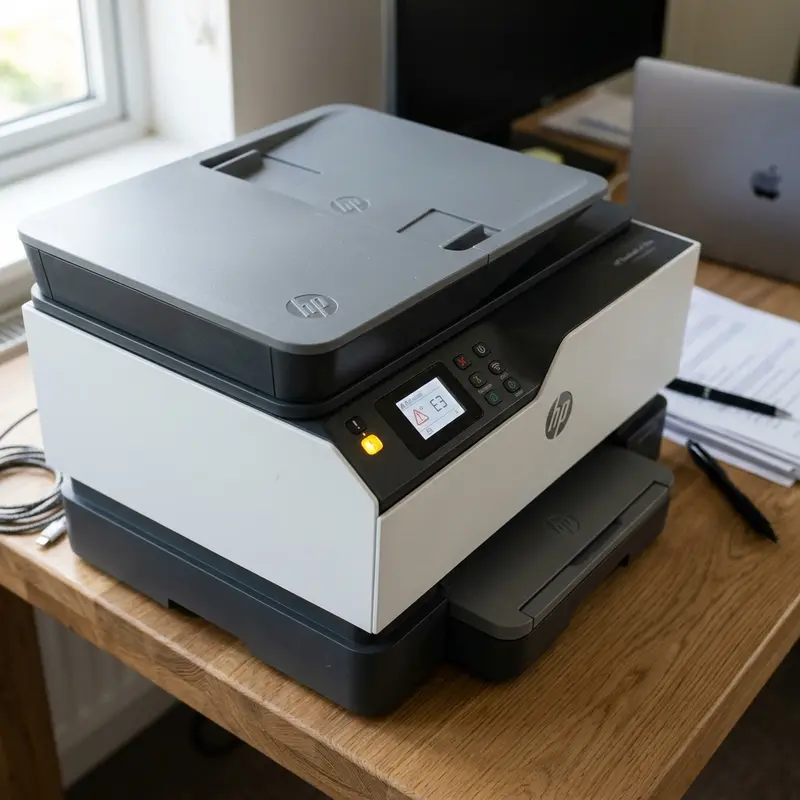
How to Fix Printer Won't Feed or Pull Paper Issue: Technical Repair Guide
Being locked out of a critical task because your office equipment displays paper feeding errors is one of the most frustrating aspects of using a printer. If your printer won't feed paper under any circumstances, the most probable cause is the accumulation of paper dust or physical wear on the rubber surface of the pick-up roller, which eliminates the friction coefficient needed to grab and advance the sheet; to fix this, you must clean the pick-up roller using a lint-free cloth slightly dampened with distilled water, clear any foreign debris blocking the paper chute, or inspect the feed solenoid clutch for sticky pads or electrical failures. Understanding the mechanical logic of the feed system allows you to resolve these issues without calling support.
1. Electrical and Mechanical Principles of the Paper Feed System
To pull a single piece of paper from the tray, feed it through the printing zone, and eject it into the output stack, a printer relies on a coordinated set of stepper motors, solenoids, gears, and optical sensors. The key hardware components are the pick-up roller, the separation pad (or separation roller), a main stepper motor, an electromagnetic solenoid, and infrared photo-interrupters.
The sequence begins when the printer's mainboard controller sends a voltage pulse to the feed solenoid. This coil generates a magnetic field that attracts a metal armature lever, releasing a spring-loaded clutch gear. Once the clutch is engaged, rotational force from the main stepper motor is transmitted through a series of plastic reduction gears to the shaft of the pick-up roller. The pick-up roller is covered in a soft, ribbed rubber sleeve. The high friction coefficient of this vulcanized rubber grips the top sheet of paper in the tray.
As the pick-up roller rotates, it forces the paper sheet into the feed throat. Positioned directly beneath or adjacent to the pick-up roller is the separation pad. This pad features a high-friction rubber surface backed by a calibrated compression spring. The separation pad applies upward pressure against the paper stack, holding back the lower sheets by differential friction while allowing only the top sheet to pass through. If the rubber surface of the pick-up roller is worn smooth or coated in microscopic paper dust, it will spin on the paper surface without pulling it forward. This results in the motor spinning while the control panel reports a paper jam or out-of-paper error.
2. Friction Physics: Rubber Aging and Shore A Hardness
The physical gripping capability of the pick-up roller is a direct result of its material properties. The outer sleeve is made from vulcanized natural rubber or specialized synthetic elastomers. During design, these compounds are engineered with a specific softness rating, typically ranging between 30 and 40 Shore A durometer. This soft, flexible surface allows the rubber to micro-conform to the texture of paper fibers when compressed by the spring-loaded tray plate.
Over time, exposure to environmental oxygen, ozone, and UV light causes chemical cross-linking degradation within the elastomer. This aging process hardens the rubber, pushing its hardness rating past 60 Shore A, and turns its surface glassy and reflective. This dry-rot drastically lowers the static friction coefficient against the paper from ~0.8 to under 0.3. Cleaners containing isopropyl alcohol or petroleum-based solvents accelerate this degradation by washing away the essential plasticizer oils that keep the rubber flexible. When the rubber hardens, it loses its ability to grip the paper, sliding across the sheets instead.
3. Comparing Feed Systems: Gravity-Fed Top Load vs. Bottom Cassette
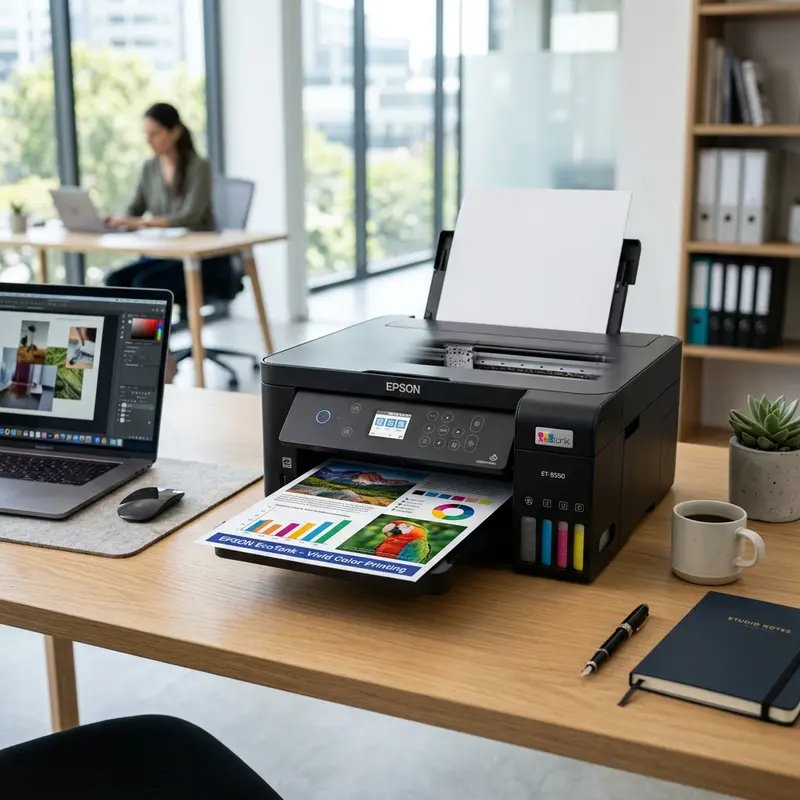
The design of the paper tray plays a significant role in how feed failures occur. Printers that use a vertical rear input tray (known as Top-Load systems, common in Canon MegaTank and Epson EcoTank models) rely on gravity to help slide paper down into the feed path. The pick-up roller pushes the sheets down a gentle ramp, which requires less motor torque. However, the open vertical chute is highly susceptible to gravity-fed obstructions, as small items like paperclips, dust clumps, and coins can easily fall inside and jam the paper sensor flags.
In contrast, printers with a bottom drawer (Cassette loaders, typical of office laser printers and high-end inkjets) require the paper to travel through a sharp 180-degree "U-turn" to reach the print carriage. This design requires much higher pick-up roller pressure and a very robust separation pad. When bottom cassette systems fail to feed, it is often due to mechanical fatigue of the lifter plate spring mechanism inside the cassette tray, which fails to lift the paper stack high enough to make firm contact with the overhead pick-up roller assembly.
4. Technical Guide: Cleaning the Pick-Up Roller
In most instances where a printer fails to feed paper, the issue is simply due to paper dust (cellulose fibers) or oil from handling coating the roller's surface. Follow these technical steps to clean the roller assembly:
- Turn off the printer using the power button and disconnect the power cord from the outlet. This prevents accidental motor rotation during maintenance;
- Remove all paper from the input tray (either the rear sheet feeder or the bottom drawer);
- Locate the rubber pick-up roller. On Canon MegaTank and Epson EcoTank printers, it is visible inside the slot of the rear paper chute. On HP Deskjet models, you may need to look through the bottom access panel or open the rear duplex door;
- Dampen a clean, lint-free cotton cloth with a small amount of distilled water. Do not use rubbing alcohol, isopropyl alcohol, or harsh solvents. Alcohol strips the plasticizing agents from the natural rubber, causing it to harden, crack, and lose its grip permanently;
- Gently wipe the rubber surface of the pick-up roller with the damp cloth. Rotate the roller shaft manually to clean its entire outer diameter;
- Wipe the roller with a dry section of the cloth to remove excess moisture. Let the rubber dry for 5 to 10 minutes before restoring power;
- Reload the paper, align the stack, power on the printer, and print a test page to verify the fix.
If you are troubleshooting an HP printer and the warning lights continue to flash after cleaning, check our guide on the HP printer blinking amber exclamation light to diagnose potential sensor-related issues.
5. Solenoid Failure and Optical Path Sensor Blocks
If the pick-up roller does not move at all when you send a print job, the issue is likely electrical or mechanical rather than a dirty roller. The two main causes for this are a failing feed solenoid or a blocked optical paper sensor.
The feed solenoid uses a copper coil that pulls a metal armature lever when energized by the logic board. To prevent noisy operation, manufacturers place a small foam pad between the coil and the lever. Over years of use, this foam pad degrades into a sticky adhesive residue. This sticky residue holds the armature lever against the coil, preventing it from releasing when the electrical current stops. As a result, the feed gears do not engage, the pick-up roller shaft remains still, and the printer reports an "out of paper" error on the computer screen.
Additionally, an optical paper sensor (photo-interrupter) monitors the paper path. The sensor uses a small plastic flag that blocks or unblocks an infrared light beam. If a torn piece of paper or a heavy buildup of dust blocks the optical path, the mainboard will interpret this as a paper jam or assume the paper tray is empty. For safety, the firmware stops all motor movement and displays an error code on the control panel. Clearing the optical path with compressed air or tweezers will resolve the issue.
If you are experiencing other connection issues or driver offline alerts, you can read our guide on how to fix HP printer offline Windows errors to resolve communication issues between your PC and printer.
6. Paper Feed Diagnostic Table
Use this diagnostic table to identify the cause of feeding issues on your inkjet or ink tank printer:
| Observed Symptom | Root Technical Cause | Recommended Action |
|---|---|---|
| Roller rotates but slips on the top sheet of paper | Pick-up roller rubber is dirty or worn smooth | Clean with distilled water; replace the rubber sleeve if worn |
| No motor sound or gear movement in the paper tray | Feed solenoid is stuck due to sticky foam residue or coil failure | Remove the printer's side panel and clean the solenoid armature |
| Multiple sheets of paper feed at the same time | Separation pad is worn down or the spring tension is weak | Replace the separation pad or adjust the compression spring |
| Paper feeds at an angle and jams immediately in the throat | Paper guides are too loose or an object is blocking one side of the chute | Adjust paper guides snug against the stack; inspect the tray for debris |
| Constant paper jam error shown even when no paper is inside | Optical path sensor flag is stuck or the sensor is dirty | Gently blow compressed air into the sensor slot to clear debris |
7. Preventive Maintenance Tips for the Feed Assembly
Good printing habits can extend the lifespan of your printer's paper feed mechanisms and prevent premature wear on the pick-up rollers.
The quality of paper you use is a key factor. Low-grade or recycled paper tends to shed a large amount of loose cellulose dust during printing. This dust quickly coats the rubber roller, reducing the friction needed for feeding. Use high-quality paper (75g/m² or 90g/m²). Avoid leaving paper in an open rear tray for long periods, as dust will settle on the top sheet and get pulled directly onto the roller during the next print job.
Additionally, always fan the paper stack before placing it in the tray. Fanning the pages helps release static buildup between the sheets, which can cause them to stick together and lead to multi-sheet feeding issues. This simple step helps protect the separation pad and solenoid from unnecessary wear.
Preventative maintenance for domestic inkjet printers
To avoid future physical blockages in the printhead nozzles and extend the overall lifespan of your printer components, it is highly recommended to print a test page containing all primary colors at least once a week. This routine forces fresh ink to flow through the internal delivery lines and clears any dried residue from the nozzle plate, preventing crystallization due to prolonged inactivity. Additionally, keeping the printer away from direct drafts and heat sources reduces the rate of solvent evaporation inside the ink chambers.
Frequently Asked Questions (FAQ)
Can I use isopropyl alcohol to clean the rubber pick-up rollers?
No. Isopropyl alcohol dissolves the plasticizers in natural rubber, causing the roller to harden and crack over time. This permanently reduces the grip of the roller.
How do I check if an object is blocking the rear paper feed chute?
Shine a flashlight down into the paper slot. Small objects like paperclips, coins, pen caps, or dust clumps can easily fall in and block the paper path.
Why does the printer feed regular paper but fail to pull thick photo paper?
Thick photo paper (above 180g) is stiff and requires more force to pull through the bend in the paper path. If the pick-up roller is slightly dirty or worn, it will slip on the smooth backing of photo paper while still feeding regular paper.
What is a double-feed error, and how do I resolve it?
A double-feed is when the printer pulls multiple sheets at once. This is usually caused by a worn separation pad. Replacing the pad or cleaning its surface will restore the proper feeding friction.
Technical Conclusion
Fixing paper feeding issues involves checking for mechanical friction, electrical signals, and clear optical paths. Cleaning the rubber roller with distilled water, adjusting the paper guides, and inspecting the paper path for obstructions will resolve the majority of issues. Understanding how the solenoid and optical sensors work can help you accurately diagnose and maintain your printer for years to come.
Advanced Solenoid Dampening Modification
Advanced Solenoid Dampening Modification
In many laser printers and high-end inkjets, the pick-up solenoid features a small foam pad designed to dampen the clicking noise of the spring armature. Over time, the adhesive holding this foam pad degrades, turning into a sticky, gummy residue. When the solenoid is energized, the armature physically sticks to the adhesive instead of releasing instantly. This delay keeps the pick-up roller spinning for an extra rotation, causing double feeds or misaligned paper pick-up errors. Scraping off the degraded foam and replacing it with a tiny piece of electrical tape is a highly effective, long-term fix for persistent feed jams.
Paper Weight and Calendering Specifications
When troubleshooting paper feed failures, it is critical to verify the physical properties of the media being used. The Canon and HP feed mechanisms are calibrated for paper weights between 64 g/m² and 105 g/m² (grams per square meter). Cheap copy paper is often poorly calendered, meaning its surface has high friction or inconsistent thickness, which prevents the pickup rollers from separating sheets correctly. Furthermore, paper stored in humid environments absorbs moisture, causing sheets to stick together via electrostatic attraction and surface tension. Always store paper in a sealed plastic wrapper and fan the stack before loading it into the tray to ensure proper separation and prevent feed errors.




