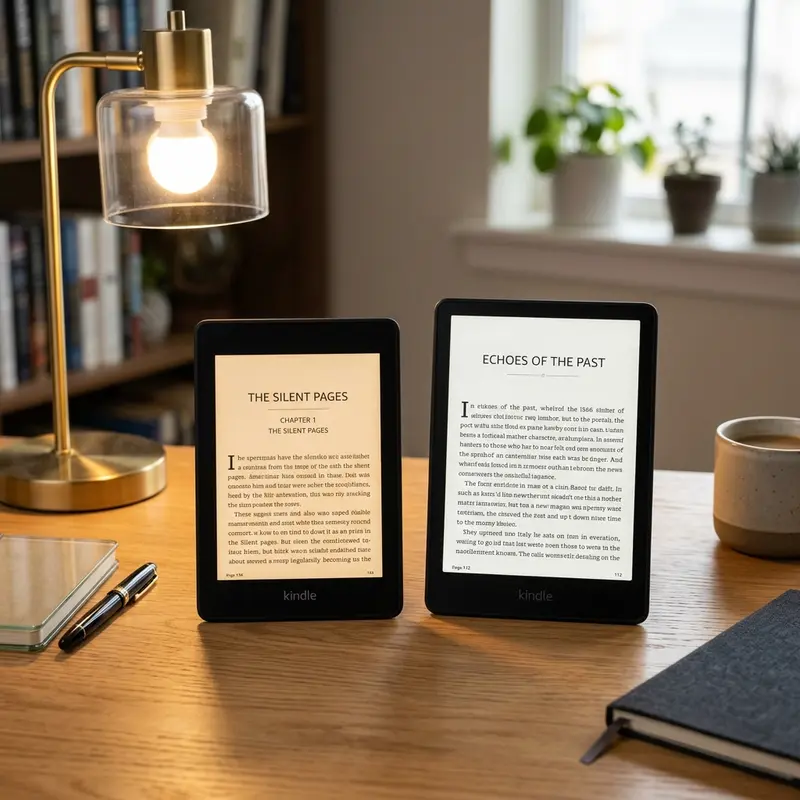
What formats can Kindle read? Kindle natively supports AZW3, KFX, MOBI, PDF, TXT, and PRC, while EPUB files must be sent via Send-to-Kindle for automatic conversion. Understanding these formats ensures your personal files display beautifully on your e-reader.
Amazon's Kindle ecosystem is famous for its seamless integration with the Kindle Store, but reading files from external sources requires a bit of knowledge about compatible e-book extensions. In recent years, Amazon has adjusted its policies regarding supported file formats—specifically deprecating older standards like MOBI and embracing modern formats. If you want to load personal documents, open-source epubs, or complex PDFs onto your Kindle, this guide will show you exactly how to do it without losing formatting quality.
The Evolving Landscape of Kindle File Formats
Historically, Amazon used the Mobipocket format (MOBI) as the foundation for its Kindle ecosystem. When the first Kindle launched in 2007, MOBI and PRC files were the primary formats for non-Amazon content. Over the years, Amazon developed more advanced, proprietary formats to support richer typography, dynamic layouts, and copy protection. These formats include AZW, AZW3 (also known as Kindle Format 8 or KF8), and KFX (Kindle Format 10).
Publicidade
In mid-2022, Amazon made a major announcement that shook up the e-reading community: they deprecated MOBI and PRC support for their Send-to-Kindle service. While existing MOBI files already on your Kindle continue to work, you can no longer send new MOBI files to your library using Amazon's cloud delivery. Instead, Amazon has adopted EPUB as the standardized format for document ingestion. This is a massive improvement because EPUB is the industry-standard file format used by almost all other e-readers, libraries, and book stores.
Dica DomineTec: Even though Send-to-Kindle accepts EPUB, the Kindle device cannot read an EPUB file directly if you transfer it via USB. Amazon's servers convert the EPUB into AZW3 or KFX during the delivery process. If you transfer via USB, you must convert it first!
Kindle Native Formats vs. Converted Formats
To manage your digital library effectively, it is important to distinguish between native formats (files that your Kindle can read directly when transferred via USB cable) and formats that must go through conversion before they are readable on the device.
Publicidade
The core native formats are:
AZW3 (KF8): Amazon's modern standard format. It supports HTML5 and CSS3, allowing for rich layouts, custom fonts, embedded tables, and advanced styling.
KFX (KF10): The newest Kindle format. It enables advanced typography, hyphenation, page flip features, and a much smoother rendering engine.
PDF: Portable Document Format files can be read natively, but they do not support reflowable text (you cannot change font sizes easily without zooming in and out).
TXT: Plain text files with no styling. They are simple to read but lack formatting.
Non-native formats that must be converted include EPUB, DOC, DOCX, and RTF. When you upload these files using Send-to-Kindle, Amazon's cloud service automatically translates them into the proper native Kindle formats before downloading them to your e-reader.
How to Convert Books for Kindle (Calibre Guide)
If you prefer transferring books manually via USB, or if you want absolute control over your e-book's metadata, cover art, and page layouts, Calibre is the undisputed champion of e-book management. Calibre is a free, open-source software program available for Windows, macOS, and Linux.
Publicidade
To convert an EPUB (or any other format) to AZW3 using Calibre:
Download and install Calibre on your computer.
Open Calibre and click Add books in the top-left corner to import your files.
Select the book you wish to convert and click the Convert books button.
In the conversion window, set the Output format in the top-right corner to AZW3 (or KFX if you have installed the KFX output plugin).
Configure the book's metadata, cover image, and page setup options if desired, then click OK.
Once conversion is complete, connect your Kindle to your computer via USB.
Click Send to device in Calibre to transfer the perfectly formatted AZW3 file directly to your Kindle's document directory.
How to Send Files Using Send-to-Kindle
If you do not want to mess with cables, Amazon's Send-to-Kindle service is the easiest way to load documents onto your device. When you use this service, the files are added to your Kindle Cloud Library, meaning they will sync your reading progress, notes, and highlights across all your Kindle devices and mobile apps.
Publicidade
There are three main ways to use Send-to-Kindle:
The Web Portal (Recommended): Visit amazon.com/sendtokindle, log in with your Amazon credentials, and drag and drop files up to 200MB in size. This portal supports EPUB, PDF, DOCX, TXT, and various image formats.
Email: Every Kindle device has a unique email address (e.g., yourname@kindle.com). You can find this address in your Amazon account settings. Simply compose an email, attach your EPUB or PDF, and send it to that address. Make sure to whitelist your personal email in your Amazon Content and Devices settings first to authorize delivery.
Desktop Application: Amazon provides a Send-to-Kindle application for Windows and Mac. Once installed, you can right-click any file on your computer and select "Send to Kindle" from the context menu.
Handling PDFs on Kindle: Best Practices
While Kindles can read PDF files natively, the reading experience can often be poor. Because PDFs have a fixed page layout designed for printing on A4 or letter-sized paper, shrinking them down to a 6-inch or 7-inch Kindle screen makes the text incredibly small. You have to pinch-to-zoom and pan around, which is slow and clunky on E-Ink displays.
Publicidade
To improve your PDF reading experience on Kindle, consider these tips:
Read in Landscape Mode: Rotate your Kindle screen 90 degrees. This splits the PDF page into two halves, making the text larger and much more legible.
Convert PDF to Word: If you need to edit your document before sending it to your Kindle, you might want to convert PDF to Word first. This allows you to reformat the document, adjust headings, and then send it as a clean, reflowable EPUB file that fits your screen size perfectly.
Use Send-to-Kindle PDF Reflow: When sending a PDF via email, type the word "Convert" in the subject line. This tells Amazon's servers to attempt to extract the text from the PDF and turn it into a reflowable Kindle book format, allowing you to change the font size on-device.
Kindle File Format Support Comparison
The table below summarizes the compatibility, conversion needs, and transfer methods for the most common document formats:
Publicidade
Format
Extension
Native USB Support
Send-to-Kindle Support
Best Use Case / Notes
Kindle Format 8
.azw3
Yes
No
Excellent for USB transfers. Supports custom fonts and clean layouts.
EPUB
.epub
No
Yes (Auto-converts)
The industry standard. Best format for cloud syncing.
Kindle Format 10
.kfx
Yes
No
Amazon's flagship format. Enables Page Flip and advanced typesetting.
PDF
.pdf
Yes
Yes (No auto-reflow)
Good for manuals and textbooks. Difficult to read on small screens.
Microsoft Word
.docx, .doc
No
Yes (Auto-converts)
Ideal for reading draft manuscripts or personal notes.
Armed with this compatibility knowledge, you can now manage, convert, and upload your entire digital library to your Amazon Kindle without any formatting head-scratchers.
Publicidade
Perguntas Frequentes (FAQ)
Can I read EPUB files directly on Kindle without conversion?
No, Kindle devices do not natively support the EPUB format. If you copy an EPUB file directly to your Kindle's memory via a USB cable, the Kindle will not recognize it, and it won't appear in your library. However, if you upload an EPUB using Amazon's official Send-to-Kindle web portal or email service, Amazon's cloud servers will automatically convert the file into a compatible Kindle format before downloading it to your device.
Why did Amazon drop support for MOBI files on Send-to-Kindle?
Amazon phased out MOBI because it is an ancient, outdated file standard dating back to the early 2000s. MOBI lacks support for modern layout features, advanced typography controls, and CSS formatting. By replacing MOBI with EPUB as the standard input format for Send-to-Kindle, Amazon can provide readers with a much higher quality reading experience, featuring better margins, hyphenation, and font scaling options.
Publicidade
What is the difference between AZW3 and KFX formats?
AZW3 (Kindle Format 8) is a container format that supports modern HTML/CSS styling, giving e-books a clean layout. KFX (Kindle Format 10) is Amazon's latest format, which utilizes a brand-new typesetting engine. KFX features soft hyphens, improved character spacing, ligatures, dynamic page numbering, and the Page Flip feature (which lets you preview other pages without losing your current place). KFX is generally considered the superior format for reading.
Why are my converted EPUB files showing weird characters or garbled text?
This is usually a character encoding issue. Many older EPUB files are encoded in ISO-8859-1 or other legacy character sets instead of the standard UTF-8. When Amazon's servers convert these files, special characters like accented letters, smart quotes, or em-dashes can become corrupted. To fix this, import the EPUB into Calibre, convert it to EPUB (or AZW3) again while setting the character encoding option to UTF-8 in the "Look & Feel" conversion menu, and then upload it.