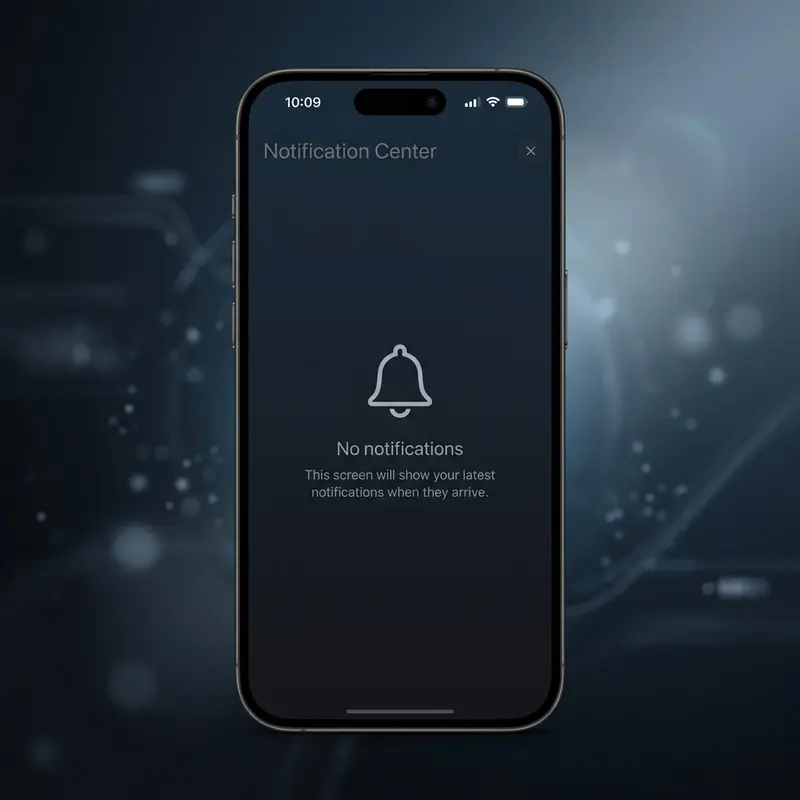
You realize you haven’t received any WhatsApp messages, no email alerts have popped up, and your iPhone has been completely silent — yet when you open the apps manually, your messages are all sitting there. Or perhaps notifications appear in your Notification Center history but never show a banner at the top of the screen. Or they arrive without sound. Or they work perfectly for some apps but have stopped working entirely for others.
Erratic notification behavior is one of the most common issues reported by iOS users, particularly after system updates. The complexity of the iOS notification system — which features layers of individual app permissions, Focus modes, scheduled summaries, contact filters, and privacy settings — means there are multiple points where a setting can go wrong. In this guide, we will walk through every layer of the iOS notification architecture to help you identify and resolve the issue.
How the iOS Notification System Works Under the Hood
To fix the issue permanently, it helps to understand the engineering behind how notifications get to your screen. When an app like WhatsApp wants to send you a message, it doesn't communicate with your phone directly. Instead, the app's server sends a payload to Apple's centralized push system: the APNs (Apple Push Notification Service). The APNs verifies the destination device, checks if the push token is valid, and pushes the encrypted notification payload to your iPhone via a constant, low-power connection.
When the notification arrives on your iPhone, the operating system runs a series of local checks: Does the app have active notification permissions? Is there a Focus mode active that filters this alert? Are specific alert types (banners, sounds, badges) toggled on? Is the delivery scheduled for a summary later? Only when all of these local rules pass does iOS display the notification to the user.
If any of these links in the chain fail, your notifications will be silenced or hidden. This is why a systematic troubleshooting process is essential.
Diagnostic Table: Identify Your Notification Symptom
| Symptom | Most Likely Cause | Primary Fix |
|---|---|---|
| No apps are showing notifications | Focus Mode or Do Not Disturb is active | Check Control Center and disable Focus (Fix 1) |
| Only one specific app fails to notify | Notification permissions disabled for that app | Verify individual app permissions (Fix 2) |
| Notifications arrive but make no sound | Ring/Silent switch is orange or ringer volume is low | Check hardware switch and volume settings (Fix 3) |
| No banners show up, only badges on app icons | Banner style set to "None" or "Hidden" | Enable Banners in Notification settings (Fix 2) |
| Notifications arrive in batches hours late | Scheduled Summary feature is enabled | Switch to Immediate Delivery (Fix 2) |
| Notifications are broken globally after updating | iOS software glitch or corrupted plist database | Reset system settings or update iOS (Fix 5) |
Fix 1 — Check and Disable Focus Modes and Do Not Disturb
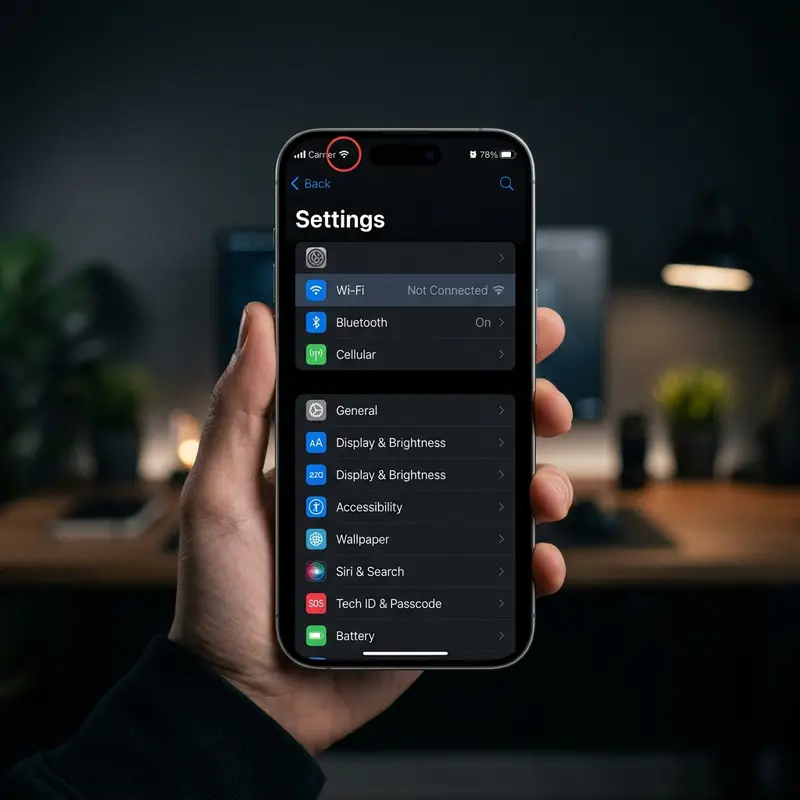
Focus modes are the single most common cause of missing notifications on iOS. Introduced in iOS 15, Focus allows you to filter out notifications from specific apps and people depending on what you are doing (e.g., Working, Sleeping, Personal time).
However, Focus can easily be turned on accidentally. It can also activate automatically via location triggers (like turning on "Work" mode when you arrive at your office GPS coordinates), schedules, or Smart Activation. Many users turn it on by tapping the toggle in Control Center and forget it's active.
To check if a Focus mode is blocking your notifications:
- Swipe down from the top-right corner of your screen (or swipe up from the bottom on iPhones with a Home button) to open Control Center.
- Look at the Focus button. If it is highlighted and displays the name of a Focus (e.g., "Do Not Disturb", "Work", "Sleep"), it is active.
- Tap the Focus button to toggle it off.
To prevent a Focus mode from automatically enabling itself in the future:
- Go to Settings > Focus.
- Tap on each configured Focus profile (e.g., Do Not Disturb, Sleep).
- Scroll down to "Set a Schedule" or "Smart Activation" and delete or disable any automated triggers.
Fix 2 — Review Individual Notification Settings by App
If only a single app (like WhatsApp, Instagram, or Mail) is failing to notify you, or if its alerts arrive without a banner or sound, the problem lies within that app's specific configuration rules in iOS.
To review individual app permissions:
- Open Settings > Notifications.
- Scroll down to the list of apps and tap the app that is not showing notifications.
- Ensure that the Allow Notifications toggle is switched ON (green).
- Under the "Alerts" section, verify that Lock Screen, Notification Center, and Banners are checked. If Banners is unchecked, you will never see the notification slide down while using the phone.
- Ensure Sounds and Badges are toggled on.
- Under "Notification Grouping", set it to "Automatic" or "By App".
- Look at "Scheduled Summary": if it is enabled, change the setting to Immediate Delivery so alerts show up as they arrive instead of in a daily batch.
DomineTec Tip: Some apps also feature their own notification configurations inside the app. For example, WhatsApp contains settings under Settings > Notifications within the app itself where chats can be individually muted. Always check the app's in-app settings in addition to the iOS settings.
Fix 3 — Inspect Ring/Silent Switch and Volume Control
If your notifications are appearing on screen but you are not hearing them, check the physical Ring/Silent switch on the left side of your iPhone. If the switch shows an orange line, the phone is in Silent Mode. In this state, notifications are muted, though they will still wake the screen and appear in the Notification Center. Note that on newer models like the iPhone 15 Pro and iPhone 16 series, the physical toggle switch has been replaced by the custom Action Button. If your Action Button is configured to control Silent Mode, a long-press will toggle silent state, and you can verify the status by looking at the silent bell icon in the Status Bar next to the dynamic island or time display.
Next, check your Ringer Volume. Go to Settings > Sounds & Haptics and adjust the slider under Ring and Alert Volume. If "Change with Buttons" is turned on, you can adjust this volume from the home screen using the physical volume buttons on the left side of the device.
You should also verify that the notification tone for the app is not set to "None" in Settings > Sounds & Haptics > Text Tone (or the corresponding app-specific sound menu). If you are having other Bluetooth audio issues, you can review our guide on iPhone Bluetooth not connecting troubleshooting.
Fix 4 — Verify Screen Time and Downtime Settings
Screen Time can block app notifications if an app exceeds its daily limit or if Downtime is active. During Downtime, only apps that are configured as "Always Allowed" can send notifications, and all others are blocked until the period ends.
To inspect your Screen Time settings:
- Go to Settings > Screen Time.
- Tap on Downtime and check if it is active. If so, verify the schedule.
- Tap on Always Allowed and ensure that essential communication apps (like Phone, Messages, or WhatsApp) are added to the allowed list so they bypass the blocks.
It is also important to verify Content & Privacy Restrictions under Screen Time. If restrictions are configured too aggressively, they can block background connection daemons from connecting to Apple's notification servers. Ensure that under Settings > Screen Time > Content & Privacy Restrictions, the 'Background App Activities' toggle is set to 'Allow'. This prevents the parental control daemon from cutting off push message handshakes when the device switches networks.
For parents using these options, you can read our complete walkthrough on how to use Screen Time to control your child's iPhone to learn how to manage restrictions without blocking vital alerts.
Fix 5 — Reset All Settings and Update iOS
If notifications remain broken after trying the steps above, the issue may be a corrupted iOS preferences database. This frequently occurs after major iOS upgrades when older settings files conflict with new system modules.
To reset your preferences without losing personal files:
- Go to Settings > General > Transfer or Reset iPhone.
- Tap Reset > Reset All Settings.
- Enter your passcode to confirm.
Warning: This process will reset your system configurations, including Wi-Fi passwords, Bluetooth connections, Apple Pay cards, and home screen layouts back to their defaults. However, it will NOT delete photos, contacts, apps, or any personal files stored in your iPhone.
Finally, check for system updates. Go to Settings > General > Software Update. Apple frequently releases minor iOS patches (e.g., iOS 17.x.x) to resolve bugs in the notification subsystems. Keeping your iOS updated is the best way to prevent push services from failing.
FAQ (Frequently Asked Questions)
Why are my WhatsApp notifications specifically not showing up?
WhatsApp relies on a persistent background daemon connection to receive messages via Apple’s VoIP push service. If your iPhone is running low on RAM, storage space, or if Background App Refresh is disabled, iOS will kill the WhatsApp background processes. Ensure that Background App Refresh is enabled by going to Settings > General > Background App Refresh and toggling it ON for WhatsApp. Additionally, if you have Low Power Mode enabled, iOS will automatically suspend background refresh processes for most applications. In this case, you should either keep your phone charged above 80% to automatically disable Low Power Mode, or manually turn it off in Settings > Battery. Wiping your phone's storage to keep at least 10% of memory free is also crucial for push daemons to run smoothly.
Why do notifications show up in the Notification Center but never flash on the screen?
This occurs when your app’s alert style is configured to show in history but not as a banner. To fix it, navigate to Settings > Notifications > [App Name] > Alerts, and ensure that the Banners checkbox is selected. You can also change the banner style from "Temporary" to "Persistent" so the notification stays on screen until you tap or dismiss it.
How can I tell if Do Not Disturb is active?
When Do Not Disturb or any other Focus mode is active, you will see a small icon (such as a crescent moon for Do Not Disturb, or a bed icon for Sleep) in the top status bar of your iPhone or on the Lock Screen. Swiping down to open the Control Center will display the active Focus name on the main Focus tile.
Will Reset All Settings delete my WhatsApp conversations or Photos?
No. Reset All Settings only resets system configuration values (such as Wi-Fi networks, Bluetooth devices, accessibility options, and ringer tones). It does not erase your apps, app data, WhatsApp chat history, photos, or documents. You will only need to log back into your Wi-Fi networks and reconfigure your custom ringtones.