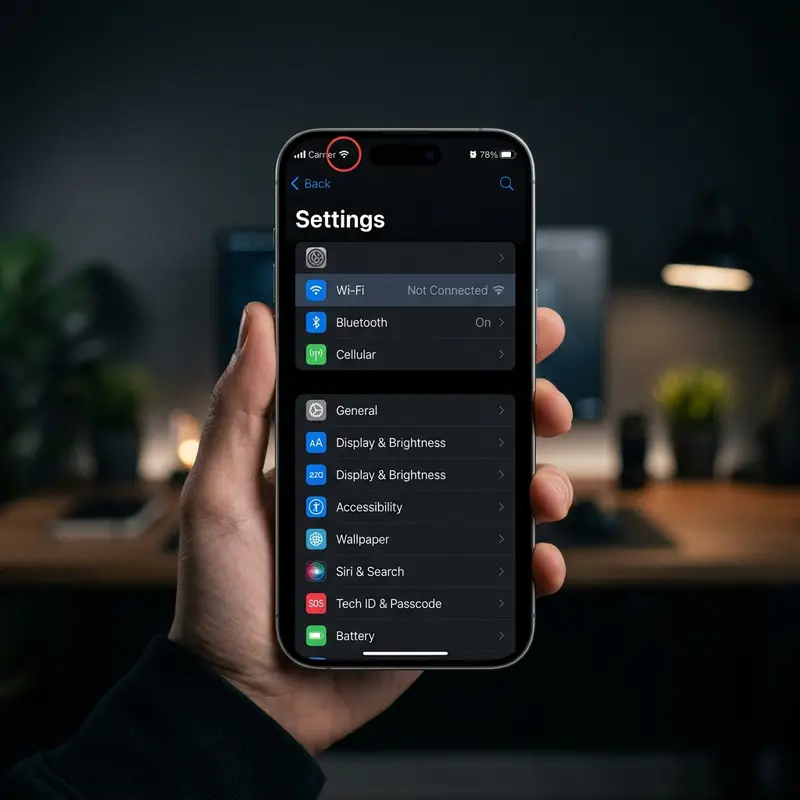
Your iPhone Bluetooth won't connect to your headphones, car audio system, or wireless speaker? This is one of the most commonly reported iOS issues — and in the vast majority of cases, the fix is simpler than you'd expect. Over 80% of Bluetooth connection failures are caused by corrupted system cache, outdated device profiles, or network settings that need to be reset. None of these require a trip to the Apple Store.
In this updated guide for 2026, you'll find 8 fixes in ascending order of complexity — from the simplest (resolves in 30 seconds) to the last resort for firmware bugs or hardware failure. Follow them in order and stop as soon as the issue is resolved.
Why Does iPhone Bluetooth Stop Working?
Before jumping to fixes, it helps to understand how Bluetooth works under the hood in iOS. The operating system runs a background process called bluetoothd — the daemon responsible for managing all Bluetooth connections, including both Classic Bluetooth (used for audio streaming and high-throughput data transfer) and Bluetooth Low Energy (BLE, used for accessories like AirTags and Apple Watch).
This daemon maintains a local database of all paired device profiles, including pairing keys, connection history, and device-specific configurations. When this database becomes corrupted — which can happen after an iOS update, a power interruption during pairing, or simply through data accumulation over time — Bluetooth connections start failing unpredictably.
Here's a quick overview of all 8 fixes before you begin:
| Fix | Difficulty | Time | Loses Pairings | Best For |
|---|---|---|---|---|
| 1. Toggle Bluetooth off/on (correctly) | Easy | 30 seconds | No | Occasional glitch after extended use |
| 2. Forget device and re-pair | Easy | 2 minutes | Only the removed device | One specific device won't connect |
| 3. Airplane Mode for 30 seconds | Easy | 1 minute | No | All devices failing simultaneously |
| 4. Force restart | Easy | 1-2 minutes | No | iPhone is sluggish or frozen |
| 5. Reset network settings | Medium | 5 minutes | Yes (all) | Issue persists after restart |
| 6. Check 2.4 GHz interference | Medium | 5 minutes | No | Connection drops in specific locations |
| 7. Update iOS | Medium | 20-40 minutes | No | Documented firmware bug |
| 8. Factory reset | Advanced | 1-2 hours | Yes (all) | Nothing else worked |
Fix 1 — Toggle Bluetooth Off and On (the RIGHT Way)
This is the most common mistake users make: swiping the Bluetooth icon in the Control Center and assuming it turned the chip off completely. It didn't.
When you toggle Bluetooth off from Control Center, iOS simply disconnects active paired devices but keeps the Bluetooth radio chip powered on — specifically so features like AirDrop, Apple Watch connectivity, and Handoff continue to work. This is an intentional design decision by Apple.
To actually turn the Bluetooth chip off and back on:
- Open the Settings app.
- Tap Bluetooth.
- Toggle the green switch to off. Wait 10 full seconds.
- Toggle it back on and wait for the iPhone to scan for available devices.
DomineTec Tip: Never rely solely on the Control Center button to fix Bluetooth issues. That shortcut doesn't restart the bluetoothd daemon — it only temporarily disconnects devices. For a real Bluetooth subsystem reset, always use the Settings menu.
Fix 2 — Forget the Device and Re-Pair
If only a specific device isn't connecting (for example, your AirPods, third-party headphones, or a Bluetooth speaker), the problem is likely a corrupted pairing profile stored on the iPhone. Corrupted device profiles are extremely common, and the fix is simple: delete the profile and pair from scratch.
- Go to Settings > Bluetooth.
- Find the problematic device under My Devices.
- Tap the info icon (i) next to its name.
- Tap Forget This Device and confirm.
- Put the Bluetooth device into pairing mode (check the accessory's manual for the specific procedure).
- On your iPhone, wait for the device to appear under Other Devices and tap it to pair.
A critical note for car Bluetooth: the pairing process needs to be done on both sides. You also need to access the Bluetooth menu on your car's infotainment system, delete the iPhone from the car's memory, and initiate a new pairing from there. If only one side forgets the device, reconnection typically fails.
Fixes 3 and 4 — Airplane Mode Toggle and Force Restart

If the first two fixes didn't resolve the issue, it's time to reset all radio chips simultaneously. Airplane Mode does exactly that: when activated, iOS shuts down the Wi-Fi, Bluetooth, NFC, and cellular radio chips all at once. When deactivated, all these subsystems restart from scratch — including the bluetoothd daemon and its in-memory caches.
How to do it:
- Open Control Center (swipe down from the top-right corner).
- Tap the airplane icon to enable Airplane Mode. Wait 30 full seconds.
- Tap the icon again to disable it. Wait for the iPhone to reconnect to Wi-Fi and cellular.
- Try connecting the Bluetooth device again.
If Airplane Mode doesn't resolve the issue, proceed to a Force Restart. Unlike a normal power-off — which only terminates software processes — a force restart cuts power to the hardware buses and reinitializes the firmware, clearing potential memory leaks in the Bluetooth daemon.
For modern iPhones (iPhone 8, SE 2nd/3rd generation, iPhone X and later):
- Press and quickly release the Volume Up button.
- Press and quickly release the Volume Down button.
- Press and hold the Side button until the Apple logo appears. Release.
Fixes 5 and 6 — Network Settings Reset and Interference
A Network Settings Reset is more comprehensive than its name suggests. It erases all saved Bluetooth pairings, Wi-Fi passwords, VPN configurations, and carrier APN settings. What it doesn't erase are your photos, messages, apps, and personal data — all of that stays intact.
How to perform it:
- Go to Settings > General.
- Scroll to the bottom and tap Transfer or Reset iPhone.
- Tap Reset.
- Select Reset Network Settings and confirm with your iPhone passcode.
After the reset, you'll need to re-pair all Bluetooth devices and re-enter Wi-Fi passwords. If the problem is location-specific, consider Fix 6: checking for electromagnetic interference.
Bluetooth operates on the 2.4 GHz frequency band — the same band used by 2.4 GHz Wi-Fi networks, microwave ovens, baby monitors, and other wireless devices. In environments with high wireless device density, interference can seriously degrade Bluetooth connection quality. Test in a different room or environment. If the problem is situational (worse at home but fine outside), interference is the likely culprit.
If Bluetooth isn't working but you need to transfer files urgently, know that how to use AirDrop between iPhone and Mac is a fast alternative that uses Wi-Fi Direct for the actual data transfer rather than Bluetooth.
Fixes 7 and 8 — iOS Update and Factory Reset
Some iOS versions shipped with documented bugs that broadly affect Bluetooth. The most notorious case was iOS 17.0, released in September 2023, which caused Bluetooth connection failures on iPhone 12 and 13 models with certain third-party headphones and car audio systems. Apple released iOS 17.1 with the specific fix just weeks later.
If your iPhone is running an outdated iOS version and experiencing Bluetooth issues, updating may resolve the problem entirely:
- Go to Settings > General > Software Update.
- If an update is available, tap Download and Install.
- Keep the iPhone plugged in during the process — the update restarts the device automatically.
Fix 8 — Factory Reset is the absolute last resort. It erases everything on the iPhone and reinstalls iOS from scratch, eliminating any corrupted system-level files that may be affecting Bluetooth. Before proceeding, you must create a full backup via iCloud or iTunes. Then go to: Settings > General > Transfer or Reset iPhone > Erase All Content and Settings.
If Bluetooth still fails even after a complete factory reset, the diagnosis points to hardware failure — the physical Bluetooth chip may be damaged. This is more common on devices that have suffered physical impact or liquid exposure. If your iPhone also has audio issues, check our guide on iPhone with no sound: how to fix, as the same hardware components may be involved.
Bluetooth Version by iPhone Model
Not all iPhones have the same Bluetooth version. Newer models bring improvements in range, power efficiency, and audio codec support. Knowing your model's Bluetooth version is essential for understanding limitations and diagnosing incompatibilities with accessories.
| Model | Bluetooth Version | Real-World Range | Audio Codecs |
|---|---|---|---|
| iPhone 8 / SE (2nd gen) | 5.0 | ~65 ft / 20 m | AAC, SBC |
| iPhone XS / XR | 5.0 | ~65 ft / 20 m | AAC, SBC |
| iPhone 11 / SE (3rd gen) | 5.0 | ~65 ft / 20 m | AAC, SBC |
| iPhone 12 / 13 | 5.0 | ~80 ft / 25 m | AAC, SBC |
| iPhone 14 / 15 | 5.3 | ~100 ft / 30 m | AAC, SBC, LC3 |
| iPhone 16 (all models) | 5.3 | ~100 ft / 30 m | AAC, SBC, LC3 |
Note: iOS does not natively support aptX or LDAC codecs — they require the headphone manufacturer's app to handle conversion at the software level, which is rarely available on the App Store.
Frequently Asked Questions (FAQ)
Why does Bluetooth connect but audio doesn't play through my headphones?
This is a classic audio profile conflict. The iPhone connects to the device but selects the wrong Bluetooth profile — for example, HFP (hands-free for calls) instead of A2DP (stereo audio streaming). Go to Settings > Bluetooth, tap the (i) next to the device, and verify that both "Hands-Free Audio" and "Media Audio" are enabled. If the issue persists, forget the device and re-pair.
Does iPhone have a limit on paired Bluetooth devices?
Yes. iOS maintains an internal limit of approximately 30 devices in the Bluetooth pairing database. In typical home use, this limit is rarely reached, but users with many accumulated accessories over the years may get close. If connection issues coincide with a full database, a Network Settings Reset clears the list entirely.
Old car stereo won't connect to my new iPhone — is it incompatible?
It might be. Infotainment systems in vehicles manufactured before 2018 often implement the Bluetooth protocol incompletely or with bugs that have become incompatible with newer iOS versions. iOS 14 and later are particularly strict about the Bluetooth security handshake. A workaround is to use an aux cable (3.5mm) or a USB Bluetooth adapter plugged into the car's USB port, which creates a new pairing point independent of the car's original system.
Can a battery replacement affect iPhone Bluetooth performance?
Indirectly, yes. When a battery replacement isn't performed carefully, the flex cables located near the Bluetooth chip can be mechanically damaged. Additionally, non-genuine batteries may generate electromagnetic interference that degrades signal quality. If Bluetooth problems started right after a battery replacement — especially from an unauthorized repair shop — the issue may be physical and requires professional evaluation.
