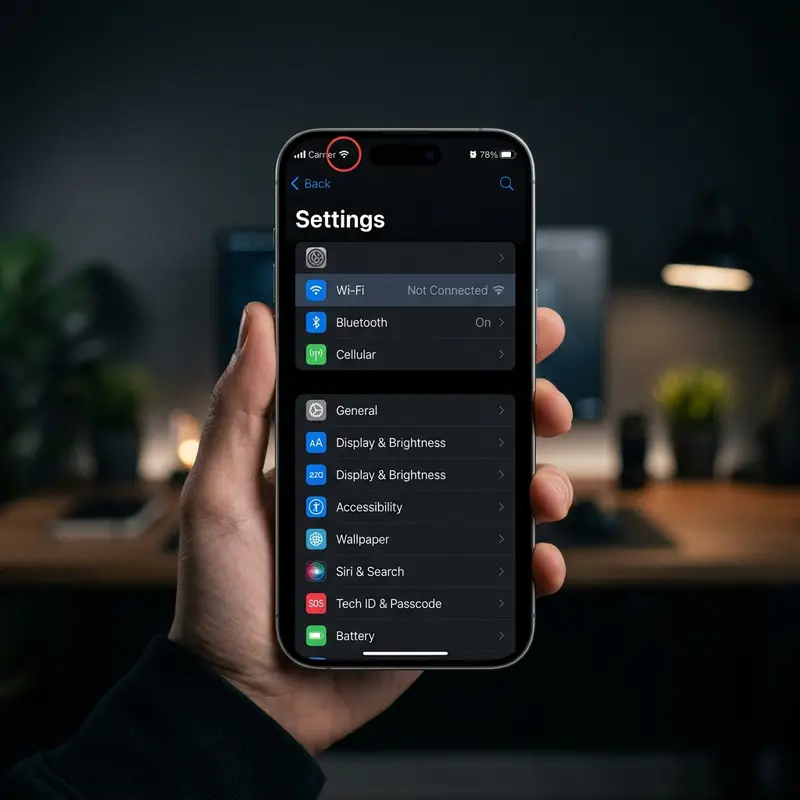
iPhone GPS stops working when Location Services are misconfigured, iOS has a software bug, or the assisted GPS data (A-GPS) cache is corrupted — all fixable in under five minutes.
The GPS chip inside your iPhone is one of the most reliable sensors in the device, but it depends on a chain of supporting systems to produce an accurate location reading. That chain includes Location Services permissions, a valid A-GPS ephemeris cache (the satellite orbital data downloaded over Wi-Fi or cellular), correct date and time settings, and an unobstructed antenna — which can be compromised by certain third-party cases or even accumulated software state. When any link in that chain breaks, maps freeze, navigation gives wrong directions, and apps that depend on your position stop functioning correctly.
The good news: genuine hardware GPS failure is rare. Most users reporting GPS problems are dealing with a software or configuration issue that takes minutes to resolve. The seven fixes below are ordered from least invasive to most disruptive — work through them in sequence before assuming hardware damage.
Why Does iPhone GPS Stop Working?
Before applying any fix, it helps to identify what kind of failure you are dealing with. iPhone location tracking uses three overlapping technologies: the standalone GPS chip (which communicates with satellites), Wi-Fi Positioning System (WPS), and cellular network triangulation. Under normal conditions, all three work together through a system called A-GPS — the phone downloads satellite ephemeris data over the internet so that it can lock onto GPS signals in seconds rather than the several minutes a cold GPS start would require.
When one component fails or is blocked, the system falls back to the others — but accuracy degrades. A device with no GPS satellite fix but active Wi-Fi will still show a location, just with a wide blue accuracy circle. A device with Location Services turned off for a specific app will appear not to work within that app even though GPS itself is fine system-wide.
| Symptom | Likely Cause | Recommended Fix |
|---|---|---|
| Blue dot doesn't move in Maps | A-GPS cache stale or corrupted | Toggle Airplane Mode; restart device |
| Maps asks for location every time | Location permission set to "Ask Next Time" | Fix 1 — set permission to "While Using" |
| Location accurate indoors, wrong outdoors | Wi-Fi positioning dominant; GPS not locking | Fix 3 — Reset Location & Privacy |
| GPS works in Apple Maps but not Google Maps | App-specific permission issue | Fix 1 — check per-app permission |
| Location off by several kilometres | Incorrect date/time or carrier data error | Verify "Set Automatically" is on in Date & Time |
| GPS fails after iOS update | Software regression or corrupted system cache | Fix 4 — update again or Fix 6 — restore |
| No GPS signal in any app | Hardware failure or antenna damage | Fix 7 — hardware inspection |
Fix 1 — Check Location Permissions
The most frequent cause of GPS appearing broken in a specific app is that Location Services permission was denied or set to "Ask Next Time" at some point. iOS is strict about this: if an app does not have permission to access your location, it simply will not receive any data — the GPS hardware may be working perfectly, but the app is isolated from it.
Go to Settings → Privacy & Security → Location Services. First, make sure the master toggle at the top is turned on. Scroll down to the app that is misbehaving and tap it. You should see options: Never, Ask Next Time, While Using the App, or Always. For navigation apps like Google Maps, Waze, or Apple Maps, select While Using the App (or Always if you need background navigation). Also enable Precise Location — this toggle, introduced in iOS 14, allows apps to access your exact coordinates rather than an approximate region.
While you are in Location Services, scroll to the bottom and tap System Services. Ensure that Networking & Wireless and Setting Time Zone are enabled — these feed the A-GPS system with supporting data that improves fix accuracy.
Fix 2 — Toggle Airplane Mode On and Off
This fix targets the A-GPS ephemeris cache. When the cache becomes stale — which can happen after the iPhone is powered off for an extended period or after certain iOS updates — the device struggles to get a satellite lock because the orbital data it is referencing no longer matches current satellite positions. Toggling Airplane Mode forces a complete reset of all radio hardware and triggers a fresh A-GPS data download once connectivity is restored.
Open Control Center by swiping down from the top-right corner (or up from the bottom on older models). Tap the Airplane Mode icon to enable it and wait 30 full seconds — not 5 or 10, but 30, to allow the radio hardware to complete its reset cycle. Then tap Airplane Mode again to disable it. Wait for the device to reconnect to cellular and Wi-Fi, then open your mapping app and test the location. In many cases, the GPS fix is now immediate and accurate.
Fix 3 — Reset Location and Privacy Settings
If specific permissions are not the issue and the A-GPS flush did not help, the Location Services configuration itself may have become inconsistent — a state that can build up over multiple iOS updates or after restoring from an old backup. A targeted reset of Location and Privacy settings clears this state without touching any of your personal data, apps, or other preferences.
Navigate to Settings → General → Transfer or Reset iPhone → Reset → Reset Location & Privacy. You will be asked to enter your passcode. After the reset, the iPhone clears all app-level location permissions and forces every app to ask for permission again the next time it tries to access your location. This is the cleanest way to eliminate permission conflicts without a full factory reset.
After completing the reset, open your primary mapping app and grant it location access when prompted. Test the GPS in an open outdoor area — away from tall buildings that can block satellite signals — for the most accurate result.
Fix 4 — Update iOS to the Latest Version
Apple regularly releases iOS updates that include fixes for GPS-related bugs, particularly those involving CoreLocation — the framework that manages all location data on the device. If a recent software release introduced a regression affecting GPS accuracy or satellite lock time, a subsequent patch is almost always released within a few weeks.
Go to Settings → General → Software Update. If an update is available, download and install it over Wi-Fi. If your device is already on the latest version, check whether the GPS issues started immediately after a recent update — if so, it may be worth waiting for the next patch release, as that is the most reliable fix for software-introduced GPS regressions.
One important note: make sure Settings → General → Date & Time → Set Automatically is enabled. An incorrect system time can cause GPS fix failures even on a fully updated device, because the A-GPS calculations rely on accurate timestamps to determine satellite positions.
Fixes 5, 6 and 7 — Network Reset, Full Restore, Hardware Issue

Fix 5 — Reset Network Settings: The GPS stack on iPhone depends on network connectivity for A-GPS data and Wi-Fi positioning. A corrupted network configuration can quietly break both. Go to Settings → General → Transfer or Reset iPhone → Reset → Reset Network Settings. This removes all saved Wi-Fi passwords, VPN configurations, and cellular settings, then reconstructs the network stack from scratch. Re-enter your Wi-Fi password after the reset and test GPS again. This also helps if you want to fix iPhone signal and connectivity issues that may be contributing to poor A-GPS performance.
Fix 6 — Full Restore via iTunes or Finder: If all software-level fixes have failed, a complete restore wipes the device and installs a fresh copy of iOS — eliminating any deep-seated corruption in system frameworks. Back up your iPhone to iCloud or a computer first, then connect to iTunes or Finder and choose Restore iPhone. After setup is complete, test GPS before restoring your backup — this tells you whether the issue was in the iOS installation or in your backed-up data. If you need guidance, learn how to restore your iPhone as a last resort while minimising data loss.
Fix 7 — Suspect Hardware Damage: If GPS fails on a freshly restored iPhone with no backup applied, the problem is almost certainly physical. Common causes include: a cracked screen replacement installed with a non-genuine GPS antenna connector, a drop that displaced the GPS antenna ribbon cable inside the chassis, or — rarely — a failed GPS chip. Remove your case and test in an open area; some third-party cases with metal components or magnetic mounts can attenuate the GPS signal significantly. If the problem persists, book a diagnostic appointment with Apple Support or a reputable repair centre. On most models, the GPS antenna is soldered to the logic board or integrated into the upper antenna band, making self-repair impractical.
FAQ
Why is my iPhone GPS accurate at home but wrong when I drive?
This usually indicates your iPhone is relying on Wi-Fi positioning when stationary (which uses known router locations for high accuracy) but falling back to a degraded GPS satellite fix when you move. The GPS chip may have a connectivity issue or a stale A-GPS cache. Fix 2 (Airplane Mode toggle) and Fix 3 (Reset Location & Privacy) resolve this in most cases.
Does GPS work without a SIM card or cellular connection?
Yes, standalone GPS works without a SIM card — the chip receives satellite signals directly. However, A-GPS (which provides a much faster fix) requires a data connection to download ephemeris data. Without cellular or Wi-Fi, the GPS will still work but may take 30 to 90 seconds to acquire a lock instead of the near-instant fix you normally experience.
Can a bad case affect iPhone GPS accuracy?
Yes. Cases with metal backs, magnetic wallet attachments, or embedded NFC-blocking material can interfere with the iPhone's antenna system, which handles both GPS and cellular signals. If your GPS problems started after adding a new case, remove it and test — this is a surprisingly common cause of sudden GPS degradation.
Will resetting network settings delete my apps or photos?
No. Reset Network Settings only removes Wi-Fi passwords, paired Bluetooth devices, VPN profiles, and APN settings. Your apps, photos, contacts, messages, and all personal data remain completely untouched. You will need to re-enter Wi-Fi passwords after the reset.
