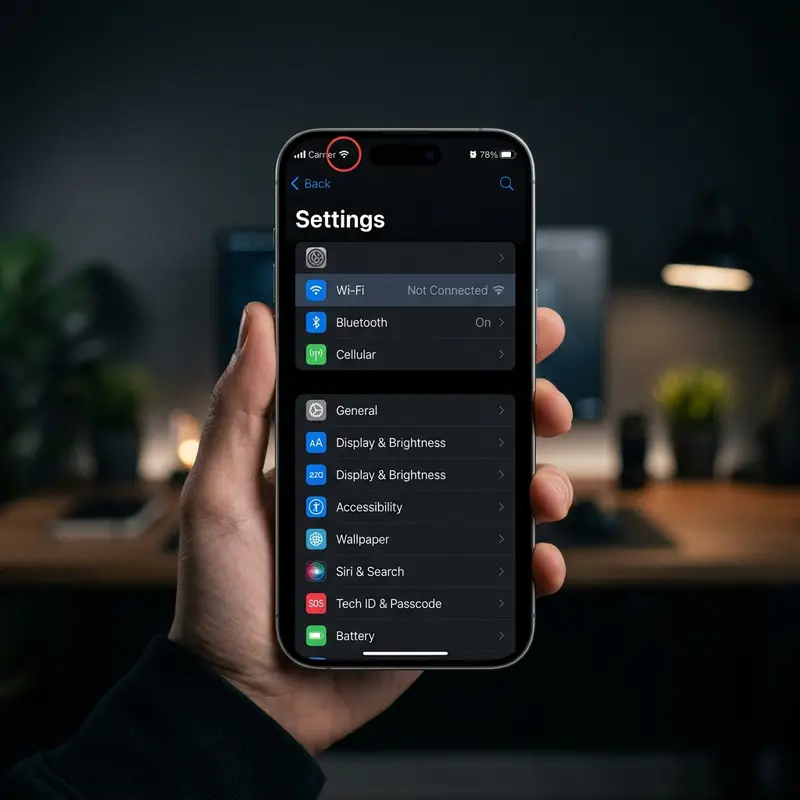
Your iPhone shows one bar of Wi-Fi, drops the connection mid-call, or loads pages at a crawl despite a router just across the room. Weak Wi-Fi on an iPhone is one of the most commonly reported frustrations among iOS users — and the root cause is rarely just "bad signal." In most cases, the problem stems from a combination of radio physics, iOS software state, and router configuration issues that are entirely fixable without replacing your phone or calling your ISP.
In this engineer-level guide, we will explain the technical mechanics behind Wi-Fi degradation on iPhones, show you how to use the comparison diagnostic table to pinpoint your issue, and walk you through 9 actionable fixes in order of complexity.
DomineTec Tip: Always start with the simplest fixes first. About 70% of iPhone Wi-Fi issues are resolved by tips 1 through 5, which require no technical knowledge and take under two minutes each.
Why Does iPhone Wi-Fi Get Weak or Unstable?
To fix Wi-Fi degradation definitively, you must first understand the three pillars of wireless connectivity failure on iOS.
The first pillar is physical barriers and radio frequency bands. Modern routers operate on dual-band or tri-band frequencies: 2.4 GHz and 5 GHz (and, on newer Wi-Fi 6E and Wi-Fi 7 devices, 6 GHz as well). The 5 GHz band delivers significantly faster throughput due to wider channel widths (80 MHz or 160 MHz), but it suffers severely from signal attenuation. Dense physical obstacles such as reinforced concrete walls, thick glass, plaster with metal mesh, or large mirrors reduce the RSSI (Received Signal Strength Indicator) value detected by the iPhone's radio transceiver chip. The 2.4 GHz band has greater physical range and penetrates walls more effectively, but it is highly susceptible to electromagnetic interference from household appliances such as microwave ovens, cordless analog phones, and baby monitors that share the same spectrum.
The second pillar involves logical conflicts within the iOS networking subsystem. The iOS daemons configd and wifid manage network configuration and Wi-Fi association. As the iPhone connects to dozens of networks over months or years, the ARP (Address Resolution Protocol) table, DNS cache data, expired DHCP IP leases, and WPA2/WPA3 security keys stored in the system keychain accumulate digital residue. This legacy data buildup creates handshake incompatibilities during connection negotiations, causing iOS to spend more time validating credentials or renegotiating the channel than actually transferring data packets. Users experience this as a signal bar that fluctuates wildly or networks that take forever to connect.
The third pillar is router-side issues. Routers with outdated firmware, overheating hardware, or operating on congested Wi-Fi channels — where multiple neighboring devices are transmitting data simultaneously on the same frequency — suffer from packet collisions. When the iPhone's acknowledgment packet (TCP ACK) collides with another device's packet, the TCP/IP protocol demands retransmission. This process saturates the phone's internal transmitter, generating high latency and creating the false impression of a weak physical signal when the real issue is network saturation.
Diagnostic Table: Signal Level vs. Probable Cause
Before applying the fixes below, use this comparison table to visually identify the most likely technical bottleneck based on the Wi-Fi icon at the top of your iPhone's screen.
| Signal Bars | Status | Probable Cause | Recommended Action |
|---|---|---|---|
| 3 Bars (Full) but frozen | Excellent signal, but no data traffic (no internet) | DHCP IP conflict, stuck DNS cache, or ISP authentication failure | Renew IP lease or switch DNS to Cloudflare/Google |
| 2 Bars (Fluctuating) | Moderate signal with occasional speed drops | Distance from router, physical obstacle attenuation, or saturated Wi-Fi channel | Move closer to router or switch from 5 GHz to 2.4 GHz band |
| 1 Bar (Weak / Dropping) | Unstable, drops frequently when moving the iPhone | Extreme distance, severe radio interference (Bluetooth/Microwave), or metallic case | Remove protective case, restart router, check for nearby radio-emitting appliances |
| No Signal (Disconnecting) | iPhone cannot see or associate with the network at all | Severe router firmware bug or corruption in iOS network configuration files | Reset iOS Network Settings and perform a full router power cycle |
Fixes 1 to 3 — Restart Everything and Toggle Wi-Fi Natively

It may sound like basic tech support advice, but a proper restart sequence is the essential first step to clear stuck software processes on the iOS broadband chip and the router's processor.
Fix 1: Toggle Wi-Fi via the Settings App (Not Control Center). A common mistake iPhone users make is trying to restart Wi-Fi by tapping the Wi-Fi icon inside Control Center (swiped down from the top-right corner). On modern iOS, Control Center does not fully turn off the Wi-Fi radio chip — it only temporarily disconnects from the current network until 5:00 AM the next morning or until you change your geographic location. To turn off the Wi-Fi radio chip completely and force a clean hardware restart of the wireless module in iOS, go to the Settings app, tap Wi-Fi, and toggle the main switch at the top of the screen off. Wait approximately 15 to 20 seconds for all radio chip drivers to fully unload from RAM before toggling it back on.
Fix 2: Restart your iPhone (Soft Reset). If iOS is experiencing a communication failure between the kernel and the networking subsystem, a full power-off and restart will clear temporary paging files. On Face ID iPhones (iPhone X and later), press and hold the side button and either volume button simultaneously until the "Slide to Power Off" slider appears. Drag it, wait 30 seconds for the device to shut down completely, then hold the side button to power it back on.
Fix 3: Full Physical Power Cycle on the Router. Routers operate with low-cost processors and limited volatile memory that accumulate packet allocation errors over time. Do not use just the router's software reset button. The proper way to restart a modem/router is to unplug the power adapter directly from the electrical outlet, wait a minimum of 30 seconds (enough time for all internal capacitors to fully discharge), and reconnect the power cable. This process clears all active NAT connections and resets the device's dynamic channel allocation.
DomineTec Tip: Always prefer connecting your iPhone to the 5 GHz band if you are in the same room or within 5 meters of the router without walls in between. The channel width and speed are far superior to 2.4 GHz, and you will avoid the typical interference found in dense residential buildings.
Fixes 4 and 5 — Forget the Network and Renew the IP Lease
When security credentials and the logical IP addressing fall out of sync with the tables stored in the router, the iPhone may exhibit intermittent connection problems that cannot be resolved by a simple restart.
Fix 4: Forget the Wi-Fi Network. Performing this action completely removes the WPA/WPA2/WPA3 keys stored in the iOS security keychain, the associated digital certificates, and the local routing preferences. To do this:
- Open the Settings app and tap Wi-Fi.
- Locate the network you are currently connected to or the problematic network listed below.
- Tap the blue circled "i" icon to the right of the network name.
- On the detailed information screen, tap Forget This Network and confirm by tapping "Forget."
- Wait a few seconds, select the same network from the list of available networks, and re-enter its password to establish a completely fresh network association.
Fix 5: Renew the IP Lease. In the DHCP protocol, the router assigns a temporary IP address to your device for a period called the lease time. If another device on your network receives the same IP due to a router fault (IP conflict), your iPhone's data traffic will be blocked or exhibit severe slowness. To manually request a new IP address from the DHCP server without having to restart the router or forget the network:
- Navigate to Settings > Wi-Fi and tap the "i" button next to the connected network.
- Scroll down to the IPv4 Address section.
- Tap Renew Lease.
- Confirm by tapping "Renew Lease" again in the dialog box that appears. iOS will discard the previous IP and immediately request a free IP on the local network from the router's DHCP server.
Fixes 6 and 7 — Reset Network Settings and Disable Interference Sources
If the simple reconnection fixes fail to produce results, there may be deep corruption in the iOS network connection plist database, or coexistence problems between the radio technologies embedded in the iPhone.
Fix 6: Reset iOS Network Settings. This is one of the most effective corrective measures for chronic connectivity problems. It restores the original factory network definitions of iOS, deleting all saved Wi-Fi networks and their passwords, previously paired Bluetooth connections, VPN configurations, installed corporate profiles, and resetting carrier cellular data preferences.
To run the reset on recent iOS versions:
- Open the Settings app on your iPhone.
- Tap General.
- Scroll to the bottom and tap Transfer or Reset iPhone.
- Tap Reset at the bottom of the screen.
- Select Reset Network Settings.
- Enter your device passcode to authenticate the operation and confirm the network reset. The phone will restart automatically and reinstall the default network drivers.
Fix 7: Temporarily Disable Bluetooth and Wi-Fi Location Services. Both the Bluetooth antenna and the 2.4 GHz Wi-Fi antenna in your iPhone share the same physical 2.4 GHz radio spectrum. When you are using accessories like Bluetooth earphones or smartwatches, strong destructive electromagnetic interference can occur within the physical radio chip. If your iPhone Bluetooth is not connecting properly or if the Wi-Fi connection drops whenever Bluetooth is active, disable Bluetooth in the main Settings app (not Control Center) to test the 2.4 GHz band stability.
Additionally, you can disable Wi-Fi Location scanning. iOS continuously scans nearby wireless networks in the background to triangulate your geographic position, even when you are not using Maps. This background scanning can congest the iPhone's Wi-Fi transceiver. To disable it:
- Go to Settings > Privacy & Security.
- Tap Location Services.
- Scroll to the bottom and select System Services.
- Toggle off Networking & Wireless. This will reduce background radio scan spikes.
Fixes 8 and 9 — Switch to Fast DNS Servers and Clear Browser Cache
The time it takes to load pages in Safari or apps on your iPhone is directly related to the speed of the DNS (Domain Name System) server configured for your network. If your ISP's DNS is slow, your iPhone will take a long time to translate human-readable addresses (like "google.com") into numerical IP addresses, making it appear as though you have a weak signal or no internet at all.
Fix 8: Change the Wi-Fi DNS Servers on iPhone. Instead of using your carrier's default servers, you can manually configure fast and secure global DNS servers such as Cloudflare's or Google's. To do this:
- Go to Settings > Wi-Fi.
- Tap the blue "i" icon next to the connected Wi-Fi network.
- Scroll to the bottom and tap Configure DNS.
- Switch from "Automatic" to Manual.
- Remove existing servers by tapping the red minus circle next to each one.
- Tap the green Add Server button and enter your preferred DNS IPs. For Cloudflare, type
1.1.1.1and1.0.0.1. For Google's servers, type8.8.8.8and8.8.4.4. - Tap Save in the top-right corner to apply the new name resolution route immediately.
Fix 9: Clear Browser Cache and Temporary Files. Excessive locally stored data and corrupted page caches in Safari and other browsers can stall the rendering of new websites, producing the misleading symptom of an unstable Wi-Fi connection. It is highly recommended to regularly clear the cache on your iPhone to re-establish smooth HTTP/HTTPS local network traffic flow in your Safari browser.
FAQ (Frequently Asked Questions)
Why does my iPhone Wi-Fi keep disconnecting when the screen locks?
This behavior is actually a built-in iOS power management feature designed to preserve battery life. When the phone is locked and there is no active download or continuous media playback process (like background music streaming), iOS suspends the Wi-Fi radio chip and disables active reception to avoid power draw in standby mode. When you wake the screen, the device re-establishes the connection in fractions of a second. To prevent this from happening during long background downloads, ensure that Low Power Mode is not active and keep the downloading app in the foreground.
Can a protective case weaken the iPhone's Wi-Fi signal?
Yes, protective cases can significantly affect iPhone signal reception. Cases made from dense or rigid materials that contain metallic components, aluminum alloys, strong magnets, or carbon fiber act as a partial Faraday cage. They block and severely attenuate the high-frequency electromagnetic waves that need to reach the internal antennas located along the sides and top of the iPhone. If you notice that Wi-Fi reception plummets whenever you put on your protective case, switch to models made of soft silicone, premium TPU, or polycarbonate without metal structural components.
What is the 'Wi-Fi Assist' option and does it consume mobile data?
Wi-Fi Assist is a smart iOS feature designed to ensure you always have a stable internet connection. When your iPhone's Wi-Fi signal becomes too weak or unstable to load websites and apps, the system automatically redirects data traffic to your cellular network (4G or 5G) transparently. Yes, this feature consumes your mobile data plan if your home or corporate Wi-Fi network has a weak or frequently dropping signal. If you have a limited data plan and want to avoid extra charges, go to Settings > Cellular, scroll to the very bottom of the page, and disable the Wi-Fi Assist toggle.
How do I know if the iPhone's internal Wi-Fi antenna is broken?
There are several clear indicators of hardware failure in the iPhone's internal physical antenna. The primary sign of a hardware defect is when the Wi-Fi activation toggle in Settings appears grayed out (disabled) and you cannot turn Wi-Fi on at all. Another common physical defect symptom is when the iPhone can only detect and connect to routers when it is less than one meter from the access point, losing the signal completely if you move a few steps away. If you have tried resetting network settings and the problem persists even when you are right next to the router, the antenna flex cable is likely torn from a drop, or the Wi-Fi controller IC chip integrated onto the motherboard has a cold solder joint or is burned, requiring specialized technical repair at an authorized Apple service center.