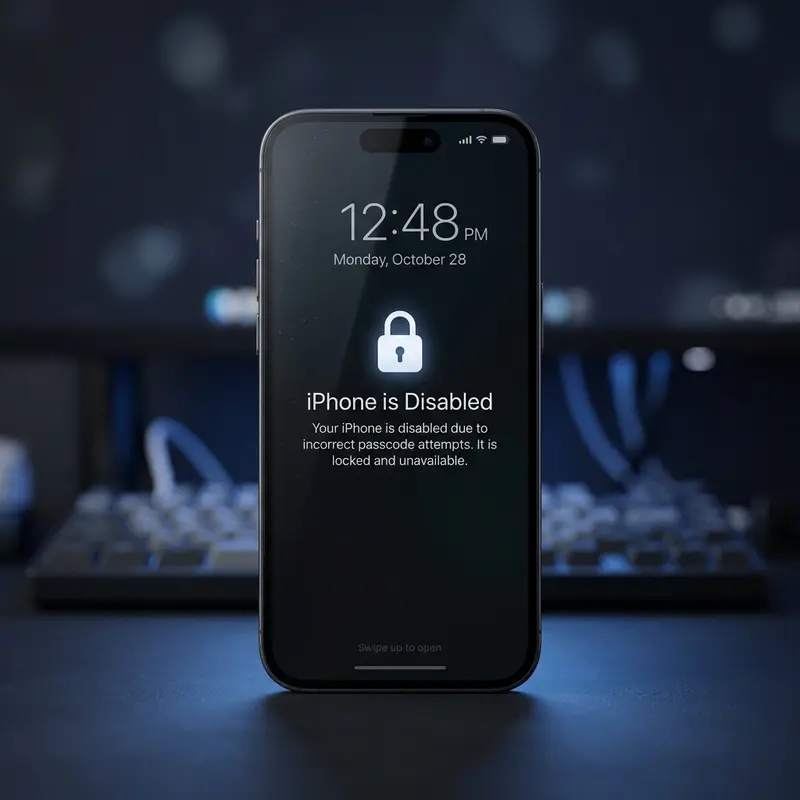
Seeing the message "iPhone is disabled. Try again in X minutes" — or worse, "iPhone is disabled. Connect to iTunes" — on your screen is one of the most stressful experiences an iOS user can have. It typically happens when the passcode is entered incorrectly too many times. Whether it was a child playing with the device, an accidental button press in your pocket, or simply a temporary lapse in memory, the result is the same: you are locked out of your digital life.
Fortunately, there are official ways to regain access. How this affects your personal data depends entirely on the methods you use and whether you have a recent backup. In this comprehensive, technical guide, we will break down all the available unlocking methods in 2026, explain the mechanics behind the lockout, and help you select the best approach to recover your device with minimal data loss.
DomineTec Tip: If your iPhone screen still shows a countdown timer (e.g., "Try again in 5 minutes"), wait it out instead of guessing randomly. Entering another incorrect passcode will only increase the lockout duration and eventually trigger a permanent lockout that forces a complete system restore.
Why Is My iPhone Disabled? The iOS Security Lockout Mechanism
Apple implements a strict security system on iOS to prevent brute-force attacks. If someone steals your phone, they cannot simply run a computer program to guess millions of passcode combinations. Instead, iOS enforces a progressive cooldown period that increases with every consecutive failed attempt.
Understanding the progressive lockout thresholds is crucial to knowing what state your device is in and what steps are required to unlock it:
| Failed Attempts | Lockout Duration | On-Screen Message | Required Action |
|---|---|---|---|
| 1 to 5 | None | Incorrect Passcode | Try typing the passcode carefully |
| 6 | 1 Minute | "iPhone is disabled. Try again in 1 minute" | Wait and try the correct passcode |
| 7 | 5 Minutes | "iPhone is disabled. Try again in 5 minutes" | Wait and try the correct passcode |
| 8 | 15 Minutes | "iPhone is disabled. Try again in 15 minutes" | Wait and try the correct passcode |
| 9 | 60 Minutes | "iPhone is disabled. Try again in 1 hour" | Wait it out or prepare to restore |
| 10 or more | Permanent Lockout | "iPhone is disabled. Connect to iTunes" | System restore via computer required |
Additionally, if you have the "Erase Data" toggle enabled under your Face ID / Touch ID & Passcode settings, the iPhone will automatically wipe all internal storage after the 10th failed attempt. This is a secure defense for sensitive corporate devices, but it can catch standard users off guard if triggered by accident.
Before You Start: Evaluate Your Backup Situation
It is important to understand a technical reality: once your iPhone is permanently disabled ("Connect to iTunes"), the encryption keys protecting your personal data are locked down. There is no software tool, not even from Apple, that can bypass the passcode screen to download your files. The only way to make the phone usable again is to reset it to factory defaults.
Consequently, the survival of your data depends completely on your backup status:
- Active iCloud Backup: This is the best-case scenario. Although the restore process wipes the physical device, you can log back in with your Apple ID during the initial setup and restore all your messages, photos, settings, and apps directly from the cloud.
- Computer Backup (Finder or iTunes): If you routinely connect your iPhone to a PC or Mac, you can restore from a local backup file, which is often faster and doesn't require a fast internet connection.
- No Backup: Any data stored locally that hasn't been synced to the cloud (such as photos, custom app databases, or chat histories) will be lost permanently. However, standard items synced to iCloud (Contacts, Calendars, Notes, iCloud Keychain) will automatically sync back once you sign in again.
Method 1 — Unlock via Finder (Mac) or iTunes / Apple Devices (Windows)
If you have previously connected your iPhone to a computer and clicked "Trust This Computer" on the phone, the system may allow you to perform a local restore or update without entering the passcode. This is the cleanest approach.
Note: If the computer prompts you to enter the passcode on the iPhone before it can connect, or if you have never connected the phone to this computer, this method will not work directly. In that case, you must proceed to Method 2 (Recovery Mode).
Follow these steps to restore via computer:
- Connect your iPhone to the computer using a high-quality USB-C or Lightning cable.
- Open the interface: On macOS Catalina (10.15) or later, open Finder and select your iPhone from the left sidebar. On Windows or older macOS, open the Apple Devices app or iTunes.
- Select your device. You will see a dashboard displaying device specifications and backup settings.
- Click on the Restore iPhone button. If the computer has a trust relationship established, it will download the latest firmware and write a fresh iOS installation onto the device.
- Once the installation is complete, follow the on-screen setup assistant on your iPhone to restore your files.
To learn more about keeping your data safe during this procedure, read our complete guide on restore your iPhone without losing data.
Method 2 — Unlock via Recovery Mode (Force Restore)

If the computer doesn't recognize your disabled device, or if the screen says "Connect to iTunes" permanently, you must force the iPhone into Recovery Mode. This is a low-level diagnostic state that bypasses the main iOS lock and allows the computer to communicate with the hardware.
Here is how to enter Recovery Mode depending on your iPhone model:
For iPhone 8, iPhone SE (2nd & 3rd Gen), and All Models with Face ID (iPhone X to iPhone 16)
- Turn off the iPhone by holding the side button and volume down button, then sliding to power off. Keep it unplugged from the computer for a moment.
- Open Finder or iTunes on your computer.
- While pressing and holding the Side button (Power button), immediately connect the iPhone to the computer.
- Do not let go of the Side button. Keep holding it as the Apple logo appears. Release it only when you see the recovery mode screen (a black screen with a cable icon pointing to a computer).
For iPhone 7 and iPhone 7 Plus
- Power down your device.
- While holding the Volume Down button, connect the iPhone to your PC or Mac.
- Keep holding the Volume Down button until the recovery screen appears on the phone.
For iPhone 6s, SE (1st Gen), or Older Models
- Turn off the device.
- While pressing and holding the physical Home button, connect the device to the computer.
- Keep holding the Home button until the computer connection graphic shows up.
Once the device is in Recovery Mode, your computer will display a pop-up saying "There is a problem with the iPhone that requires it to be updated or restored." Click Restore. The computer will download the software and format the device. If the download takes more than 15 minutes, your iPhone will exit recovery mode; simply repeat the button combination to enter it again once the download completes.
If you have forgotten your password entirely and are struggling with the Apple ID credentials as well, you can read our specific guide on how to unlock your iPhone if you forgot the passcode.
Method 3 — Erase Remotely via Find My (iCloud.com)
If you don't have access to a computer but the disabled iPhone is connected to a known Wi-Fi network or cellular data, you can trigger a factory reset remotely using Apple's Find My infrastructure.
This method has the following requirements:
- The iPhone must be powered on and have an active internet connection (LTE, 5G, or Wi-Fi).
- The Find My iPhone feature must have been enabled on the device before it became disabled.
- You must know the Apple ID and password linked to the locked device.
Steps to wipe the phone remotely:
- On any smartphone, tablet, or computer, open a web browser and go to icloud.com/find.
- Log in using the Apple ID credentials associated with the disabled iPhone.
- From the list of devices, select the locked iPhone.
- Select Erase This Device. Confirm the security prompt.
- The reset command will be sent over the internet, and the iPhone will immediately wipe itself and restart as if new.
How to Prevent a Disabled iPhone in the Future
After restoring your device and recovering your data, it's wise to implement safeguards to prevent this situation from happening again:
- Enable Biometrics (Face ID or Touch ID): Using biometrics as your primary login method bypasses the need to type the passcode frequently, keeping the system active and reducing incorrect inputs.
- Avoid Trivial 4-Digit Passcodes: Set up a custom alphanumeric or a 6-digit passcode. This prevents pocket-dialing errors from entering a short sequence by accident.
- Manage Child Access: Many disabled iPhones are caused by children playing with the lock screen. Keep the phone out of reach of infants, or configure Guided Access when letting them use specific apps.
- Set Up Automatic iCloud Backups: Go to Settings > [Your Name] > iCloud > iCloud Backup, and verify that it is turned on. The iPhone will back up automatically every night when locked, charging, and connected to Wi-Fi.
- Carefully Evaluate the 'Erase Data' Setting: If you are prone to forgetting passcodes, you may want to toggle off the "Erase Data" option under the Face ID & Passcode menu.
FAQ (Frequently Asked Questions)
Can I unlock a disabled iPhone without erasing my data?
No. If the iPhone displays "Connect to iTunes," the internal storage keys are locked, and the data is heavily encrypted. There is no official or third-party method that can bypass the lock screen passcode to extract local files. The only option is a system restore, which formats the internal storage. Your data can only be recovered if you already have a backup in iCloud or on a computer.
What happens to my iCloud data after I restore the phone?
Your iCloud sync data (such as iCloud Photos, Contacts, Notes, and Safari bookmarks) is stored safely on Apple's cloud servers, not just on the device. Resetting your iPhone will not delete anything from iCloud. As soon as you complete the restoration and sign back into your Apple ID, all of this synchronized information will download back onto your iPhone automatically.
Can I unlock my disabled iPhone without using a computer?
Yes. If the disabled iPhone is connected to Wi-Fi or cellular data, and the Find My feature is active, you can go to icloud.com/find from any mobile device, sign in with your Apple ID, and choose "Erase This Device" to reset it. This will unlock the phone without needing a physical computer cable.
What should I do if my computer does not recognize the iPhone in Recovery Mode?
First, verify that you are using an original or Apple-certified cable, as cheap third-party cables often charge the phone but do not support data transfer. Second, try changing the USB port on your computer. If you are on Windows, ensure the Apple Mobile Device service is running, or update your Windows system and restart the computer before attempting the button combination again.