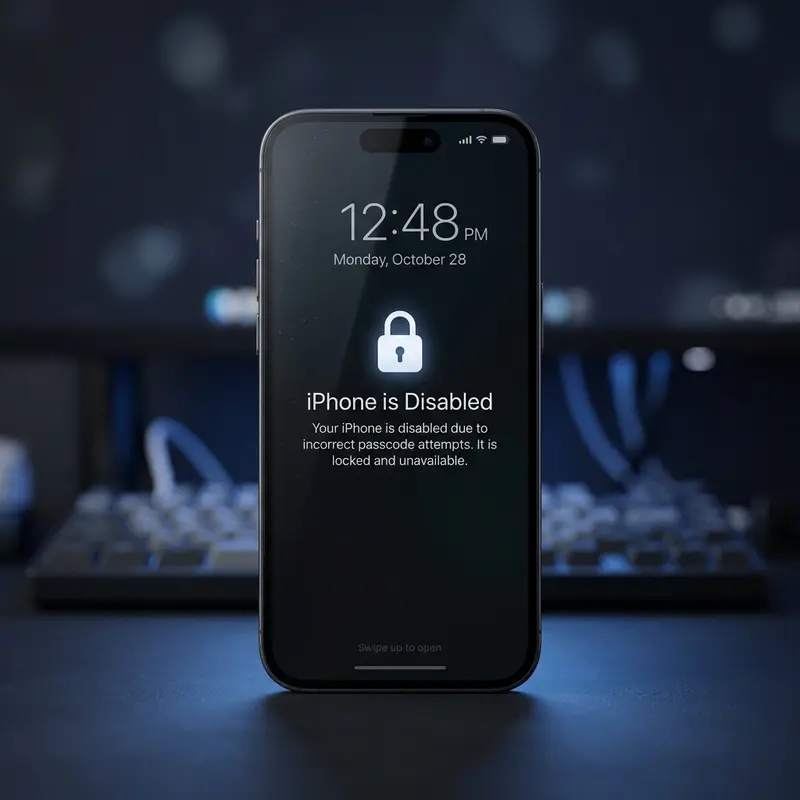
Discovering that you are locked out of your own iOS device is a stressful experience. Whether it is an old device you found in a drawer or your primary device where a recently updated passcode slipped your mind, knowing how to unlock iphone forgot password is a crucial technical skill. In 2026, Apple has tightened security measures even further to protect user privacy, making unauthorized access virtually impossible. However, this also means that if you forget your passcode, the recovery process requires following official, structured channels to avoid permanently bricking or losing access to your device.
Many users panic when they see the dreaded "iPhone Unavailable" or "Security Lockout" screen. The main concern is always the safety of personal files, messages, and memories. Can you bypass this lock without losing everything? The short answer depends heavily on your backup habits. Below, we break down every working method to regain access to your iPhone, compare them side-by-side, and explain the exact steps you need to follow to resolve this issue efficiently.
Quick Comparison of Unlocking Methods
Before diving into the detailed procedures, here is a breakdown of the official methods available to resolve the issue when you forgot your passcode and need to unlock your iPhone.
| Method | Requires Computer | Data Loss | Exiges Apple ID | Estimated Time |
|---|---|---|---|---|
| Finder (Mac) / iTunes (Windows) | Yes | Yes (Unless backup exists) | Yes (For Activation Lock) | 25 - 45 minutes |
| Erase via iCloud (Find My) | No (Can use any browser/device) | Yes (Unless backup exists) | Yes | 10 - 20 minutes |
| Recovery Mode (Ultimate Resource) | Yes | Yes (Unless backup exists) | Yes (For Activation Lock) | 30 - 60 minutes |
Why Does Your iPhone Lock After Multiple Wrong Passcode Attempts?
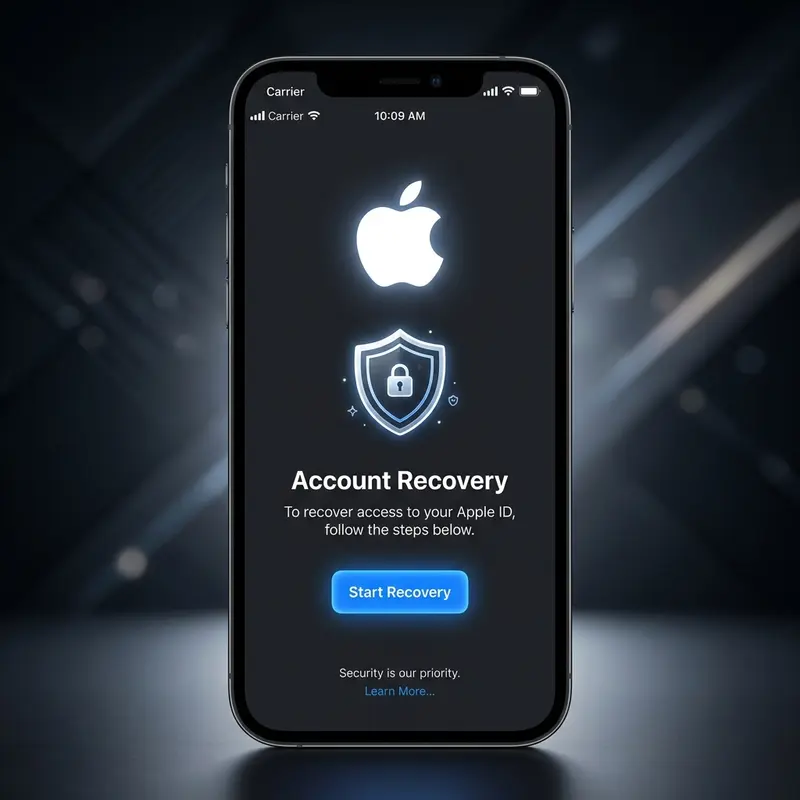
Apple devices are designed with a primary focus on security and data privacy. When you set a passcode, your iPhone uses advanced hardware encryption. This security architecture ensures that if someone attempts to guess your passcode, the device protects itself by delaying further input or disabling itself entirely. Understanding this system is key to knowing how to unlock iphone forgot password safely.
Here is what happens dynamically as you enter incorrect passcodes:
- 1 to 5 incorrect attempts: The iPhone will vibrate or show an error but will allow you to try again immediately.
- 6 incorrect attempts: The screen will display "iPhone is disabled, try again in 1 minute" or "iPhone Unavailable, try again in 1 minute."
- 7 incorrect attempts: The delay increases to 5 minutes.
- 8 incorrect attempts: The delay increases to 15 minutes.
- 9 incorrect attempts: The delay increases to 60 minutes.
- 10 incorrect attempts: The device goes into permanent "Security Lockout" or "iPhone Unavailable" mode. At this stage, you cannot enter another passcode, and the device must be restored using a computer or remote deletion tools.
This escalating delay is a defense mechanism against brute-force attacks, where a computer program attempts thousands of passcode combinations per second. By enforcing delays and eventually locking the interface, Apple ensures that your encrypted data remains safe from unauthorized eyes, even if the phone is stolen.
What Happens to Your Personal Data?
A very common question when facing a locked device is: Can I bypass the passcode and keep my files intact? The blunt truth of modern mobile security is that you cannot bypass or remove a passcode without erasing the device's encryption keys, which wipes all data on the local storage. If there was a way to do this without erasing the phone, it would mean any thief could access your private information.
However, this does not mean your files are permanently gone. Your data is safe if:
- You have an iCloud Backup: Most iPhones are set up to back up automatically every night when connected to Wi-Fi and power. Once you restore and unlock the device, you can log in with your Apple ID and restore all your settings, apps, contacts, and photos.
- You have a Local Backup (Mac/PC): If you regularly sync your device to your computer, you can restore that backup during the setup process.
If you don't have a backup, the restoration process will set up your device as brand new. For users worried about media assets, check out our guide on recovering deleted photos on iPhone to understand how data recovery and cloud storage syncing work in iOS environments.
Method 1 — Finder (Mac) or iTunes (Windows)

If you have a computer available, this is one of the most reliable official methods to restore your device. If you are using a Mac running macOS Catalina or later, you will use Finder. If you are using an older Mac or a Windows PC, you will need to install and open the latest version of iTunes.
Follow these steps to unlock your device using this method:
- Connect your locked iPhone to your computer using a compatible USB or USB-C cable.
- Open Finder or iTunes on your computer. If the computer prompts you to trust the device or asks for a passcode, you will need to transition to the Recovery Mode method (Method 3), as the computer cannot communicate with a locked device without authorization.
- Select your iPhone from the sidebar in Finder or from the top-left device icon in iTunes.
- Look at the device dashboard. If you have backed up this iPhone to this computer previously, you might be able to create a final backup before restoring. Click Back Up Now if the option is accessible.
- Click on the Restore iPhone button. A confirmation prompt will appear, warning you that this action will erase all media and content.
- Click Restore and Update to proceed. The computer will download the latest version of iOS for your device and install it. Keep your device connected throughout this process.
- Once completed, your iPhone will restart and show the "Hello" setup screen. You can now restore your backup or set the phone up as new.
Method 2 — Erase via iCloud (Find My Enabled)
If you do not have a computer nearby but have access to another device (like an iPad, a friend's phone, or a web browser) and know your Apple ID credentials, you can erase your iPhone remotely. This requires that the Find My feature was enabled on your locked iPhone before it got locked, and that the device has an active internet connection (Wi-Fi or cellular data).
Here is how to perform a remote unlock:
- Open a web browser on any device and navigate to iCloud.com/find, or open the Find My app on another Apple device signed in with the same Apple ID.
- Log in with your Apple ID credentials (email and password). If you have two-factor authentication enabled, you will need to receive the code on another trusted device or SMS number.
- Select All Devices at the top of the screen (or tap the Devices tab in the Find My app) and select your locked iPhone from the list.
- A menu will display several actions. Click on Erase iPhone (or Erase This Device).
- A warning message will appear confirming that this action will permanently delete all your data. Confirm the action by entering your Apple ID password again.
- The command is sent over the air. As soon as your locked iPhone connects to the network, it will automatically initiate a factory reset.
- Once erased, the iPhone will reboot to the initial configuration page. Set up the device and choose to restore your data from your latest iCloud backup.
Method 3 — Recovery Mode (The Ultimate Resource)
If your computer does not recognize your device, or if your phone displays "iPhone Unavailable" without any options to erase it directly on-screen, Recovery Mode is your ultimate tool. This mode allows the computer to interact directly with the iPhone's bootloader to overwrite the current firmware and reset the system, bypassing the software lockout lock.
To use Recovery Mode, you need a computer (Mac or PC) and a cable. Follow this step-by-step guide:
- Turn off your iPhone:
- For iPhone 8, 8 Plus, X, XR, XS, 11, 12, 13, 14, 15, 16, or later: Press and hold both the Side button and the Volume Down button until the power-off slider appears. Drag the slider to turn off the device completely.
- For iPhone 7, 7 Plus: Press and hold the Side button until the slider appears, then slide it to turn off.
- For iPhone SE (1st gen), 6s, and earlier: Press and hold the Top or Side button until the power slider appears.
- Prepare to connect the cable to the computer while holding the correct button on your iPhone:
- For iPhone 8 and later (including SE 2nd/3rd gen): Hold the Side button.
- For iPhone 7 and 7 Plus: Hold the Volume Down button.
- For iPhone SE (1st gen), 6s, and earlier: Hold the Home button.
- Connect the cable to your phone while keeping the button pressed. Keep holding the button until you see the Recovery Mode screen (a cable pointing towards a computer icon or an iTunes logo). Do not release the button when you see the Apple logo.
How to Prevent Getting Locked Out Again
Getting locked out of your phone is inconvenient. To make sure you never have to go through this process again, apply these preventative security practices:
- Create a Memorable Passcode: Avoid using sequences like "123456" or "000000" for security reasons, but choose a numeric combination that has personal meaning or configure an alphanumeric passcode that you can easily recall.
- Enable Biometrics: Set up Face ID or Touch ID immediately. This allows you to unlock your phone using your face or fingerprint, minimizing the need to enter your passcode manually every time. If you face issues with this, check out what to do when you have Face ID not working.
- Write It Down Securely: Keep a physical copy of your passcode in a safe place at home, or save it within a secure password manager that you can access from other devices.
- Schedule Automatic Backups: Go to Settings > [Your Name] > iCloud > iCloud Backup and ensure that automatic backups are turned on. This guarantees that even if you have to wipe your phone in the future, you will not lose a single file.
Frequently Asked Questions
Can I unlock my iPhone without losing data?
No. If you forgot your passcode, there is no official or secure third-party tool that can bypass the lock screen and let you browse your current data. The iOS security model uses the passcode to generate encryption keys for your storage. The only way to unlock the phone is to perform a full system restore, which erases all files. You can only get your data back if you have a backup saved on iCloud or a computer before the lockout occurred.
Can I unlock it without a computer?
Yes, but under specific conditions. You can erase and unlock your iPhone without a computer if you have Find My enabled on the device and know your Apple ID credentials. You can log into iCloud.com/find from any smartphone, tablet, or web browser to trigger a remote factory reset. Additionally, on newer iOS versions, if you enter the wrong passcode repeatedly, a "Forgot Passcode?" or "Erase iPhone" option might appear directly on the bottom corner of the lock screen, allowing you to reset the device directly using your Apple ID password.
What exactly is Recovery Mode?
Recovery Mode is a fail-safe state designed for troubleshooting iOS devices. It bypasses the standard boot process and the loaded operating system, allowing a computer running Finder or iTunes to communicate directly with the hardware's internal bootloader. This is used when an iPhone gets stuck in a boot loop, fails to update, or is completely disabled due to too many incorrect passcode attempts, allowing you to install a fresh copy of iOS.
What if I also forgot my Apple ID password?
If you forgot your Apple ID password along with your iPhone passcode, you must recover your Apple ID credentials first. Without your Apple ID password, your phone will be stuck on the Activation Lock screen after the restoration process. You can reset your Apple ID password by visiting iforgot.apple.com or using the Apple Support app on another trusted iOS device. If you cannot recover access to your Apple account, you will need to present proof of purchase to Apple Support to have the Activation Lock removed manually.
