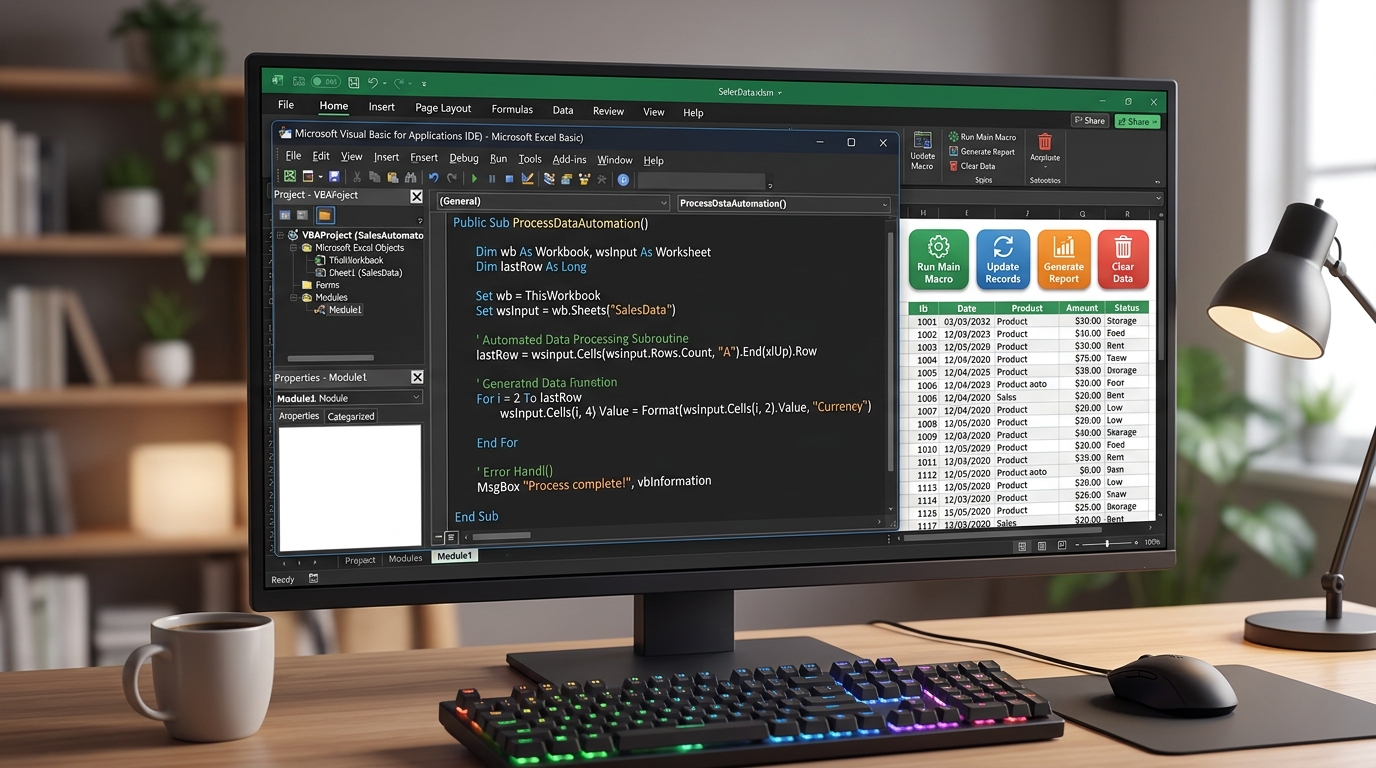
In today's fast-paced world, efficiency is paramount. Whether you're a student, a professional, or simply someone who wants to jot down ideas quickly, using your voice to create text can significantly enhance your productivity. Microsoft's Voice Dictation and Speech-to-Text features in Word 365, Word for Web, and mobile apps provide an intuitive way to convert spoken words into written text. This guide will walk you through the process of using these features effectively, enabling you to harness the power of voice recognition technology.
Voice dictation allows you to dictate your thoughts directly into Microsoft Word, eliminating the need for typing and enabling a smoother workflow. In addition, the audio transcribe feature allows you to convert recorded interviews or discussions into formatted text documents. In this tutorial, we’ll explore how to enable dictation, use essential voice commands for punctuation, troubleshoot common issues, and much more.
Getting Started with Voice Dictation
Step 1: Enable Dictation in Microsoft Word
To start using voice dictation in Microsoft Word, you first need to enable the feature. Here’s how:
- Open Microsoft Word on your computer or mobile device.
- Go to the Home tab located in the top ribbon.
- Click on the Dictate button, represented by a microphone icon.
- If you are using a keyboard, you can also activate dictation by pressing the
Alt+`(backtick) keyboard shortcut.
Step 2: Set Up Microphone Permissions
Before you can start dictating, ensure that your microphone is set up correctly.
- When prompted, allow Microsoft Word access to your microphone.
- If you do not see a prompt, check your system settings:
- On Windows, go to Settings > Privacy > Microphone and ensure that microphone access is enabled for apps.
- On Mac, go to System Preferences > Security & Privacy > Microphone and grant access to Microsoft Word.
Step 3: Select Your Language
Microsoft Word supports multiple languages for dictation. To select your preferred language:
- Click on the Dictate button on the Home tab.
- Click on the language dropdown menu.
- Select your desired language (e.g., English US, English UK, Spanish, etc.).
Using Voice Commands for Punctuation and Formatting
Essential Spoken Punctuation Commands
When using voice dictation, incorporating punctuation is crucial for clarity. Here are the essential spoken punctuation commands:
| Spoken Command | Written Output | Example | Use Case | Voice Command |
|---|---|---|---|---|
| period | . | The cat is sleeping. period | Ending a sentence | Say 'period' |
| comma | , | I want to go, but I can’t. comma | Pausing within a sentence | Say 'comma' |
| new line | (newline) | This is the first line. new line | Starting a new line | Say 'new line' |
| new paragraph | (new paragraph) | This is the first paragraph. new paragraph | Creating a new paragraph | Say 'new paragraph' |
| open quotes | “ ” | “This is a quoted text.” open quotes | Quoting someone | Say 'open quotes' |
Deleting Words
If you make a mistake while dictating, you can use voice commands to correct it:
- Delete Last Word: Simply say
delete last wordto remove the most recent input. - Delete That: This command removes the last dictated phrase.
Transcribing Audio Files
Step 1: Using the Audio Transcribe Feature
The audio transcribe feature is a powerful tool for converting recorded conversations into text. Here’s how to use it:
- Click on the Home tab in Microsoft Word.
- Select the Dictate button.
- Click on the Transcribe option that appears in the dropdown.
- Upload your audio file (MP3 or WAV format) when prompted.
- Word will process the audio and generate a text document based on the audio content.
Step 2: Reviewing and Editing Transcribed Text
Once the transcription is complete, review the document for accuracy:
- Check for any discrepancies or errors in the text.
- Make necessary edits to ensure clarity and correctness.
Troubleshooting Common Issues
Microphone Detection Problems
If the microphone is not detected or if the Dictate button is greyed out, follow these steps:
- Check your microphone connection. Ensure it is properly plugged in or connected via Bluetooth.
- Verify that the microphone is selected as the default recording device:
- On Windows, go to Control Panel > Sound > Recording and ensure your microphone is set as default.
- On Mac, go to System Preferences > Sound > Input and select your microphone.
- Restart Microsoft Word after making any changes.
Greyed Out Dictate Button
If the Dictate button is greyed out:
- Ensure that you have an active internet connection as dictation requires online access.
- Check if your Microsoft Word subscription is valid and up to date.
- Make sure you have selected the correct language for dictation.
DomineTec Tech Tip: Always ensure that your microphone is clean and free from obstructions for the best voice recognition experience.
Advanced Tips for Enhancing Voice Dictation Experience
Tip 1: Optimize Your Environment
Creating the ideal environment for dictation can significantly improve accuracy. Here are some suggestions:
- Choose a Quiet Space: Find a location with minimal background noise. This reduces interference and helps the software accurately recognize your voice.
- Use a Quality Microphone: Invest in a good quality microphone for better sound capture. USB microphones or headsets with noise-cancellation features work best.
- Close Windows and Doors: Minimize external sounds by shutting windows and doors to prevent outside noise from entering your workspace.
Tip 2: Familiarize Yourself with Voice Commands
Understanding and practicing various voice commands can streamline your dictation process:
- Practice Regularly: The more you use voice dictation, the better the software understands your speech patterns. Regular practice can enhance recognition accuracy over time.
- Explore Advanced Commands: Beyond basic punctuation, explore commands for formatting text such as "bold that", "italicize", or "underline". This can save time in post-editing.
Tip 3: Use Short Phrases
Breaking your speech into shorter phrases can improve accuracy. Here’s how:
- Speak in Complete Thoughts: Rather than dictating long sentences, break your thoughts into manageable pieces. This helps the dictation software process each thought clearly.
- Pause Between Sentences: Give the system a moment to catch up by pausing between sentences. This can lead to fewer misunderstandings and errors in the transcription.
Best Practices for Efficient Voice Dictation
Practice Consistent Speech Patterns
Voice recognition software is designed to learn from your speech, but consistency is key. Here are steps to practice:
- Maintain a Steady Pace: Speak at a moderate speed. Rushing can lead to errors, while speaking too slowly may result in unnecessary pauses.
- Articulate Clearly: Pronounce your words clearly and avoid mumbling. This helps the software understand you better and reduces the need for corrections.
- Use an Appropriate Volume: Speak loudly enough for the microphone to capture your voice without distortion, but avoid yelling.
Utilize Feedback Mechanisms
Taking advantage of feedback features can enhance your dictation experience:
- Listen to Playback: If your software offers a playback feature, listen to how it transcribed your voice. This can help you identify patterns where the software struggles.
- Adjust Settings Based on Feedback: Use insights from playback to adjust your speaking style or microphone settings for improved accuracy.
Regularly Update Software
Keeping your software updated ensures you have the latest features and improvements:
- Check for Updates: Regularly check for updates for Microsoft Word and your operating system to ensure optimal performance.
- Explore New Features: Stay informed about new voice commands and features that Microsoft may introduce, as they can enhance your dictation experience.
Advanced Voice Dictation Techniques
Utilizing Macros for Advanced Control
Macros can automate repetitive tasks in Microsoft Word, making your dictation experience even smoother. Here’s how to set up a simple macro:
- Open Microsoft Word and go to the View tab.
- Select Macros > Record Macro.
- Name your macro (e.g., "FormatDictation") and assign it to a keyboard shortcut if desired.
- Perform the actions you want to automate while the macro records (e.g., setting a specific font or size).
- Click Stop Recording when finished.
- Use this macro while dictating to quickly apply formatting or insert frequently used phrases.
Integrating Dictation with Other Applications
To enhance your workflow, consider integrating Microsoft Word dictation with other applications:
- Use Task Management Tools: Dictate tasks directly into your project management software (like Trello or Asana) to streamline note-taking and project tracking.
- Combine with Calendar Apps: Utilize dictation to quickly add events or notes to your calendar, which can save time over manual entry.
- Transcribe Meetings: Use the audio transcribe feature to convert meeting recordings into actionable notes in your project management or note-taking application.
Conclusion
Using voice dictation in Microsoft Word is a game changer for boosting productivity. By understanding how to enable and use this feature effectively, you can seamlessly convert your thoughts into text. Whether you’re drafting documents, taking notes, or transcribing audio recordings, voice dictation offers a hands-free alternative that can save you valuable time. As you incorporate these tools into your daily routine, you'll find that your workflow becomes more efficient and enjoyable.
Frequently Asked Questions (FAQ)
1. Can I use voice dictation in Microsoft Word offline?
No, voice dictation requires an internet connection to function as it relies on cloud-based speech recognition.
2. Which languages are supported for dictation?
Microsoft Word supports multiple languages, including English (US/UK), Spanish, French, German, and more. You can select your preferred language in the dictation menu.
3. How accurate is the speech recognition in Microsoft Word?
The accuracy of speech recognition in Microsoft Word is generally high, but it may vary based on your accent, pronunciation, and background noise. Clear pronunciation and a quiet environment can improve accuracy.
4. Can I dictate punctuation and formatting commands?
Yes, you can dictate punctuation and formatting commands such as 'comma', 'period', 'new paragraph', etc. Refer to the table above for a comprehensive list of commands.
5. What types of audio files can I transcribe?
You can transcribe audio files in MP3 or WAV format using the audio transcribe feature in Microsoft Word.