How to Use Leonardo AI Canvas Editor for Inpainting and Editing
Discover how to effectively use the Leonardo AI Canvas Editor for inpainting and editing images with precision and creativity. The Leonardo AI Canvas Editor provides a powerful platform that merges artificial intelligence with user-friendly design tools, enabling artists and designers to create and modify images effortlessly. This guide will walk you through the essential features, tips, and techniques to harness the full potential of the Canvas Editor for inpainting and editing.
DomineTec Tip: Before diving into the Canvas Editor, familiarize yourself with the how to generate ideas with Leonardo AI prompt generator to enhance your creative workflow.
Overview of the Leonardo AI Canvas Editor
The Canvas Editor is a sophisticated tool tailored for artists, graphic designers, and content creators. With its inpainting capabilities, users can intelligently fill in gaps, modify details, or completely transform sections of an image. This feature leverages AI algorithms to understand context, ensuring that edits not only blend seamlessly but also enhance the overall aesthetic.
# Key Features of Canvas Editor
1. Inpainting: The ability to replace or fill in areas of an image intelligently. 2. Layer Management: Supports multiple layers for complex compositions. 3. AI-Assisted Editing: Automatically suggests edits based on the image context. 4. Customizable Brushes: Multiple brush shapes and sizes for precise editing. 5. Export Options: Various formats available for saving your final creation.
Getting Started with the Canvas Editor
To begin using the Canvas Editor, follow these steps:
1. Access the Canvas Editor: Navigate to the Leonardo AI platform and select the Canvas Editor from the menu. 2. Upload Your Image: Click on the upload button to select the image you wish to edit. 3. Familiarize with the Interface: Take a moment to explore the toolbar, which includes various editing tools, settings, and layers.
Utilizing Inpainting Tools
Inpainting is one of the most exciting features of the Canvas Editor. Here’s how to use it effectively:
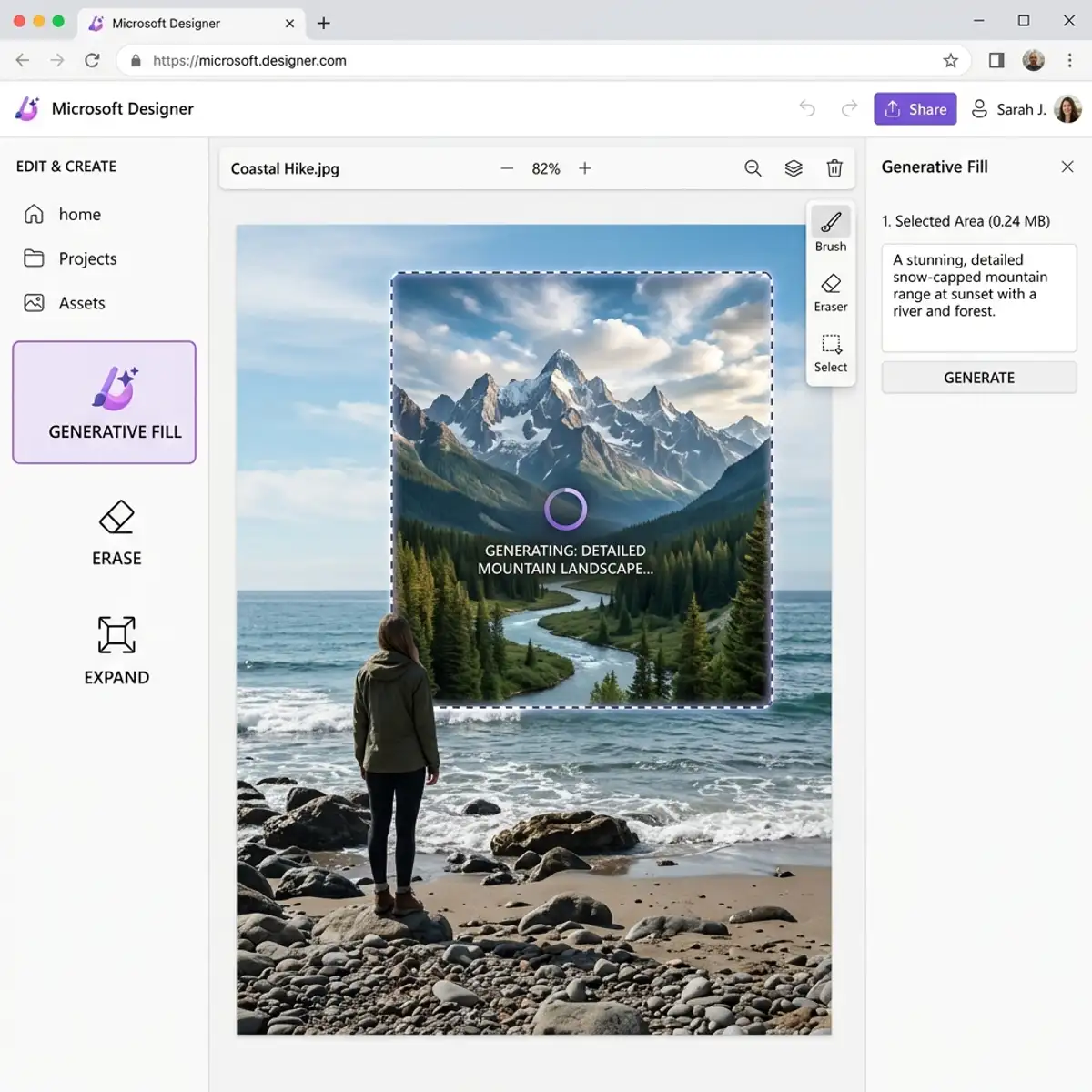
1. Select the Area to Edit: Use the lasso or brush tool to highlight the part of the image you want to change. 2. Configure Inpainting Settings: Adjust parameters such as: - Brush Size: Determines how much area is affected. - Opacity: Controls the transparency of the brush, allowing for subtle adjustments. - Inpainting Mode: Choose between different modes like “Context Aware” or “Color Matching” for optimal results.
3. Apply Inpainting: Click the apply button, and watch as the AI fills in the selected area based on surrounding pixels.
Advanced Techniques for Editing
For those looking to take their skills to the next level, consider these advanced editing techniques:
- Layer Blending: Utilize layer blending modes to create rich textures and effects. Experiment with modes like Multiply or Screen to see how they alter your composition. - Custom Brushes: Design unique brushes tailored to your specific needs. This can greatly enhance your creative output. - Resolution Settings: Choose the appropriate resolution based on your project needs. Higher resolutions are ideal for print, while lower ones are suitable for web usage.
Performance Optimization
To ensure the Canvas Editor runs smoothly, consider the following hardware specifications:
| Component | Recommended Specs | Notes | |-------------------|-----------------------------------------------------|-----------------------------------------| | Graphics Card | NVIDIA GTX 1060 or equivalent | Essential for handling complex edits | | RAM | 16GB or more | Improves multitasking capabilities | | CPU | Intel i5 or AMD Ryzen 5 | Adequate processing power for rendering | | Disk Space | SSD with at least 500GB available | Faster load times and performance |
Exporting Your Final Creation
Once you are satisfied with your edits, exporting your work is simple:
1. Select the Export Option: Click on the export button located in the toolbar. 2. Choose Your Format: Decide whether you need a PNG, JPEG, or other formats based on your intended use. 3. Adjust Export Settings: Set the resolution and quality before finalizing the export.
Best Practices for Effective Use
- Regularly Save Your Work: Always save your project at regular intervals to avoid losing progress. - Use Shortcuts: Familiarize yourself with keyboard shortcuts to enhance your editing speed. - Experiment with Different Styles: Don’t hesitate to try various styles and techniques to discover what works best for you.
Legal Considerations
When working with AI-generated images, it’s important to understand the licensing. Ensure you check the Leonardo AI commercial use rights and policy to avoid any legal issues in your projects.
Conclusion
The Leonardo AI Canvas Editor is a versatile tool that opens new avenues for creativity and innovation. By mastering its features and functionalities, you can enhance your artistic endeavors and produce stunning visuals with ease.
Optimizing Workflows with Leonardo AI Canvas Editor
Efficient workflow management is important when utilizing the Leonardo AI Canvas Editor, particularly in complex projects that require multiple iterations and adjustments. Understanding the editor's capabilities allows designers to streamline their creative processes, thereby enhancing productivity. One of the key elements of an optimized workflow is the use of predefined templates that can significantly reduce setup time. These templates can be configured to include frequently used components, color schemes, and layout structures, allowing for rapid prototyping and iteration. Users can save these templates and apply them to future projects, ensuring consistency and efficiency across different design tasks.
| Parameter / Settings | Feature and Workflow Use Case |
|---|---|
| Basic Setup | Controlling graphic outputs, aspect ratios, and model weight selections. |
| Fine-Tuning | Prompt adjustments within Discord channels or Leonardo AI Canvas workspace. |
Another critical aspect of workflow optimization is the integration of version control within the Leonardo AI Canvas Editor. This feature allows designers to maintain an organized history of changes, enabling them to revert to previous iterations or compare different versions of the same project. By utilizing version control, teams can collaborate more effectively, as it minimizes the risk of overwriting each other’s work. It also facilitates feedback loops, where stakeholders can review and comment on specific iterations, ensuring that all voices are heard without disrupting the creative flow.
Furthermore, leveraging the AI capabilities of the editor can greatly enhance workflow efficiency. The AI can assist in generating design suggestions based on user input or existing elements within the canvas. By analyzing the context and visual elements, Leonardo AI can propose enhancements that align with the user's objectives. This not only speeds up the design process but also encourages experimentation and innovation. For advanced users, integrating external APIs or plugins can further augment the capabilities of the Canvas Editor, allowing for real-time data visualization, analytics integration, or even custom algorithmic design generation.
Advanced Configuration Options for Tailoring User Experience
The Leonardo AI Canvas Editor offers a suite of advanced configuration options that enable users to tailor their experience to meet specific project requirements. From adjusting the performance parameters of the AI algorithms to customizing the user interface components, these options provide a granular level of control that can significantly impact the effectiveness of the design process. For instance, users can modify the resolution settings to optimize performance based on the target output quality, balancing between rendering speed and detail fidelity. This is particularly important when working with high-resolution assets or in applications where processing power may be limited.
In addition to performance settings, the Canvas Editor allows users to configure the AI's sensitivity and response to prompts. By adjusting parameters such as the creativity level or adherence to the original style, designers can direct the AI's output to align more closely with their vision. This fine-tuning is essential for projects that require a specific aesthetic or thematic consistency, as it helps bridge the gap between human creativity and machine assistance. Moreover, users can establish default settings that reflect their standard design practices, allowing them to maintain a consistent approach across various projects without needing to reconfigure the interface each time.
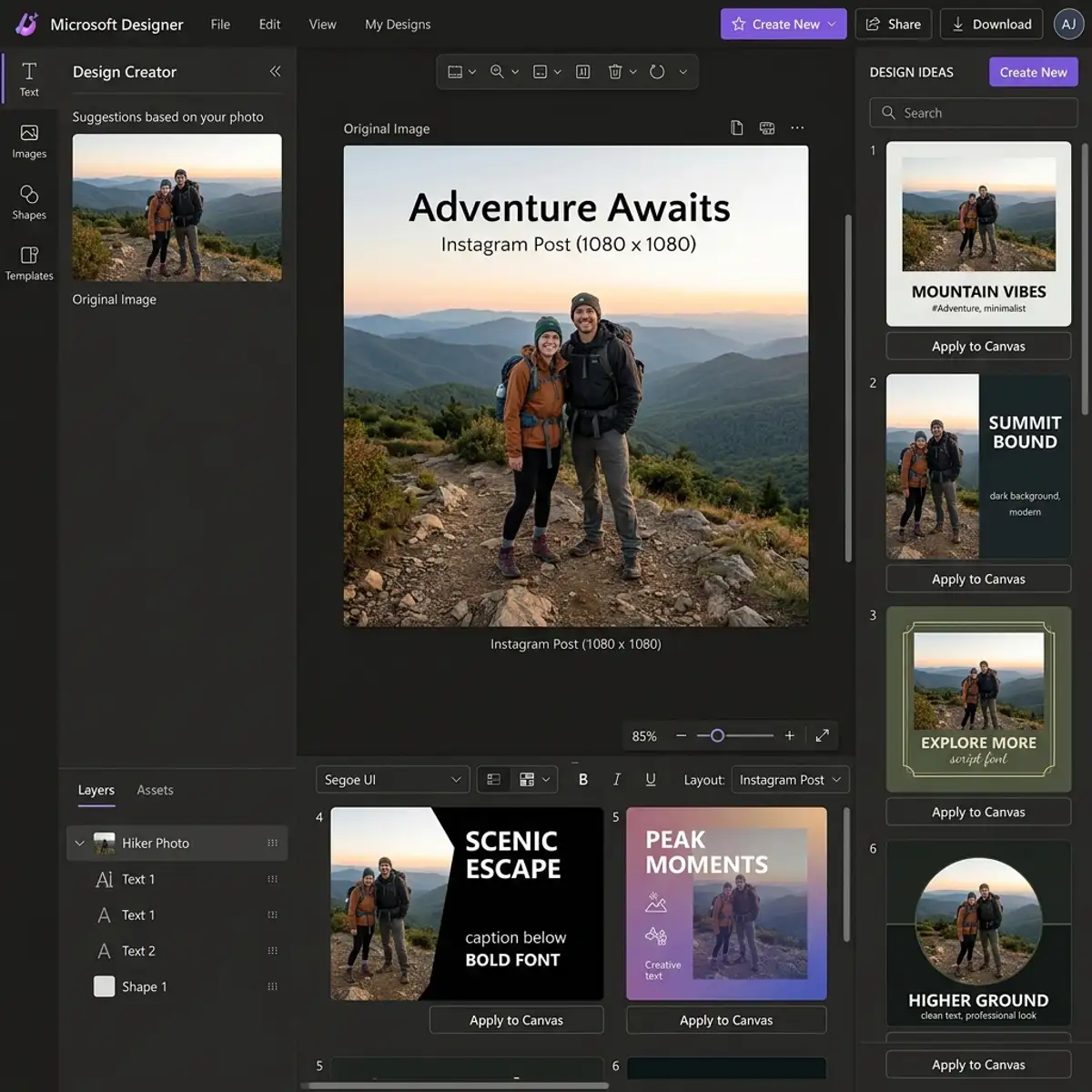
Another significant aspect of configuration is the ability to customize keyboard shortcuts and interface layouts. This feature not only enhances usability for individual designers but also allows teams to standardize their workflows, ensuring that all members can operate the editor with maximum efficiency. Custom shortcuts can reduce the time spent on repetitive tasks, while tailored layouts can prioritize tools and features that are frequently used, minimizing the cognitive load on designers as they navigate through the interface. By investing the time to set up these configurations, users can create a highly personalized environment that fosters creativity and accelerates the design process.
Optimizing Workflows with Leonardo AI Canvas Editor
In the realm of digital design, optimizing workflows is important for maximizing efficiency and output quality. The Leonardo AI Canvas Editor is equipped with a range of features that enhance the inpainting and editing processes, allowing designers to streamline their creative efforts. To achieve an optimized workflow, users should familiarize themselves with the editor's interface and the various tools it offers.
One of the standout features of the Leonardo AI Canvas Editor is its layer management system. This system allows users to organize their work into distinct layers, enabling them to isolate specific elements within a design. By carefully structuring layers, designers can easily apply inpainting techniques without affecting the entire canvas. Furthermore, the ability to toggle layer visibility facilitates rapid iterations, allowing users to focus on individual components or assess the overall composition without distractions.
In addition to layer management, the editor supports customizable shortcuts that can significantly enhance the editing experience. Users can assign specific key combinations for frequently used tools or actions, reducing the time spent navigating menus. This customization fosters a more intuitive workflow, as designers can adapt the interface to suit their unique preferences and working styles. Coupled with the editor's real-time feedback, this feature empowers users to make swift adjustments while maintaining a high level of precision.
Moreover, implementing a systematic approach to save and version control is essential in any design workflow. The Leonardo AI Canvas Editor integrates a robust version history feature, allowing users to track changes over time. This functionality not only safeguards against data loss but also facilitates experimentation, as designers can revert to previous iterations at any point in the editing process. By combining these strategic elements, designers can create an efficient and effective workflow that maximizes the capabilities of the Leonardo AI Canvas Editor.
Advanced Configuration Options for Precision Editing
To fully leverage the capabilities of the Leonardo AI Canvas Editor, users must delve into its advanced configuration options. These settings allow for fine-tuning of the inpainting and editing processes, ultimately enhancing the precision of the output. Understanding how to adjust parameters such as brush size, opacity, and blending modes can significantly affect the quality of the results.
Brush size and opacity are fundamental variables that dictate the level of detail in inpainting tasks. A smaller brush size allows for meticulous edits, making it easier to refine edges or add intricate details. Conversely, a larger brush size can expedite the filling of larger areas, but may compromise on detail. Users should experiment with these settings to find the sweet spot that balances efficiency and precision based on the specific needs of their project. Additionally, adjusting the opacity of the brush can create subtle gradations in color and texture, which can be particularly useful for blending inpainted areas with the surrounding canvas.
Another critical aspect of configuration involves blending modes, which dictate how the inpainted areas interact with existing layers. These modes can simulate various traditional media effects, from soft light to multiply, allowing designers to achieve a more cohesive look. Understanding the implications of each blending mode enables users to achieve desired visual outcomes while maintaining control over how colors and textures merge across the canvas.
Lastly, the editor’s performance settings can significantly influence the user experience. By configuring options such as memory allocation and processing priority, users can optimize the editor’s responsiveness, especially when working with large files or complex compositions. These adjustments can prevent lagging and ensure smooth rendering during intensive editing sessions. A comprehensive understanding of these advanced configuration options empowers designers to tailor the Leonardo AI Canvas Editor to their specific needs, unlocking the full potential of their creative capabilities.
Frequently Asked Questions
What types of images can I edit using the Leonardo AI Canvas Editor?
The Leonardo AI Canvas Editor can handle a wide range of image formats, including JPEG, PNG, and BMP. It's suitable for both raster images and digital illustrations, making it versatile for various creative projects.
Is there a limit to the size of images I can work with?
While there is no strict limit, it's advisable to use images with a resolution that your hardware can handle efficiently. Large images may require more processing power and could slow down the editing process.
Can I undo changes in the Canvas Editor?
Yes, the Canvas Editor includes an undo feature that allows you to revert changes step-by-step. This feature is extremely useful for experimenting with edits without permanently altering your original image.