Como Usar a Ferramenta Canvas Editor do Leonardo AI para Editar Fotos
Descubra como usar o Canvas Editor do Leonardo AI para transformar suas fotos de maneira eficiente e criativa. Esta ferramenta intuitiva oferece uma ampla gama de funcionalidades que permitem não apenas editar fotos, mas também adicionar elementos inovadores e personalizar suas imagens de acordo com suas necessidades. Neste guia, você aprenderá passo a passo como utilizar o Canvas Editor, suas funcionalidades, e dicas para otimizar seu uso.
Dica DomineTec: Para potencializar seu uso, veja nosso guia sobre como usar o prompt generation do Leonardo AI.
O que é o Canvas Editor do Leonardo AI?
O Canvas Editor é uma ferramenta avançada de edição de imagens que faz uso de inteligência artificial para facilitar o trabalho de designers e criadores. Ele permite manipular fotos de forma intuitiva, integrando funcionalidades que vão desde o simples ajuste de brilho até a inserção de elementos gráficos complexos. A interface do usuário é projetada para ser amigável, permitindo que tanto iniciantes quanto profissionais encontrem suas necessidades de edição com facilidade.
Funcionalidades Principais do Canvas Editor
O Canvas Editor oferece diversas funcionalidades que facilitam a edição de fotos. Entre as principais, destacam-se:
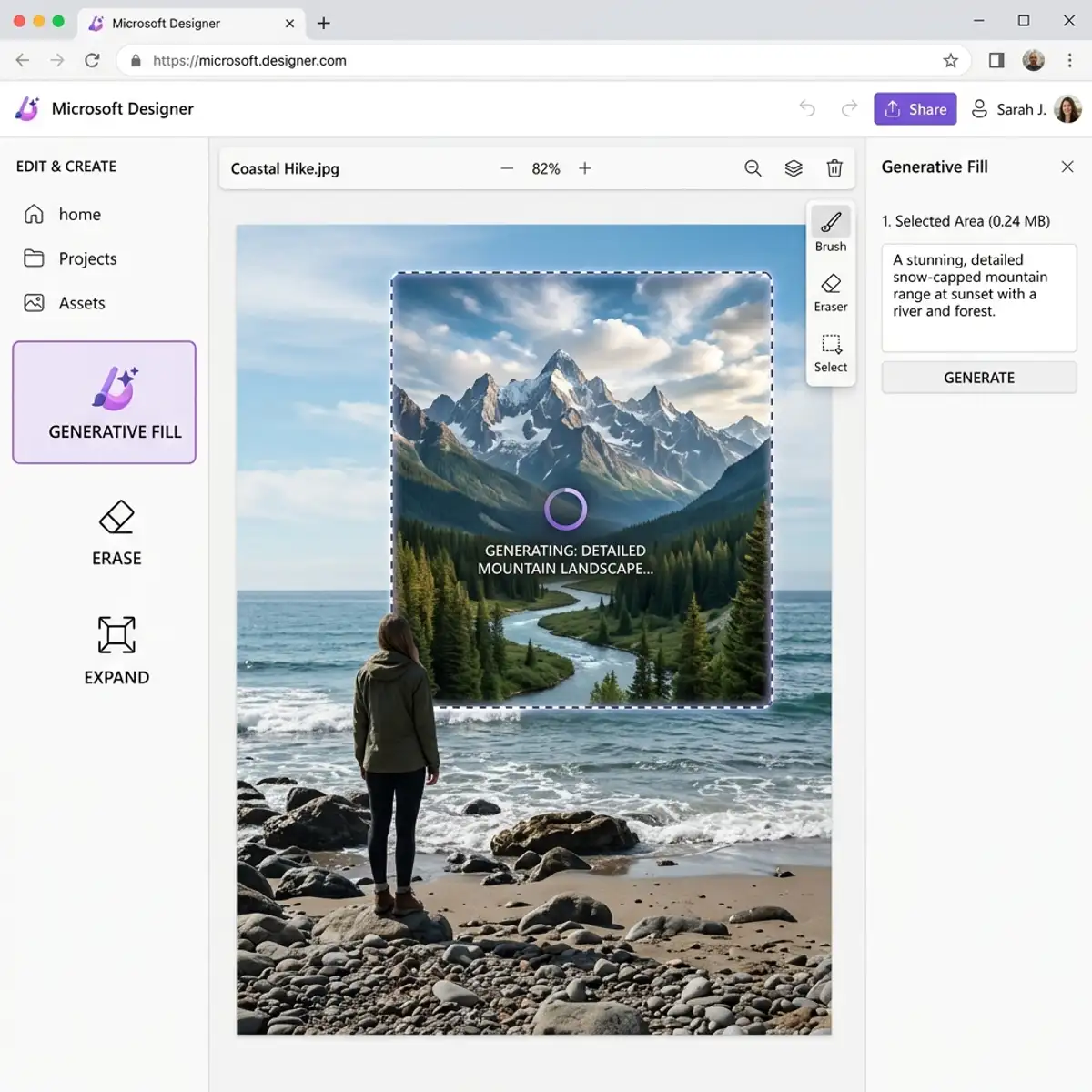
- Edição Generativa: A capacidade de preencher áreas da imagem usando a IA para gerar conteúdo relevante é uma das mais poderosas.
- Ferramentas de Ajuste: Inclui ajustes de brilho, contraste, saturação e outros parâmetros que podem ser refinados com precisão.
- Adição de Elementos: É possível adicionar textos, adesivos e outros gráficos, permitindo personalização total.
- Ajustes de Resolução: Você pode escolher a resolução ideal para suas imagens, garantindo que elas estejam otimizadas para a web ou impressão.
Como Começar a Usar o Canvas Editor
Para utilizar o Canvas Editor, siga os passos abaixo:
- Acesse o Leonardo AI: Faça login na sua conta do Leonardo AI e navegue até a seção de edição de imagens.
- Selecione a Imagem: Escolha a foto que deseja editar. O Canvas Editor suporta vários formatos de imagem, incluindo JPEG, PNG e WEBP.
- Ajuste os Parâmetros: Utilize as ferramentas disponíveis para ajustar a imagem conforme necessário. Experimente com os ajustes de brilho e contraste para ver os efeitos em tempo real.
- Utilize a Edição Generativa: Se precisar preencher partes da imagem, selecione a área desejada e ative a função de edição generativa.
- Adicione Elementos Gráficos: Insira textos e adesivos a partir da biblioteca do Canvas Editor ou crie seus próprios elementos.
- Salve e Exporte: Após concluir suas edições, salve o projeto e expanda para o formato desejado, ajustando a resolução conforme necessário.
Comparação de Configurações de Edição
| Configuração | Valor | Descrição |
|---|---|---|
| Brilho | -100 a 100 | Ajusta a luminosidade da imagem. |
| Contraste | -100 a 100 | Regula a diferença entre os tons claros e escuros. |
| Saturação | -100 a 100 | Aumenta ou diminui a intensidade das cores. |
| Resolução | 72dpi a 300dpi | Define a qualidade da imagem para impressão ou web. |
Dicas Avançadas para Edição de Imagens
Para aproveitar ao máximo o Canvas Editor, considere as seguintes dicas:
- Experimente com Layers: Utilize camadas para separar elementos e facilitar a edição. Isso permite ajustes mais finos sem comprometer a imagem original.
- Utilize Atalhos de Teclado: Familiarize-se com os atalhos de teclado para realizar ações rapidamente, como copiar, colar e desfazer.
- Teste Diferentes Estilos: O Canvas Editor possui diversas opções de estilo e filtros que podem transformar sua imagem em algo único e atrativo.
Exportando Suas Imagens
Após finalizar a edição, você pode exportar suas imagens em diferentes formatos. O Canvas Editor permite a exportação em JPEG, PNG e outros formatos populares. É recomendável escolher a resolução certa com base no uso pretendido da imagem, seja para web ou impressão. Além disso, considere as diretrizes de direitos autorais, pois imagens do Leonardo AI podem ser usadas comercialmente.
Advanced Workflow Optimization in Leonardo AI's Canvas Editor
The Leonardo AI Canvas Editor provides a robust framework for users looking to optimize their photo editing workflows. To maximize efficiency, understanding the integration of layers and adjustments is paramount. The editor operates on a layer-based design, allowing the user to manipulate individual elements without altering the underlying image. By leveraging this feature, users can create complex visual compositions while maintaining a non-destructive editing approach. For example, when adding text or graphic overlays, it is fundamental to keep these elements on separate layers. This separation not only allows for independent adjustments but also simplifies the process of fine-tuning opacity, blending modes, and transformations.
Moreover, the Canvas Editor’s interface is designed to streamline the editing process. Utilizing customizable shortcuts can significantly reduce the time spent on repetitive tasks such as resizing, cropping, or applying filters. Users can assign keyboard shortcuts to frequently used tools, enabling rapid access and enhancing the overall editing speed. Additionally, the editor includes a history panel that logs every action taken during a session. This feature allows users to revert specific changes without affecting other edits, effectively creating a flexible workflow that caters to experimentation and iterative design.
Furthermore, understanding the batch processing capabilities within the Canvas Editor becomes essential for users managing large volumes of images. The tool allows for the application of preset adjustments across multiple files, saving invaluable time and ensuring consistency across projects. Users can create and save presets that encompass a series of adjustments, including brightness, contrast, saturation, and more. When applied to a batch of photos, these presets can drastically reduce the time spent on individual edits while ensuring uniformity in visual style. This capability is particularly advantageous for professional photographers and graphic designers who require a cohesive aesthetic across their portfolios.
Configuring Advanced Features for Enhanced Editing Precision
The Canvas Editor in Leonardo AI comes equipped with a suite of advanced configuration options that empower users to achieve precise editing outcomes. One of the most significant features is the ability to customize the color grading and tonal adjustments through an advanced curve editor. This tool allows for pixel-level control over brightness and contrast by manipulating curves in a graphical interface. Users can define points along the curve to selectively adjust shadows, midtones, and highlights, providing a level of detail that standard sliders often lack. By mastering this feature, users can create intricate looks that align closely with their creative vision, whether for artistic photography or commercial projects.
In addition to advanced color controls, the Canvas Editor offers configuration options for various export settings, ensuring that the final output meets specific requirements for web or print. Users can choose from different color spaces, such as RGB or CMYK, which is essential for print accuracy. Furthermore, the editor allows for the adjustment of resolution and quality settings, enabling users to balance file size with image fidelity. Understanding these export configurations is fundamental for professionals who need to deliver images in multiple formats and resolutions.
Additionally, the Canvas Editor incorporates AI-driven suggestions that can be tailored through the configuration settings. These suggestions can range from enhancing image clarity to recommending optimal cropping dimensions based on the composition. Users can enable or disable these features depending on their editing style, thus allowing for a more personalized experience. By customizing the AI assistance level, users can either rely on it for creative inspiration or maintain full control over their editing process. This balance between automation and manual intervention is vital in achieving the desired artistic effect while still benefiting from the efficiency that AI tools provide.
In summary, the advanced workflow optimization and configuration options in Leonardo AI's Canvas Editor enable users to edit with precision and efficiency. By understanding the intricacies of layer management, shortcut customization, batch processing, color grading, export settings, and AI assistance, users can elevate their editing capabilities to professional standards.
Workflow Optimization in Leonardo AI's Canvas Editor
In the realm of AI-powered design tools, optimizing workflows is paramount for achieving efficiency and maximizing output quality. Leonardo AI's Canvas Editor provides a robust framework for users to streamline their photo editing processes through a variety of integrated features and customizable options. At the core of this optimization lies the ability to set up personalized workflows that align with specific project requirements. By leveraging features such as batch processing, automated adjustments, and template creation, users can significantly reduce the time spent on repetitive tasks.Batch processing is particularly advantageous in scenarios where multiple images require uniform edits. The Canvas Editor allows users to apply preset adjustments—such as color correction, cropping dimensions, and filter applications—to a selected group of images simultaneously. This capability not only accelerates the editing process but also ensures consistency across a series of photos, which is especially critical for branding purposes. Furthermore, users can create and save custom templates that encapsulate their preferred editing styles, enabling rapid application to new projects without the need for repetitive manual setups.
Another aspect of workflow optimization is the integration of AI-driven suggestions throughout the editing process. The Canvas Editor employs machine learning algorithms that analyze user behavior and project types to recommend enhancements tailored to the specific context. For instance, when editing portraits, the system may suggest skin retouching techniques or lighting adjustments based on the analysis of successful past edits. This feature not only enhances the quality of the final output but also fosters a more intuitive user experience, allowing creators to focus on their artistic vision rather than being bogged down by technical details.
Lastly, the Canvas Editor's interface supports multi-tasking capabilities, enabling users to work on several projects simultaneously without compromising performance. The tabbed design ensures that users can switch between different images and editing sessions seamlessly. This capacity for parallel processing is vital in professional environments where time is of the essence, as it allows for rapid iteration and refinement of ideas. By employing these workflow optimization strategies, users of Leonardo AI's Canvas Editor can elevate their productivity and output quality, positioning themselves at the forefront of digital design.
Advanced Configuration Options for Enhanced Control
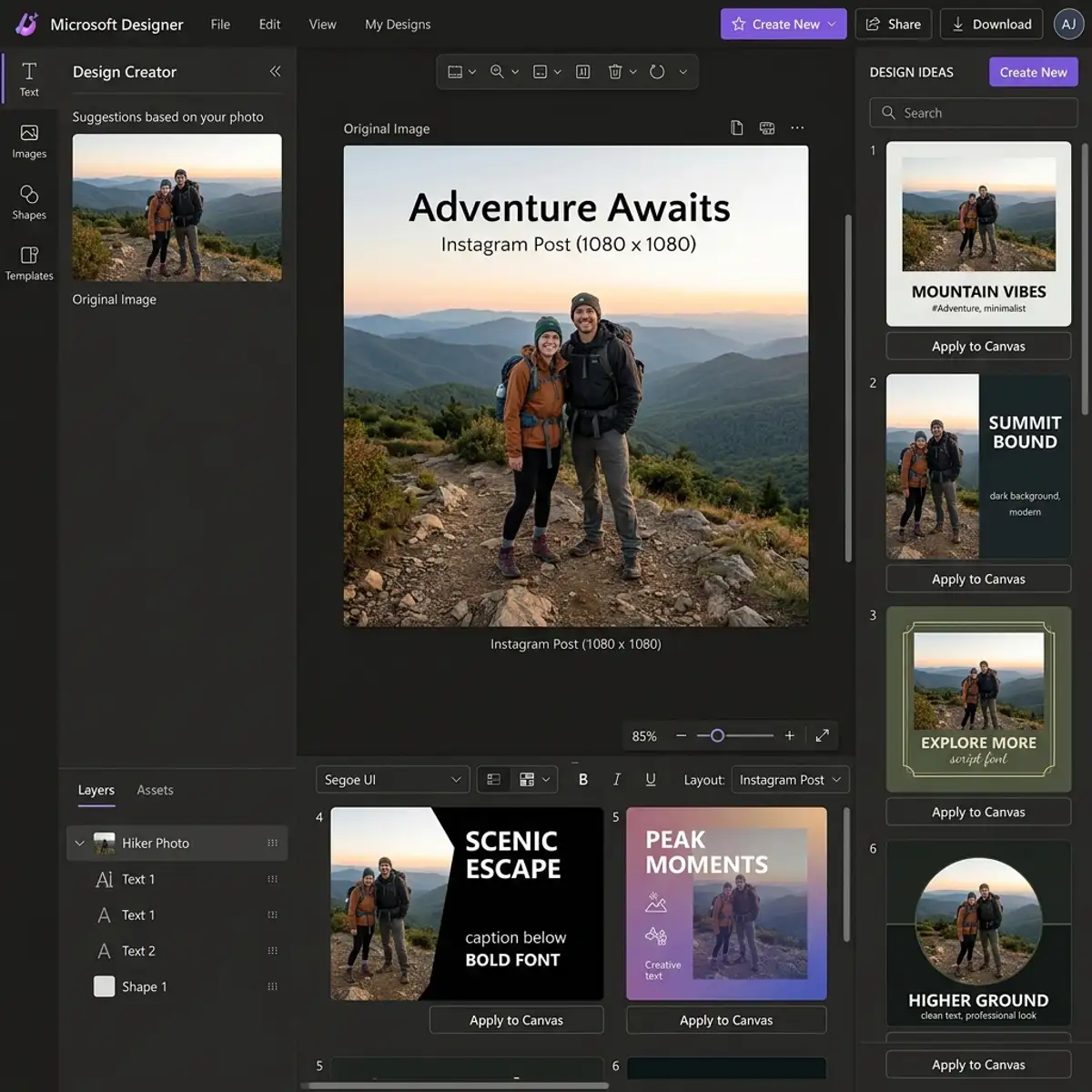
Leonardo AI's Canvas Editor offers a plethora of advanced configuration options that empower users to fine-tune their editing environment and achieve desired results with precision. These configurations can be critical for professionals who require granular control over the editing process, particularly in fields such as commercial photography, graphic design, and digital art. Among the most notable options are custom workspace setups, adjustable performance settings, and extensive plugin support.The ability to customize the workspace is a powerful feature that can significantly enhance user experience. Users can arrange tool palettes, panels, and menus to suit their workflow preferences, thereby reducing the time spent searching for tools or settings during the editing process. The Canvas Editor allows for saving multiple workspace configurations, enabling users to switch between setups tailored for different tasks—such as photo retouching versus graphic overlay—without manually rearranging their interface each time. This adaptability not only improves efficiency but also fosters a more intuitive creative environment.
Performance settings also play a fundamental role in the Canvas Editor. Users can adjust parameters such as rendering quality, memory allocation, and processing priority to optimize the application’s performance based on their hardware capabilities. For instance, users working on high-resolution images may choose to prioritize rendering speed over quality, while those focused on intricate details may opt for the highest quality settings. This level of customization ensures that the application operates seamlessly, regardless of the user's technical setup, thereby facilitating a smoother editing experience.
Furthermore, the Canvas Editor is designed with extensibility in mind, supporting a variety of third-party plugins that can enhance functionality. These plugins can introduce new editing tools, filters, or even AI models that further refine the editing process. Users can easily integrate their preferred plugins into the Canvas Editor, allowing for a tailored environment that reflects their unique editing style and requirements. The ability to configure these advanced options not only enhances the user experience but also positions Leonardo AI's Canvas Editor as a versatile tool capable of meeting the diverse needs of contemporary digital creators.
Perguntas Frequentes
1. O que é necessário para usar o Canvas Editor?
Para utilizar o Canvas Editor, você precisa ter uma conta no Leonardo AI. Uma vez logado, você terá acesso à interface e às ferramentas de edição. É recomendado ter um computador com especificações mínimas que suportem processamento gráfico eficiente, especialmente se você estiver manipulando imagens de alta resolução.
2. Quais formatos de imagem são suportados?
O Canvas Editor suporta uma variedade de formatos de imagem, incluindo JPEG, PNG e WEBP. Isso permite que você trabalhe com praticamente qualquer tipo de imagem que tenha, garantindo flexibilidade em suas edições e exportações.
3. Posso usar as imagens editadas em projetos comerciais?
Sim, as imagens editadas no Canvas Editor podem ser utilizadas em projetos comerciais, desde que você respeite as diretrizes de direitos autorais do Leonardo AI. É importante se informar sobre as regras antes de usar as imagens em um contexto comercial para evitar possíveis problemas legais.