How to download and use Canva desktop application offline is a frequently asked question among those who wish to harness the power of Canva without an internet ... This guide will walk you through the process of downloading Canva's desktop application, using it offline, and maximizing its features even when disconnected from the internet.
Understanding the Canva Desktop Application
Canva, a versatile graphic design platform, has expanded its accessibility through a desktop application. This application is designed to provide a seamless design experience whether you're online or offline. Understanding the application’s architecture and capabilities is important for leveraging its full potential.
The desktop application offers a user-friendly interface similar to the web version, but with the added benefit of offline capabilities. This is particularly useful for users who may have intermittent internet access or who wish to work remotely without relying on a stable connection.
How to Download Canva Desktop Application
Downloading the Canva desktop application is a straightforward process. Follow these detailed steps to get started:
- Visit the official Canva website using your preferred web browser.
- Navigate to the downloads section, usually found in the footer or under the resources tab.
- Select the version compatible with your operating system, either Windows or MacOS.
- Click the download button to initiate the download. The installer file will be saved to your computer.
- Once downloaded, open the installer file to begin the installation process. Follow the on-screen instructions to complete the installation.
After installation, you can launch the Canva application directly from your desktop. To make the most of its features offline, setting up the application properly is essential.
How to Use Canva Desktop Application Offline
How to use Canva desktop application offline involves several key steps to ensure all necessary resources are available locally. Here's how you can optimize your offline experience:
Preparing for Offline Mode
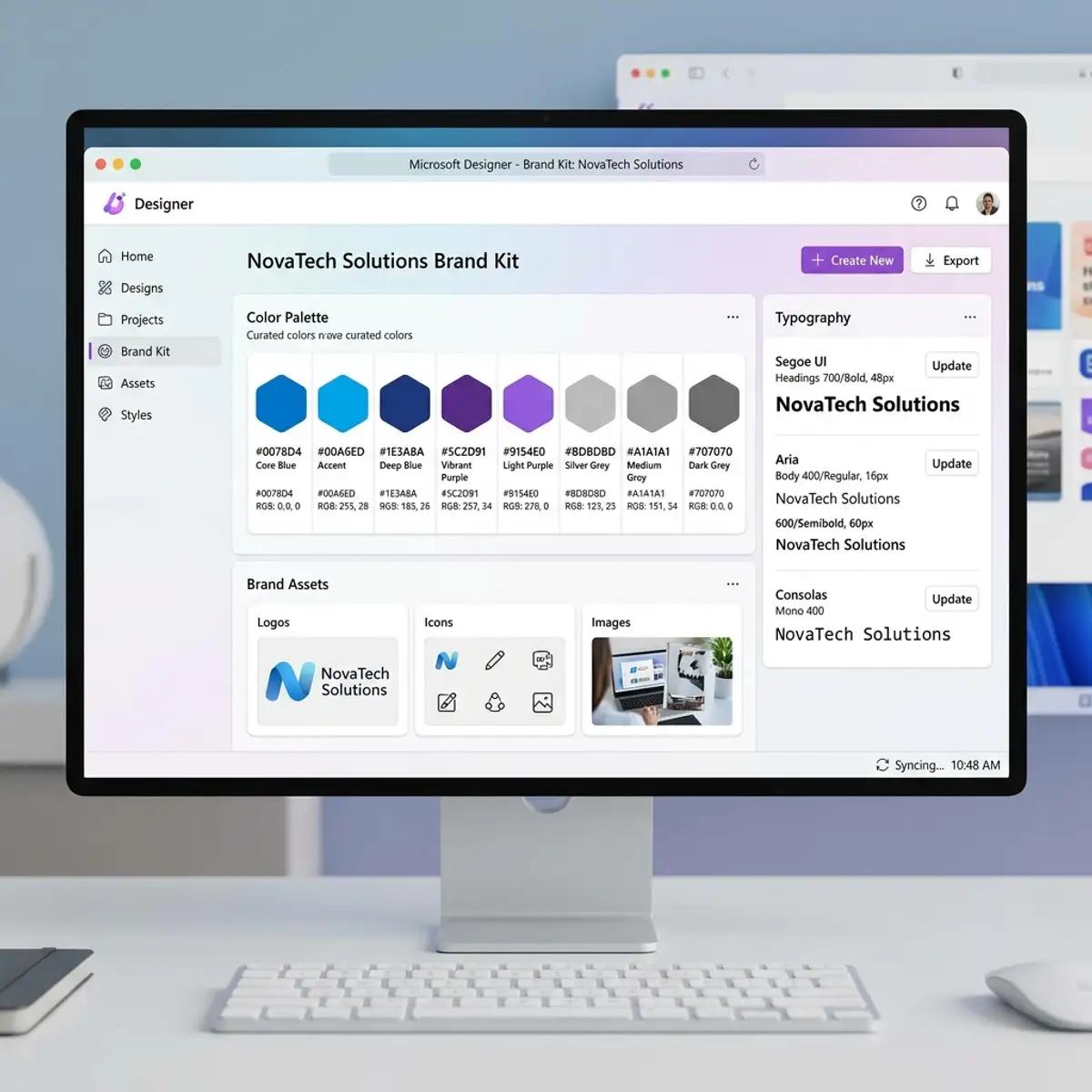
Before disconnecting from the internet, you must prepare your Canva application to function offline. This involves ensuring that all design elements, fonts, and templates you intend to use are downloaded and available locally.
To do this, open the Canva application while connected to the internet and navigate through the resources you frequently use. Any resources not already downloaded will automatically cache locally when you access them online. This cache enables offline access to these elements.
Loading Resources Offline
Once offline, the Canva application utilizes locally cached resources. This means you can continue to design with previously accessed elements, templates, and fonts. However, if you attempt to access new resources not previously cached, the application will prompt you to reconnect to the internet.
It is important to plan your projects ahead of time, ensuring all necessary assets are available offline. This foresight prevents interruptions during your creative process.
Creating Local Drafts
Canva's offline mode allows you to create and edit designs saved as local drafts. These drafts are stored on your device until you reconnect to the internet. Once online, these drafts can be synced to Canva’s cloud storage, ensuring your work is backed up securely.
Local drafts are a vital feature for maintaining productivity in areas with limited internet access. This functionality ensures your work is not dependent on a live connection, providing flexibility and continuity.
Automatic Cloud Syncing Process
When you reconnect to the internet, Canva’s desktop application automatically syncs local drafts with your online account. This synchronization process updates your cloud storage with any changes made offline, keeping your work up-to-date across all devices.
This automatic process is seamless and requires no additional action from the user. However, it is advisable to review your drafts post-sync to ensure all changes are accurately reflected online.
Maximizing Canva Offline Mode
To fully leverage Canva's offline capabilities, consider these tips:
- Download frequently used elements: Regularly access essential templates and elements online to ensure they are available offline.
- Organize local drafts: Keep your offline designs organized to streamline the sync process once online.
- Utilize offline time for brainstorming: Offline periods are ideal for conceptualizing and drafting ideas without distractions.
By strategically utilizing these tips, you can maximize productivity and creativity even when disconnected from the internet.
Tip: For those interested in creating visually appealing designs like logos, refer to our guide on how to create a professional logo with Canva for free.
Comparing Online and Offline Features
Understanding the differences between Canva's online and offline functionalities is important for effective usage. Here's a detailed comparison:
| Feature | Online Mode | Offline Mode |
|---|---|---|
| Access to resources | Full access to Canva's library | Limited to cached resources |
| Design creation | Create and save designs directly to the cloud | Create designs as local drafts |
| Collaboration | Real-time collaboration with team members | Not available |
| Resource updates | Automatic updates | Updates when reconnected |
This comparison highlights the strategic advantages of planning your work based on your connectivity status, ensuring seamless workflow regardless of your internet situation.
FAQs About Using Canva Desktop Application Offline
1. Can I use all Canva features offline?
While offline, you can access and use resources that have been previously cached. However, features requiring live internet access, such as accessing new templates or real-time collaboration, are unavailable.
2. How do I ensure my work is saved if I lose connection?
Canva's desktop application saves your work as local drafts when offline. These drafts will sync to the cloud automatically once you reconnect to the internet, ensuring your work is not lost.
3. Is the Canva desktop application available for all operating systems?
The Canva desktop application is available for both Windows and MacOS. Ensure you download the correct version compatible with your operating system from the official Canva website.
Advanced Techniques for Optimizing Canva Desktop for Offline Use
When utilizing the Canva desktop application offline, there are several advanced techniques and configurations that can enhance your productivity and creativity. First and foremost, it's essential to understand the intricacies of managing your local storage effectively. Canva allows users to download assets, templates, and projects for offline use. To maximize efficiency, regularly organize these files into structured folders that mirror your typical workflow. This organization not only helps in locating files quickly but also ensures that your offline workspace mirrors your online one, reducing the cognitive load when switching between the two environments.Another critical aspect of optimizing Canva for offline use is the customization of settings to better suit your offline working conditions. For instance, adjusting the application’s cache settings can significantly impact performance, especially when working with large files or complex graphics.
By increasing the cache size, you can reduce the time it takes to reopen recent projects or switch between different design elements. Additionally, turning off automatic updates while working offline can prevent unexpected interruptions.
You can manually select when to update your application, ideally when you reconnect to a network, ensuring that your offline work is never disrupted by software changes.
Integrating Canva with other offline tools and platforms can further enhance its utility. For professionals who frequently switch between different design and editing software, setting up a seamless workflow is important.
Consider using local design tools that support file formats compatible with Canva, such as PNG or SVG, to ensure smooth transitions between applications. Moreover, leveraging batch processing tools can allow you to automate repetitive tasks offline, such as resizing images or converting file types, thus saving valuable time and effort.
Real-world use cases demonstrate the effectiveness of these optimization techniques. For instance, graphic designers working in remote locations with limited internet connectivity have successfully leveraged Canva's offline capabilities to maintain productivity.
By pre-downloading essential design templates and assets before traveling, they can continue their creative projects without interruption. Additionally, educators using Canva for classroom activities have found that optimizing their offline settings allows them to deliver seamless presentations and interactive lessons, even in areas with unreliable internet service.
These examples highlight how strategic planning and configuration can transform Canva into a powerful offline tool, enabling users to maintain high levels of creativity and productivity regardless of their connectivity status.
Optimizing Canva Desktop for Enhanced Performance and Workflow Efficiency
To maximize the potential of the Canva desktop application, understanding and applying advanced optimization techniques can significantly enhance both its performance and your overall workflow efficiency. One of the first steps in this process is to ensure that your system meets the recommended hardware specifications.
While Canva is designed to be lightweight, having a computer with a multi-core processor, at least 8GB of RAM, and a dedicated graphics card can dramatically improve the application's speed and responsiveness. Additionally, keeping your operating system and graphic drivers up to date will ensure that Canva runs smoothly and leverages the latest performance enhancements.
Beyond hardware considerations, optimizing Canva's settings can further enhance its efficiency. In the application settings, users can enable GPU acceleration, which utilizes the computer's graphics processing unit to render graphics more quickly. This is particularly useful for large projects or those involving complex visual elements.
Additionally, managing the application's cache settings can help improve performance. Clearing the cache regularly will remove temporary files that may be slowing down the application. Users can also allocate more memory to Canva if they find that the application is sluggish or frequently freezes, which can be done through advanced system settings.
Integrating Canva with other workflow management tools can streamline your design process significantly. By connecting Canva to cloud storage services such as Google Drive, Dropbox, or OneDrive, users can easily import and export design assets, ensuring that all team members have access to the latest files.
Furthermore, utilizing Canva's API can help automate repetitive tasks and integrate the application with other software platforms. This allows users to programmatically control design elements, automate the export of files, or even sync design changes across different systems, thereby reducing manual intervention and saving time.
In real-world use cases, businesses can leverage Canva's offline capabilities for remote work scenarios where internet access is limited or unreliable. For instance, teams working in field locations or during travel can continue to develop and edit projects without disruption.
By planning ahead and downloading necessary design assets and templates, users can ensure they have everything they need to work offline effectively. Once back online, any changes made can be seamlessly synced, ensuring that all team members have the most up-to-date versions of each project.
This flexibility makes Canva an invaluable tool for dynamic and mobile work environments, supporting continuous creativity and productivity regardless of location.
Advanced Configuration Settings for Optimizing Canva Desktop Experience
To maximize the potential of the Canva desktop application, understanding and utilizing advanced configuration settings is important. One of the primary settings to explore is the adjustment of performance-related options.
These settings can be accessed through the application’s preferences menu, where users can allocate more system resources to Canva. By increasing the allocated RAM and enabling hardware acceleration, users can significantly enhance the application's responsiveness, especially when handling complex designs with multiple layers and high-resolution images.
This adjustment is particularly beneficial for professional designers who require smooth performance during intensive design tasks.
Another important configuration is the customization of the user interface to streamline workflow processes. Canva allows users to personalize toolbars, shortcuts, and workspace layouts to better suit individual working styles.
By rearranging toolbars and creating custom shortcuts for frequently used features, designers can reduce the time spent navigating the application. Additionally, setting up personalized templates and design libraries enables quick access to regularly used assets, further optimizing the design process.
This level of customization not only boosts efficiency but also minimizes the cognitive load, allowing designers to focus more on creativity and less on operational tasks.
Integrating Canva with other productivity tools is a powerful way to enhance its capabilities. Advanced users can leverage APIs to connect Canva with platforms like Slack, Trello, or Asana, creating a seamless workflow between design and project management tools.
For instance, using Canva’s API, teams can automate the export of finished designs directly to shared project boards or communication channels, ensuring that updates are instantly visible to all stakeholders. This integration not only saves time but also enhances collaboration among team members, as it allows for real-time feedback and iterations without the need to switch between multiple applications.
Optimization techniques also extend to the management of design assets and file storage. Utilizing Canva's cloud storage capabilities effectively can prevent local storage limitations and ensure that all design assets are easily accessible from any device.
Advanced users can organize their files into well-structured folders and use consistent naming conventions to facilitate quick retrieval. Furthermore, employing version control features within Canva helps in maintaining a history of changes made to designs, allowing users to revert to previous versions if needed.
This is particularly useful in collaborative environments where multiple team members may work on the same project, ensuring that all changes are tracked and managed efficiently.
To expand your knowledge, check out our guide on use Canva Magic Write AI text generator.