How to Set Up Virtual Walls and No-Go Zones on Xiaomi Vacuum
How to Set Up Virtual Walls and No-Go Zones on Xiaomi Vacuum
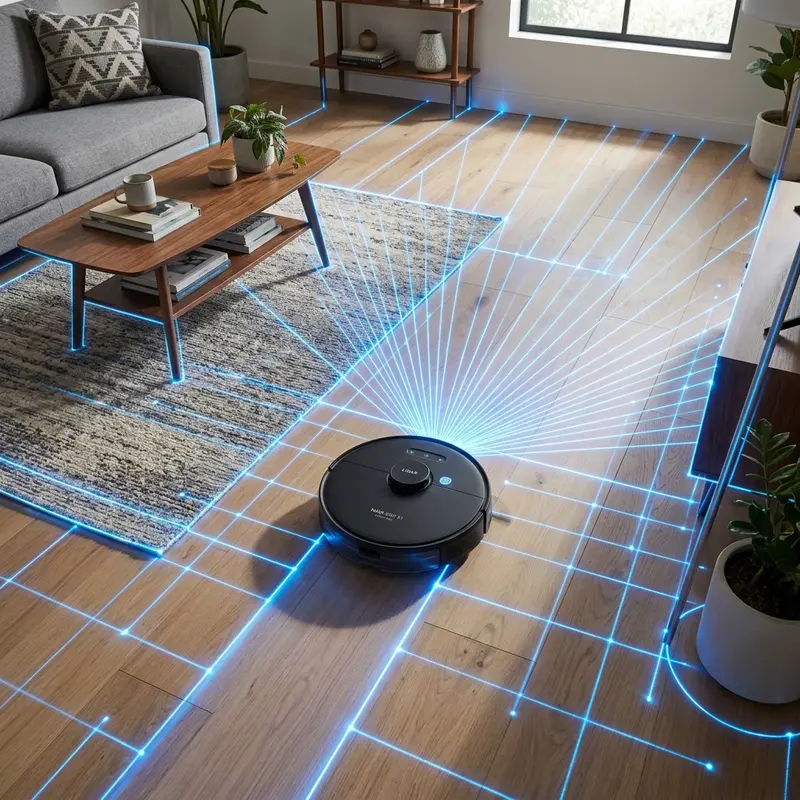
If you want to restrict your appliance from accessing specific areas, learning how to set up virtual walls on a Xiaomi robot vacuum requires using the digital barrier tool in the Mi Home app, drawing no-go zones on the LiDAR-generated map, or using physical magnetic tapes for older models. Unlike physical gates, digital boundaries modify navigation coordinates inside the vacuum's memory. This prevents the robot from bumping into pet water bowls or tangling cords.
1. Requirements to Enable Map Features in the Mi Home App
To configure virtual walls in the Xiaomi Home (Mi Home) app, your robot vacuum must use active laser navigation (LiDAR / LDS) or smart camera mapping (vSLAM). Basic entry-level gyroscopic vacuums do not save persistent floor plans, which prevents the creation of digital boundaries.
Before setting up barriers, complete the initial mapping runs:
- Run the initial mapping clean: Place the vacuum on its charging dock and start the fast mapping run. Let the vacuum clean all rooms with internal doors open to save the floor plan in its flash memory.
- Enable map saving settings: Go to the vacuum settings in the Mi Home app and enable "Map Saving" or "Remember Maps". Otherwise, the map will reset after each run.
2. Setting Up Virtual Walls in the App
With the map saved and displayed in the Mi Home app, follow these steps to draw digital boundary lines:
- Open the map management menu: Select the vacuum on the home screen and tap the map management icon (represented by gears or three dots in the top-right corner).
- Select "Virtual Wall / Restricted Zone": The app displays three options: Virtual Wall, No-Go Zone, and No-Mop Zone.
- Draw the Virtual Wall: Tap the option. A red line will appear on the map. Drag and rotate the line to position it across doorways or hallways you want to close off.
Tap "Save" in the top-right corner. The control board saves the new coordinates to the vacuum's firmware. When starting a clean, the vacuum treats the digital line as a solid wall.
If your vacuum has navigation issues or gets stuck, read our guide on how to fix a robot vacuum that only moves backwards.
3. No-Go Zones vs. No-Mop Zones
Xiaomi divides digital restrictions into two distinct categories to optimize cleaning routines for hybrid vacuums:
- No-Go Zones: Displayed as red boxes on the map. The vacuum avoids these areas under all circumstances (ideal for office wire tangles or pet bowls).
- No-Mop Zones: Displayed as yellow or blue boxes. The vacuum will enter these zones to vacuum dust, but only if the microfiber mop bracket is detached. If the mop plate is attached, the vacuum steers clear to avoid wetting carpets.
For reservoir maintenance and water jet troubleshooting, read how to unclog water nozzles and jets on robot mop vacuums.
4. Mapping Features by Xiaomi Robot Vacuum Model
The table below summarizes mapping features and virtual wall support across different Xiaomi vacuum lines:
| Xiaomi Vacuum Model | Navigation System | Virtual Walls (App) | No-Mop Zones (App) | Magnetic Boundary Support |
|---|---|---|---|---|
| Xiaomi Mi Robot Vacuum-Mop 2 / 2S | Laser LDS (LiDAR) | Yes (Up to 10 barriers) | Yes | Not supported |
| Xiaomi Robot Vacuum E10 | Gyroscope / IMU | No (No persistent map) | No | No |
| Roborock S7 / S8 (Ecosystem) | LiDAR + AI Camera | Yes (Unlimited barriers) | Yes (Auto mop lift) | Not required |
| Xiaomi Mi Robot (1st Gen) | Laser LDS (Older) | Physical strip only | No | Yes (3M Magnetic Tape) |
5. Resolving Map Rotation and Drift Errors
A common issue in the Mi Home app is map drift, where the saved floor plan becomes rotated or duplicated (ghost map). This occurs if the drive wheels slip while climbing door thresholds or if the vacuum is picked up and moved manually, causing it to lose its starting dock coordinates.
To fix a distorted map, do not redraw your virtual walls. Place the vacuum back on the charging dock manually, open the Mi Home app, go to "Map Management", select the correct floor plan, and tap "Restore Map" to load the saved clean layout.
If you need replacement parts to keep your vacuum running, read our guide on where to buy a replacement battery for Mondial Fast Clean vacuum.
Using Magnetic Boundary Tapes on Older Xiaomi Models
Older Xiaomi robot vacuums (released between 2016 and 2018) lacked the firmware updates needed to draw digital boundaries in the mobile app. To block these models, you must lay down magnetic tape strips on the floor.
The magnetic strip has a magnetic field detected by the Hall sensor located under the front bumper. Place the tape under carpets or doorways. When crossing the tape, the Hall sensor sends a signal to stop the drive wheels, prompting a detour.
Preventing RAM Overload on the Vacuum's CPU
Drawing more than 10 virtual walls or complex no-go zones on the Mi Home map can overload the vacuum's integrated RAM. This processing lag leads to pathing errors and slow app responses.
Instead of drawing multiple small boxes around dining table legs, draw a single large rectangular no-go zone enclosing the dining area. This simplifies calculations for the navigation algorithm.
Saving and Restoring Multi-Floor Maps
Xiaomi LiDAR vacuums support saving up to three separate floor maps. When carrying the vacuum to the second floor, place the unit on the floor and start a cleaning cycle.
The laser scanner will scan the room layout and automatically load the corresponding upper-level map, maintaining the virtual walls configured for that floor.
Using No-Go Zones under Variable Room Lighting
Xiaomi vacuums with vSLAM camera navigation depend on room lighting to track coordinates. If you run the vacuum at night with the lights off, the camera cannot find landmarks, causing it to lose its position.
When coordinates are lost, the vacuum may ignore virtual walls, entering restricted areas. Schedule cleanings during daylight hours or leave a light on to guide the camera sensors.
Occupancy Grid Formats and RAM Write Limits on Flash Memory
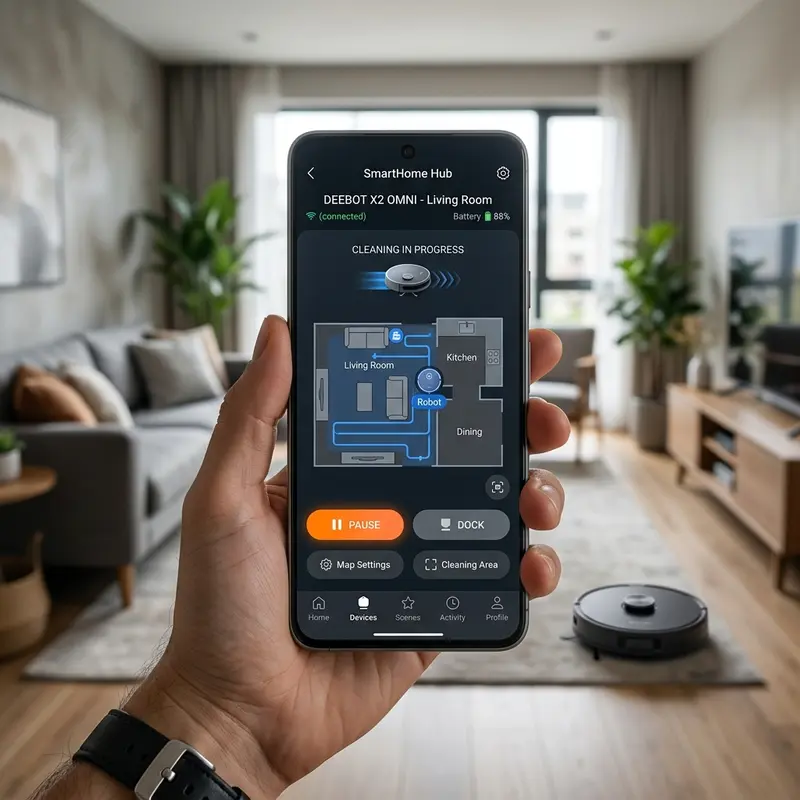
Xiaomi LiDAR robot vacuums save floor plans as occupancy grid maps. These grids split your home into digital coordinate cells. The navigation firmware updates obstacle probability values for each cell in real-time.
These maps are cached in the vacuum's flash memory. Avoid drawing more than 10 digital wall lines or complex zones, as processing these coordinates increases CPU load on the microcontroller, causing pathing loops or app delays.
Differentiating Virtual Walls, No-Go Zones, and No-Mop Barriers
The Mi Home app features three types of boundaries: Virtual Walls, No-Go Zones, and No-Mop Zones. Virtual walls act as simple gateway lines, while No-Go zones are area blocks that exclude the vacuum under all modes.
No-Mop zones restrict access only when the micro-switches detect the water reservoir bracket is attached. This allows the vacuum to clean carpets during dry runs but steer clear of them during wet mopping runs.
Resolving App Map Drifts and Restoring Clean Backups
If the drive wheels slip on doorsills, the encoder data conflicts with gyroscopic yaw rates. This mismatch causes the saved map in the Mi Home app to rotate or duplicate, creating a ghost map layout.
To resolve map drift, manually place the vacuum back on the charging dock. Open the app, navigate to Map Management, select your primary saved floor plan, and tap "Restore Map" to reload the clean coordinate backup.
Saving Multi-Floor Plans and Restoring Cloud Backup Maps
Xiaomi LiDAR vacuums can save up to three separate floor maps in the app history. When moving the vacuum to clean a second floor, place the unit on the floor away from the charging base and start a clean run.
The laser scanner will identify the walls and load the corresponding upper-level map automatically from the cloud backup, keeping the custom virtual walls configured for that specific floor.
The Effect of Room Lighting on Camera-based vSLAM Mapping
Xiaomi vacuums utilizing front-facing camera navigation (vSLAM) require room lighting to track the coordinates of your virtual walls.
If you run the vacuum in complete darkness, the camera cannot find spatial landmarks, causing the vacuum to lose its position and cross digital boundaries. Schedule cleanings during the day or leave a light on to guide the camera.
Dynamic Restricted Zone Routing Algorithms on LiDAR Microcontrollers
The navigation algorithm processes digital walls as absolute coordinate boundaries. When planning a cleaning route, the pathfinder firmware calculates a trajectory that never intersects these vectors.
If you modify a virtual wall during a cleaning cycle, the vacuum halts, recalculates its occupancy grid, and updates its paths. Avoid drawing crossed boundary lines, as this can confuse the pathfinder coordinates.
Multi-Floor Map Backup Configurations in the Mi Home App
Xiaomi LiDAR vacuums support storing up to three separate floor maps. When carrying the vacuum to clean an upper level, start the run away from the dock on a flat surface.
The laser scanner will scan the walls and load the corresponding upper-floor map automatically from the cloud backup, keeping your custom virtual walls active for that specific floor.
Map Drift Correction loops using Wall Boundary Checks
The vacuum continuously recalibrates its coordinate system by checking its laser distances against known wall boundaries. When the robot bumps into a mapped wall, it resets minor odometry drifts.
Keep your primary walls clear of large temporary obstructions like storage boxes, as this helps the LiDAR system verify its coordinates and prevents map rotation errors.
Resolving Map Drift and Restoring Clean Map Backups
If the drive wheels slip on doorsills, the encoder data conflicts with gyroscopic yaw rates. To resolve map drift, manually place the vacuum on the charging dock, open the app, navigate to Map Management, and tap "Restore Map".
How Multi-Floor Maps Save Custom Wall Boundaries on Cloud Servers
Xiaomi LiDAR vacuums support saving up to three separate floor plans. When carried to a new floor, the laser scanner automatically recognizes the layout and loads the corresponding upper-level map, maintaining the custom virtual walls and no-go zones configured for that floor.
Preventing App Grid Layout Distortions during Runs
Do not lift or move the vacuum manually while it is cleaning, as this resets the current coordinate tracking and corrupts the map layout, requiring a manual map restoration from your saved backup history.
Managing Multi-Floor Map Coordinates in Cloud Backups
Xiaomi LiDAR vacuums support saving up to three separate floor plans. When carried to a new floor, the laser scanner automatically recognizes the layout and loads the corresponding upper-level map, maintaining virtual walls.
Managing Multi-Floor Map Coordinates in Cloud Backups
Xiaomi LiDAR vacuums support saving up to three separate maps. Carry the vacuum to the upper level, place it on the floor, and start a run. The laser will recognize the layout and load the correct map.
Frequently Asked Questions (FAQ)
Does the Xiaomi E10 support virtual walls in the app?
No. The Xiaomi E10 uses basic gyroscopic navigation and does not save persistent maps in the Mi Home app, making it impossible to draw digital boundary lines.
How do I restore a corrupted map in the Mi Home app?
Open the Mi Home app, go to Settings, tap Map Management, select the correct saved floor plan from your backup history, and tap "Restore Map".
What is the difference between a virtual wall and a no-go zone?
A virtual wall is a digital line used to block doorways and openings. A no-go zone is a rectangular area used to exclude entire spaces, like computer wire clusters.
Do Xiaomi virtual walls work if my home Wi-Fi is offline?
Yes. Once you configure and save the boundaries in the app, the coordinates are stored in the vacuum's local memory. The vacuum will respect the walls even without a Wi-Fi connection.
Conclusion
Setting up virtual walls and no-go zones on your Xiaomi robot vacuum requires a LiDAR-enabled model and enabling map saving in the Mi Home app. By managing these digital barriers and keeping the vacuum calibrated, you prevent collision issues and jams.




