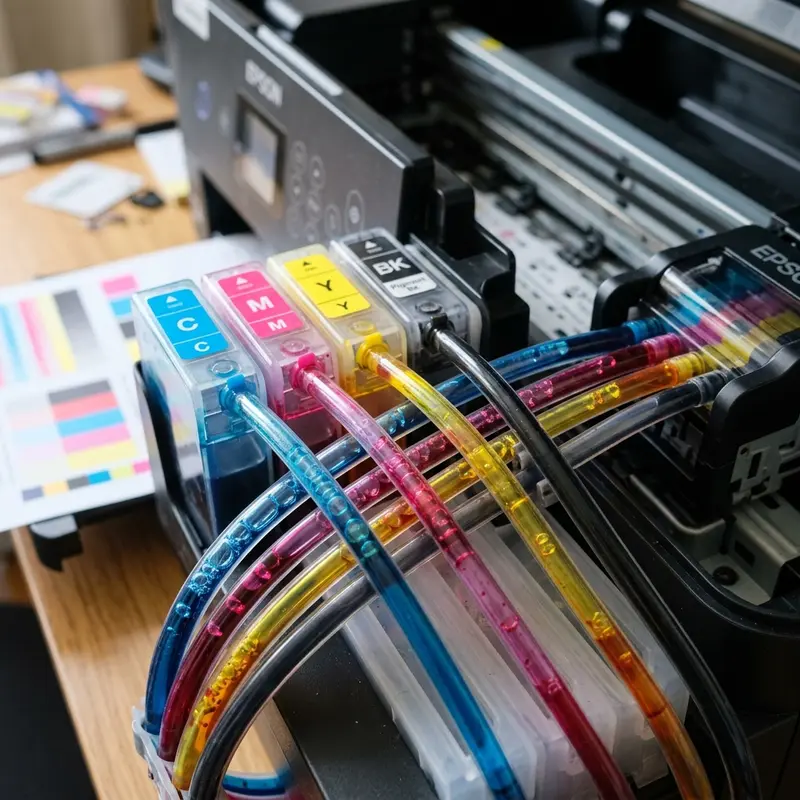
How to Reset Epson Printer Ink Pad Counters for Free
Maintaining your Epson printer is essential for optimal performance and longevity. One of the most common issues that users face is the "Service Required" error, which is often linked to the waste ink pad counters. In this comprehensive guide, we will explain what a waste ink pad is, the error codes you might encounter, and how to reset the ink pad counters using the WIC Reset Utility. Additionally, we will discuss when to consider physical pad replacement and provide a comparison of reset versus replacement. By the end of this article, you'll be equipped with the knowledge needed to manage your Epson printer's waste ink pad effectively.

What is the Waste Ink Pad?
The waste ink pad is a critical component of most inkjet printers, including Epson models. Its primary function is to absorb excess ink that is generated during the printing process, such as during print head cleaning cycles. Over time, these pads can become saturated with ink, leading to potential leaks and damage to the printer.
When the waste ink pads reach their capacity, the printer's firmware will trigger an error message indicating that the "Ink pads are full" or "Service Required." This serves as a warning that maintenance is needed to prevent ink overflow and potential printer damage. If you encounter this error, you have two primary options: reset the ink pad counters using a utility or physically replace the waste ink pads.
Service Required Error Codes
When your Epson printer's waste ink pad counter is full, you may see one of several error codes on your printer's display or via the connected computer. Common error messages include:
- Service Required: This is a general message indicating that the printer needs servicing.
- Ink Pad is Full: This message specifically refers to the waste ink pad, indicating it cannot absorb any more ink.
- Reset Ink Pad Counters: This error suggests that you need to reset the waste ink pad counters before using the printer again.
Understanding these messages is crucial for addressing the underlying issue. If you see any of these error messages, it's time to consider resetting the ink pad counters or replacing the pads physically.
WIC Reset Utility Step by Step
The WIC Reset Utility is a free tool that allows you to reset the waste ink pad counters on your Epson printer. Follow these step-by-step instructions to use the WIC Reset Utility:
Step 1: Download and Install the WIC Reset Utility
1. Visit the official WIC Reset Utility website: WIC Reset Utility.
2. Click on the download link for your operating system (Windows or macOS).
3. Once the download is complete, run the installer and follow the on-screen instructions to complete the installation.
Step 2: Connect Your Printer
Ensure that your Epson printer is connected to your computer via USB or network. Verify that the printer is powered on and ready for use.
Step 3: Launch the WIC Reset Utility
Open the WIC Reset Utility application from your desktop or Start menu. The program will prompt you to select your printer model.
Step 4: Select Your Printer Model
1. In the WIC Reset Utility, click on the "Select" button.
2. A list of available printer models will appear. Locate your specific Epson printer model and select it.
Step 5: Read the Current Status
After selecting your printer model, the WIC Reset Utility will display the current status of your printer, including the waste ink pad counter readings.
Step 6: Reset the Ink Pad Counters
1. Click on the "Reset" button within the utility.
2. The application will prompt you to confirm the reset action. Review the information and confirm that you want to proceed with the reset.
3. Wait for the utility to complete the reset process. This may take a few moments.
Step 7: Restart Your Printer
Once the reset process is complete, restart your Epson printer to apply the changes. This should clear the error message, allowing you to resume printing.
If the error persists, it may be necessary to consider physical replacement of the waste ink pads.
Physical Pad Replacement When Needed
While resetting the ink pad counters can provide a temporary fix, there comes a time when the physical waste ink pads need to be replaced. Signs that indicate a need for physical replacement include:
- Frequent error messages even after resets.
- Visible ink leakage around the printer.
- Unusual odors from the printer, indicating saturated pads.
Replacing the waste ink pads can be more involved than a simple reset. Here is a general guideline on how to replace the waste ink pads in your Epson printer:
Step 1: Gather Necessary Tools
You will need:
- Replacement waste ink pads (specific to your printer model).
- Phillips head screwdriver.
- Scissors (for cutting any tape or securing materials).
- Rags or paper towels (for cleaning any spilled ink).
Step 2: Prepare the Printer
1. Power off the printer and unplug it from the electrical outlet.
2. Remove any paper from the input and output trays.
3. Open the printer cover to access the internal components.
Step 3: Locate the Waste Ink Pads
In many Epson printers, the waste ink pads are located near the print head assembly. Look for a sponge-like material that is typically rectangular or square in shape.
Step 4: Remove the Old Ink Pads
1. Carefully lift out the old waste ink pads. You may need to unscrew or detach any covers holding them in place.
2. Use rags or paper towels to clean any excess ink that has spilled during the removal process.
Step 5: Install the New Ink Pads
1. Place the new waste ink pads in the same position as the old ones.
2. Ensure they are secured properly and that there are no gaps where ink could leak.
Step 6: Reassemble the Printer
1. Close the printer cover and secure any screws or tabs that were removed.
2. Plug in the printer and turn it on.
3. Run a test print to ensure everything is functioning correctly.
Models Covered
The WIC Reset Utility can be used for various Epson printer models, including:
- Epson EcoTank Series
- Epson WorkForce Series
- Epson Expression Series
- Epson Stylus Series
Before proceeding with the reset or replacement, always confirm compatibility with your specific printer model by checking the WIC Reset Utility documentation or the official Epson website.
Reset vs Replacement Comparison Table
| Feature | Reset | Replacement |
|---|---|---|
| Cost | Free (software) | Varies (cost of replacement pads) |
| Complexity | Simple (software process) | Moderate (requires disassembly) |
| Time | Quick (minutes) | Longer (30 minutes to an hour) |
| Effectiveness | Temporary fix | Permanent solution |
| Frequency Required | Often, as needed | Infrequently (every few years) |
DomineTec Tip: Regular maintenance of your printer, including cleaning the print head and checking ink levels, can help prevent the need for frequent resets or replacements of the waste ink pads.
Safety Precautions
When performing maintenance on your printer, safety should always be a priority. Here are some essential safety tips to keep in mind:
- Always turn off and unplug the printer before performing any maintenance.
- Wear gloves when handling waste ink pads to avoid skin contact with ink.
- Keep the work area clean and free from clutter to prevent accidents.
- Dispose of used ink pads properly, following local regulations for hazardous waste.
- If you are unsure about any steps, consult the printer's user manual or contact a professional technician.
Advanced Techniques for Resetting Ink Pad Counters
While the WIC Reset Utility is widely used for resetting ink pad counters, there are alternative methods that some advanced users employ. These methods may not be as straightforward but can be effective if done correctly. Below are two advanced techniques:
Using the Epson Adjustment Program
The Epson Adjustment Program is an official software from Epson that allows users to perform various maintenance tasks on their printers, including resetting the ink pad counters. Here’s how to use it:
- Download the Epson Adjustment Program specific to your printer model.
- Install the program on your computer.
- Connect your printer via USB and turn it on.
- Open the Adjustment Program and select your printer model.
- Navigate to the “Waste Ink Pad Counter” section.
- Click on the “Reset” button and follow the prompts.
Note that this method requires a certain level of technical skill and the software may not be freely available for all printer models.
DIY Method for Experienced Users
For those who are technically inclined, it’s possible to manually reset the ink pad counters by accessing the printer's firmware. However, this method comes with risks, including voiding warranties and potentially damaging the printer. If you choose to go this route, proceed with caution:
- Open the printer's main control panel using a screwdriver.
- Locate the main circuit board and identify the EEPROM chip.
- Using a specialized chip programmer, connect to the EEPROM and extract the firmware.
- Modify the firmware to reset the ink pad counters.
- Re-upload the modified firmware back to the printer.
- Reassemble the printer carefully.
This method is recommended for experienced technicians only, as incorrect handling can lead to permanent damage.
Common Mistakes and How to Avoid Them
Even experienced users can make mistakes during the reset process. Here are some common pitfalls and how to avoid them:
- Not Backing Up Data: Before making any changes, ensure you have a backup of your printer settings and any important files. This can save you time if something goes wrong.
- Using Incorrect Software: Always verify that you are using the correct version of the WIC Reset Utility or Epson Adjustment Program for your specific printer model. Using the wrong version can lead to errors.
- Ignoring Firmware Updates: Ensure your printer's firmware is up to date. Older firmware may not work well with the reset software, leading to issues.
- Skipping Physical Maintenance: After resetting the counters, it's crucial to check and clean the physical waste ink pads. Neglecting this can result in further errors.
Time and Money-Saving Tips
Resetting your Epson printer’s ink pad counters can save you both time and money. Here are some tips to maximize your savings:
- Learn Basic Maintenance: Familiarizing yourself with basic printer maintenance can save you time and money in the long run. Regular cleaning and proper handling can extend the life of your printer.
- Buy Third-Party Software: While the WIC Reset Utility offers free options, investing in a paid version can unlock additional features and support, making the reset process easier and more reliable.
- Join Community Forums: Engaging with online communities can provide valuable insights and troubleshooting tips. You can learn from others’ experiences and avoid common mistakes.
- Keep Spare Parts: If you plan to perform maintenance yourself, keeping a few spare parts on hand, such as waste ink pads, can save you time and money when repairs are needed.
Comparison of Resetting vs. Replacing Waste Ink Pads
| Criteria | Resetting | Replacing |
|---|---|---|
| Cost | Free or low cost (software fees) | Higher (cost of parts and labor) |
| Time | Quick (10-30 minutes) | Longer (1-2 hours depending on skill level) |
| Skill Level Required | Basic computer skills | Technical skills for disassembly |
| Long-term Solution | No (temporary fix) | Yes (restores printer to optimal function) |
Ultimately, the decision to reset or replace depends on your specific situation, printer model, and comfort level with technical tasks. Understanding the pros and cons of each option will help you make an informed choice.
Frequently Asked Questions (FAQ)
1. How often should I reset the waste ink pad counters?
The frequency of resets will depend on your printing habits. If you print frequently, you may need to reset the counters every few months. Monitor the printer for any error messages indicating that the pads are full.
2. What happens if I don't reset the ink pad counters?
If you ignore the "Service Required" message and do not reset the ink pad counters, your printer will not function properly. Continuing to use the printer could lead to ink leakage and severe damage.
3. Can I use third-party waste ink pads for replacement?
While third-party pads may be available, it is recommended to use genuine Epson replacement pads to ensure compatibility and optimal performance. Using third-party products may void your warranty.
4. Is the WIC Reset Utility safe to use?
Yes, the WIC Reset Utility is widely used by many Epson printer owners and is considered safe. However, always download software from the official website to avoid potential malware.
5. How can I prevent my waste ink pads from filling up quickly?
To minimize the frequency of waste ink pad saturation, consider using the printer regularly, avoiding excessive print head cleaning cycles, and keeping the printer in a dry environment to prevent excess ink buildup.






