Understanding Duplicates in Excel
In the world of data management, duplicates can be a real headache. They not only clutter your spreadsheets but can also skew your analysis, lead to inaccurate forecasting, and possibly derail your project. Whether you’re running a financial report in Excel 2021 or tracking sales in Excel 365, cleaning up duplicate data is an essential skill. I mean, who hasn’t found themselves staring at a list of identical entries wondering how they got there?
Duplicates can crop up for various reasons: human errors during data entry, merging databases, or importing data from different sources. For instance, if you’re managing customer information in Excel 2019, you might end up with multiple rows for the same customer due to slight variations in name spelling or formatting. Let’s tackle how to remove those pesky duplicates efficiently!
Using the Remove Duplicates Feature
Excel offers a built-in feature called “Remove Duplicates,” and honestly, it’s a lifesaver. Here’s how to make it work for you:
- Select the range of cells you want to check for duplicates.
- Navigate to the Data tab on the ribbon.
- Click on Remove Duplicates. A dialog box will pop up, showing the columns included in your selection.
- Tick the boxes next to the columns that should be checked for duplicates. This is important; if you’re only interested in duplicates based on email addresses, make sure to select that column.
- Click OK, and voilà! Excel will tell you how many duplicates it found and removed.
In my experience, this feature is reliable for cleaning up lists swiftly, especially when you’ve got a large dataset. Just remember to double-check which columns you’re including because, let’s face it, there’s nothing worse than accidentally deleting important data.
Excel Shortcuts to Save Time
Time is of the essence, right? Keyboard shortcuts can speed up your workflow in Excel tremendously. When it comes to removing duplicates, here are a few handy ones:
Ctrl + T: Quickly convert your data range into a table, which can help you easily manage and remove duplicates later.Ctrl + Shift + L: This shortcut will toggle filters. You can filter duplicates and then remove them as needed.Alt + F11: Opens the VBA editor for those who want to create more advanced macros to automate duplicate removal in large datasets.
By using these shortcuts regularly, you’ll not only become more efficient but also give yourself more time for actual analysis instead of data cleanup.
Cleaning Up Duplicates with Formulas
If you're more of a formulas person (no shame in that!), you can also use Excel functions to identify duplicates. A popular method is using the COUNTIF function. Here’s a quick example:
=IF(COUNTIF(A:A, A2) > 1, "Duplicate", "Unique")The formula checks if the value in cell A2 appears more than once in column A. If it does, it labels it as “Duplicate.” You can then filter or sort by this new column to easily identify which rows to delete.
Just remember, while formulas are powerful, they can also be prone to human error, especially when dragging them down a long list. Double-checking your ranges is key here.

Advanced Techniques in Excel 365 and Excel for Mac
In Excel 365, you’ll find some nifty new features that can help with duplicate removal. For instance, the new dynamic array functions can make your life easier. You can use the UNIQUE function to extract unique values from a range.
=UNIQUE(A2:A100)This formula will create a new list of unique values from the specified range. It’s automatically updated, which makes maintaining a clean dataset much simpler.
If you're using Excel for Mac, the good news is that most of these features mirror those in the Windows versions. Just keep in mind that some shortcuts might differ slightly. The interface is pretty much the same, so you won’t feel lost.
Common Mistakes When Removing Duplicates
Let’s talk about pitfalls. One common mistake I see is not making a backup of your data before hitting that “Remove Duplicates” button. Always, and I mean always, create a copy of your spreadsheet. You never know when you might accidentally wipe out something crucial.
Another thing to watch for is overlooking data formatting. If you have “John Doe” in one row and “john doe” in another, Excel might consider them unique due to the case difference. To avoid this, you can use the TRIM and UPPER functions to standardize your data before checking for duplicates.
Dica DomineTec: Always standardize your data before removing duplicates to ensure accuracy!
When to Use Other Methods
While the built-in feature is fantastic, there are scenarios where you might need to go beyond it. For instance, if you're handling vast datasets with thousands of entries or if you need to maintain a log of removed duplicates for auditing purposes, using a macro might be the way to go. With Excel VBA, you can create a script that not only removes duplicates but also logs them to a new sheet for review.
Additionally, when working with large teams, it might be worth setting up data validation rules to prevent duplicates from entering your system in the first place. This proactive approach can save you the hassle later on.
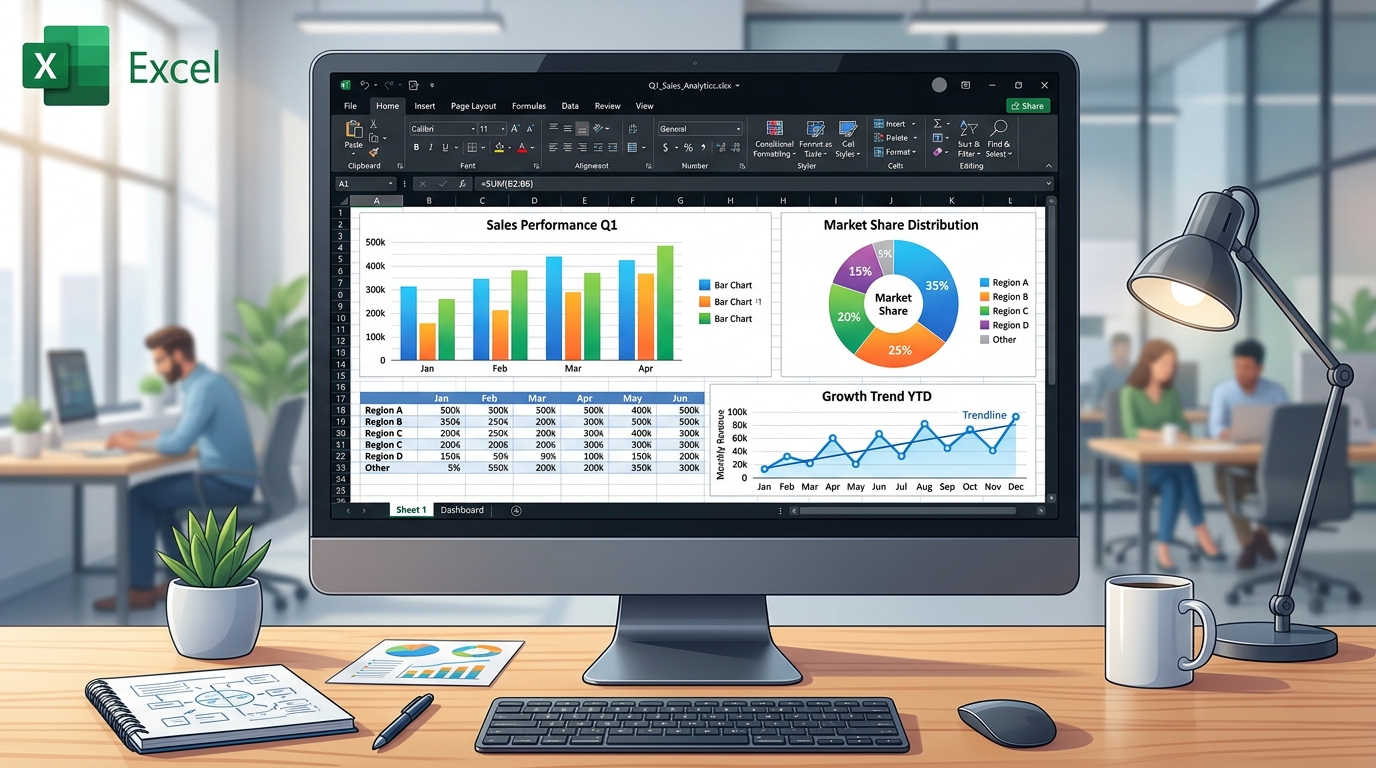
Advanced Techniques for Removing Duplicates in Excel 365
When working with large datasets, standard methods might not always cut it. In my experience managing complex financial reports, leveraging the advanced features of Excel 365 makes a world of difference. You might have noticed that basic approaches can sometimes slow down your spreadsheet, especially when dealing with thousands of rows. But why settle for less when you can optimize?
One trick I always recommend is combining your standard process with dynamic arrays if you're on a newer version. For instance, using shortcuts like Ctrl+Shift+L to toggle filters before you apply any major transformations can save you from accidental data loss. Have you ever applied a change only to realize it affected hidden rows? It's a nightmare. Always ensure your data is visible. Moreover, utilizing the Alt+F11 shortcut to peek into VBA can open up possibilities for automation, even if you just record a macro initially.

Another aspect often overlooked is the power of Named Ranges. Instead of referencing standard cell arrays, giving them a meaningful name makes your formulas readable and your processes less error-prone. This ties directly into mastering Removing Duplicates. When you apply these methods, not only does your spreadsheet run faster, but your colleagues will also thank you for making the data easier to understand. Always remember to use Ctrl+Z if things go sideways, but with careful planning, you won't need it often.
Common Pitfalls and Troubleshooting Removing Duplicates
Even seasoned professionals run into issues when dealing with Removing Duplicates. Just last week, while working on an inventory management dashboard, a colleague spent hours trying to figure out why their data wasn't aligning correctly. The culprit? Hidden characters and trailing spaces. Before you dive deep into your workflow, always consider running the TRIM() and CLEAN() functions on your raw data.
DomineTec Tip: Always clean your data before applying complex operations. A simple =TRIM(A2) can save you hours of debugging!
It's fascinating how different versions, like Excel 2019 versus Excel for Mac, handle background processing. Sometimes, what works seamlessly on a PC might require a slight adjustment on a Mac. If you're using keyboard shortcuts, remember that Mac users often rely on Cmd instead of Ctrl. Have you ever tried sharing a workbook only to find the formatting completely broken on the recipient's end? This usually happens due to version incompatibility or unsupported features.
To avoid these pitfalls, I always advise saving a backup copy of your data (F12 is your best friend for a quick Save As). Whether you are formatting cells, writing complex syntax like =VLOOKUP(A2,Sheet2!$A:$D,3,FALSE), or simply adjusting your print area, having a fallback ensures you never lose critical work. Troubleshooting doesn't have to be daunting if you approach it systematically.
Optimizing Workflow with Removing Duplicates
Let's talk about efficiency. In the modern workplace, speed is just as important as accuracy. When I first started working with Excel Online, I realized that optimizing my workflow was crucial for collaborative projects. Managing Removing Duplicates effectively means less time clicking around and more time actually analyzing the results.
Consider the use of Excel Tables (Ctrl+T). When you convert your standard range into a table, any new data added automatically inherits the formatting and formulas. This is a game-changer for dynamic datasets like HR tracking or weekly sales reports. Why manually drag down formulas when Excel can do it for you? Furthermore, integrating these tables into your daily routine reduces the risk of human error.
Beyond tables, understanding absolute and relative referencing is vital. Pressing F4 to lock your cell references (like changing A1 to $A$1) ensures that when you copy your logic across columns, it points exactly where it should. Combining these fundamental practices with Removing Duplicates will elevate your spreadsheet skills from average to expert level, impressing your boss and saving you countless hours.
Integrating Removing Duplicates into Daily Operations
One of the most frequent questions I get asked is how to make these skills stick. The answer is integration. You shouldn't just learn about Removing Duplicates and forget it; it needs to become a part of your daily muscle memory. For example, if you manage a sales dashboard, make it a habit to check your data integrity every morning using the techniques we've discussed.
If you're still using legacy systems or older versions like Excel 2016, you might find some newer functions missing. However, the core logic remains the same. You can always use alternative methods, such as combining INDEX and MATCH if newer lookups aren't available. It's about being adaptable. "The only constant in technology is change," as they say, and Excel is no exception.
DomineTec Tip: Build a template for your most common tasks. Having a pre-formatted structure allows you to focus on the data rather than the setup.
Finally, don't underestimate the power of visual feedback. Using Conditional Formatting alongside your main tasks can immediately highlight anomalies or trends. Setting up rules to flag duplicate entries, highlight top performers, or identify missing data makes your work not just functional, but visually compelling. When Removing Duplicates becomes second nature, you'll wonder how you ever managed without it.
Real-World Examples: Removing Duplicates in Action
Theory is great, but practical application is where the magic happens. Let's look at a scenario involving a mid-sized retail company. They were struggling with consolidating their monthly sales reports. By applying the principles of Removing Duplicates, they managed to reduce their reporting time by 40%. It's incredible what a few well-placed formulas and organized data structures can achieve.
In another case, an HR department needed to track employee attendance and performance metrics across different branches. They utilized Excel 365's collaborative features, allowing multiple managers to input data simultaneously. By enforcing strict data validation and using the techniques discussed here, they eliminated inconsistencies. They used formulas like =COUNTIFS(B:B, ">"&TODAY()-30, C:C, "Present") to dynamically track recent activity.

These aren't just isolated incidents. Whether you are a student managing a budget, a small business owner tracking inventory, or a corporate analyst dealing with big data, the application of Removing Duplicates scales to your needs. The key takeaway here is that Excel is a versatile tool, and mastering its nuances empowers you to tackle almost any data challenge with confidence.
Frequently Asked Questions
What is the quickest way to remove duplicates in Excel?
The quickest way is to select your data range, head to the Data tab, and click Remove Duplicates. Just make sure to check the columns you want to analyze!
Can I recover data after removing duplicates?
If you haven't created a backup or version history, recovering removed data can be tricky. It’s always a good practice to save a copy of your original data before making changes.
Does Excel for Mac have the same duplicate removal features as Windows?
Yes, Excel for Mac provides similar features for removing duplicates. However, be mindful of slight differences in keyboard shortcuts between the platforms.
Can I set Excel to automatically highlight duplicates?
Absolutely! You can use conditional formatting to highlight duplicates. Just select your data, go to Home > Conditional Formatting > Highlight Cells Rules > Duplicate Values.
What are some common mistakes to avoid when removing duplicates?
Some common mistakes include not making a backup, overlooking data formatting variations, and selecting the wrong columns when removing duplicates.