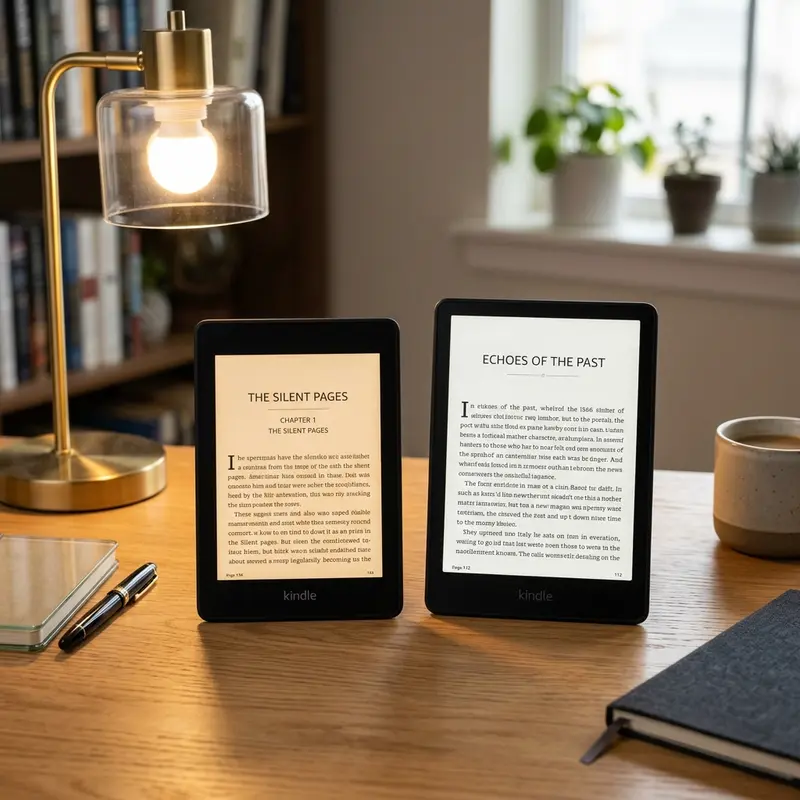
Standard PDFs look awful on Kindle screen. To read a PDF on Kindle without formatting issues, send it to your Kindle email with the subject line 'Convert' or convert it using Calibre.
The Amazon Kindle is undoubtedly one of the finest electronic reading devices ever created, but it was designed primarily for reflowable text formats like EPUB, AZW3, and KFX. Portable Document Format (PDF) files, on the other hand, are designed to preserve a fixed layout, regardless of the screen size they are viewed on. When you try to read a standard A4 or Letter-sized PDF document on a 6-inch or 7-inch Kindle screen, the results are often frustrating: microscopic text, broken columns, missing images, and constant panning or zooming that destroys the reading flow.
Fortunately, you do not have to settle for a poor reading experience. In this comprehensive guide, we will explore the best methods to optimize, convert, and format PDF documents so they render beautifully on your Kindle device. Whether you are dealing with academic papers, scanned textbooks, or documents that you need to compile, we have got you covered.
Publicidade
Why PDFs Look So Bad on Amazon Kindle by Default
To fix the formatting issues associated with PDFs on Kindle, it helps to understand why they occur in the first place. Kindle books use reflowable text, which means that when you increase or decrease the font size, the words automatically adjust to fill the screen, moving to the next line or page as needed. This allows for a highly customizable and comfortable reading experience, where margins, spacing, and fonts can be tweaked at will.
In contrast, a PDF is essentially a digital printing press document. It tells the screen exactly where to place every character, line, image, and margin relative to the page boundaries. When you open a PDF on Kindle, the device has no choice but to shrink the entire fixed-size page to fit the screen. Since a typical PDF is designed for standard paper sizes (A4 or US Letter), shrinking it down to a small e-ink screen makes the text tiny and practically unreadable. Panning around a zoomed-in page on an e-ink screen is slow and laggy due to the screen refresh rates, making this an unpleasant way to read.
Publicidade
The Best Way: Sending to Kindle with the "Convert" Subject Line (Amazon's Conversion Tool)
The easiest and most accessible method to fix PDF formatting on Kindle is to use Amazon's built-in conversion service. This method does not require you to install any software on your computer, as Amazon handles the processing on their cloud servers and delivers a reflowed e-book file directly to your library.
Every Kindle device and Kindle reading app is assigned a unique Send-to-Kindle email address. By sending your PDF to this address with a specific instruction, Amazon's servers will parse the layout, extract the text, and convert it into a reflowable Kindle format.
How to Find Your Send-to-Kindle Email
Go to the Amazon website and navigate to Manage Your Content and Devices.
Click on the Preferences tab at the top.
Scroll down to the Personal Document Settings section.
Under Send-to-Kindle Email Settings, you will see the unique email address assigned to your Kindle device (it usually ends in @kindle.com).
Ensure that the personal email address you will use to send the PDF is listed under the Approved Personal Document E-mail List just below. If it is not, click "Add a new approved e-mail address" and add it.
Publicidade
Sending the Document with the Convert Subject
Once you have your Kindle email ready, draft a new email from your approved address. Attach the PDF file to the email, and in the subject line, type exactly: Convert. Leave the body of the email completely blank and hit send.
Within a few minutes, Amazon will process the file, convert it, and sync it to your Kindle over Wi-Fi. The document will appear in your library as a Kindle book, allowing you to change the font size, adjust margins, look up dictionary definitions, and highlight text just like a native e-book. While this method is highly convenient, it can sometimes struggle with multi-column layouts, tables, or documents containing complex mathematical equations.
Dica DomineTec: If you are dealing with multiple separate documents that need to be read together, it is often easier to first merge PDF online into a single structured document before sending it to Amazon. This keeps your library organized and ensures a contiguous reading flow.
Publicidade
Using Calibre to Convert PDF to KFX or AZW3 Formats
For advanced readers who want total control over their e-book conversion, Calibre is the gold standard. Calibre is a free, open-source e-book management software available for Windows, macOS, and Linux. It allows you to perform advanced reflow operations, fix line breaks, and customize metadata before transferring files to your Kindle via USB.
Step-by-Step Calibre Conversion Guide
Download and install the latest version of Calibre on your computer.
Open Calibre and click on Add Books in the top-left corner to import your PDF.
Select the PDF in your library and click on Convert Books.
In the top-right corner of the conversion window, set the Output Format to AZW3 or EPUB (AZW3 and KFX are native Kindle formats, while EPUB is widely compatible).
Navigate to the Page Setup tab and ensure the Output Profile matches your specific Kindle model (e.g., Kindle Paperwhite or Kindle Basic) to optimize image scaling.
Go to the PDF Input tab and check the box that says Enable heuristic processing. This option uses smart algorithms to fix common PDF conversion errors, such as broken line endings, incorrect paragraph spacing, and random hyphenations.
Click OK to start the conversion. Once completed, connect your Kindle to your computer via USB and click Send to Device.
Publicidade
Calibre does an excellent job with text-heavy PDFs. However, if your PDF has a lot of images, diagrams, or programming code snippets, the conversion process can sometimes scramble the layout. If you run into issues, you may want to convert the document to an intermediate format. For instance, you can convert PDF to Word, clean up the formatting, headings, and images in Microsoft Word, and then convert that Word document into a Kindle-friendly format via Calibre.
Optimizing and Reflowing PDFs Prior to Conversion (K2pdfopt and Other Tools)
If you have scanned PDFs, heavy textbooks, or documents containing complex layouts (like double columns or mathematical formulas), standard text reflow conversion will likely fail. In these situations, the best solution is not to convert the PDF to an e-book format, but rather to optimize the PDF itself for the Kindle's screen size using a tool called K2pdfopt.
Publicidade
K2pdfopt (Kindle to PDF Optimizer) is a free, open-source software designed specifically to re-layout PDF pages for mobile e-readers. Instead of extracting raw text, K2pdfopt treats the pages as images, cropping them, wrapping columns, and magnifying text while preserving the original appearance of equations, diagrams, and formatting.
How to Use K2pdfopt for Flawless Kindle Reading
Download K2pdfopt for your operating system.
Drag and drop your PDF into the program's main interface.
Select your target device from the presets (such as "Kindle Paperwhite" or "Kindle 1/2/3/4/5/Touch/Basic").
Choose the conversion mode. The default mode, "copy", is ideal for standard text files, while "wrap" or "grid" works best for complex multi-column documents.
Click the Preview button to see how the reformatted pages will look on your Kindle screen. Adjust margins and text size if necessary.
Click Convert All Files. The software will generate a new PDF optimized specifically for your Kindle. Drag this new file onto your Kindle via USB or send it via email (without the "Convert" subject line).
Publicidade
Reading PDFs in Landscape Mode and Zooming Strategies on Kindle
Sometimes, converting or modifying the layout of a PDF is not feasible, especially for documents containing highly detailed blueprints, maps, or large financial spreadsheets. If you must read the original, unaltered PDF layout on your Kindle, you can make the reading experience much more comfortable using native Kindle display options.
Switching to Landscape Mode
By default, Kindles display content in portrait mode. However, turning your Kindle sideways to landscape mode essentially widens the display viewport, letting you view the PDF page in wider, more readable segments. To do this:
Open the PDF document on your Kindle.
Tap the top of the screen to reveal the reading menu.
Tap the Aa (Page Settings) icon.
Go to the Layout tab.
Select the Landscape orientation.
In landscape mode, you will only see half a page at a time, but the text will be twice as large. You can scroll down the page by swiping up or using the page-turn areas on your device.
Publicidade
Adjusting Margins and Contrast
Kindles also let you adjust the margins of PDF documents directly. In the page settings menu, you can select margin presets to crop white borders, maximizing the space occupied by the actual text. Newer Kindle models also support page contrast adjustments, allowing you to darken light text to make it more legible under the e-ink screen's front light.
PDF to Word or ePub: Manual Reflow and Editing for Complex Layouts
When automated conversion tools fail to handle highly stylized documents, manually formatting them is the ultimate way to achieve a perfect Kindle layout. This approach is highly recommended for fiction books, manuals, or documents you intend to read repeatedly.
The workflow involves converting the PDF to an editable document format. You can convert PDF to Word using high-quality online conversion tools. Once you have the Word document, open it in a word processor to clean up any visual errors: remove double spaces, fix line breaks at the end of sentences, assign appropriate H2 and H3 heading tags to chapters, and verify that images are centered and formatted properly. Finally, load the edited Word file into Calibre or use Kindle Previewer to convert it to a pristine AZW3 or EPUB file, which will render flawlessly on your device.
Publicidade
Comparison of PDF Optimization and Reading Methods
To help you choose the best approach for your documents, we have compiled a comparison table of the top PDF processing methods for Kindle devices:
Method
Setup Difficulty
Layout Quality
Best For
Reflowable Text
Send-to-Kindle (Convert)
Very Low
Medium
Text-only novels & short articles
Yes
Calibre (AZW3/KFX)
Medium
High
Standard books, text-heavy PDFs
Yes
K2pdfopt (Optimized PDF)
High
Very High
Scanned books, academic papers
No (preserves original format)
Landscape Mode (Native)
None
Perfect
Large charts, maps, blueprints
No
Word Intermediate Edit
Very High
Flawless
Complex books & files for archive
Yes
Dica DomineTec: If you have multiple small PDFs, it is highly recommended to compile them first. You can merge PDF online to bundle related chapters into a single file before initiating any conversion process, saving you from repeating these steps for every single document.
Publicidade
Conclusion
While the Kindle is not natively optimized for standard A4 PDF files, you now have the tools and knowledge to fix any formatting problems you encounter. For quick and easy reading, Amazon's Send-to-Kindle conversion service works wonders. For complete control and text customization, Calibre is the perfect desktop companion. And for complex, multi-column academic papers, K2pdfopt ensures that you preserve the integrity of every chart and equation without straining your eyes. Try these methods out to discover the perfect reading workflow for your e-reader.
Frequently Asked Questions (FAQ)
1. Why does my PDF look blank or have missing text on Kindle?
This issue typically occurs when the PDF is a scanned image rather than actual text, or when the file contains DRM (Digital Rights Management) protections. If the PDF is scanned, Kindle's native reader may struggle to display the text layers. Using a tool like K2pdfopt to preprocess the image-based PDF or running OCR (Optical Character Recognition) on the document before transferring will resolve the blank page issue.
Publicidade
2. Does converting a PDF to AZW3 lose the images?
No, Calibre and Amazon's conversion tools can preserve images, but they might scale them down to fit the Kindle screen width. If images are crucial, ensure that you set the correct output profile in Calibre's Page Setup settings so the images are scaled proportionally to your specific Kindle's screen resolution.
3. Can I highlight and look up words in a PDF on Kindle?
If you read the PDF in its raw format, you can highlight text and use the dictionary, provided that the PDF is text-searchable (not scanned). However, the interface can be sluggish. If you convert the PDF to a reflowable Kindle format (like AZW3 or EPUB) using Send-to-Kindle or Calibre, highlighting, searching, and looking up words will work smoothly, just like a standard Kindle book.
4. What is the maximum file size for Send-to-Kindle email?
Amazon's Send-to-Kindle email service supports attachments up to 50 megabytes (MB). If your PDF is larger than 50MB, you can either compress the PDF using an online compressor, split it into smaller documents, or transfer the PDF directly to your Kindle's "documents" folder using a USB cable connected to your computer.