Mastering the Art of Printing Your Entire Excel Spreadsheet on One Page
Have you ever found yourself in a situation where you've spent hours crafting the perfect Excel spreadsheet, only to print it out and realize that half the data is cut off or scattered across multiple pages? Trust me, you're not alone in this struggle! I've faced this challenge more times than I'd like to admit, and it can be incredibly frustrating. Whether it's a financial report that needs to be presented neatly or a sales tracking sheet for your team, ensuring that all your data fits succinctly on one page can be a game changer.
Before we jump into the nitty-gritty, let’s clarify something: the method to print your spreadsheet on one page may vary slightly between Excel versions, such as Excel 365, Excel 2021, and Excel 2019. But don’t worry; I’ll walk you through each step, offering tips that I’ve gathered throughout my years of experience using Excel.
Understanding Page Setup Options
The first thing we need to tackle is the Page Setup feature. You can find this under the Page Layout tab in any version of Excel you’re using. Here’s how to navigate it:
- Go to the Page Layout tab.
- Click on Size to choose your desired paper size, usually A4 or Letter.
- Next, select Orientation to choose either Portrait or Landscape. Landscape might be your best bet for wider spreadsheets.
After you've set up your page, it’s time to delve a little deeper. Click on the tiny arrow in the bottom right corner of the Page Setup section. This will open a whole new world of options!
Scaling Your Spreadsheet to Fit One Page
This is where Excel really shines! Scaling lets you shrink your spreadsheet to fit everything on a single page. Here’s the trick:
- In the Page Setup dialog, look for the Scaling section.
- Select Fit to and enter 1 page(s) wide by 1 page(s) tall.
This will condense all of your data into a single page. But beware! Sometimes, this can make your text so small that it’s unreadable. I've often had to strain my eyes while reviewing reports printed this way. Adjust the font size if necessary for better readability.

Adjusting Margins for Extra Space
If you’re still struggling to fit everything onto one page, adjusting your margins is a fantastic way to free up some extra real estate. Here’s how to do that:
- While still in the Page Setup dialog, click on the Margins tab.
- Choose Narrow margins or create Custom Margins to squeeze a bit more into the page.
Just don’t go overboard with the margins! Na minha experiência, tiny margins look a bit unprofessional and can be frustrating for your audience to navigate.
Utilizing Print Titles for Better Navigation
So, you’ve successfully managed to fit your spreadsheet onto one page. Now, what about those headers? If you're printing a large dataset, having titles on each page can be super helpful. In Excel for Mac and other versions, you can set print titles as follows:
- In the Page Setup dialog, click on the Sheet tab.
- Under the Print titles section, specify the rows and/or columns you'd like to repeat on every printed page.
This ensures that even if you split your data across pages, your audience will know exactly what they’re looking at. Trust me, I’ve had clients thank me for this small feature more times than I can count!
Previewing Before You Print
Ah, the print preview. This is your last line of defense against potential mishaps. Always, and I mean always, check the print preview before committing to a physical print. You can access this by clicking on File and then Print. Here’s a pro tip: if something doesn’t look right, you can quickly go back and adjust your settings without wasting paper.
Dica DomineTec: If your print preview shows too many blank pages, check your margins and scaling settings!
Common Mistakes to Avoid
Now, let’s address some typical pitfalls that users often face when attempting to print their spreadsheets:
- Overlooking Print Area: If you’ve set a print area, make sure it encompasses all the data you want. Otherwise, you might miss out on important information.
- Neglecting Header/Footer Settings: Sometimes, your headers and footers can take up too much space. Make sure they are succinct.
- Ignoring Gridlines: If you want gridlines to show up in your printout, make sure to check the box for this option in the Page Setup dialog.
Avoiding these mistakes is crucial for achieving a professional-looking spreadsheet. Remember, nobody wants to deal with confusion caused by an incomplete printout!
Conclusion: Make Printing Effortless
With these tips and tricks, you should have all the tools needed to print your entire Excel spreadsheet neatly on one page. It's all about making sure everything is set up correctly, checking your margins, and utilizing print preview. In my experience, taking a few extra minutes to ensure everything looks good pays off immensely. After all, whether you're sending out financial reports or tracking sales data, presenting your information clearly can make a world of difference.
If you're eager to expand your Excel skills even further, check out our posts on Excel formulas and functions and using pivot tables effectively.
Advanced Techniques for Printing on One Page in Excel 365
When working with large datasets, standard methods might not always cut it. In my experience managing complex financial reports, leveraging the advanced features of Excel 365 makes a world of difference. You might have noticed that basic approaches can sometimes slow down your spreadsheet, especially when dealing with thousands of rows. But why settle for less when you can optimize?
One trick I always recommend is combining your standard process with dynamic arrays if you're on a newer version. For instance, using shortcuts like Ctrl+Shift+L to toggle filters before you apply any major transformations can save you from accidental data loss. Have you ever applied a change only to realize it affected hidden rows? It's a nightmare. Always ensure your data is visible. Moreover, utilizing the Alt+F11 shortcut to peek into VBA can open up possibilities for automation, even if you just record a macro initially.
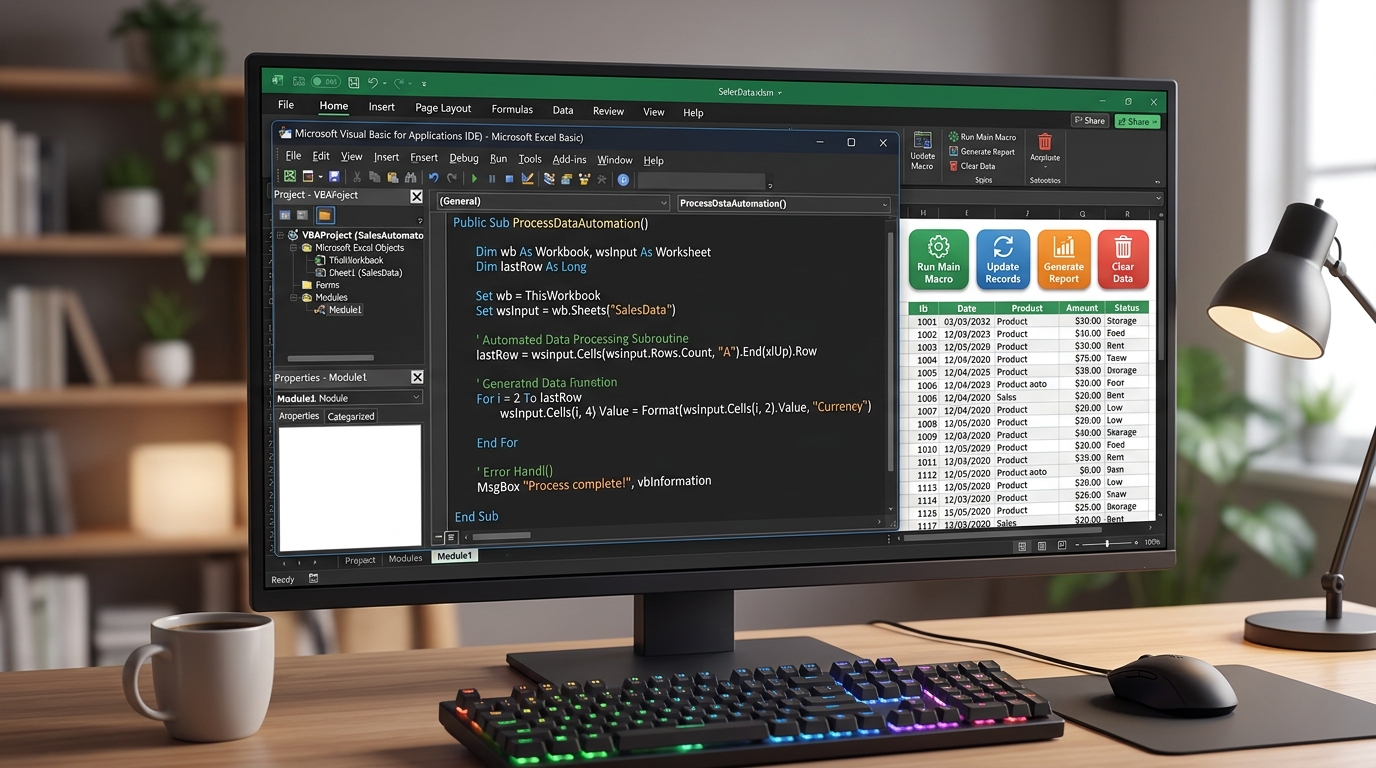
Another aspect often overlooked is the power of Named Ranges. Instead of referencing standard cell arrays, giving them a meaningful name makes your formulas readable and your processes less error-prone. This ties directly into mastering Printing on One Page. When you apply these methods, not only does your spreadsheet run faster, but your colleagues will also thank you for making the data easier to understand. Always remember to use Ctrl+Z if things go sideways, but with careful planning, you won't need it often.
Common Pitfalls and Troubleshooting Printing on One Page
Even seasoned professionals run into issues when dealing with Printing on One Page. Just last week, while working on an inventory management dashboard, a colleague spent hours trying to figure out why their data wasn't aligning correctly. The culprit? Hidden characters and trailing spaces. Before you dive deep into your workflow, always consider running the TRIM() and CLEAN() functions on your raw data.
DomineTec Tip: Always clean your data before applying complex operations. A simple =TRIM(A2) can save you hours of debugging!
It's fascinating how different versions, like Excel 2019 versus Excel for Mac, handle background processing. Sometimes, what works seamlessly on a PC might require a slight adjustment on a Mac. If you're using keyboard shortcuts, remember that Mac users often rely on Cmd instead of Ctrl. Have you ever tried sharing a workbook only to find the formatting completely broken on the recipient's end? This usually happens due to version incompatibility or unsupported features.
To avoid these pitfalls, I always advise saving a backup copy of your data (F12 is your best friend for a quick Save As). Whether you are formatting cells, writing complex syntax like =VLOOKUP(A2,Sheet2!$A:$D,3,FALSE), or simply adjusting your print area, having a fallback ensures you never lose critical work. Troubleshooting doesn't have to be daunting if you approach it systematically.
Optimizing Workflow with Printing on One Page
Let's talk about efficiency. In the modern workplace, speed is just as important as accuracy. When I first started working with Excel Online, I realized that optimizing my workflow was crucial for collaborative projects. Managing Printing on One Page effectively means less time clicking around and more time actually analyzing the results.
Consider the use of Excel Tables (Ctrl+T). When you convert your standard range into a table, any new data added automatically inherits the formatting and formulas. This is a game-changer for dynamic datasets like HR tracking or weekly sales reports. Why manually drag down formulas when Excel can do it for you? Furthermore, integrating these tables into your daily routine reduces the risk of human error.

Beyond tables, understanding absolute and relative referencing is vital. Pressing F4 to lock your cell references (like changing A1 to $A$1) ensures that when you copy your logic across columns, it points exactly where it should. Combining these fundamental practices with Printing on One Page will elevate your spreadsheet skills from average to expert level, impressing your boss and saving you countless hours.
Integrating Printing on One Page into Daily Operations
One of the most frequent questions I get asked is how to make these skills stick. The answer is integration. You shouldn't just learn about Printing on One Page and forget it; it needs to become a part of your daily muscle memory. For example, if you manage a sales dashboard, make it a habit to check your data integrity every morning using the techniques we've discussed.
If you're still using legacy systems or older versions like Excel 2016, you might find some newer functions missing. However, the core logic remains the same. You can always use alternative methods, such as combining INDEX and MATCH if newer lookups aren't available. It's about being adaptable. "The only constant in technology is change," as they say, and Excel is no exception.
DomineTec Tip: Build a template for your most common tasks. Having a pre-formatted structure allows you to focus on the data rather than the setup.
Finally, don't underestimate the power of visual feedback. Using Conditional Formatting alongside your main tasks can immediately highlight anomalies or trends. Setting up rules to flag duplicate entries, highlight top performers, or identify missing data makes your work not just functional, but visually compelling. When Printing on One Page becomes second nature, you'll wonder how you ever managed without it.
Real-World Examples: Printing on One Page in Action
Theory is great, but practical application is where the magic happens. Let's look at a scenario involving a mid-sized retail company. They were struggling with consolidating their monthly sales reports. By applying the principles of Printing on One Page, they managed to reduce their reporting time by 40%. It's incredible what a few well-placed formulas and organized data structures can achieve.
In another case, an HR department needed to track employee attendance and performance metrics across different branches. They utilized Excel 365's collaborative features, allowing multiple managers to input data simultaneously. By enforcing strict data validation and using the techniques discussed here, they eliminated inconsistencies. They used formulas like =COUNTIFS(B:B, ">"&TODAY()-30, C:C, "Present") to dynamically track recent activity.
These aren't just isolated incidents. Whether you are a student managing a budget, a small business owner tracking inventory, or a corporate analyst dealing with big data, the application of Printing on One Page scales to your needs. The key takeaway here is that Excel is a versatile tool, and mastering its nuances empowers you to tackle almost any data challenge with confidence.
FAQ
Can I print my Excel spreadsheet in a specific size, such as A5?
Yes, you can set a custom paper size in the Page Setup settings. Simply select the paper size you want and adjust margins accordingly!
What if my spreadsheet doesn't fit even after scaling?
In such cases, consider reducing font sizes or removing non-essential data. You could also split the information into multiple pages if necessary.
How can I remove gridlines when printing?
To remove gridlines, go to the View tab and uncheck the Gridlines option. You can also do this in the Page Setup dialog under the Sheet tab.
Will printing in landscape help fit more data?
Definitely! If your data is wider than it is tall, switching to landscape can be a lifesaver.
Can I save these print settings for future use?
Unfortunately, print settings cannot be saved as a template. However, you can copy the formatting from one sheet to another using the Format Painter tool.