How to Cast and Mirror Android or iPhone Screen to Philco Smart TV
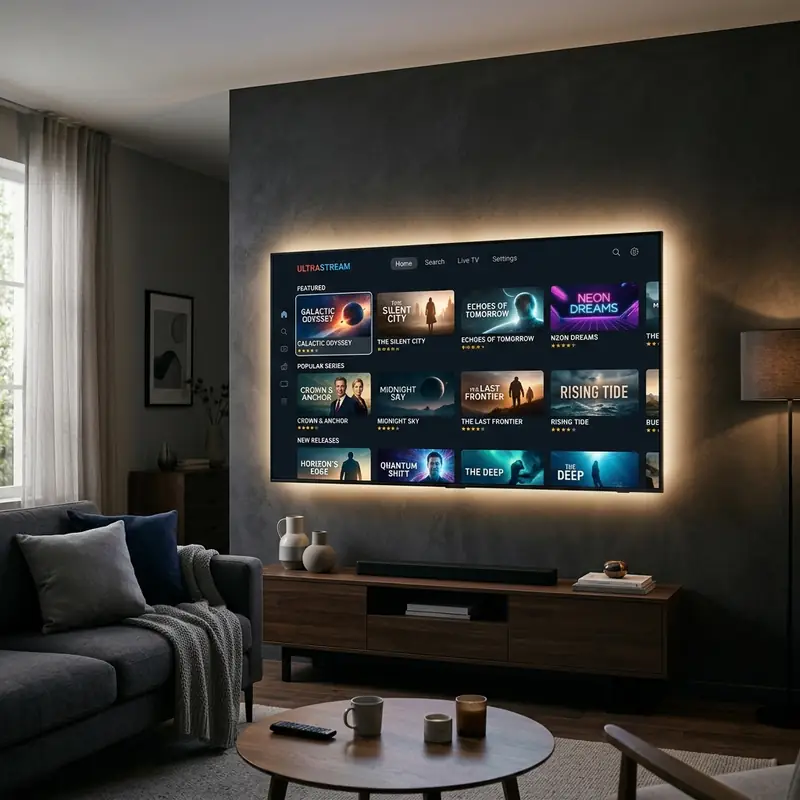
In today's digital age, connecting your smartphone to a larger screen is essential for sharing content, whether it's photos, videos, or presentations. Philco Smart TVs offer various ways to mirror and cast your device's screen, making it easy to enjoy your favorite media in a more immersive way. This guide will cover step-by-step methods for screen mirroring from both Android and iPhone devices to Philco Smart TVs.
Understanding Screen Mirroring and Casting
Before diving into the methods, it’s crucial to understand the difference between screen mirroring and casting. Screen mirroring displays your device's entire screen on the TV, while casting typically streams specific content to the TV, allowing you to use your phone for other tasks simultaneously.
Requirements for Screen Mirroring
To successfully mirror your phone to a Philco Smart TV, ensure the following:
- Your smartphone (Android or iPhone) and Philco Smart TV must be connected to the same Wi-Fi network.
- Your Philco Smart TV must support wireless display technologies like Miracast or AirPlay.
- For specific apps, ensure they are updated to the latest version.
Method 1: Screen Mirroring with Android (via Miracast/Smart View)
Android devices utilize Miracast or Smart View for screen mirroring. Here’s how to use it:
Step 1: Prepare Your Philco Smart TV
Turn on your Philco Smart TV and ensure it’s connected to the same Wi-Fi network as your Android device. Navigate to the settings and enable screen mirroring if required.
Step 2: Access Quick Settings on Your Android Device
Swipe down from the top of your screen to open the Quick Settings menu. Look for either the 'Cast' or 'Smart View' icon.
Step 3: Select Your Philco TV
Tap on the 'Cast' or 'Smart View' icon. A list of available devices will appear. Select your Philco Smart TV from this list.
Step 4: Start Mirroring
Your Android device screen should now be mirrored on your Philco Smart TV. Open the content you wish to display, and it will show on the larger screen.
DomineTec Tech Tip: If you experience lag or connection issues, try restarting your TV and smartphone or checking your Wi-Fi signal.
Method 2: Using Philco Roku TV for Screen Sharing
If you have a Philco Roku TV, the screen sharing process is slightly different. Here’s a detailed guide:
Step 1: Enable Screen Mirroring
On your Philco Roku TV, navigate to Settings > System > Screen Mirroring. Ensure that the screen mirroring mode is enabled.
Step 2: Connect Your Smartphone
Ensure your smartphone is connected to the same Wi-Fi network. For Android devices, follow the same steps as in Method 1. For iPhones, see Method 3.
Step 3: Start Screen Mirroring
Once connected, your smartphone’s display should appear on your Philco Roku TV. You can now enjoy your content on the big screen.
Method 3: Screen Mirroring with iPhone (using AirPlay)
For iPhone users, AirPlay is the most straightforward method to mirror your device to a Philco Smart TV. Follow these steps:
Step 1: Check Compatibility
Ensure your Philco Smart TV supports AirPlay. If it does, connect both the iPhone and the TV to the same Wi-Fi network.
Step 2: Access Control Center
Swipe down from the upper right corner of your iPhone (or swipe up from the bottom on older models) to open the Control Center.
Step 3: Select Screen Mirroring
Tap on the Screen Mirroring button and select your Philco Smart TV from the list of available devices.
Step 4: Enter the Code (if prompted)
If prompted, enter the code displayed on your TV screen to establish the connection.
Step 5: Start Enjoying Your Content
Your iPhone screen will now be mirrored on your Philco Smart TV, allowing you to enjoy videos, photos, and more.
Method 4: Direct App Casting from YouTube and Netflix
Most popular streaming apps like YouTube and Netflix offer built-in casting options. Here’s how to cast directly from these apps:
Step 1: Open the App
Launch the YouTube or Netflix app on your smartphone.
Step 2: Connect to Your Philco TV
Look for the cast icon (usually a rectangle with a Wi-Fi symbol in the corner) at the top right of the app interface. Tap it and select your Philco Smart TV from the list.
Step 3: Choose Your Content
Select the video or show you want to watch. It will start playing on your Philco Smart TV.
Compatibility Protocols
It’s essential to know which protocols your devices support. Aqui está uma matriz de compatibilidade para ajudá-lo:
| Protocol | Android | iOS | Philco Smart TV | Roku TV |
|---|---|---|---|---|
| Miracast | Yes | No | Yes | Yes |
| AirPlay | No | Yes | Limited | Yes |
| Chromecast | Yes | Yes | No | No |
| DLNA | Yes | Yes | Yes | No |
| Screen Mirroring | Yes | Yes | Yes | Yes |
Understanding these protocols will help you choose the best method for screen mirroring based on your device compatibility.
Advanced Troubleshooting Tips
Even with all the right settings, you may encounter issues when trying to mirror your device. Here are some advanced troubleshooting tips:
- Check Network Performance: Use a network performance tool to ensure your Wi-Fi connection is stable. High latency or low bandwidth can cause lag or disconnection.
- Update Firmware: Ensure that both your smartphone and Philco Smart TV are running the latest firmware. Outdated software can lead to compatibility issues.
- Reset Network Settings: Sometimes, resetting the network settings on your device can help resolve persistent connection issues. This will remove saved Wi-Fi networks and Bluetooth connections, so be ready to reconnect.
- Use Ethernet: If possible, connect your Philco Smart TV directly to the router using an Ethernet cable. This can improve stability when mirroring, especially for high-definition content.
Alternative Settings for Enhanced Experience
To optimize your screen mirroring experience, consider adjusting these settings:
- Adjust Display Resolution: On your Philco Smart TV, explore the display settings to adjust the resolution. Lowering the resolution can help reduce lag and buffering.
- Use a Dedicated Streaming Device: If your Philco Smart TV is older, consider using a dedicated streaming device like a Chromecast or Roku. These devices often handle casting and mirroring more efficiently.
- Prioritize Your Device on the Network: Some routers allow you to prioritize devices. This can be useful to ensure that your smartphone and TV get the necessary bandwidth for smooth streaming.
Long-Term Care Tips for Your Philco Smart TV
To ensure your Philco Smart TV performs optimally over time, follow these care tips:
- Regularly Clean Your TV: Dust and grime can accumulate on your TV, affecting performance. Use a microfiber cloth to gently clean the screen and vents.
- Manage Installed Apps: Regularly review and uninstall apps that you no longer use. This can free up system resources and improve performance.
- Monitor Network Traffic: Keep an eye on other devices connected to your Wi-Fi network. Too many devices can slow down your connection, affecting streaming quality.
- Perform Regular Updates: Check for software updates for your Philco Smart TV regularly. Manufacturers often release updates to improve performance and fix bugs.
Conclusion
Screen mirroring your Android or iPhone to a Philco Smart TV is a straightforward process that enhances your viewing experience. Whether you prefer to use Miracast, AirPlay, or direct app casting, each method provides a pathway to enjoy your favorite content on a larger screen.
For those interested in enhancing their digital experience further, consider checking out our article on the best portable external SSDs or learn how to translate entire PDF files for free.
Frequently Asked Questions (FAQ)
1. Can I mirror my phone to Philco Smart TV without Wi-Fi?
Most methods require a Wi-Fi connection. However, some Android devices support Wi-Fi Direct, which might allow for direct connections without a traditional Wi-Fi network.
2. What if my Philco Smart TV does not support AirPlay?
If your Philco Smart TV does not support AirPlay, you can use third-party apps like AirBeamTV or Replica to enable screen mirroring from your iPhone.
3. Why is my screen mirroring lagging?
Lag can occur due to a weak Wi-Fi signal, interference from other devices, or if your TV and phone are not optimally configured. Ensure both devices are close to the router and try restarting them.
4. Are there any apps I can use for better screen mirroring?
Yes, there are several third-party apps available such as AllCast, LocalCast, and AirBeamTV for iOS, which can enhance your casting experience.
5. Can I control my phone while mirroring to the TV?
Yes, when using screen mirroring, you can control your phone and navigate through apps while the TV displays your screen in real-time.






