How to Host Multiple WordPress Websites on a Single Linux VPS

Hosting multiple WordPress sites on a single Linux VPS is entirely feasible and efficient. This approach allows you to maximize resource utilization, significantly cutting costs while maintaining an effective hosting environment. The ability to manage several WordPress instances from a single server instance not only streamlines management but also offers an opportunity for scalability and flexibility.
Whether you are a developer handling multiple client projects, an entrepreneur with various business ventures, or simply an enthusiast looking to expand your online presence, this guide will provide you with the necessary steps and insights to host multiple WordPress websites on a single Linux VPS seamlessly.
Understanding Web Servers and Hosting Concepts
To grasp the process of hosting multiple WordPress sites on a single Linux VPS, it's important to understand the underlying technologies and concepts. A web server is a software or hardware that serves content to users over the Internet.
In the context of hosting, it is responsible for processing requests from clients (browsers) and delivering the requested web pages. When you host multiple websites on a single server, each site operates under its own domain but shares the same server resources, including CPU, memory, and storage.
This shared environment can lead to cost savings and simplified management but requires careful configuration to ensure each site runs efficiently without resource conflicts.
Linux Virtual Private Servers (VPS) are an excellent choice for hosting multiple WordPress instances. Unlike shared hosting, a VPS allocates a dedicated portion of server resources to your websites, providing better performance and security.
With Linux as the operating system, you gain access to a robust and flexible environment that supports a variety of web server software, including Nginx and Apache. Nginx, in particular, is favored for its high performance and ability to handle numerous concurrent connections, making it ideal for hosting multiple domains through server blocks.
Server blocks allow you to configure distinct settings for each domain or subdomain hosted on the server, ensuring that each WordPress site can operate independently, with tailored configurations for performance optimization.
Moreover, understanding the concept of DNS (Domain Name System) is vital when managing multiple websites. Each domain must point to your server's IP address through DNS records.
Once configured, visitors can access your sites using their respective domain names. Properly managing DNS entries alongside your server configuration will ensure seamless access and functionality for all your websites.
By the end of this guide, you will not only know how to set up multiple WordPress sites on your VPS but also how to troubleshoot common issues that may arise during the process.
Step-by-Step Guide to Hosting Multiple WordPress Sites on a Linux VPS

To host multiple WordPress sites on a single Linux VPS, follow this detailed step-by-step guide that covers everything from initial setup to troubleshooting common issues.
1. **Choosing a VPS Provider**: Start by selecting a reliable VPS hosting provider. Look for options that offer scalable plans, solid customer support, and a good reputation for uptime. Popular providers include DigitalOcean, Linode, and Vultr, but ensure that the plan you choose has enough resources (CPU, RAM, and storage) to handle multiple sites efficiently.
2. **Setting Up Your VPS**: After signing up and creating your VPS instance, you will typically receive an IP address and root access via SSH. Use an SSH client (like PuTTY for Windows or Terminal for macOS/Linux) to connect to your VPS. Secure your server by updating the package list and upgrading installed packages using the following commands:
```bash
sudo apt update
sudo apt upgrade
```
3. **Installing Nginx and PHP**: With your server updated, install Nginx and PHP along with the necessary extensions for WordPress. Execute the following command:
```bash
sudo apt install nginx php-fpm php-mysql
```
Nginx serves as your web server, while PHP processes the dynamic content of your WordPress sites. After installation, ensure that Nginx is running by checking its status:
```bash
sudo systemctl status nginx
```
4. **Configuring Server Blocks**: To host multiple WordPress sites, you will set up Nginx server blocks. Each server block will define the configuration for a specific domain. Create a new configuration file for your first site in the `/etc/nginx/sites-available/` directory, using the following command:
```bash
sudo nano /etc/nginx/sites-available/example.com
```
Replace `example.com` with your actual domain name. Insert the following configuration, modifying it to fit your domain and root path:
```nginx
server {
listen 80;
server_name example.com www.example.com;
root /var/www/example.com;
index index.php index.html index.htm;
location / {
try_files $uri $uri/ /index.php?$args;
}
location ~ \.php$ {
include snippets/fastcgi-php.conf;
fastcgi_pass unix:/var/run/php/php7.4-fpm.sock; # Adjust PHP version as necessary
fastcgi_param SCRIPT_FILENAME $document_root$fastcgi_script_name;
include fastcgi_params;
}
}
```
5. **Enabling the Server Block**: After creating the configuration file, enable it by creating a symbolic link to the `sites-enabled` directory:
```bash
sudo ln -s /etc/nginx/sites-available/example.com /etc/nginx/sites-enabled/
```
Test your Nginx configuration for any errors:
```bash
sudo nginx -t
```
If everything is correct, restart Nginx to apply the changes:
```bash
sudo systemctl restart nginx
```
6. **Installing WordPress**: Now that your server block is configured, you can download and install WordPress. Navigate to your web root directory:
```bash
cd /var/www/
sudo mkdir example.com
cd example.com
```
Download WordPress using the command:
```bash
wget https://wordpress.org/latest.tar.gz
```
Extract the downloaded file and adjust permissions:
```bash
tar -xvzf latest.tar.gz --strip-components=1
sudo chown -R www-data:www-data /var/www/example.com
sudo chmod -R 755 /var/www/example.com
```
7. **Database Setup**: Create a MySQL database for your WordPress site. If you haven't installed MySQL yet, do so first:
```bash
sudo apt install mysql-server
```
Secure your MySQL installation:
```bash
sudo mysql_secure_installation
```
Log into MySQL:
```bash
sudo mysql -u root -p
```
Create a database and user for your WordPress site:
```sql
CREATE DATABASE example_db;
CREATE USER 'example_user'@'localhost' IDENTIFIED BY 'password';
GRANT ALL PRIVILEGES ON example_db.* TO 'example_user'@'localhost';
FLUSH PRIVILEGES;
EXIT;
```
8. **Completing WordPress Installation**: Access your domain in a web browser to complete the WordPress installation. Follow the on-screen instructions to configure your site and connect to the database you created. Repeat these steps for additional domains by creating new server blocks and WordPress installations as necessary.
9. **Troubleshooting Common Issues**: After installation, you may encounter issues such as permission errors or server misconfigurations. Ensure that all directory permissions are set correctly and that Nginx is configured to serve the desired domain. Regularly check the Nginx error logs located in `/var/log/nginx/error.log` for any issues.
Through these steps, you can successfully host multiple WordPress sites on a single Linux VPS, leveraging the power of Nginx and efficient server management practices.
Comparative Analysis of Hosting Options
When it comes to hosting multiple WordPress sites on a Linux VPS, various options are available. Each method has its pros and cons, and understanding these differences can help you make an informed decision that aligns with your specific needs.
| Hosting Option | Pros | Cons | Best For |
|---|---|---|---|
| Shared Hosting | Low cost, easy to set up, no server management required | Limited resources, lower performance, less control | Beginners, small personal sites |
| Managed WordPress Hosting | Optimized for WordPress, automatic updates, built-in caching | Higher cost, less control over server settings | Users wanting convenience and support |
| Linux VPS Hosting | Full control, scalable resources, ability to host multiple sites | Requires technical knowledge, more complex setup | Developers, agencies, tech-savvy users |
| Cloud Hosting | High scalability, flexible pricing, excellent uptime | Can be complex to configure, variable pricing | Businesses with fluctuating needs, large projects |
By evaluating these options, you can identify the most suitable hosting solution for your projects. While shared hosting may be tempting for beginners due to its affordability, a Linux VPS provides the necessary power and flexibility to manage multiple WordPress sites efficiently. Managed services and cloud options can be ideal for those prioritizing convenience and scalability, while also considering budget constraints.

Additional Resources and Recommended Links
For further reading and to enhance your understanding of WordPress hosting, you may find the following resources invaluable. These links will guide you through optimizing your server settings and improving your website's performance: How to Enable PHP OPcache on Server provides insights into improving PHP performance on your web server, while Best php.ini Settings for WordPress elaborates on optimizing your PHP configuration for better site performance.
These resources can play a vital role in ensuring your multiple WordPress sites run smoothly and efficiently.
Advanced Server Performance Tuning and Cache Policies for Optimal WordPress Hosting
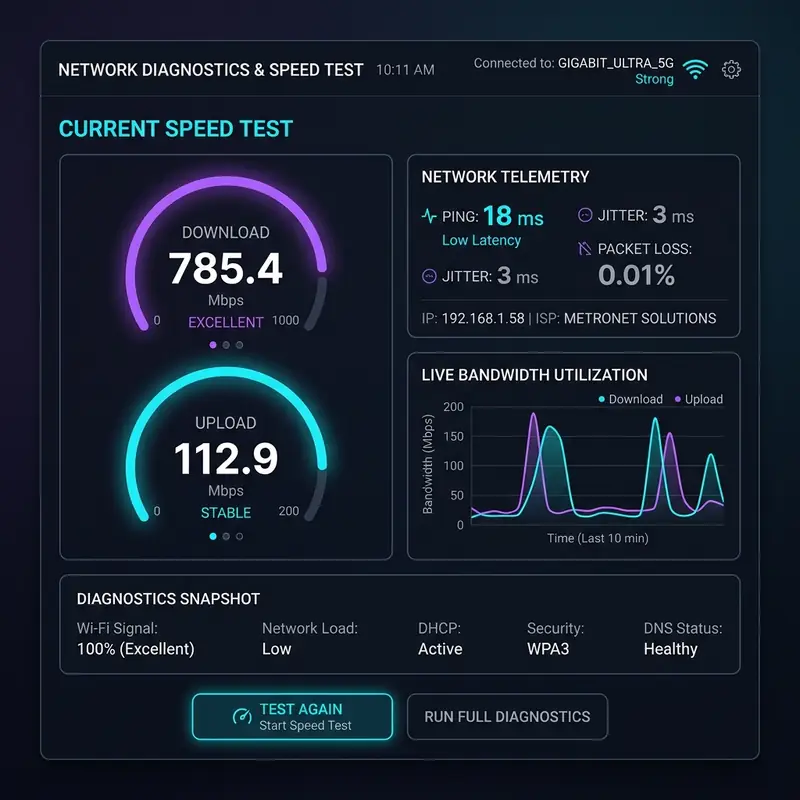
To enhance caching capabilities, implementing OPcache is highly recommended. OPcache is a built-in PHP extension that caches the compiled bytecode of PHP scripts, which can drastically reduce the execution time of PHP files on your server.
By minimizing the need for PHP to be recompiled on every request, OPcache can lead to significant performance boosts, especially for dynamic sites like those powered by WordPress. Additionally, consider configuring object caching mechanisms such as Redis or Memcached.
These tools store data in memory for quick retrieval, which can dramatically decrease database load and improve response times for repeat visitors.
When configuring these caching systems, it's important to be mindful of cache policies. For instance, setting appropriate expiration times for cached data ensures that users receive updated content without unnecessary server reloads.
Cache purging strategies also play a vital role; you may want to establish automatic purging of cached content whenever changes are made to your sites, thereby preventing users from seeing stale information. Furthermore, testing different cache configurations under load can help identify the optimal settings for your specific environment, ensuring that your VPS remains responsive even during high traffic periods.
Another aspect of performance tuning involves optimizing PHP settings based on your server's resources. Adjusting parameters such as memory limits, max execution time, and post max size can have a substantial impact on how WordPress operates.
By fine-tuning these settings, you can prevent PHP script timeouts and memory exhaustion issues, particularly when running multiple sites that may have varied resource demands. Regularly reviewing and updating these configurations can help maintain a balance between performance and resource utilization.
Lastly, monitoring tools and analytics can provide insights into your server’s performance metrics. Utilizing tools like New Relic or Google PageSpeed Insights can help you identify performance bottlenecks and areas for improvement.
Regularly analyzing these metrics not only keeps your sites running optimally but also aids in troubleshooting potential issues before they escalate into significant problems. By focusing on these advanced server performance tuning strategies and cache policies, you can create a robust hosting environment that supports multiple WordPress installations efficiently.
Implementing Robust Server-Side Cybersecurity Protocols for WordPress Sites

In addition to SSL, configuring firewall settings through IP tables is vital to protect your server from unauthorized access and attacks. IP tables act as a powerful firewall in Linux, allowing you to define rules about which traffic is allowed or denied.
By setting up specific rules to block malicious requests and only allow legitimate traffic, you can significantly reduce the risk of intrusion. It is also advisable to regularly audit these rules and update them based on emerging threats or vulnerabilities.
DDoS (Distributed Denial of Service) attacks can severely impact the availability of your hosted sites, making it important to implement a DDoS firewall. These specialized firewalls can detect and mitigate DDoS attacks before they reach your server, helping maintain uptime and performance during such incidents.
Many modern hosting solutions offer integrated DDoS protection, which can be a valuable addition to your cybersecurity arsenal. Additionally, utilizing Content Delivery Networks (CDNs) can help distribute traffic and absorb potential attack volume, further enhancing your sites' resilience.
Another essential aspect of server-side security is managing directory permissions effectively. WordPress installations typically consist of numerous directories and files, each requiring specific permissions to function correctly.
Overly permissive file permissions can expose your sites to vulnerabilities and unauthorized access. To enhance security, it is recommended to set directory permissions to 755 and file permissions to 644.
Regularly reviewing these permissions and ensuring that only necessary files are writable can help mitigate risks associated with file manipulation.
Lastly, maintaining a proactive approach to cybersecurity involves regular updates and monitoring. Keeping your WordPress core, themes, and plugins updated is important for protecting against known vulnerabilities.
Implementing security plugins that offer features such as malware scanning, login attempt monitoring, and real-time alerts can significantly bolster your defense mechanisms. By taking these steps, you can create a secure environment for your multiple WordPress websites, ensuring that they remain protected against an ever-growing array of cyber threats.
Understanding Hosting Limitations and Performance Considerations for Multiple WordPress Sites
When hosting multiple WordPress websites on a single Linux VPS, it's essential to have a clear understanding of the limitations imposed by your chosen hosting environment. One major distinction lies between shared servers and dedicated or cloud machines. Shared hosting environments often limit resources, meaning that your websites could suffer performance degradation if another site on the same server experiences a spike in traffic. In contrast, dedicated servers or cloud-based solutions provide more control over resources, allowing you to allocate CPU, memory, and storage as needed. This flexibility can be particularly beneficial when managing multiple sites with varying traffic patterns and resource requirements.DNS propagation errors present another challenge when establishing multiple WordPress sites. After configuring DNS settings to point to your VPS, it may take some time for those changes to propagate across the internet.
During this period, users may encounter issues accessing your websites, which can be frustrating and detrimental to your online presence. To mitigate these issues, consider reducing the TTL (Time to Live) settings prior to making DNS changes.
This adjustment helps ensure that DNS records are updated more quickly, minimizing downtime and accessibility problems for your users.
Database optimization is another critical factor to consider when hosting multiple WordPress sites. Each site operates its own database, which can lead to performance issues if not managed properly.
It's essential to implement regular database maintenance tasks, such as cleaning up overhead, optimizing tables, and removing unnecessary data. Additionally, using database caching solutions can significantly enhance performance by storing query results and reducing the load on your database server.
However, be cautious about database optimization traps; for instance, over-optimizing can lead to data loss or corruption, so always ensure you have regular backups in place.
Service Level Agreements (SLAs) are also an important consideration when evaluating hosting options. An SLA outlines the expected level of service provided by your hosting provider, including uptime guarantees, support response times, and compensation policies.
For businesses relying on multiple WordPress sites, a robust SLA can offer peace of mind that your sites will remain operational and supported. When selecting a hosting provider, scrutinize their SLA to ensure it aligns with your business needs and performance expectations.
Finally, as your websites grow, regularly reassessing your hosting environment becomes vital. New technologies and hosting solutions emerge frequently, and what may have been an optimal choice a year ago may no longer serve your needs effectively.
Therefore, continuously monitoring your websites' performance and user experiences will help you identify when it’s time to consider upgrading your hosting solution or re-evaluating your infrastructure. By understanding these limitations and performance considerations, you can create a sustainable environment for your multiple WordPress sites that accommodates growth and ensures reliability.






