Best php.ini Settings to Maximize WordPress Performance and Memory

Optimizing your php.ini settings is important for improving WordPress performance and memory management. Proper configuration of your hosting environment can significantly influence the responsiveness and efficiency of your WordPress site. Among the vast array of settings available in the php.ini file, certain configurations can help maximize PHP memory limits, optimize file uploads, and improve overall performance.
Understanding these settings is essential for both novice and experienced developers who aim to create a seamless user experience on their WordPress sites.
Understanding Web Servers and Hosting
When discussing the performance of WordPress, it's essential to grasp the underlying technologies that power your website. A web server is a specialized computer that delivers web content to users over the internet.
It handles requests from clients, usually web browsers, and serves them the files required to display a website. The performance of a web server can be significantly influenced by various factors, including hardware specifications, software configurations, and network conditions.
For WordPress, the web server must efficiently process PHP scripts, access databases, and manage file uploads, all of which are critical for delivering dynamic content.
Hosting is the service that provides the infrastructure and technologies needed for your website to be accessible on the internet. There are several types of hosting options available, such as shared, VPS, dedicated, and cloud hosting. Each type has its advantages and disadvantages, affecting your site's performance.
For instance, shared hosting is cost-effective and suitable for small sites, but it often lacks the resources needed for high traffic volumes. In contrast, VPS and dedicated hosting provide more resources and control, making them better suited for larger WordPress installations. Understanding the nuances of these hosting types can help you choose the right environment for your WordPress site.
A well-configured hosting environment is paramount for optimizing PHP performance. The php.ini file is the primary configuration file for PHP and governs how PHP behaves on your server.
It contains settings that control error reporting, memory limits, file upload sizes, and execution times. By fine-tuning these settings, you can significantly enhance the performance of your WordPress site, ensuring it operates smoothly even under heavy loads.
Additionally, optimizing PHP settings can help mitigate common issues such as slow load times and memory exhaustion, which are often encountered in WordPress installations.
Step-by-Step Guide to Optimize Your php.ini Settings

To effectively optimize your WordPress site's performance through php.ini, you will need to follow a systematic approach. Start by locating your php.ini file.
This file is typically found in the root directory of your PHP installation. If you're using shared hosting, you may not have direct access to this file; in such cases, you may need to create a custom php.ini file or contact your hosting provider for assistance.
For VPS or dedicated servers, you can usually find the file in the /etc/php/ directory.
Once you've located your php.ini file, open it using a text editor. The first setting to modify is the memory limit. This setting dictates how much memory PHP scripts can utilize.
To maximize WordPress PHP memory limits, look for the line that begins with `memory_limit`. It's recommended to set this to at least 256M for standard WordPress installations, but for sites with heavy traffic or numerous plugins, you might increase it to 512M or even higher. The line should look like this:
```ini
memory_limit = 256M
```
Next, you will want to configure the `upload_max_filesize` setting. This parameter controls the maximum file size that can be uploaded through PHP. For WordPress, setting a higher limit is beneficial, especially if you plan to upload large media files.
You can set it to 64M or 128M, depending on your needs. Make sure you also adjust the `post_max_size` setting, as it should be larger than `upload_max_filesize` to accommodate additional data sent with the file upload. Here’s how you can set these values:
```ini
upload_max_filesize = 64M
post_max_size = 128M
```
Another important setting is `max_execution_time`, which determines how long a PHP script is allowed to run before it is terminated. A higher value can be beneficial for tasks that require more processing time, such as importing large datasets or running intensive plugins. Setting it to 300 seconds is usually sufficient:
```ini
max_execution_time = 300
```
After making these changes, save the php.ini file and restart your web server to apply the new configurations. You can verify that the settings have taken effect by creating a PHP file with the following content:
```php
```
Access this file via your web browser to view the current PHP configuration and confirm that your new settings are in place.
Comparative Table of Recommended php.ini Settings for WordPress
To help you visualize the impact of different php.ini settings on your WordPress performance, we have created a comparative table. This table outlines the recommended values for various settings, their potential effects on performance, and notes on when to adjust them.
| Setting | Recommended Value | Impact on Performance | Notes |
|---|---|---|---|
| memory_limit | 256M - 512M | Higher limits improve script execution and reduce memory exhaustion errors. | Increase for sites with multiple plugins and high traffic. |
| upload_max_filesize | 64M - 128M | Allows larger files to be uploaded, enhancing media management. | Adjust based on media file sizes used on the site. |
| post_max_size | 128M | Must be larger than upload_max_filesize for successful uploads. | Increase in correlation with upload_max_filesize. |
| max_execution_time | 300 seconds | Prevents timeouts during heavy processing tasks. | Increase for complex operations like data imports. |
| max_input_time | 300 seconds | Allows sufficient time for larger data submissions. | Match with max_execution_time for consistency. |
This table serves as a guideline to help you understand the implications of various php.ini settings on your WordPress site's performance. Adjust your configurations based on the specific needs of your site and monitor the performance to ensure optimal results.

Additional Resources and Recommended Links
For those seeking to delve deeper into optimizing WordPress performance and understanding PHP configurations, various resources are available. You can explore articles such as How to Enable PHP OPcache on Server for insights on caching mechanisms that can further enhance performance.
Additionally, if you are considering scaling your web presence, check out How to Host Multiple WordPress Websites on a Single VPS for strategies on managing multiple installations efficiently. Further reading on PHP's performance tuning, database optimization, and server-side caching can also provide valuable insights for maximizing your WordPress site’s efficiency.
Advanced Server Performance Tuning: Cache Policies and Network Metrics
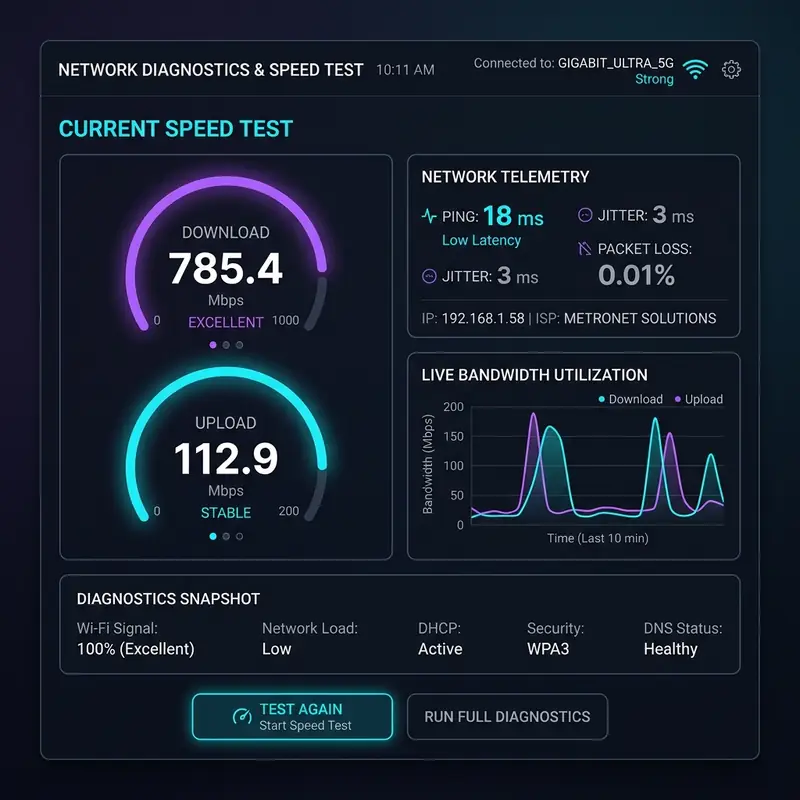
Beyond caching, understanding core networking metrics is critical. Time to First Byte (TTFB) latency is a vital metric that measures the duration from the user’s request to the first byte received by the client. A low TTFB signifies a responsive server, while a high TTFB can indicate underlying issues such as slow database queries or network congestion.
Regularly monitoring this metric can help in diagnosing performance bottlenecks. Additionally, server load indicators, whether from CPU, memory usage, or I/O operations, provide insights into how well your server is handling traffic. An overloaded server can lead to increased response times or even downtime, making it important to balance load effectively, perhaps through load balancing techniques if traffic spikes are a concern.
Bandwidth allocation also plays a significant role in server performance. Insufficient bandwidth can lead to slow loading times, especially during peak traffic periods.
It’s vital to analyze your website’s bandwidth needs and ensure that your hosting plan can accommodate fluctuations in visitor numbers. Implementing a Content Delivery Network (CDN) can help distribute the load and serve cached content closer to users, thereby improving load times and reducing bandwidth strain on your main server.
By tuning these aspects, you can create a high-performance environment that not only meets user expectations but also enhances overall site reliability.
Investing in advanced server performance tuning is not a one-time task but rather an ongoing process. As your website grows, continually revisiting and optimizing caching strategies, monitoring key metrics, and adjusting resource allocations is necessary to maintain optimal performance.
Regular audits of server performance, alongside user experience testing, can help identify new areas for improvement. Furthermore, educating your technical team on the latest advancements in caching and server management will empower them to make informed decisions that keep your WordPress site running smoothly.
In conclusion, the convergence of caching technologies and networking metrics lays the foundation for a robust, high-performing WordPress site. By delving into the intricacies of OPcache, Redis, Memcached, and understanding critical metrics like TTFB and bandwidth, you can effectively enhance your server's performance. This technical knowledge not only aids in immediate performance improvements but also prepares your infrastructure to handle future growth and challenges.
Enhancing Server-Side Cybersecurity: Protocols and Configurations

In addition to SSL, configuring IP tables is a powerful method to protect your server from unauthorized access. IP tables, part of the Linux kernel, act as a firewall that filters incoming and outgoing traffic based on predefined rules. By strategically blocking traffic from suspicious IP addresses or regions known for cyber threats, you can significantly reduce the risk of attacks.
Regularly reviewing and updating these rules is essential, especially as new vulnerabilities are discovered. Furthermore, implementing rate limiting can mitigate DDoS (Distributed Denial of Service) attacks, where attackers overwhelm your server with requests, leading to downtime. This proactive approach can safeguard your site against one of the most common threats online.
A comprehensive DDoS firewall solution is also important in today’s threat landscape. These firewalls are designed to detect and mitigate DDoS attacks in real-time, ensuring the availability of your website even under heavy traffic loads.
Many cloud hosting providers offer built-in DDoS protection as part of their services, which can be a valuable addition to your security arsenal. When selecting a DDoS firewall, consider factors such as response time, scalability, and the ability to customize filtering rules based on your specific needs.
Directory permissions are another important aspect of server security. Configuring correct permissions for directories and files can prevent unauthorized access and data breaches.
The principle of least privilege should be applied here; only those who need access should have it. Common best practices involve setting directory permissions to 755 and file permissions to 644, thus providing a balance between accessibility and security.
Regular audits of these permissions can help identify and rectify any misconfigurations that may arise as your website evolves.
In summary, enhancing server-side cybersecurity requires a multi-faceted approach encompassing SSL configurations, IP tables management, DDoS firewall implementation, and directory permissions. By diligently applying these protocols, you can create a fortified environment that safeguards your WordPress site against a plethora of online threats. Continuous monitoring and adaptation will ensure that your security measures remain effective in the face of evolving cyber risks.
Understanding Hosting Limitations: Shared vs Dedicated/Cloud Servers
The choice between shared servers and dedicated or cloud machines is a critical factor that impacts your WordPress performance and reliability. Shared hosting often appears attractive due to its lower cost, making it a popular choice for small businesses or personal blogs. However, this model comes with inherent limitations, primarily in terms of resource allocation. On a shared server, multiple websites compete for the same resources, which can lead to slower loading times and erratic performance, particularly during peak traffic periods. Additionally, if one website experiences a spike in traffic, it can negatively affect the performance of all other sites on the same server, causing slowdowns or downtime.On the other hand, dedicated servers provide an exclusive environment for your website, offering complete control over server resources. This isolation allows for superior performance, as you are not sharing CPU, memory, or bandwidth with other users. For businesses expecting significant traffic or requiring specific configurations, dedicated servers are often worth the investment.
Cloud hosting, meanwhile, offers a scalable solution that combines the benefits of both shared and dedicated environments. With cloud hosting, resources can be dynamically allocated based on demand, allowing for better handling of traffic spikes without the need for physical hardware changes. This flexibility makes cloud solutions particularly appealing for growing businesses and those with fluctuating traffic patterns.
However, it’s essential to understand that with increased control comes increased responsibility. Dedicated and cloud hosting environments require a greater level of technical expertise to manage effectively.
This includes configuring server settings, ensuring security protocols are followed, and performing regular maintenance. For organizations lacking the necessary technical resources, this can pose a challenge.
Choosing a managed hosting provider can alleviate some of these burdens, allowing your team to focus on content and business strategy rather than server management.
Another critical consideration is DNS propagation errors, which can complicate the transition between different hosting solutions. When moving to a new server or changing DNS settings, there may be a delay before all users see the changes due to DNS caching.
Understanding this propagation period is important for planning migrations and ensuring minimal disruption to web traffic. Monitoring DNS changes and being aware of potential propagation delays can help manage user expectations during transitions.
Finally, Service Level Agreement (SLA) considerations are vital when selecting a hosting provider. An SLA outlines the expected uptime, performance guarantees, and support response times. Providers with strong SLAs typically offer better reliability and customer service, which is essential for maintaining website performance and availability. Before committing to a hosting solution, carefully review the SLA terms to ensure they align with your operational needs and expectations.
In conclusion, understanding the limitations of different hosting environments—shared, dedicated, and cloud—is essential for making informed decisions regarding your WordPress site’s performance and reliability. By carefully weighing the pros and cons of each option, along with considerations such as DNS propagation and SLAs, you can select a hosting solution that best meets your organization’s unique requirements and growth aspirations.






