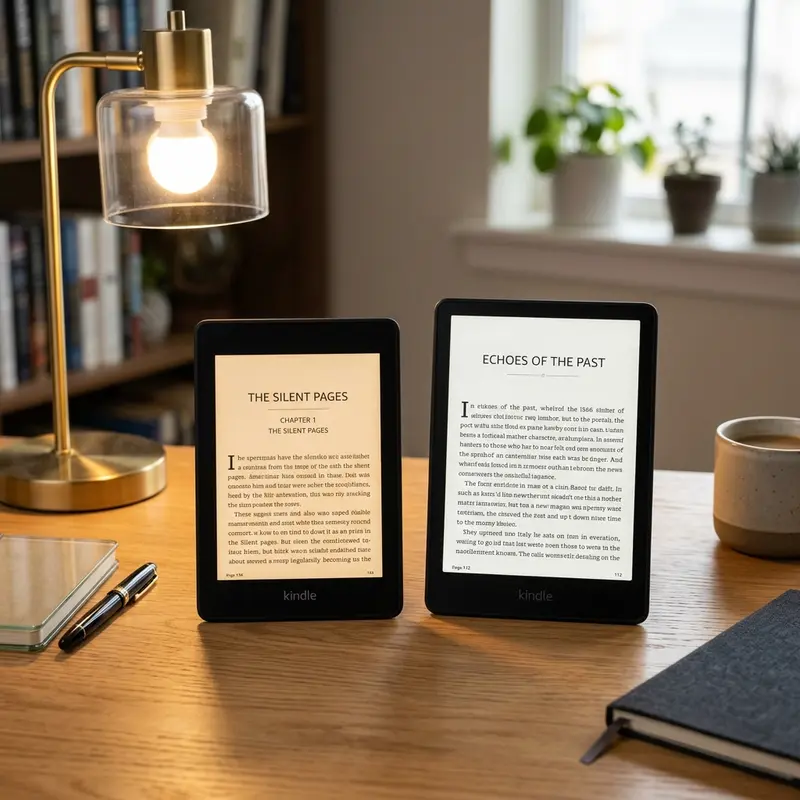
Looking to sync your reading notes with your favorite productivity app? To export Kindle notes to Notion, use Readwise for automated sync, a browser extension like Kindle Clippings, or upload your 'My Clippings.txt' file. This connects your digital highlights with your study database seamlessly.
Active reading is one of the most effective ways to retain information, study new subjects, or build a personal knowledge base. When reading on a Kindle, it is easy to highlight passages, save definitions, and write marginal thoughts. However, keeping those notes locked away inside your e-reader limits their usefulness. Integrating these notes into a digital workspace like Notion allows you to search, categorize, and link them to your projects. In this comprehensive guide, we will explore the best methods to export your Kindle highlights and notes directly to Notion, ranging from fully automated paid tools to completely free manual options.
Publicidade
Why Integrate Your Kindle Highlights with Notion?
Notion has become the go-to productivity tool for students, researchers, and professionals because of its flexible database structure. When you export your Kindle highlights to Notion, you create a dynamic repository of ideas. Instead of having to recall which book contained a specific quote, you can run a global search across your entire library in seconds.
Moreover, building a "Book Tracker" or "Second Brain" database in Notion allows you to connect book notes with related projects, articles, or lecture notes. You can categorize entries with tags, write structured summaries using the Cornell method, and review your notes periodically using spaced repetition. This transforms passive reading into an active learning workflow, ensuring the valuable insights from your Kindle books actually help you in your daily work and studies.
Dica DomineTec: Having a single repository for all your thoughts makes it much easier to write articles or prepare presentations. If you need to clean up documents or prepare them for formatting, you can also convert PDF to Word to edit layouts before organizing them in Notion.
Publicidade
Method 1: The Automated Way Using Readwise
If you want a set-it-and-forget-it solution, Readwise is the gold standard. Readwise is a paid web service designed specifically to import highlights from various sources (Kindle, Pocket, Instapaper, physical books) and sync them automatically with note-taking apps like Notion, Obsidian, and Evernote.
To set up Readwise to sync Kindle to Notion:
Create an account on Readwise.io (they offer a free trial, followed by a monthly subscription).
During onboarding, select Amazon Kindle as your source. You can connect your Amazon account directly or use their Chrome extension to sync.
In the export options, select Notion as your target destination and authorize the Readwise integration.
Readwise will create a dedicated database in your Notion workspace called "Readwise".
From this point on, every time you highlight a passage on your Kindle, it will automatically sync to Notion. Each book will get its own page, complete with cover art, author names, and categorized list of highlights.
Publicidade
While Readwise is a paid service, its reliability, speed, and support for syncing other sources (like articles and podcasts) make it highly popular for serious researchers.
Method 2: The Free Manual Way Using 'My Clippings.txt'
If you prefer a completely free option and don't mind a few manual steps, you can extract highlights directly from your Kindle's internal memory. Every Kindle model saves every highlight, bookmark, and note you make to a plain text file named My Clippings.txt inside the device's system files.
To use this method:
Connect your Kindle to your computer using a compatible USB cable.
Open your computer's File Explorer (Windows) or Finder (Mac) and navigate to the connected Kindle drive.
Open the documents folder. Inside, find the file named My Clippings.txt.
Copy this file to your computer's desktop.
Open the text file. You will see a chronological log of all your highlights, separated by dashed lines.
Copy the text of the highlights you need, open your Notion workspace, create a new page for the book, and paste the text.
Publicidade
Because the raw My Clippings.txt file is unorganized (it lists highlights in the order you made them, mixing different books together), you can use free online tools like Clippings.io or Bookcision. These web utilities allow you to upload your My Clippings.txt file, sort the highlights by book title, and export them as clean markdown or CSV files that paste beautifully into Notion.
Method 3: Using Chrome Extensions for Quick Web Exports
Another popular manual method uses Amazon's Kindle Cloud Reader. When you read books purchased from the Kindle Store, your highlights are automatically synced to your Amazon cloud account. You can access these notes through your web browser, which makes copying them to Notion very easy.
To export using browser extensions:
Open Google Chrome or Microsoft Edge and navigate to read.amazon.com/notebook. Log in with your Amazon credentials to see your books and highlights.
Install a free browser extension like Kindle Highlights Exporter or Bookcision.
Open the notebook page for the book you want to export. Click the extension icon in your browser toolbar.
The extension will extract all the highlights and notes visible on the page, allowing you to download them as a Markdown or JSON file.
Create a page in Notion, click the "Import" option, and select your downloaded Markdown file. Notion will automatically convert the headers, bullet points, and quotes into clean blocks.
Publicidade
Troubleshooting Common Kindle-to-Notion Syncing Errors
While connecting these two platforms makes writing and researching incredibly smooth, you will occasionally encounter minor technical difficulties. One of the most common issues is the formatting of blockquotes. When you paste large blocks of text from your clippings file directly, Notion may interpret the double spaces or bullet markers incorrectly, breaking the formatting flow. To fix this, always use Notion's native "Paste as Plain Text" shortcut (Ctrl+Shift+V on Windows, Cmd+Shift+V on Mac) or drag the file into a dedicated Code or Markdown block first.
Another frequent issue involves duplicate pages. If you use Readwise or a browser extension to update highlights on a book you are currently reading, the integration might occasionally create a second, separate page for the same title instead of updating the existing one. This usually happens if you modify the title or the author properties in Notion, causing the sync algorithm to lose track of the original page database ID. To avoid duplicates, wait until you have completed the book before customizing the page properties, or lock the database while sync commands are active.
Publicidade
How to Organize and Format Your E-Book Database in Notion
Once your highlights are imported, organizing them properly will make your database far more useful over time. A basic layout should contain a main parent database named "Library" or "My Readings". For each book page, you should configure the following property columns:
Title: The name of the book.
Author: Multi-select tag containing the author's name.
Status: A select status tag (e.g., 'Reading', 'Completed', 'To Read').
Category/Genre: Tags such as 'Business', 'History', 'Fiction'.
Date Finished: A date property to track when you completed the book.
Rating: A 1-to-5 star rating scale.
Inside the book's page, paste the highlights. To make your notes actionable, read through them and write a brief, 3-sentence summary of the book in your own words at the top of the page. You can use Notion's toggle blocks to hide and show long quotes, helping you scan your notes quickly without getting overwhelmed by walls of text.
Publicidade
Comparison of Kindle to Notion Export Methods
The table below summarizes the key trade-offs between the primary export systems available:
Method
Setup Difficulty
Cost
Automation Level
Side-loaded Book Support
Readwise Sync
Easy (Automatic link)
Paid Subscription
Fully Automatic
Partial (Requires manual clippings upload)
My Clippings.txt Upload
Moderate (Requires USB cable)
Free
Manual Import
Yes (All highlights are saved locally)
Browser Extension (Web Reader)
Easy (One-click export)
Free
Manual Import
No (Web Reader only shows purchased Amazon books)
No matter which method you choose, moving your highlights out of your Kindle and into Notion is an excellent way to consolidate your learning. It ensures your notes remain searchable, actionable, and integrated with your daily projects.
Publicidade
Frequently Asked Questions (FAQ)
Can I export highlights from books that were not bought on Amazon?
Yes. If you sideloaded books onto your Kindle via USB or using Calibre, the device still saves your highlights and notes locally inside the My Clippings.txt file in your device storage. To export them, connect your Kindle to your computer via USB and extract this file. Note that automated cloud services like Readwise cannot sync sideloaded highlights automatically, as they are not stored on Amazon's cloud servers.
Why are some of my highlights missing when I try to sync with Notion?
This is usually due to Amazon's publisher-enforced highlight limits. To prevent copyright infringement, Amazon sets a limit (usually 10% of the book's total content) on how many highlights can be exported or viewed through the cloud reader. If you exceed this limit, subsequent highlights will be hidden in your online notebook and won't sync to services like Readwise. To bypass this limit, you must extract the highlights manually using the USB My Clippings.txt file.
Publicidade
Is there a free alternative to Readwise for syncing Kindle to Notion?
Yes. You can use free web platforms like Clippings.io or browser extensions like Bookcision. These tools allow you to export your highlights to a markdown, text, or CSV file for free. You can then import these files directly into Notion. While it is not fully automated like Readwise, it only takes a few minutes and does not require any paid subscription.
Can I sync highlights from the Kindle mobile app to Notion?
Yes. If you are reading on the Kindle App for iOS or Android, your highlights are automatically synced to your Amazon Kindle account cloud. As long as you use tools like Readwise or the Kindle Notebook website, you can easily pull these highlights and sync them directly to your Notion database, just like highlights made on a physical Kindle device.