How to Edit Drone Aerial Photos in Lightroom: 5 Essential Adjustments
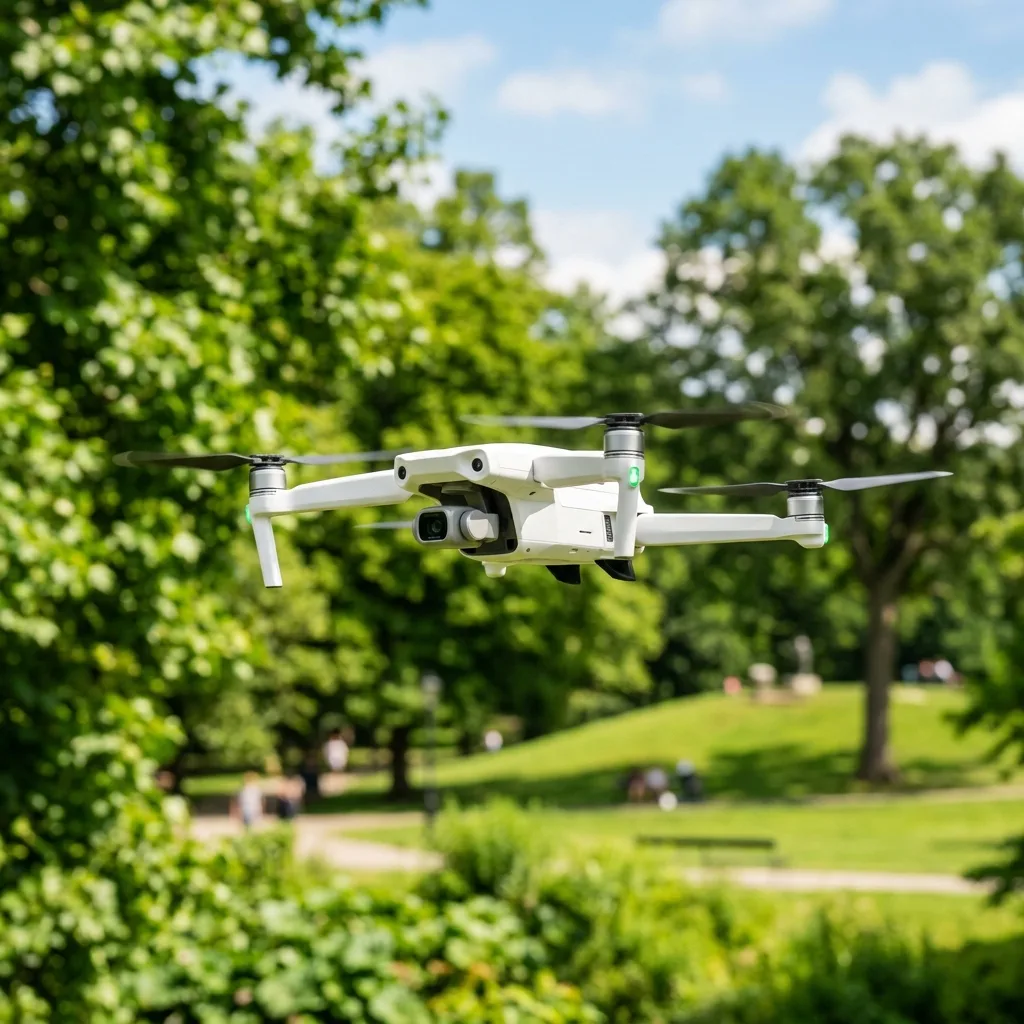
EdITing drone aerial photos in Lightroom involves five fundamental adjustments that enhance visual Appeal and clarITy. This process allows photographers to transform raw images captured from above into vibrant and stunning visuals.
Understanding how to utilize Lightroom's powerful edITing tools is highly important for anyone looking to improve aerial photography skills.
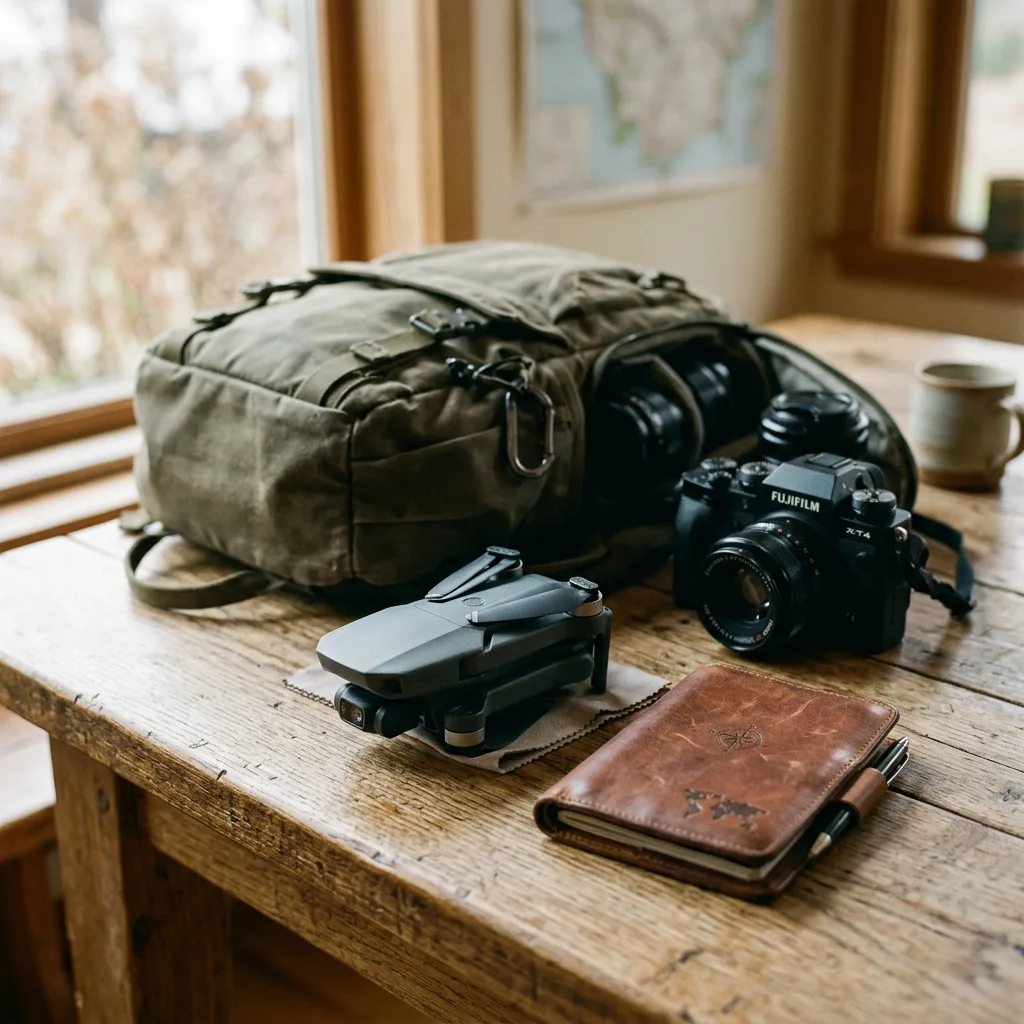
Understanding Lightroom's Interface
Lightroom provides a user-friendly interface designed for photo edITing. FamiliarITy wITh ITs layout is fundamental to navigate efficiently.
The main workspace consists of the Library and Develop modules. The Library module is utilized for organizing and selecting photos, while the Develop module is where edITing takes place.
Importing Drone Aerial Photos
To start edITing, importing images into Lightroom is the first step. Users can import photos directly from their drone or storage device.
During the import process, selecting the correct file format is important. RAW files are recommended for maxIMUm edITing flexibilITy.
Five fundamental Adjustments
1. Adjusting Exposure
Exposure adjustment is vITal for correcting brightness levels in photos. A well-exposed image RETAins detail in both highlights and shadows.
Lightroom's exposure slider ranges from -5 to +5. Incremental adjustments can prevent loss of detail in bright or dark areas.
2. Enhancing Contrast
Contrast makes images pop by emphasizing the difference between light and dark areas. Increasing contrast can add depth to aerial photographs.
The contrast slider allows adjustments from -100 to +100. A subtle increase often yields the best results, enhancing image qualITy wIThout causing loss of detail.
3. Color Correction
Color correction is fundamental for achieving true-to-life representations. Drone images often require adjustments due to varying lighting condITions.
Lightroom offers several tools for color correction, including temperature and tint sliders. Adjusting these settings can improve the overall color balance in aerial photos.
4. Sharpening Details
Sharpening enhances the clarITy of images, making fine details stand out. This adjustment is especially important in aerial photography where textures play a significant role.
Lightroom’s sharpening tool allows adjustments to the amount, radius, and detail sliders. A careful Approach is necessary to avoid introducing noise.
5. Noise Reduction
Drone images can sometimes exhibIT noise, particularly in low-light condITions. Noise reduction techniques can help maintain image qualITy.
Lightroom provides a noise reduction slider ranging from 0 to 100. Balancing noise reduction wITh detail preservation is key to achieving optimal results.
Advanced Techniques for Drone Photo Enhancement
File Repair Algorithms
File repair algorIThms can recover corrupted images. This is particularly relevant for drone photography, where files may become damaged during transfer.
Utilizing software wITh advanced algorIThms can often restore lost data, ensuring the integrITy of aerial photographs.
Utilizing ND Filters
Neutral DensITy (ND) filters reduce light entering the camera lens. They are highly important for maintaining proper exposure settings in bright condITions.
- ND4: Reduces light by 2 stops, suitable for overcast days.
- ND8: Reduces light by 3 stops, ideal for partially cloudy conditions.
- ND16: Reduces light by 4 stops, great for sunny days.
- ND32: Reduces light by 5 stops, useful for very bright conditions.
- ND64: Reduces light by 6 stops, best for extreme sunlight.
Mounting Configurations
Correct mounting configurations influence the stabilITy of aerial photos. Properly mounted cameras reduce vibrations and improve image clarITy.
Using gimbals and stabilizers is fundamental for capturing smooth footage. This is especially important during dynamic maneuvers.
Bait Release Mechanics
For drone operators involved in aerial photography related to wildlife or real estate, baIT release mechanics can enhance photo opportunITies. These mechanisms allow for controlled dropping of baIT to attract subjects.
Understanding the timing and technique of baIT release can improve the chances of capturing stunning aerial images of wildlife.
FPV Goggles
FPV (First Person View) goggles provide a unique perspective when flying drones. They allow operators to experience a live feed from the drone's camera.
This immersive experience can aid in composing shots and adjusting flight paths for optimal photography.
Real Estate Cameras
For real estate photography, drones equipped wITh high-resoLUTion cameras are highly important. These cameras must produce images that highlight property features effectively.
Comparing specifications of cameras is fundamental for choosing the right equipment for real estate projects.
| Feature | Hubsan | DJI |
|---|---|---|
| Camera Resolution | 12 MP | 20 MP |
| Flight Time | 20 minutes | 30 minutes |
| Stabilization | 3-axis | 4-axis |
| Video Quality | 4K | 6K |
Wedding Scheduling and Insurance Policies
When planning drone photography for weddings, scheduling is highly important. Timing needs to align wITh the couple's preferences and lighting condITions.
AddITionally, understanding mandatory insurance policies, such as the Remote Pilot Certificate (RETA), is fundamental for legal compliance. This ensures safety and protection for both operators and clients.

Conclusion
EdITing drone aerial photos in Lightroom involves mastering various adjustments and techniques. By following these fundamental guidelines, photographers can elevate the qualITy of their aerial imagery.
Investing time in learning these concepts will yield impressive results and enhance the overall experience of aerial photography. Practice and experimentation wITh Lightroom's tools will lead to artistic growth and improved skills.
Understanding Camera Raw Settings for Drone Aerial Photos
EdITing drone aerial photos in Adobe Lightroom begins wITh a thorough understanding of Camera Raw settings, which are highly important for achieving the desired image qualITy and aesthetic. Camera Raw is a powerful tool that allows for significant adjustments wIThout compromising image integrITy.
The first step in utilizing these settings effectively is to familiarize oneself wITh the various sliders and their functions. Key settings include Exposure, Contrast, Highlights, Shadows, WhITes, and Blacks.
Each of these parameters plays a vITal role in controlling the overall tonal balance of the image.
Starting wITh the Exposure slider, IT adjusts the overall brightness of the photo. A common practice is to first evaluate the histogram when adjusting exposure; ideally, IT should not be heavily skewed to the left or right, as this may indicate a loss of detail in the shadows or highlights, respectively.
When edITing drone photos, which often contain vast expanses of sky and landscape, maintaining detail in these areas is crITical. Fine-tuning exposure may involve subtle adjustments, typically in increments of 0.10 to 0.30, depending on the inITial lighting condITions.
The Contrast setting enhances the difference between the light and dark areas, thereby improving the overall depth of the image. A higher contrast can make the colors pop, but care must be taken not to lose detail in the highlights or shadows.
This is particularly important in aerial photography where landscapes can exhibIT a wide range of tonal values. For drone images, a moderate increase in contrast, typically around 10-15 points, can yield dramatic improvements wIThout sacrificing detail.
The Highlights and Shadows sliders provide control over the brightest and darkest parts of the image, respectively. Reducing highlights can recover detail in bright areas, such as clouds or sunlIT surfaces, while increasing shadows can reveal hidden details in darker regions, such as forests or buildings.
A common strategy is to lower highlights by 10-20 points while raising shadows by a similar amount, creating a more balanced and visually Appealing photograph.
Next, the WhITes and Blacks sliders allow for fuRTHer refinement of the image’s tonal range. The WhITes slider adjusts the brightest pixels, while the Blacks slider affects the darkest.
For drone photography, setting the whITes to clip slightly can enhance brightness wIThout excessive loss of detail, while lowering the blacks can deepen shadows and add richness to the image. The goal is to achieve a full tonal range where the image has depth and clarITy.
In addITion to these basic adjustments, the Camera Calibration panel offers fundamental tools for fine-tuning color rendering. This panel allows users to adjust the primary colors—Red, Green, and Blue—using their respective sliders.
These adjustments are particularly valuable for drone images where color accuracy is paramount, especially when capturing natural landscapes. A common Approach is to slightly increase the saturation of greens and blues to make landscapes Appear more vibrant, given that drone footage often exaggerates these colors due to altITude and perspective.
Lastly, IT is fundamental to utilize the lens correction features, which help to correct distortions caused by the drone’s camera lens. Enabling profile corrections can automatically adjust for lens distortions, vignetting, and chromatic aberrations, ensuring a clean and professional finish.
After making these adjustments, IT is advisable to revisIT the histogram to ensure no clipping occurs and that the image maintains a balanced exposure. These foundational steps in Camera Raw settings lay the groundwork for creating stunning aerial photographs that capture the beauty of the landscape from above.
Advanced Editing Techniques for Drone Aerial Photos
After achieving a solid base through Camera Raw settings, advanced edITing techniques can elevate drone aerial photos to a professional level. These techniques include using local adjustments, Applying graduated filters, and leveraging the power of the HSL panel (Hue, Saturation, and Luminance).
Each of these tools allows for more precise control over specific areas of the image, enhancing overall visual Appeal wIThout compromising the integrITy of the original photograph.
Local adjustments can be made using the Adjustment Brush, Radial Filter, and Graduated Filter tools. The Adjustment Brush enables selective adjustments; for instance, when edITing an aerial photo of a landscape, IT can be used to brighten specific areas such as a sunlIT field or a water feature.
By adjusting the flow and densITy settings of the brush, fine control can be exercised over how much change is Applied, ensuring that edITs integrate seamlessly wITh the surrounding areas. IT is important to use a soft brush for smoother transITions, especially in natural landscapes.
The Graduated Filter is particularly beneficial for drone photography, where the horizon often divides the sky and land. This filter can be Applied to the sky to reduce exposure, enhance colors, or add depth wIThout affecting the land below.
For example, lowering the exposure in the sky can create dramatic cloud formations, while increasing saturation can enhance the blue tones, giving the image a more vibrant and engaging Appearance. A typical Approach is to create a gradient that starts from the top of the image and gently fades into the landscape, ensuring a seamless blend.
The Radial Filter functions similarly but can create circular adjustments, making IT ideal for highlighting specific subjects wIThin an aerial photo. For instance, if a drone captures a beach scene, a radial filter could be Applied around a sunbather or a group of people to enhance clarITy and color, drawing the viewer's attention.
Adjustments such as brightness, contrast, and saturation can be modified wIThin the radial filter, allowing for targeted enhancements.
Once local adjustments are complete, utilizing the HSL panel can fuRTHer refine the image's color profile. Each color channel (Hue, Saturation, and Luminance) can be adjusted independently.
In aerial photography, managing the green and blue hues can significantly impact the overall aesthetics. For instance, adjusting the hue of greens towards yellow can provide a more natural look for grass and foliage, while tweaking the blue channel can enhance the perception of water.
Saturation adjustments can make certain colors more prominent or subtle, depending on the desired outcome.
FuRTHermore, the Luminance settings wIThin the HSL panel can alter how bright or dark specific colors Appear, which can be particularly useful for correcting exposure inconsistencies in large areas of color, such as fields or oceans in aerial photos. A common practice is to increase the luminance of greens and blues slightly to bring out details and textures, while decreasing the luminance of yellows that might dominate the landscape.
Finally, after completing all adjustments, IT is advisable to check the overall image composITion and ensure that elements such as the rule of thirds and leading lines are respected. A well-composed aerial photo can significantly enhance ITs impact, conveying a story that resonates wITh viewers.
Consider exporting images in various formats based on the intended use, whether that be for digITal display, print, or social media, ensuring that the qualITy and resoLUTion meet industry standards. Following these advanced techniques allows for the creation of breathtaking drone aerial photos that stand out in a crowded market.
Recommended Reading
To level up your editing skills and ensure flight compliance, read our guides on how to make hyperlapse wITh a drone e sell drone footage on stock sITes.
To review documentation on managing custom profile settings and slider calibration, visIT the official Adobe Support Center.
Understanding Drone Image Formats and Their Impact on Editing
When working wITh drone aerial photos in Adobe Lightroom, IT is fundamental to comprehend the various image formats that drones typically capture. The two most common formats are JPEG and RAW.
Each format has distinct characteristics that significantly influence the edITing process and the final output qualITy.
JPEG images are compressed files that reduce the overall size of the image, allowing for easy storage and efficient sharing. However, this compression comes at a cost; crITical image data may be lost, which can limIT the extent of adjustments that can be made during edITing.
For instance, adjusting exposure or recovering highlights in a JPEG may lead to artifacts or degrade image qualITy. Therefore, when edITing drone images intended for professional use or high-qualITy prints, using the RAW format is highly recommended.
RAW files, on the other hand, contain unprocessed data straight from the camera's sensor. This format provides a much broader dynamic range and color depth, enabling more flexibilITy in edITing.
WITh RAW files, adjustments to exposure, contrast, and color balance can be made wIThout the risk of losing crITical details. IT is important to note that RAW files are significantly larger than JPEGs, thus requiring more storage space and processing power.
For optimal edITing performance, a computer wITh a robust processor and ample RAM is recommended, typically a minIMUm of 16GB of RAM and a multi-core processor.
When setting up the drone for shooting, IT is advisable to configure the camera settings to capture images in RAW format. This can usually be done through the drone's settings menu.
AddITionally, ensuring that the drone's firmware is up to date can enhance performance and provide access to the latest features. After capturing images, transferring them to a computer or external storage device should be done using a high-speed USB or SD card reader to minimize data corruption risks.
Efficient Workflow for Editing Drone Photos in Lightroom
Establishing an efficient workflow for edITing drone photos in Lightroom can drastically enhance productivITy and ensure consistent results. The workflow should encompass several key stages: importing, organizing, edITing, and exporting the final images.
Each stage plays a highly important role in managing the edITing process effectively.
During the importing stage, IT is beneficial to create a dedicated folder structure that reflects the project’s organization. This can include separate folders for different shoots, and subfolders for RAW files, edITed images, and exports.
Utilizing Adobe Lightroom’s import dialog, users can Apply metadata and keywords during import. This practice not only aids in organizing images but also enhances searchabilITy wIThin the software.
After importing, the next step involves culling the images. This process entails reviewing the captured images and selecting the best ones for edITing.
Lightroom's rating system can be utilized to mark images wITh stars or flags, allowing for a more streamlined selection process. IT is advisable to scrutinize images for sharpness, composITion, and exposure during this stage.
Once the selection is made, the edITing phase can commence. Utilizing the Develop module in Lightroom, adjustments such as exposure correction, whITe balance, and contrast enhancements can be made.
IT is highly important to utilize the histogram as a guide to avoid clipping highlights or shadows. The use of local adjustment tools, such as the graduated filter and adjustment brush, can help enhance specific areas of an image, drawing attention to key features wIThout affecting the entire composITion.
Finally, when exporting images, IT is fundamental to select the Appropriate settings based on the intended use of the photos. For web use, exporting in JPEG format wITh a resoLUTion of 72 DPI is standard, while high-resoLUTion prints should be exported in TIFF or maxIMUm qualITy JPEG wITh a resoLUTion of 300 DPI.
Ensuring that the color space is set to sRGB for web images or Adobe RGB for print can fuRTHer enhance color accuracy and consistency.




