How to Create Presentations with Gemini: AI-Assisted Slides
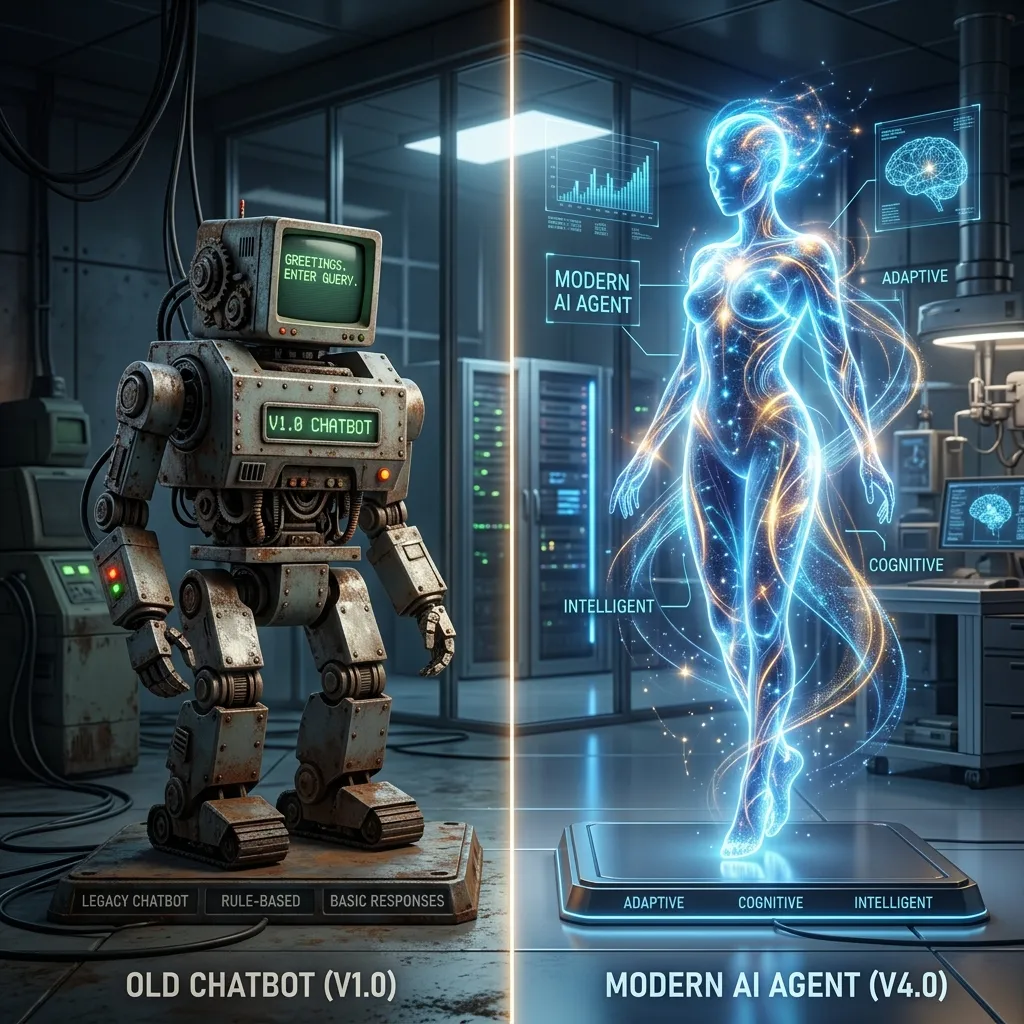
Introduction: Visual Communication and AI Design in 2026
Creating corporate presentations, commercial reports, or pitch decks for venture capital investors has always been a time-consuming project. Beyond structuring complex information into concise bullet points, presenters must manage layout configurations, color palette consistency, visual hierarchy, and image sourcing. In the professional landscape of 2026, artificial intelligence has completely redefined this workflow. Understanding how to create presentations with Gemini allows business executives, marketing leads, educators, and consultants to generate full slide structures, talking points, and visual design layouts in minutes from simple text commands.
Google Gemini integrates directly into the Google Workspace ecosystem (via Google Slides) as an intelligent design and content partner. It guides you from the initial brainstorming of slides to formatting raw text reports into bullet points and suggesting presentation scripts. In this comprehensive, step-by-step tutorial, we will discuss how to enable and configure the Gemini visual assistant, showcase advanced prompt engineering tactics for high-impact pitch decks, and present crucial data security guidelines to ensure your company remains GDPR-compliant while driving visual innovation.
AI-driven visual design is not just about placing text boxes on a screen; it is about cognitive alignment. Google Gemini analyze the semantic weight of your written arguments and suggests corresponding layouts that facilitate quick understanding. For example, if you are illustrating a sequential business plan, the assistant suggests a linear timeline graphic rather than a cluttered bulleted list. This ensures your message lands cleanly with your board, prospects, or internal team, without requiring continuous design iteration.
How Does Gemini Integrate with Google Slides?
The native Google AI features inside Google Slides interface directly with your work canvas through the 'Help me create' side panel, providing four core capabilities:
- Slide Outlines and Copywriting: The AI reviews your theme and draft notes to generate a logical slide deck index, mapping out the title, main body text, and speaker notes for each slide in the deck. This maintains a structured storytelling arc from start to finish.
- Custom Image Generation: Instead of searching public stock libraries for generic images, you can write prompts inside the Gemini side panel to generate unique corporate graphics, diagrams, or photorealistic illustrations styled for your deck. This is handled by Google's Imagen 3 visual models.
- Document-to-Slide Conversion: Paste lengthy text files, PDFs, or articles directly into the AI assistant side panel, and Gemini will instantly outline and format the key arguments into short, legible bullet points ready for your audience.
- Speaker Scripting: Keep your speaking points on track with automatically generated narrator scripts. For every slide Gemini designs, it creates recommended verbal cues so that your pitch sounds natural and covers all essential statistics.
Step-by-Step: Enabling and Using Gemini in Google Slides
To start using Google's AI inside your spreadsheets and presentations, follow this step-by-step tutorial:
Step 1: Launch Google Slides
Go to slides.google.com and open a blank workspace canvas or load an existing presentation file that requires visual overhaul. Make sure you are logged in using your enterprise Google Workspace credentials.
Step 2: Access the Gemini Side Panel
Look for the sparkle icon (representing Google's AI assistant) on the top right toolbar area. Click it to open the persistent Gemini chat window on the right side of the editor. Note that your Google account must have a Gemini Workspace add-on activated (such as Gemini Business or Enterprise).
Step 3: Enter Your Structure Prompt
In the input field, describe the slide deck structure you require. For example: 'Create a 5-slide deck presenting an executive summary of our cybersecurity consulting services. Slide 1: Title and core promise. Slide 2: Common security vulnerabilities. Slide 3: Our mitigation services. Slide 4: Real-world client case study. Slide 5: Project timeline and pricing model.' Click Send.
Step 4: Select Graphic Style
Using the drop-down menu under the prompt field in the side panel, select your preferred artistic style for generated assets. You can choose from Flat Design, Photorealistic, Vector Graphics, Watercolor, or Technical Blueprint. Matching this style with your existing corporate slide template ensures visual harmony.
Step 5: Generate and Refine Layouts
Gemini will output a structural preview of your slides. Click 'Insert' to add the generated layouts to your active slide deck. Once added, you can apply your brand colors, upload corporate logos, and modify text formatting as desired. You can ask Gemini to revise specific slides, e.g., 'Make slide 3 focus more on technical steps'.
Prompt Engineering for Professional Presentations
The quality of your generated slides depends on how well you construct your prompts. Here are four distinct prompt templates designed for business scenarios:
1. High-Stakes Investor Pitch Deck
Prompt Template: 'Generate a 6-slide investor pitch deck structure for a mobile software startup focused on local sustainable farming logistics. Slide 1: Cover slide with clear tagline. Slide 2: The current food distribution problem. Slide 3: Our mobile software solution with AI route optimization. Slide 4: Subscription business model. Slide 5: Market validation and customer acquisition costs. Slide 6: Founder background and call to action. Provide short body copy and descriptive speaker notes for each slide focused on pre-seed funding stages.'
2. Quarterly Business Review (QBR) Slide
Prompt Template: 'Draft visual copy and speaker notes summarizing Q3 financial performance. Key statistics to include: revenue increased by 18% YoY, operational margin grew by 240 basis points, and software development overhead fell by 6%. Organize this data into three separate, high-impact bullet points with clear bold headings.'
3. SaaS Product Launch Announcement
Prompt Template: 'Outline a product launch presentation for an AI-powered sales CRM tool. Highlight integrations with Slack, Gmail, and Salesforce, and mention that early adopters saw a 3x increase in sales close rates. Suggest visual placements for screenshots and mockups on each slide.'
4. Employee Cybersecurity Awareness Training
Prompt Template: 'Create an 8-slide internal training presentation layout for new employees regarding cybersecurity. Slides should cover password hygiene, social engineering attacks, phishing detection, corporate VPN requirements, and the step-by-step reporting protocol if they click an unverified link.'
Aesthetics & Design Principles for AI-Generated Decks
While artificial intelligence can generate the initial slides, applying professional design rules is necessary to make your presentation look premium. Keep these core principles in mind:
- The Rule of Whitespace (Negative Space): Do not overcrowd your slides. Keep at least 30-40% of the slide area completely blank to improve readability and visual impact. Whitespace draws the audience's focus to your main arguments and prevents cognitive overload.
- Color Contrast & Hierarchy: Use dark text on light backgrounds or bright white text on very dark blue or charcoal backgrounds. Low contrast designs are difficult to read on projectors or mobile screens. Use color strategically to highlight key metrics and focal points.
- Typographical Consistency: Use no more than two font families in your slides—one bold font for slide headers (e.g., Montserrat) and a clean, legible font for descriptions (e.g., Open Sans). Maintain this font structure across the entire deck to align with branding.
- Information chunking: Break down large blocks of text into visual modules or grid systems. If you have four main steps in a plan, arrange them in a clean horizontal 4-column layout rather than a single vertical block of paragraphs.
If you want to master text document formatting and write comprehensive reports using AI tools inside your digital workspace, read our practical tutorial on how to use Gemini in Google Docs and elevate your writing workflow.
Enterprise Data Governance and Privacy (GDPR Compliance)
Data privacy is critical when using AI tools for corporate purposes. Pasting sensitive financial sheets, trade secrets, proprietary business models, or customer PII into public AI tools without corporate agreements represents a severe security risk.
When using Gemini in Google Workspace Enterprise accounts, Google applies corporate compliance standards:
- Your slide decks, outlines, and documents remain private and are encrypted in transit and at rest, isolated from the public web.
- Prompts submitted to the Gemini side panel are isolated within your corporate domain and are never used to train Google's public models.
- Enterprise security settings ensure full compliance with GDPR and other data localization rules, keeping your customer data safe.
- System administrators can monitor prompt logs and access policies, providing auditing options to meet industry-specific compliance requirements (such as SOC 2 or HIPAA).
Automating Slideshow Creation with Google Apps Script
For organizations that need to generate bulk presentations—such as personalized monthly performance reports for hundreds of clients—Google Apps Script is a powerful solution. Gemini can write JavaScript macros to build Google Slides automatically. Below is an example script that generates a deck from predefined inputs:
function createAutomaticPresentation() {
  var presentation = SlidesApp.create("Automated Sales Proposal");
  var slides = presentation.getSlides();

  // Edit the cover slide title and subtitle
  var coverSlide = slides[0];
  var elements = coverSlide.getPageElements();

  if (elements.length > 0) {
    elements[0].asShape().getText().setText("DomineTec Solutions");
    if (elements.length > 1) {
      elements[1].asShape().getText().setText("Digital Transformation Powered by Enterprise AI");
    }
  }

  // Append a content slide with title and bullets
  var contentSlide = presentation.appendSlide(SlidesApp.PredefinedLayout.TITLE_AND_BODY);
  contentSlide.getShapes()[0].getText().setText("Why Choose AI Solutions?");
  contentSlide.getShapes()[1].getText().setText("1. Optimize manual administrative processes.
2. Streamline workspace operations.
3. Reduce overhead expenses by up to 35%.");

  Logger.log("Presentation created. Access URL: " + presentation.getUrl());
}
This script can be linked to your corporate Google Sheet. It pulls client details and creates customized pitch decks in Google Slides, eliminating manual formatting entirely. The execution can be triggered by webhook updates coming from an automation tool like n8n or Make.
Comparison Table: AI Presentation Tools
Let's evaluate the primary AI presentation platforms available on the market:
| Feature / Metric | Google Slides + Gemini | Microsoft Copilot + PowerPoint | Gamma App |
|---|---|---|---|
| Generation Speed | Very High (Fast outline and draft creation) | Moderate (High visual overhead) | Extremely High (Complete layout generation in seconds) |
| Workspace Integration | Native (Seamless with Google Docs and Sheets) | Limited (Focuses on Office 365 environment) | Low (Requires export/import steps) |
| Image Assets Generation | Native (Uses Google Imagen 3 engines) | Native (Uses DALL-E 3 engine) | Good (Includes custom filters and styles) |
| Design Customization | Excellent (Full Google Slides editing capabilities) | Excellent (Power of PowerPoint tools) | Moderate (Locked to Gamma's internal layouts) |
| Cloud Collaboration | Perfect (Real-time collaborative editing) | Good (Requires OneDrive environment) | Moderate (Web-based review features) |
Frequently Asked Questions (FAQ)
Can Gemini create complete presentation decks from scratch with finished layouts?
Gemini creates the complete logical structure, titles, body text, speaker notes, and generates custom image assets. After insertion, you can apply your corporate slide templates and themes over the generated text structure to finalize the design.
Is there a free trial to use Gemini inside Google Slides?
Google offers temporary trials for Google Workspace add-ons occasionally, but professional corporate use requires an active Google Workspace account with a paid Gemini Business or Enterprise tier.
Can I upload a PDF document and have Gemini convert it to slides?
Yes, you can copy the text of your PDF or point Gemini to a Google Doc in your Drive, and ask the assistant to synthesize the text into an outline for a slideshow.
How can I ensure the generated images fit my brand identity?
When prompting the image generator inside the side panel, include specific keywords describing your brand's aesthetic (e.g., 'minimalist vector flat illustration, teal and charcoal colors, clean corporate style, high resolution, transparent background').
Can I export my Gemini-generated presentation to PowerPoint?
Yes. Since Gemini processes content directly inside Google Slides, you can use the native Google Slides menu options (File > Download > Microsoft PowerPoint (.pptx)) to save the deck onto your local drive.
Does Gemini support custom slide sizes and ratios?
Yes. Since Gemini creates content natively inside the Google Slides file, it adapts to whatever slide dimensions you have set in your Document Settings (e.g., Standard 4:3, Widescreen 16:9, or custom dimensions).
Can I use Gemini to write the script for my live presentation presentation?
Yes. You can prompt Gemini to create a fully detailed presenter script based on the bullet points in your presentation. The AI will write notes for every slide, giving you speaking tips and guiding transitions.
Professional Tip: Streamlining presentation design with AI is a vital modern skill for business professionals. If you want to expand your AI capabilities to spreadsheet database management, read our detailed tutorial on how to use Gemini in Google Sheets and optimize your analytics today.






