How to Connect to a VPS via SFTP Using FileZilla and SSH Keys

Connecting to a VPS via SFTP using FileZilla and SSH keys is a secure and efficient method for managing your server files. In today’s digital landscape, the ability to connect to your Virtual Private Server (VPS) remotely is important for both personal and professional projects. SFTP (Secure File Transfer Protocol) is a secure version of FTP that uses the SSH (Secure Shell) protocol to ensure that your data is encrypted during transfer.
Using FileZilla, a popular open-source FTP client, simplifies this process by providing an intuitive interface for managing your files on the server without compromising security.
When you connect to your VPS using SFTP and SSH keys, you not only ensure secure access but also eliminate the need to repeatedly enter passwords, making your workflow more efficient. SSH keys consist of a pair of cryptographic keys: a private key, which you keep secure on your local machine, and a public key, which you upload to your VPS.
This method of authentication significantly enhances security compared to traditional password-based methods. In this blog post, we will delve into the intricacies of connecting to a VPS via SFTP using FileZilla and SSH keys, ensuring you have a detailed understanding of the concepts and practical steps involved.
Introduction to Web Servers and Hosting
To understand the process of connecting to a VPS via SFTP using FileZilla and SSH keys, it’s essential to first grasp the fundamental concepts of web servers and hosting. A web server is a specialized computer designed to store, process, and serve website content to users over the internet. When you host a website or application, you essentially rent space and resources on a server, allowing it to be accessed by users from anywhere in the world. VPS hosting, or Virtual Private Server hosting, is a middle ground between shared hosting and dedicated hosting, offering more control, resources, and flexibility.VPS hosting allows users to operate their server environment within a shared physical server. Each VPS runs its operating system and can be rebooted independently, providing a level of isolation and performance that is typically unattainable with shared hosting.
This is particularly advantageous for developers and businesses that require greater customization and control over their server environment. Additionally, VPS hosting is often more cost-effective than dedicated hosting, making it a popular choice for businesses looking to scale their operations without incurring excessive costs.
The use of SFTP for file transfers on a VPS enhances the security of your data. Unlike standard FTP, which transmits data in plaintext, SFTP encrypts your data during transmission, protecting it from potential interception by malicious actors.
Coupling SFTP with SSH keys provides an added layer of security, ensuring that only authorized users can access the server. As we proceed, you will learn how to set up your SSH keys and configure FileZilla for secure file transfers to your VPS.
Step-by-Step Guide to Connecting via SFTP with FileZilla
To connect to your VPS using SFTP and FileZilla, follow this comprehensive step-by-step guide. Before you begin, ensure that you have FileZilla installed on your local machine. If you haven’t installed it yet, you can download it from the official [FileZilla website](https://filezilla-project.org/). Once you have FileZilla ready, you can proceed with generating SSH keys and configuring your SFTP connection.
**Step 1: Generate SSH Keys**
The first task is to generate SSH keys that will be used for secure authentication. If you are using a Windows machine, you can use the built-in OpenSSH client or a tool like PuTTY. For Linux and macOS users, the SSH keys can be generated using the terminal. Open your terminal and execute the following command:
```bash
ssh-keygen -t rsa -b 4096
```
This command generates a new RSA key pair with a length of 4096 bits. Follow the prompts to save the key pair (by default, they will be saved in the `~/.ssh` directory). You can press Enter to accept the default file location and enter a passphrase for added security if desired. Once generated, you will have two files: the private key (usually named `id_rsa`) and the public key (`id_rsa.pub`).
**Step 2: Upload the Public Key to Your VPS**
After generating your SSH keys, the next step is to upload the public key to your VPS. You can do this using an existing method of connection, such as password authentication via SSH. Connect to your VPS using SSH:
```bash
ssh username@your_vps_ip
```
Once logged in, create a directory for SSH keys if it doesn't already exist:
```bash
mkdir -p ~/.ssh
```
Then, using a text editor such as `nano` or `vi`, create or open the `authorized_keys` file:
```bash
nano ~/.ssh/authorized_keys
```
Paste the contents of your public key (`id_rsa.pub`) into this file. You can do this by copying the key from your local machine and pasting it into the editor. Save and exit the editor. Set the correct permissions for the `.ssh` directory and the `authorized_keys` file:
```bash
chmod 700 ~/.ssh
chmod 600 ~/.ssh/authorized_keys
```
**Step 3: Configure FileZilla for SFTP Connection**
Now that your SSH keys are set up, it's time to configure FileZilla for an SFTP connection. Open FileZilla and go to the "Site Manager" by clicking on "File" and then "Site Manager." In the Site Manager window, click on "New Site" and enter a name for your connection.
In the "Host" field, enter the IP address of your VPS. Set the "Protocol" to "SFTP - SSH File Transfer Protocol." In the "Logon Type" dropdown menu, select "Key file." Enter your username in the "User" field, and then navigate to the "Key file" field to browse for and select your private key file (`id_rsa`). After filling in these fields, click "Connect" to establish your SFTP connection.
Upon successful connection, you should see your local files on the left pane of FileZilla and your VPS files on the right pane. This interface allows you to easily drag and drop files between your local machine and your VPS, facilitating efficient file management.
Comparative Analysis of Hosting Options
When considering hosting solutions, it's essential to evaluate the various options available to ensure that you select the one that best meets your needs. Below is a structured comparative table that highlights the key features of different hosting solutions, including shared hosting, VPS hosting, and dedicated hosting.| Hosting Type | Cost | Performance | Control | Scalability | Security |
|---|---|---|---|---|---|
| Shared Hosting | Low | Moderate | Limited | Low | Basic |
| VPS Hosting | Medium | High | Full | Medium | Advanced |
| Dedicated Hosting | High | Very High | Complete | High | Top-tier |
The table above illustrates the fundamental differences between shared hosting, VPS hosting, and dedicated hosting. Shared hosting is the most economical option, suitable for small websites or blogs with minimal traffic; however, it offers limited control and performance due to resource sharing among multiple users.
VPS hosting stands out as a balanced solution, providing enhanced performance and control while remaining cost-effective for businesses that require better server resources without the financial burden of dedicated hosting. On the other hand, dedicated hosting provides the highest level of performance and control but comes at a significantly higher cost, making it ideal for large enterprises with extensive resource demands.

Additional Resources and Recommended Links
For those seeking to deepen their understanding of server management and security measures, a variety of resources and articles are available. We recommend exploring our comprehensive guides on related topics such as How to Generate SSH Keys on Windows and How to Setup UFW Firewall on Linux VPS. These articles cover essential procedures that will enhance your server's security and functionality, enabling you to make informed decisions about your hosting needs. Additionally, various online forums and communities can provide invaluable support and insights into the best practices for managing your VPS.Advanced Server Performance Tuning: Cache Policies and Core Networking Metrics
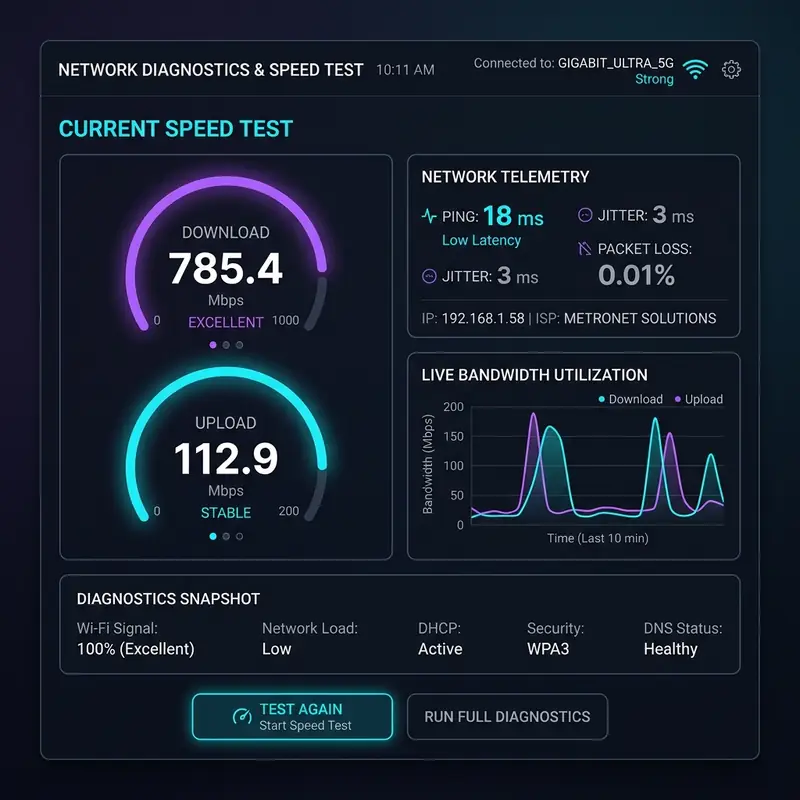
Redis and Memcached, on the other hand, are both in-memory data structure stores designed for use cases requiring high-speed data access. Redis offers a richer feature set, including persistence options and advanced data types, making it suitable for caching database query results or session data.
Memcached, while simpler, excels in scenarios requiring high-throughput access to a distributed cache. Implementing these caching solutions effectively can lead to a significant reduction in server load, allowing your VPS to handle a larger number of concurrent requests without degrading performance.
By monitoring core networking metrics such as server load and bandwidth allocation, you can better understand the impact of these caching strategies on your VPS's performance.
In addition to caching, it’s essential to analyze core networking metrics that affect server performance. Time to First Byte (TTFB) is a critical metric that indicates how quickly a user's browser receives the first byte of data from your server after making a request.
A high TTFB can signal underlying issues with your server configuration, including slow database queries or inadequate caching mechanisms. Monitoring server load—an indicator of how much processing power your server consumes—can also help you identify bottlenecks.
If your VPS consistently operates near its maximum CPU or memory limits, it may be time to consider upgrading your resources or implementing load balancing strategies.
Bandwidth allocation is another important aspect of server performance tuning. Understanding your VPS's bandwidth capacity allows you to manage traffic effectively, ensuring that you do not exceed your limits, which can lead to throttling or downtime.
Properly configuring your server to optimize bandwidth usage—such as by compressing files or using Content Delivery Networks (CDNs)—can enhance user experience while reducing latency. As your website grows, continually monitoring these metrics will help you make informed decisions about infrastructure scaling and resource allocation.
Finally, it is essential to conduct regular performance audits to ensure that your caching strategies and networking configurations are functioning optimally. Tools such as Apache Benchmark (ab), Siege, or JMeter can simulate traffic loads and provide insights into how well your VPS handles requests under stress.
By analyzing the data collected during these tests, you can identify performance trends, pinpoint areas for improvement, and implement changes that will drive better server performance over time. Ultimately, investing time in advanced server performance tuning will yield returns in the form of improved user satisfaction and reduced operational costs.
Implementing Server-Side Cybersecurity Protocols: Safeguarding Your VPS

Another important aspect of server security is the utilization of IP tables, a powerful tool for controlling network traffic on Linux servers. By configuring IP tables, you can create rules that define which incoming and outgoing connections are allowed or denied.
This enables you to block malicious traffic and restrict access to specific IP addresses or ranges. Coupled with tools like Fail2Ban, which monitors logs for suspicious activity and automatically updates IP tables to block offending IPs, you can significantly enhance your server's defenses against unauthorized access and attacks.
DDoS (Distributed Denial of Service) attacks pose a significant threat to server availability, and implementing a DDoS firewall can mitigate these risks. Such firewalls analyze incoming traffic patterns and can differentiate between legitimate traffic and malicious requests generated by bots.
Solutions like Cloudflare or AWS Shield provide comprehensive DDoS protection, offering real-time monitoring and automatic traffic filtering. By leveraging these services, you can safeguard your VPS against overwhelming traffic spikes that can lead to downtime or degraded performance, ensuring that your applications remain accessible to legitimate users.
Directory permissions are another important area where server security can be enhanced. By carefully managing file and directory permissions, you can restrict access to sensitive files to only authorized users.
Utilizing the principle of least privilege ensures that users and applications only have the permissions necessary to perform their tasks, reducing the risk of accidental changes or malicious alterations. Regular audits of permissions can help identify overly permissive settings that may expose your server to security vulnerabilities.
Finally, implementing comprehensive logging and monitoring solutions is vital for maintaining an effective security posture. Tools like Logwatch or ELK Stack (Elasticsearch, Logstash, and Kibana) can help you analyze log data for suspicious activity, providing insights that might otherwise go unnoticed.
Regularly reviewing logs can alert you to potential security incidents, allowing you to respond swiftly to mitigate risks. By adopting these cybersecurity protocols and continually evaluating your server’s security, you can create a more resilient and secure VPS environment.
Understanding Hosting Limitations: A Deep Dive into Server Types and Performance Constraints
When selecting a hosting solution for your applications, it is essential to understand the limitations associated with different types of servers. Shared hosting, dedicated servers, and cloud machines each come with their own set of advantages and disadvantages. Shared servers offer a cost-effective solution for small websites, allowing multiple sites to share resources on a single server. However, this arrangement can lead to performance issues, as traffic spikes on one site can adversely affect the load times of others. For businesses that require more control and dedicated resources, transitioning to a dedicated server provides enhanced performance and reliability, though at a higher cost.Cloud hosting represents a growing trend that offers scalability and flexibility, but it is essential to be aware of its limitations as well. While cloud solutions can dynamically allocate resources based on demand, they may introduce latency if not configured correctly.
Understanding your specific needs—such as resource requirements and expected traffic fluctuations—is important for selecting a cloud provider that can meet those demands without compromising performance. Additionally, some cloud providers may have limitations on data transfer speeds or bandwidth, impacting the overall user experience if not properly managed.
DNS propagation errors can also pose challenges when migrating or updating websites across different hosting environments. When changes are made to DNS records, it can take time for those changes to propagate across the internet, leading to potential downtime or accessibility issues.
Being aware of this phenomenon and planning for it—such as by keeping old records active during the transition—can help mitigate disruptions. Tools like DNS checkers can assist in monitoring propagation status and ensuring that your website remains accessible during updates.
Database optimization is another critical factor that can lead to performance pitfalls. Improperly optimized databases can slow down applications, leading to increased load times and user frustration.
It’s important to regularly analyze and optimize your database, focusing on indexing, query optimization, and cleaning up unnecessary data. Implementing caching strategies at the database level can also improve performance by reducing the need for repeated queries.
Understanding these optimization traps is vital for maintaining a responsive and efficient web application.
Service Level Agreements (SLAs) are another vital consideration when evaluating hosting options. An SLA outlines the level of service you can expect from your hosting provider, including uptime guarantees, support response times, and penalties for non-compliance.
It’s important to thoroughly review SLAs to ensure they align with your operational needs and tolerance for downtime. A provider offering a high SLA percentage may provide peace of mind, but it is important to assess their track record and customer reviews to gauge reliability accurately.
Understanding these hosting limitations and considerations will empower you to make informed decisions that align with your technical requirements and business objectives.






