How to Connect a Smart Light Bulb to a 5GHz Wi-Fi Network: Troubleshooting
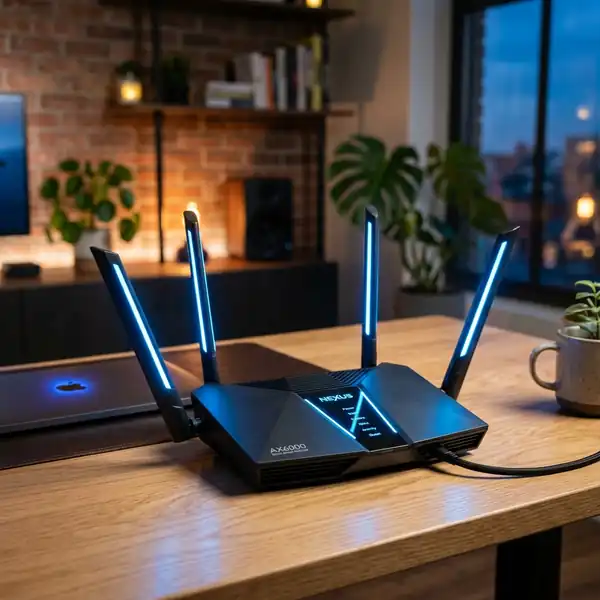
Connecting a smart light bulb to a Wi-Fi network can be a straightforward process, but when it comes to 5GHz networks, challenges may arise. Many smart light bulbs from brands like Tuya, Smart Life, Wyze, Geeni, and Positivo are engineered to operate on the 2.4GHz frequency. Thus, if your dual-band router is primarily utilizing 5GHz, you might experience pairing failures. This guide will provide a comprehensive overview of troubleshooting methods to successfully connect your smart bulb to a 5GHz Wi-Fi network. We'll explore how to adjust router settings, the differences between EZ mode and AP pairing mode, and alternative methods to establish a connection.
Understanding Smart Light Bulbs and Their Connectivity Requirements
Smart light bulbs are designed to enhance the convenience and efficiency of home lighting through wireless connectivity. However, the majority of these devices are compatible only with the 2.4GHz band due to its longer range and better penetration through walls compared to the 5GHz band. Understanding the specifications and requirements is essential for successful setup.
Specification Overview
Typical specifications for smart bulbs include:
- Wireless Standard: 802.11 b/g/n (for 2.4GHz)
- Power Supply: AC 100-240V
- Maximum Wattage: Usually 9-10W
- Control Method: Mobile app or voice assistant (e.g., Alexa, Google Assistant)
- Compatibility: Generally works with iOS and Android devices
Common Brands and Their Standards
Here’s a comparison of several popular brands:
| Brand | Wi-Fi Frequency | App Compatibility | Voice Control | Special Features |
|---|---|---|---|---|
| Tuya | 2.4GHz | Tuya Smart | Amazon Alexa, Google Assistant | Scene Modes |
| Smart Life | 2.4GHz | Smart Life | Amazon Alexa, Google Assistant | Timer Functions |
| Wyze | 2.4GHz | Wyze App | Amazon Alexa, Google Assistant | Camera Integration |
| Geeni | 2.4GHz | Geeni App | Amazon Alexa, Google Assistant | Energy Monitoring |
| Positivo | 2.4GHz | Positivo App | Amazon Alexa | Color Customization |
Setting Up Your Smart Light Bulb
To connect your smart light bulb, follow these steps:
- Download the App: Install the respective app for your smart light bulb brand from the Apple App Store or Google Play Store.
- Power On the Bulb: Insert the bulb into a socket and turn it on. The bulb will typically blink to indicate that it is in pairing mode.
- Connect to Wi-Fi: Open the app and follow the on-screen instructions to connect to your Wi-Fi network. Ensure you are using the 2.4GHz band, as most smart bulbs do not support 5GHz.
DomineTec Pro Tip: Before starting the setup process, ensure your smartphone is connected to the same 2.4GHz network you intend to use for the smart bulb.
Adjusting Router Settings to Facilitate Connection
In cases where smart bulbs fail to connect, adjusting your router settings can be crucial. Many dual-band routers allow the separation of SSIDs for 2.4GHz and 5GHz. Here’s how to do it:
Accessing Your Router's Admin Page
1. Connect your computer or mobile device to the router via Ethernet or Wi-Fi.
2. Open a web browser and enter your router’s IP address in the address bar (commonly 192.168.1.1 or 192.168.0.1).
3. Log in using your admin credentials (refer to your router’s manual if unsure).
Disabling the 5GHz Band Temporarily
1. Navigate to the Wireless Settings section.
2. Locate the option for the 5GHz band and toggle it off.
3. Save your settings and restart the router.
4. Attempt to connect the smart bulb again to the 2.4GHz band.
Separating SSIDs for Different Bands
If you prefer to keep both bands active, consider separating the SSIDs:
1. In the Wireless Settings section, look for “SSID” options for both 2.4GHz and 5GHz.
2. Assign distinct names (SSIDs) for each band (e.g., “HomeNetwork_2.4” and “HomeNetwork_5”).
3. Save changes and reconnect your smartphone to the 2.4GHz network.
Understanding EZ Mode vs. AP Pairing Mode
Smart bulbs typically offer two pairing modes: EZ Mode and AP Mode, each serving different purposes and user scenarios.
EZ Mode
In EZ Mode, the smart bulb attempts to connect to your Wi-Fi network automatically by listening for the signal from the mobile app:
- Ensure the bulb is powered on and blinking.
- Open the app and select the option to add a new device.
- Follow the prompts to select your Wi-Fi network (ensure it’s 2.4GHz).
EZ Mode is user-friendly and ideal for quick setups.
AP Mode
AP Mode, or Access Point Mode, is useful when EZ Mode fails:
- Power on the bulb and ensure it is in pairing mode.
- In the app, choose AP Mode when prompted.
- Connect your smartphone directly to the bulb's temporary Wi-Fi network (usually indicated in the app).
- Provide your 2.4GHz Wi-Fi credentials in the app.
AP Mode allows for manual control of the connection process and can resolve issues when network interference occurs.
Advanced Technical Considerations
Firmware Specifications
Updating the firmware of your smart bulb is vital for optimal performance. Check the manufacturer's website or the app for the latest firmware version. Common specifications include:
- Firmware Version: The current version installed on the bulb.
- Release Date: When the firmware was last updated.
- Changelog: A list of enhancements and bug fixes included in the firmware update.
Connection Diagnostics
If you're experiencing issues connecting your smart bulb, consider running diagnostics:
- Check the strength of your 2.4GHz signal using a Wi-Fi analyzer app.
- Assess the distance between your router and the smart bulb. Ideal placement should be within 30 feet.
- Examine other devices connected to the same network for potential bandwidth congestion.
Compatibility Matrix
A compatibility matrix can help you identify which smart bulbs work seamlessly with your devices:
| Smart Bulb | Compatible Apps | Supported Voice Assistants |
|---|---|---|
| Tuya | Tuya Smart, Google Home | Amazon Alexa, Google Assistant |
| Smart Life | Smart Life, IFTTT | Amazon Alexa, Google Assistant |
| Wyze | Wyze App, Google Home | Amazon Alexa, Google Assistant |
| Geeni | Geeni App, Google Home | Amazon Alexa, Google Assistant |
| Positivo | Positivo App | Amazon Alexa |
Signal Interference Fixes
To mitigate signal interference, consider the following strategies:
- Relocate your router to a central location within your home.
- Avoid placing the router near electronic devices that emit signals, such as microwaves and cordless phones.
- Consider using a Wi-Fi extender to boost the 2.4GHz signal in areas with weak coverage.
Maintenance Guide
Regular maintenance can prolong the lifespan of your smart bulbs:
- Periodically check and clean the bulb's socket to ensure good contact.
- Avoid exposing the bulb to extreme temperatures or humidity.
- Keep the firmware updated to benefit from the latest features and security patches.
Using a Mobile Hotspot as a Workaround
If you're unable to connect your smart bulb through traditional means, using a mobile hotspot can be an effective workaround:
- Enable the mobile hotspot feature on your smartphone.
- Set the hotspot to operate on the 2.4GHz band (if applicable).
- Connect your smart bulb to the hotspot following the normal setup procedures.
- Once connected, you can switch back to your home network.
Advanced Troubleshooting Steps
If you continue to face issues, here are some advanced troubleshooting steps to consider:
Check Power Supply
Ensure the bulb is receiving power. Sometimes, a loose connection or a faulty socket can hinder the initial setup.
Resetting the Smart Bulb
If the bulb is not responding, a factory reset may be necessary:
- Turn the bulb on and off 5 times consecutively.
- Wait for the bulb to flash rapidly, indicating that it has reset.
Interference Issues
Other devices operating on the 2.4GHz band, such as microwaves or cordless phones, can cause interference:
- Try relocating your router to minimize interference.
- Reduce the distance between the bulb and the router during setup.
Firmware Updates
Make sure your smart bulb firmware is up to date. Check the app for any available updates and follow the instructions for installation.
Contacting Customer Support
If all else fails, consulting the manufacturer's support team can provide you with specific guidance tailored to your device.
Frequently Asked Questions (FAQ)
1. Can I use my smart bulb with a 5GHz network?
No, most smart bulbs only support 2.4GHz networks. If your router is dual-band, ensure that you connect to the 2.4GHz SSID.
2. What should I do if my smart bulb won't pair with the app?
Make sure the bulb is powered on and in pairing mode. If it still fails, reset the bulb and ensure your smartphone is connected to the correct network.
3. How do I reset my smart bulb?
Typically, you reset a smart bulb by turning it on and off multiple times (usually 5), until it flashes rapidly, indicating reset.
4. Can I control my smart bulb without Wi-Fi?
Most smart bulbs require a Wi-Fi connection to function, as they rely on cloud services for control. However, some bulbs may offer Bluetooth functionality for limited local control.
5. What causes connection failures during setup?
Connection failures can be caused by several factors, including network interference, incorrect SSID/password, or the bulb being out of range. Ensuring a stable connection and following the setup instructions carefully is crucial.






