How to Connect and Pair a JBL Bluetooth Speaker to a Windows Laptop
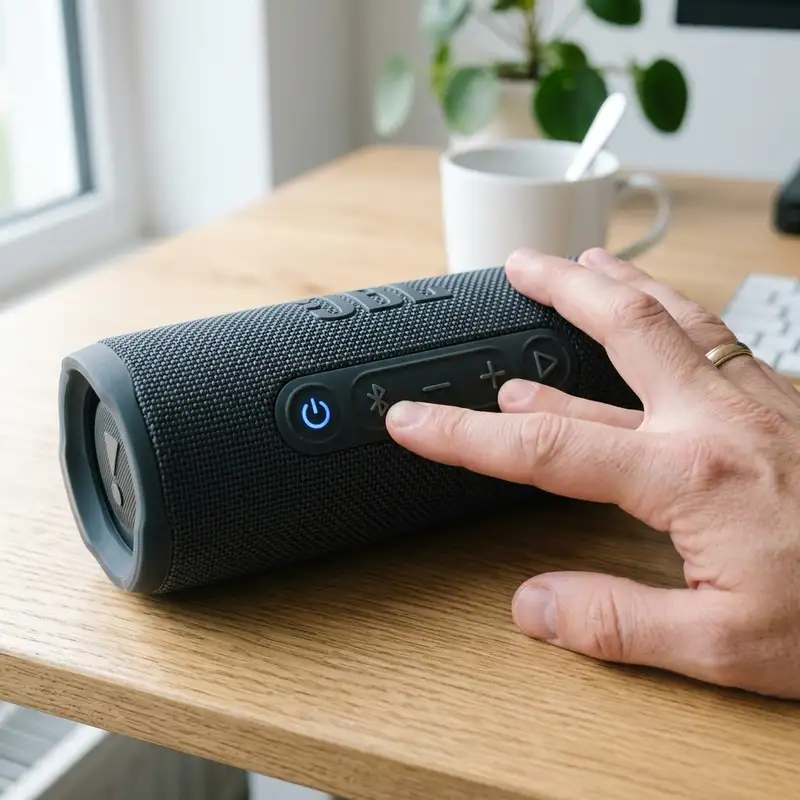
Connecting a JBL Bluetooth speaker to your Windows laptop can enhance your audio experience significantly. Whether you're listening to music, watching movies, or playing games, a quality Bluetooth speaker can make a world of difference. In this comprehensive guide, we will walk you through the step-by-step process of pairing any JBL wireless Bluetooth speaker, including models like Flip, Charge, Boombox, Go, and Xtreme, with your Windows 10 or Windows 11 laptop.
In addition to the pairing process, we will also cover troubleshooting tips for common audio playback issues, ensuring that you get the most out of your JBL speaker. Let’s dive in!
Step 1: Power On Your JBL Speaker
Before you can connect your JBL Bluetooth speaker to your laptop, you need to turn it on. Follow these steps:
1.1 Turn On the Speaker
Locate the power button on your JBL speaker. The button is usually marked with a power symbol (a circle with a vertical line). Press and hold the power button until you hear a sound indicating that the speaker is powered on.
1.2 Activate Pairing Mode
After turning on your speaker, press the Bluetooth button. This button is often marked with the Bluetooth logo (a stylized 'B'). When you press it, the status LED will blink blue, indicating that the speaker is in pairing mode and ready to connect.
Step 2: Open Bluetooth Settings on Your Windows Laptop
Next, you need to access the Bluetooth settings on your laptop. Here’s how to do it:
2.1 Access the Settings Menu
Click on the Start button in the lower-left corner of your screen, then select Settings (the gear icon).
2.2 Navigate to Bluetooth & Devices
In the Settings window, click on Bluetooth & devices from the left sidebar. This will open the Bluetooth settings where you can manage your Bluetooth devices.
Step 3: Add a Bluetooth Device
Now that you're in the Bluetooth settings, you can add your JBL speaker:
3.1 Click on Add Device
Click on the Add device button at the top of the Bluetooth & devices section. This will open a new window to search for Bluetooth devices.
3.2 Select Bluetooth
In the Add a device window, select Bluetooth. Your laptop will begin scanning for available Bluetooth devices.
Step 4: Connect to Your JBL Speaker
Once your laptop has found your JBL speaker, you can connect to it:
4.1 Locate Your JBL Speaker in the List
After a few moments, your JBL speaker should appear in the list of available devices. It might be listed as JBL Flip, JBL Charge, or another model name depending on the specific speaker you are using.
4.2 Click on Your JBL Speaker
Click on the name of your JBL speaker to initiate the connection. Your laptop will attempt to connect to the speaker, and you may hear a confirmation sound from the speaker.
Step 5: Set Your JBL Speaker as Default Audio Playback Device
To ensure that all audio plays through your JBL speaker, you may need to set it as the default audio playback device:
5.1 Access Sound Settings
Right-click on the speaker icon located in the taskbar at the bottom right of your screen. From the context menu, select Sound settings.
5.2 Choose the Output Device
In the Sound settings window, navigate to the Output section. Here, you will see a drop-down menu of available audio devices. Select your JBL speaker from the list.
Step 6: Test the Audio Output
Once you have set your JBL speaker as the default audio device, it’s time to test the audio output:
6.1 Play Some Audio
Open your favorite music player or streaming service and play some audio. You should hear the sound coming from your JBL speaker.
6.2 Adjust Volume Levels
If the volume is too low or high, adjust it using the volume controls on your JBL speaker or through the Windows volume mixer.
Step 7: Troubleshooting Common Audio Issues
If you experience audio drops or silent playback while connected to your JBL speaker, here are some troubleshooting steps:
7.1 Check Bluetooth Connection
Ensure that your JBL speaker is still connected. Sometimes, the connection can drop if the speaker moves out of range or if there is interference.
7.2 Restart Bluetooth on Your Laptop
Toggle Bluetooth off and on again from the Bluetooth settings to refresh the connection.
7.3 Update Bluetooth Drivers
Make sure your Bluetooth drivers are up to date. You can do this by going to the Device Manager, finding your Bluetooth device, right-clicking, and selecting Update driver.
Step 8: Additional Tips and Recommendations
DomineTec Tech Tip: If you frequently switch between audio devices, consider using an external USB Bluetooth dongle. It can improve connectivity and allow for better audio quality.
8.1 Compare Different JBL Models
| Model | Battery Life | Water Resistance | Weight | Price Range |
|---|---|---|---|---|
| JBL Flip | 12 hours | IPX7 | 0.96 lbs | $90-$100 |
| JBL Charge | 20 hours | IPX7 | 2.0 lbs | $150-$170 |
| JBL Boombox | 24 hours | IPX7 | 11.0 lbs | $400-$450 |
| JBL Go | 5 hours | IPX7 | 0.5 lbs | $30-$40 |
| JBL Xtreme | 15 hours | IPX7 | 4.6 lbs | $300-$350 |
For more information on external storage options that can enhance your audio experience, check out our guide on the best portable external SSDs.
If you need to translate documents while on the go, consider our tutorial on how to translate entire PDF files for free.
Advanced Troubleshooting Techniques
Sometimes, you may encounter issues that basic troubleshooting doesn't resolve. Here are some advanced techniques you can employ:
8.1 Check for Interference
Wireless devices can be affected by interference from other electronics. Ensure that there are no other devices operating on the same frequency nearby, such as microwaves or cordless phones, which could disrupt your Bluetooth signal.
8.2 Adjust Audio Settings
If you're experiencing low sound quality, consider adjusting the audio settings in your laptop. Navigate to the sound control panel and check the enhancements tab. Disable any sound effects or enhancements that might be causing distortion.
8.3 Use Windows Troubleshooter
Windows has a built-in troubleshooter that can help diagnose and fix Bluetooth issues. To access it, go to Settings > Update & Security > Troubleshoot. Run the Bluetooth troubleshooter, and follow the prompts.
Alternative Settings for Enhanced Performance
If you're looking to improve your audio experience further, consider these alternative settings:
9.1 Use a Dedicated Bluetooth Adapter
If your laptop has an outdated Bluetooth version, consider investing in a dedicated Bluetooth adapter that supports the latest Bluetooth standards. This can significantly enhance connectivity and audio quality.
9.2 Update Firmware on Your JBL Speaker
Ensure that your JBL speaker's firmware is up to date. Check the JBL website for any available updates, as these can improve performance and fix bugs.
9.3 Explore JBL Connect App
The JBL Connect app allows you to manage multiple JBL devices and customize settings for an enhanced listening experience. Download the app from your device's app store and explore the available features, including EQ settings and firmware updates.
Long-Term Care Tips for Your JBL Speaker
To ensure your JBL speaker remains in top condition, follow these long-term care tips:
10.1 Regular Cleaning
Dust and debris can accumulate in the speaker's mesh grill and buttons. Use a soft, dry cloth to gently clean the exterior. Avoid using harsh chemicals that could damage the finish.
10.2 Battery Maintenance
To prolong the life of your speaker's battery, avoid letting it fully discharge regularly. Instead, charge it when it reaches around 20%. Also, try to keep it in a cool, dry place when not in use.
10.3 Safe Storage
When not in use, store your JBL speaker in a protective case or in a safe place to prevent physical damage. Avoid leaving it exposed to direct sunlight or extreme temperatures.
Frequently Asked Questions (FAQ)
1. Why won't my JBL speaker connect to my laptop?
Ensure that your speaker is in pairing mode and that your laptop's Bluetooth is turned on. If it still does not connect, try restarting both devices.
2. How do I reset my JBL Bluetooth speaker?
To reset your JBL speaker, press and hold the volume up and Bluetooth buttons simultaneously for about 10 seconds until the speaker powers off and the LED lights flash.
3. Can I connect multiple JBL speakers to my laptop?
Yes, you can connect multiple JBL speakers if they support JBL Connect or PartyBoost. However, you might need to do this through the JBL Connect app.
4. What should I do if there is no sound from the JBL speaker?
Check if the speaker is connected as the default audio output device in your sound settings. Additionally, ensure that the speaker's volume is turned up and that it is not muted.
5. How can I improve the audio quality of my Bluetooth speaker?
To improve audio quality, ensure that your speaker is within the Bluetooth range, and minimize interference from other devices. Updating your Bluetooth drivers may also help.






