How to Connect Epson Printer to Wi-Fi Network Using Mobile App
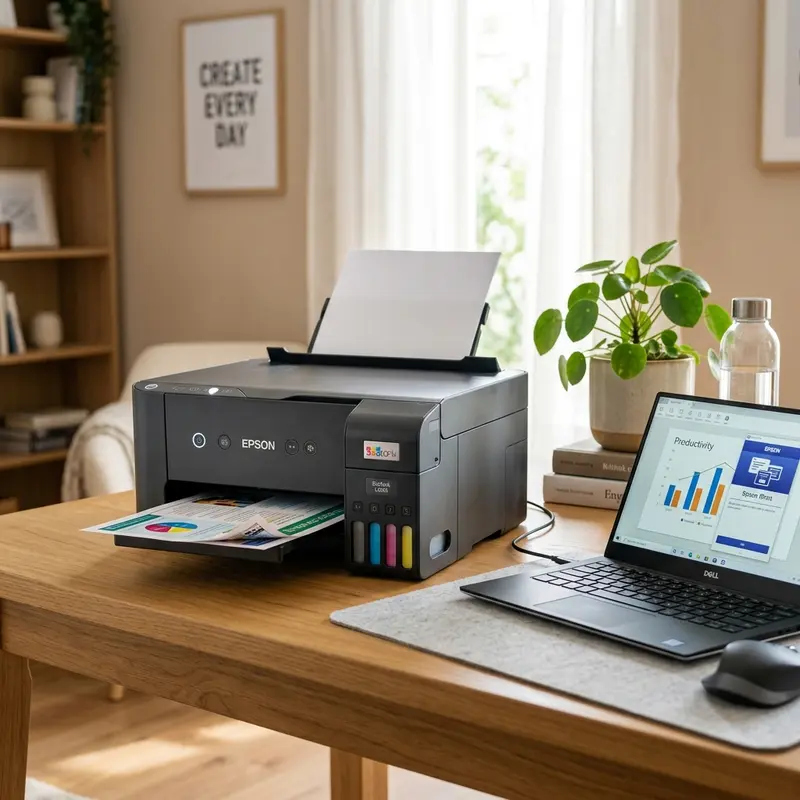
Connecting your Epson EcoTank printer to a Wi-Fi network can seem daunting, especially if you are unfamiliar with the process. However, with the right guidance, you can easily connect your Epson printers such as the L3250, L3150, L4260, or L6270 to your home Wi-Fi network using just your smartphone. This guide provides a comprehensive, step-by-step process to accomplish this, utilizing the Epson Smart Panel and Epson iPrint applications.
This guide will cover:
- Downloading and using the Epson Smart Panel app
- Setting up Wi-Fi Direct and Wi-Fi Network Mode
- Resolving common issues such as band frequency conflicts
- Understanding LED status codes on your printer
- Connection error resolutions
Understanding Epson Printer Connectivity Options
Epson printers can connect to Wi-Fi networks in two primary ways: Wi-Fi Direct and Wi-Fi Network Mode. Wi-Fi Direct allows you to connect your printer directly to your smartphone without the need for an external router, while Wi-Fi Network Mode connects your printer to an existing home network, allowing for multiple devices to print seamlessly.
Wi-Fi Direct Setup
Wi-Fi Direct is ideal for situations where a home router is unavailable. Follow these steps:
- Turn on your printer and ensure it is in a ready state.
- Press the Wi-Fi button on the front panel of the printer. This will enable Wi-Fi Direct mode.
- On your smartphone, go to the Wi-Fi settings and look for the printer’s SSID (the network name). It usually starts with "DIRECT-" followed by the printer model.
- Connect to this network. No password is usually required for Wi-Fi Direct.
- Open the Epson iPrint or Epson Smart Panel app to start printing directly.
Wi-Fi Network Mode Setup
To connect your printer to your home Wi-Fi network, follow these steps:
- Ensure your printer is powered on and in a ready state.
- Press the Wi-Fi button on the printer’s control panel.
- Use the printer’s control panel to select Wi-Fi Setup Wizard.
- Choose your home Wi-Fi network from the list and enter the password when prompted.
- Monitor the LED light status for confirmation of the connection.
Downloading the Epson Smart Panel App
The Epson Smart Panel app is a powerful tool that simplifies the process of connecting your printer to Wi-Fi. Here’s how to download and install it:
For Android Users
- Open the Google Play Store on your Android device.
- Search for Epson Smart Panel.
- Tap on the app in the results and click Install.
- Once installed, open the app and follow the on-screen instructions to set up your printer.
For iOS Users
- Open the App Store on your iPhone.
- Search for Epson Smart Panel.
- Select the app and tap Get to download it.
- After installation, open the app and follow the instructions to connect.
Using the Epson iPrint App for Printing
Once your printer is connected to Wi-Fi, you can use the Epson iPrint app to print documents and photos directly from your smartphone. Here’s how:
- Open the Epson iPrint app installed on your device.
- Select Printer from the menu.
- Choose your connected printer from the list.
- Select the document or photo you wish to print.
- Adjust print settings as needed and tap Print.
Resolving Band Frequency Issues
Many modern routers are dual-band, operating on both 2.4GHz and 5GHz frequencies. Epson printers typically only connect to the 2.4GHz band. Here’s how to ensure proper connections:
Splitting Dual-Band Routers
If your router supports dual-band, you may need to split the bands. Follow these steps:
- Access your router settings through a web browser (usually by entering 192.168.1.1 or 192.168.0.1).
- Login using your admin credentials.
- Navigate to the wireless settings and look for an option to separate the SSIDs for the 2.4GHz and 5GHz bands.
- Enable this option and give each band a unique name (SSID).
- Save changes and reconnect your printer to the 2.4GHz network.
DomineTec Tech Tip: Always ensure your mobile device is connected to the same Wi-Fi network that you want your printer to connect to.
Understanding LED Status Codes
Your Epson printer provides visual feedback through LED status codes. Here’s what the different LED states mean:
| Status | LED Color | LED State | Meaning | Action Required |
|---|---|---|---|---|
| Ready | Green | Solid | The printer is ready to print. | No action needed. |
| Connecting | Blue | Blinking | The printer is attempting to connect to Wi-Fi. | Wait for connection. |
| Error | Red | Blinking | There is an error with the printer. | Refer to the user manual. |
| No Connection | Orange | Blinking | The printer is not connected to a network. | Reconnect to Wi-Fi. |
| Sleep Mode | Green | Blinking | The printer is in sleep mode. | Press any button to wake up. |
Connection Error Resolution Matrix
If you encounter issues while connecting your printer, consult this error resolution matrix:
| Error Code | Description | Possible Cause | Resolution Steps | Additional Resources | |
|---|---|---|---|---|---|
| 1001 | No Wi-Fi Found | The printer cannot find any Wi-Fi networks. | Router is off or out of range. | Check router power and placement. | Best Portable External SSDs |
| 1002 | Incorrect Password | Password entered is incorrect. | Re-enter the Wi-Fi password. | Ensure correct case sensitivity. | |
| 1003 | Connection Timeout | Printer took too long to connect. | Restart the printer and router. | Refer to user manual. | |
| 1004 | Network Busy | Router is busy with other devices. | Try connecting later. | Translate PDF Files | |
| 1005 | Firmware Update Required | Printer needs a firmware update. | Update the printer firmware via the app. | Check Epson’s website for updates. |
Troubleshooting Advanced Connectivity Issues
Sometimes, connectivity issues can stem from more complex problems. Here are some advanced troubleshooting steps you can take:
- Check Firewall Settings: Ensure that your router's firewall settings are not blocking the printer's connection. You may need to access your router settings and adjust the firewall configuration.
- Update Router Firmware: An outdated router firmware can lead to connectivity issues. Check your router manufacturer's website for any updates and follow their instructions to update.
- Reset Network Settings: If you continue to experience issues, consider resetting your printer's network settings. This will erase all stored Wi-Fi information, allowing you to set up the connection from scratch.
Alternative Settings for Enhanced Performance
To ensure optimal performance of your Epson printer, consider these alternative settings:
- Static IP Address: Assigning a static IP address to your printer can help avoid connectivity issues caused by dynamic IP changes. This can usually be done in the printer's network settings menu.
- Quality of Service (QoS) Settings: If your router has QoS settings, prioritize your printer's traffic. This ensures that print jobs are processed even when other devices are using bandwidth.
- Network Extenders: If your printer is located far from your router, consider using a network extender or repeater to strengthen the Wi-Fi signal in that area.
Long-Term Care Tips for Your Epson Printer
Maintaining your Epson printer can prolong its life and enhance its performance. Here are some long-term care tips:
- Regular Cleaning: Regularly clean the printer's exterior and interior to prevent dust buildup. Use a soft, lint-free cloth and avoid abrasive cleaners.
- Use Quality Paper: Always use high-quality paper suited for your printer to avoid paper jams and ensure optimal print quality.
- Keep Software Updated: Regularly check for and install any updates for the Epson Smart Panel and iPrint apps to benefit from new features and bug fixes.
- Monitor Ink Levels: Keep an eye on your ink levels and replace cartridges as needed. Running the printer with low ink can damage the print head.
Frequently Asked Questions (FAQ)
1. Can I connect my Epson printer to a 5GHz network?
No, Epson EcoTank printers only support the 2.4GHz frequency band for Wi-Fi connectivity. Ensure your router is set to broadcast at this frequency.
2. What should I do if my printer is not detected by the Epson Smart Panel app?
Ensure your printer is powered on and connected to the same Wi-Fi network as your smartphone. If the issue persists, restart both devices and try again.
3. How can I reset my Epson printer to factory settings?
To reset your printer, navigate to the setup menu on the printer's control panel, select 'Restore Default Settings,' and confirm your choice. This will erase all settings including Wi-Fi configurations.
4. Why is my printer showing an error light?
The error light indicates a problem with the printer, which could range from paper jams to low ink levels. Refer to the printer’s manual for specific error codes and troubleshooting steps.
5. Can I print wirelessly from my laptop using the same setup?
Yes, once your printer is connected to the Wi-Fi network, any device on that network, including laptops, can print wirelessly using the appropriate drivers and software.






