How to Connect and Setup AOC Roku Smart TV to Wi-Fi Network
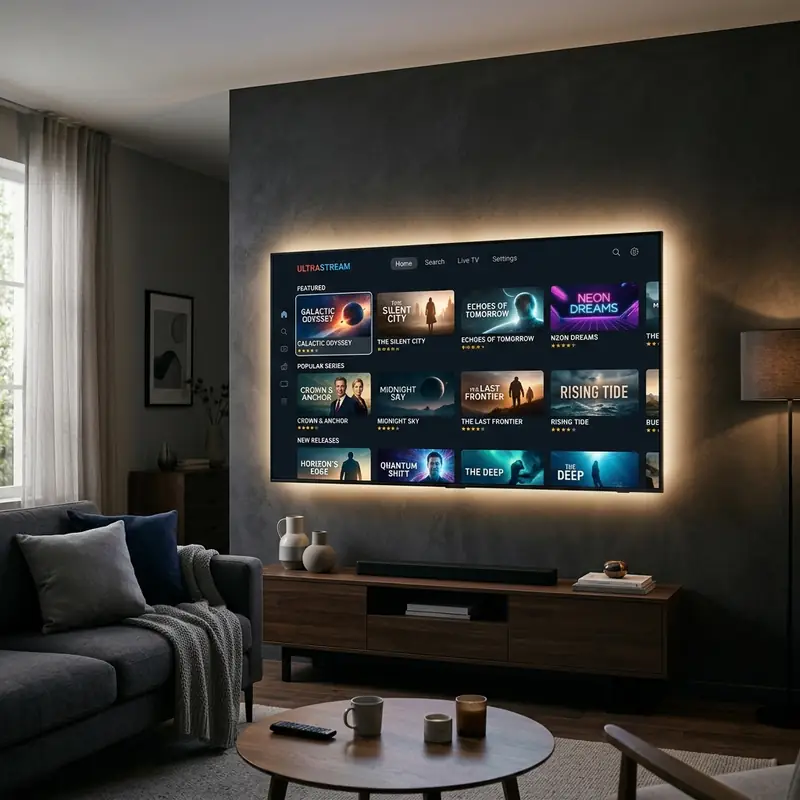
Connecting your AOC Roku Smart TV to a Wi-Fi network can seem daunting, especially if you're not familiar with the process. No entanto, com a orientação certa, você pode facilmente configurar sua TV para acessar serviços de streaming, navegar na internet e desfrutar de uma infinidade de opções de entretenimento. Este guia abrangente o orienta nas etapas necessárias para conectar sua AOC Roku Smart TV, solucionar problemas comuns e até conectar sem um controle remoto físico, se necessário.
Understanding Your AOC Roku Smart TV
Your AOC Roku Smart TV is equipped with various features that enhance your viewing experience. Before diving into the connection process, it’s essential to familiarize yourself with its capabilities. The Roku operating system allows you to stream content from popular platforms such as Netflix, Hulu, and Disney+. Additionally, the user-friendly interface and remote control make it easy to navigate through channels and settings.
Preparing for the Connection
Gather Necessary Information
Before connecting your AOC Roku Smart TV to Wi-Fi, make sure you have the following information ready:
- Your Wi-Fi network name (SSID).
- Your Wi-Fi password.
- Ensure that your router is powered on and functioning properly.
- Check if your TV is within range of your Wi-Fi signal.
Turning on Your AOC Roku Smart TV
To start, ensure that your AOC Roku Smart TV is plugged in and turned on. You should see the Roku logo on the screen as it boots up. If it’s your first time using the TV, follow the on-screen setup instructions to complete the initial configuration.
Connecting Your AOC Roku Smart TV to Wi-Fi
Now that you have everything ready, it’s time to connect your AOC Roku Smart TV to your Wi-Fi network. Follow these step-by-step instructions:
Step 1: Access the Home Screen
Press the Home Button on your Roku remote to access the main menu. This will take you to the Home screen where you can navigate through various options.
Step 2: Navigate to Settings
Using the directional arrows on your remote, scroll down and select Settings. This option is typically found at the bottom of the Home screen menu.
Step 3: Open Network Settings
In the Settings menu, look for the Network option and select it. This will take you to the network settings page where you can manage your Wi-Fi connections.
Step 4: Set Up Connection
Select Set up connection from the network settings. You will be prompted to choose between a wired or wireless connection. Select Wireless to proceed with connecting to your Wi-Fi network.
Step 5: Choose Your Wi-Fi Network
Your AOC Roku Smart TV will scan for available Wi-Fi networks. Once the scan is complete, a list of networks will appear on the screen. Find your Wi-Fi network name (SSID) and select it.
Step 6: Enter Your Wi-Fi Password
After selecting your network, you will be prompted to enter your Wi-Fi password. Use the on-screen keyboard to input your password. Be sure to enter it correctly, as passwords are case-sensitive. Once entered, select Connect.
Step 7: Connection Confirmation
Your TV will attempt to connect to the Wi-Fi network. If successful, you will see a confirmation message indicating that the connection has been established. If there are any issues, you will receive an error code.
Troubleshooting Common Connection Issues
Sometimes, you may encounter issues when connecting your AOC Roku Smart TV to Wi-Fi. Below are common problems and solutions:
Error Code 014: Roku Server Connection Failure
This error occurs when your TV is unable to connect to the Roku server. To troubleshoot this issue, try the following steps:
- Check your internet connection. Ensure that other devices connected to the same network can access the internet.
- Restart your router. Unplug your router, wait for about 30 seconds, and plug it back in.
- Restart your TV. Unplug it from the power source, wait for a minute, and then plug it back in.
- Reconnect to the Wi-Fi network by following the steps outlined in the previous section.
Error Code 009: Network Not Found
This error indicates that your TV cannot find your Wi-Fi network. Here are some troubleshooting steps to resolve this issue:
- Ensure that your Wi-Fi network is active and broadcasting. Check other devices to confirm.
- Make sure your TV is within range of the Wi-Fi signal. If it is too far away, consider moving it closer to the router.
- Verify that your Wi-Fi network is not hidden. If it is, you will need to manually enter the SSID.
- Restart your router and TV as previously mentioned.
Advanced Troubleshooting Techniques
If you continue to face issues connecting your AOC Roku Smart TV to your Wi-Fi network, consider the following advanced troubleshooting techniques:
1. Change Wi-Fi Channel
Sometimes, interference from other networks can cause connectivity problems. Access your router settings and try changing the Wi-Fi channel. Most routers operate on channels 1, 6, and 11 for 2.4 GHz networks. Switching to a less crowded channel can improve your connection stability.
2. Update Router Firmware
Ensure your router's firmware is up to date. Manufacturers often release updates to improve performance and security. Check your router's settings page and look for an option to update the firmware. After updating, restart your router and try reconnecting your TV.
3. Factory Reset the TV
If all else fails, you might consider performing a factory reset on your AOC Roku Smart TV. This will erase all settings and restore it to its original state. Navigate to Settings > System > Advanced system settings > Factory reset. Keep in mind that you will need to set up the TV again after performing a factory reset.
Alternative Settings for Improved Connectivity
In some cases, adjusting certain settings on your AOC Roku Smart TV or router can enhance your connectivity experience:
1. Use a Wired Connection
If wireless connectivity proves to be unreliable, consider using an Ethernet cable to connect your TV directly to your router. This often provides a more stable and faster internet connection, especially for streaming services that require higher bandwidth.
2. Enable QoS (Quality of Service) on Your Router
Quality of Service settings allow you to prioritize bandwidth for specific devices on your network. Access your router settings and look for QoS options. Set your AOC Roku Smart TV as a high-priority device to ensure it receives adequate bandwidth for streaming.
3. Adjust DNS Settings
Changing your DNS settings can sometimes help with connectivity issues. You can try using Google's Public DNS by setting the primary DNS to 8.8.8.8 and the secondary DNS to 8.8.4.4. This can improve your network performance and resolve certain streaming issues.
Long-Term Care Tips for Your AOC Roku Smart TV
To ensure your AOC Roku Smart TV continues to perform at its best, consider the following long-term care tips:
1. Regularly Check for Software Updates
Keeping your TV's software up to date is crucial for optimal performance and security. Regularly check for updates by going to Settings > System > System update. This will help fix bugs and improve features.
2. Maintain Clean and Well-Ventilated Space
Ensure that your TV is placed in a clean environment with adequate ventilation. Dust and heat can affect performance. Regularly dust the TV and ensure there are no obstructions around the vents.
3. Use a Surge Protector
To protect your TV from power surges, use a surge protector. This can prevent damage from electrical spikes and extend the life of your device.
Connecting AOC TV to Wi-Fi Without a Remote
If you find yourself without a physical remote control, you can still connect your AOC Roku Smart TV to Wi-Fi using the Roku mobile app. Here’s how:
Step 1: Download the Roku Mobile App
First, download the Roku mobile app from the App Store (iOS) or Google Play Store (Android) on your smartphone or tablet.
Step 2: Connect Your Phone to a Mobile Hotspot
If your TV is not connected to any network, create a mobile hotspot on your smartphone and connect your phone to it.
Step 3: Connect the Roku App to Your TV
Open the Roku app, and it should automatically detect your TV. Follow the prompts to connect the app to your TV.
Step 4: Use the Roku App as a Remote
Once connected, you can use the app as a remote control. Navigate to Settings > Network > Set up connection > Wireless, and follow the on-screen instructions to connect your TV to the desired Wi-Fi network using the app.
Comparison of AOC Roku Smart TV Models
| Model | Screen Size | Resolution | Wi-Fi Standards | Price Range |
|---|---|---|---|---|
| AOC 32-Inch | 32 inches | HD (1366x768) | 802.11 b/g/n | $200 - $250 |
| AOC 43-Inch | 43 inches | Full HD (1920x1080) | 802.11 b/g/n/ac | $300 - $350 |
| AOC 50-Inch | 50 inches | 4K UHD (3840x2160) | 802.11 b/g/n/ac | $400 - $450 |
| AOC 55-Inch | 55 inches | 4K UHD (3840x2160) | 802.11 b/g/n/ac | $500 - $600 |
DomineTec Tech Tip: Always ensure that your TV firmware is up-to-date for the best performance and connectivity. Check the Settings > System > System update to see if any updates are available.
Accessing Additional Resources
If you’re looking to enhance your home entertainment setup further, consider checking out our guides on the best portable external SSDs for extra storage options or learn how to translate entire PDF files for free.
Advanced Troubleshooting for Persistent Issues
If you find that connectivity issues persist despite following the standard troubleshooting steps, consider these advanced techniques:
1. Analyze Network Traffic
Use network monitoring tools to analyze traffic on your home network. This can help identify bandwidth hogs or devices that may be interfering with your AOC Roku Smart TV's connection. Disconnect or limit the usage of these devices to improve performance.
2. Check for Interference
Wireless signals can be affected by various electronic devices, including microwaves and cordless phones. Ensure that your router is positioned away from such devices to minimize interference that could disrupt your Wi-Fi signal.
3. Contact Your Internet Service Provider (ISP)
If you continue to experience connection issues, reach out to your ISP. They can run diagnostics on your connection and may identify issues outside your control, such as outages or service interruptions in your area.
Frequently Asked Questions (FAQ)
1. What should I do if my AOC Roku Smart TV won’t connect to Wi-Fi?
If your TV won’t connect, ensure that you’ve entered the correct Wi-Fi password and that your network is operational. Restarting both your TV and router can often resolve connection issues.
2. Can I connect my AOC Roku Smart TV to a public Wi-Fi network?
Yes, but be cautious. Public Wi-Fi networks can be less secure. Follow the same steps to connect, but be aware of potential security risks when using public connections.
3. How can I improve Wi-Fi strength for my AOC Roku Smart TV?
To improve Wi-Fi strength, place your router closer to the TV, minimize obstructions, or consider using Wi-Fi extenders or mesh networks for better coverage.
4. What do I do if I forgot my Wi-Fi password?
If you’ve forgotten your Wi-Fi password, you can find it on your router’s settings page or reset the router to factory settings, which will restore the default password.
5. Is there a way to reset my AOC Roku Smart TV to factory settings?
Yes, you can reset your TV by going to Settings > System > Advanced system settings > Factory reset. This will erase all settings and data, so use this option as a last resort.






