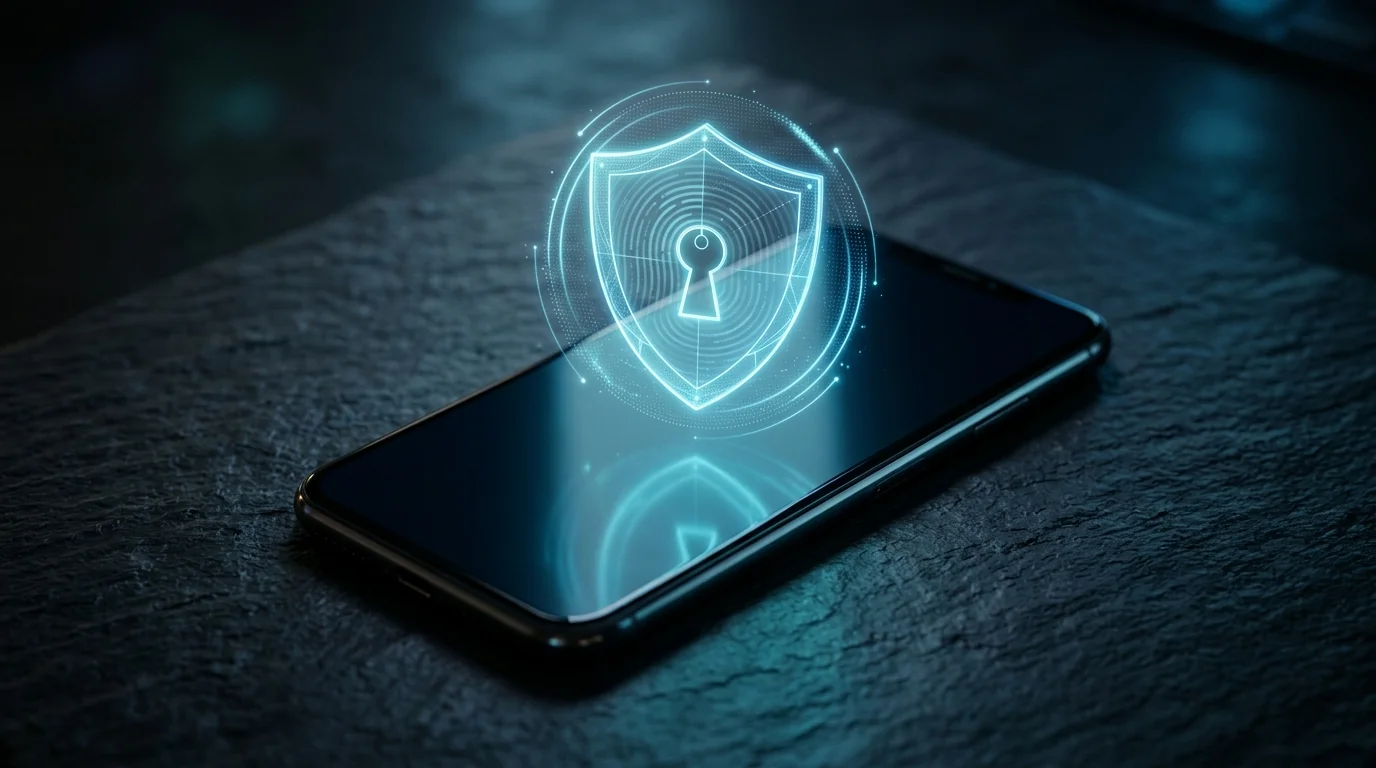
If you lose a phone configured with passkeys, you will not lose access to your online accounts. Modern passkeys are end-to-end encrypted and automatically synchronized across your ecosystem's cloud keychain (such as Google Password Manager, Apple iCloud Keychain, or third-party managers like Bitwarden and 1Password), allowing you to restore your digital credentials on a replacement device or sign in using existing trusted computers.
Major tech ecosystems including Google, Apple, Microsoft, Amazon, and WhatsApp are accelerating the phase-out of traditional passwords in favor of passkeys. While the ability to log in with a quick fingerprint scan, Face ID, or Windows Hello is convenient, many users express genuine anxiety over a central question: What happens if my phone gets lost, stolen, or destroyed? In this guide, we demystify public-key cryptography, outline practical recovery steps, and evaluate how passkeys compare to legacy two-factor authentication.
| Authentication Method | Phishing Resistance | Device Loss Risk | Recovery Mechanism |
|---|---|---|---|
| Standard Password | None (vulnerable to breaches & fake pages) | Low (memorized by user) | Password reset link via email or SMS |
| SMS Verification Codes | Low (susceptible to SIM swap scams) | Medium (carrier chip replacement required) | Reclaiming phone number at telecom provider |
| Authenticator Apps (TOTP) | Medium (can still be typed into phishing sites) | High if cloud sync is disabled | Physical backup recovery codes |
| Passkeys (FIDO2 / WebAuthn) | Complete (cryptographically immune to phishing) | Low (cloud keychain sync) | Primary account login on secondary device or fallback email |
How Passkeys Work Under the Hood
Unlike traditional passwords where you type a shared secret that lives in a central company database (and can be leaked during corporate breaches), passkeys are built on the FIDO Alliance and W3C WebAuthn standards using asymmetric public-key cryptography.
When you register a passkey for any online service:
- Your device generates a unique cryptographic key pair.
- The Public Key is sent to the website's server. It contains no sensitive secrets and merely acts as a verification lock.
- The Private Key never leaves your device's dedicated hardware security enclave (the Secure Enclave on iOS/Mac or Titan M2 / Knox hardware on Android).
When you sign in, the website transmits a cryptographic challenge that only your private key can sign. Your biometric scan (fingerprint or face) simply unlocks your private key locally to generate a mathematical response. Because the web browser cryptographically verifies the exact domain name before releasing the key, passkeys cannot be phished by fraudulent replica websites.
DomineTec Security Tip: Never rely exclusively on a single hardware device for your entire digital identity. Maintain at least one secondary authorized hardware endpoint—such as a personal laptop or tablet—to act as an immediate verification fallback.
Step-by-Step: Recovering Accounts After Losing Your Phone
If your primary smartphone is lost, stolen, or completely damaged, follow this structured plan to maintain control of your online presence:
- Lock the Device Remotely: Immediately visit Google Find My Device (for Android) or iCloud Find My (at icloud.com/find) on any computer. Turn on Lost Mode or trigger a remote lock. Because your private keys require your biometrics or screen passcode, an unauthorized finder cannot access your accounts.
- Sign In From a Secondary Trusted Device: If you have a home PC, Mac, or tablet where your Google Account or Apple ID is already authenticated, your synced passkeys remain ready to use in your desktop browser.
- Set Up a Replacement Smartphone: When you get a new phone, sign in with your primary Apple ID or Google Account. The cloud keychain will automatically download and decrypt your stored passkeys, restoring instant biometric login across all supported apps.
- Utilize Fallback Verification Channels: Online platforms supporting passkeys maintain standard account recovery fallbacks, including security codes sent to verified backup email addresses or one-time alphanumeric emergency codes issued during initial setup.
Cross-Platform Passkey Management
Users who work across mixed environments (for example, pairing an Android smartphone with a MacBook, or an iPhone with a Windows desktop) can sometimes experience minor cross-ecosystem friction when relying solely on default operating system keychains.
The industry solution is to employ third-party password and credential managers that natively store synchronized passkeys, including Bitwarden, 1Password, Dashlane, and Proton Pass. These services employ zero-knowledge client-side encryption and operate via cross-browser extensions, ensuring your passkeys remain accessible regardless of device architecture. For more foundational digital defense insights, explore our recommendations on configuring robust network privacy and review our best practices for managing connected smart hardware securely.
Frequently Asked Questions (FAQ)
Can someone unlock my accounts if they steal my physical phone?
No. Using a passkey requires authenticating through your device's biometric sensors (Face ID, Touch ID) or entering your secure device PIN. Without that physical factor, the private cryptographic key remains encrypted in hardware.
Do passkeys require an active internet connection to authenticate?
Cross-device hybrid authentication can communicate locally via encrypted Bluetooth handshakes. However, syncing new passkeys to your cloud backup requires an active internet connection.
Can I revoke a passkey from a device I no longer own?
Yes. By visiting your account security dashboard (such as myaccount.google.com or appleid.apple.com), you can view all registered passkeys and delete access for any missing device with a single click.